Pinterest Pins Not Showing Up? Where to Look First, from Your Queue to Search
Find where the Pin stopped: still in the queue, filed under the wrong tab or board, live but private, limited by Pinterest, or just not in search yet. Check them in that order.
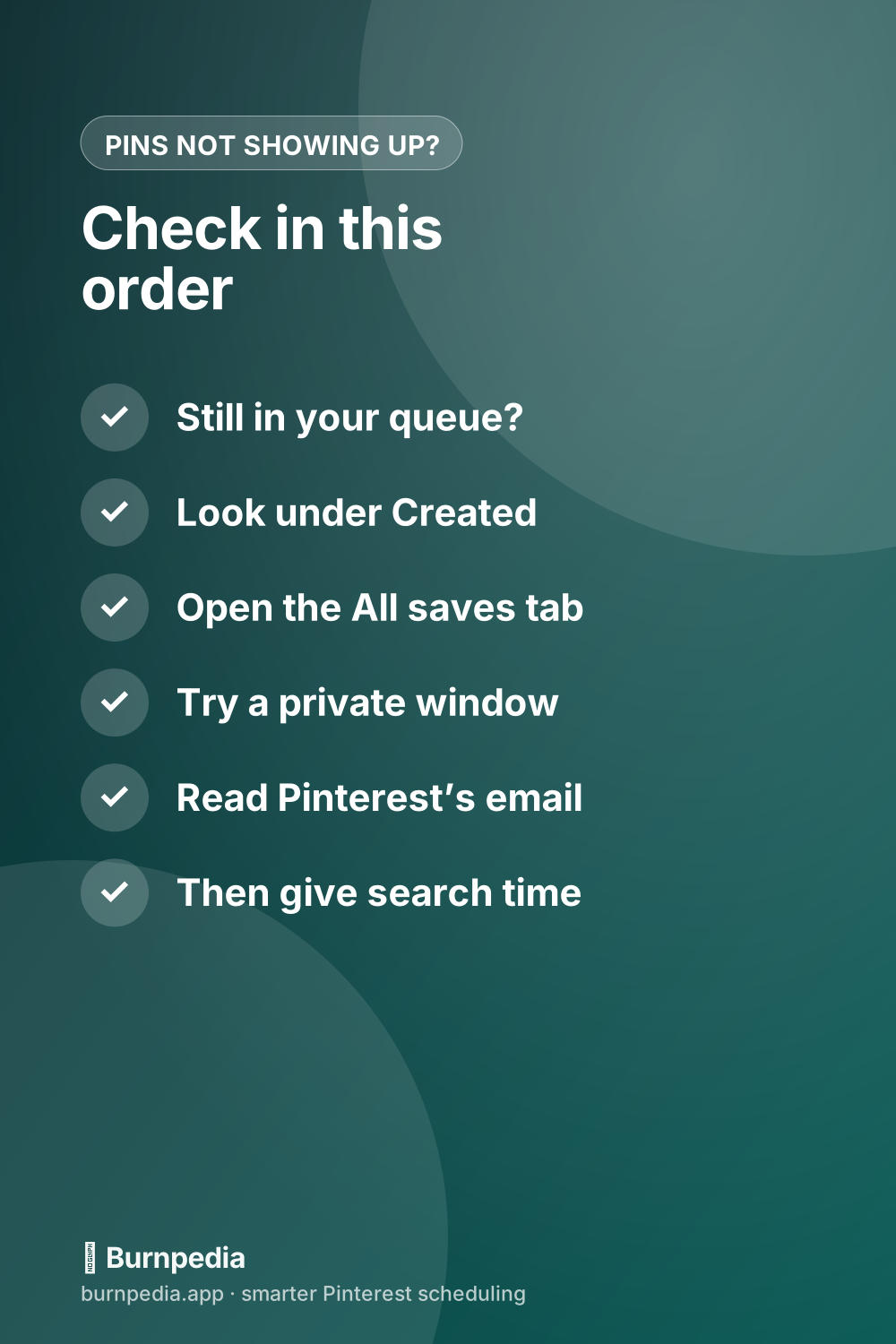
If your Pinterest Pins aren’t showing up, find out where each one stopped, and check in this order. First, is it still waiting in your queue? Second, is it live but filed under another tab or board? Third, does it open in a private window? Fourth, did Pinterest limit it? Last, is it live and just not in search yet? The first two checks are the quickest.
Below, each check takes a minute or two. Do them top to bottom and you’ll know which kind of missing you have before you change anything. That matters, because the wrong fix, like deleting and remaking a Pin, can make things worse.
Is the Pin still waiting in your queue?
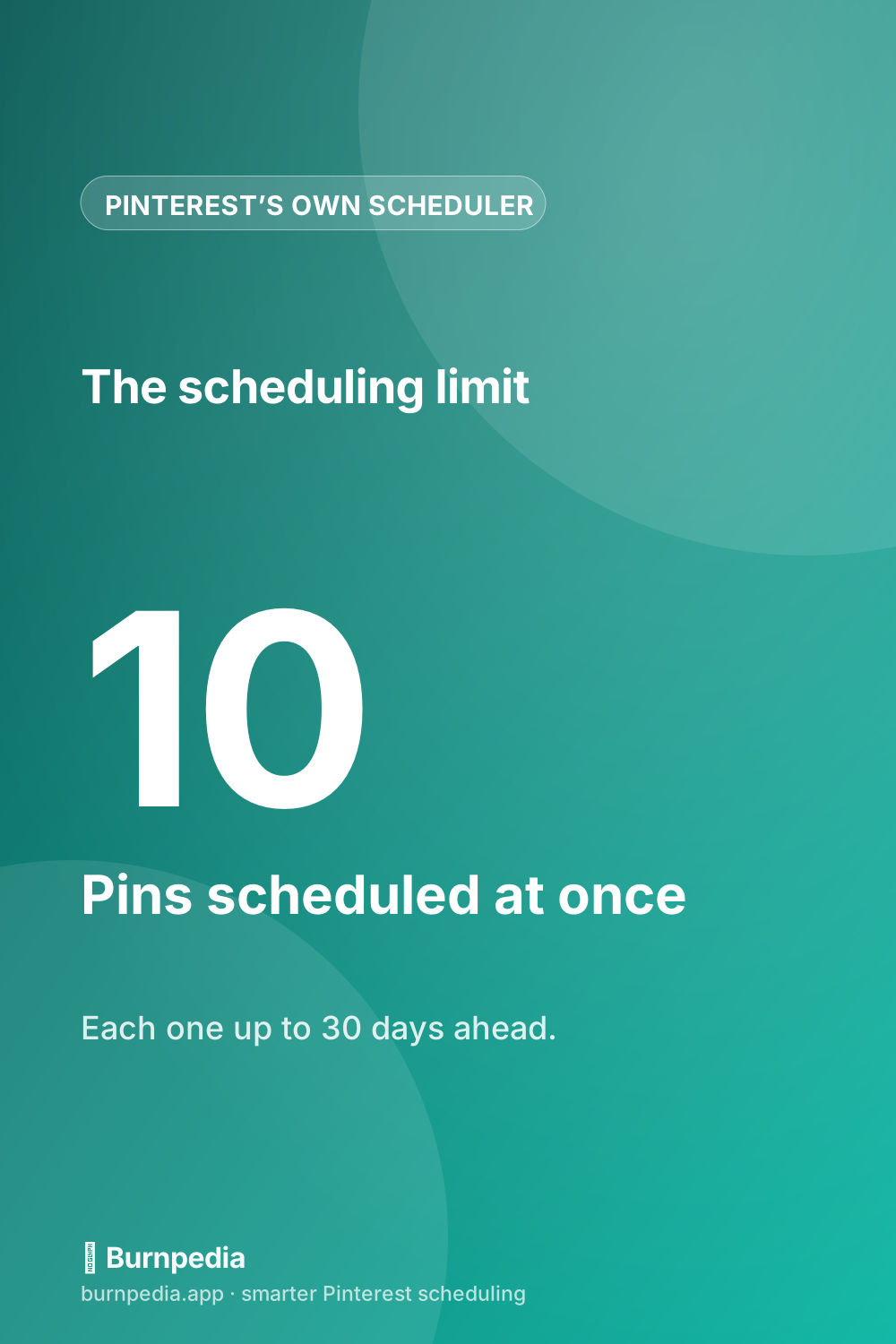
This is the one people skip, and for a scheduled Pin it’s the first thing to rule out. A Pin set for a later date isn’t on its board until that moment. Pinterest’s own scheduler lets you schedule up to 10 Pins, each up to 30 days ahead, and it shows them above your published Pins on your profile. A new one can take a few minutes to appear there. Here’s where to find your scheduled Pins step by step.
So a Pin you scheduled for Thursday at 9 a.m. is correctly missing from the board on Wednesday. Before you go looking anywhere else, check the date and time you picked, and check that the Pin is in the scheduled group at all.
If you schedule with a tool, your queue is the first place to look. In Burnpedia, a Pin waits in your Upcoming queue until its time, and you can edit or remove it right up to the last few minutes. If a send fails, Burnpedia tries again about 5 minutes later, then 15, then 60, up to 4 attempts. After that the Pin is marked Failed, with a Retry button beside it and a Retry all banner at the top, so nothing is lost and nothing retries forever.
The usual cause of a Failed Pin is a Pinterest connection that has expired, and the fix is quick. Open Accounts, press Check connection to see whether Pinterest still accepts it, and use Reconnect if it doesn’t. Your queue stays put while you do. With your email confirmed, Burnpedia can also send a failed-Pin alert, so a missing Pin doesn’t depend on you remembering to look.
If your queue shows the Pin as sent, it’s on Pinterest. Move on to the next check.
Is it live, but filed somewhere else?
Pinterest keeps a short list of reasons your own Pins and boards can look missing, and the first few are just about where you’re looking. Its Missing Pins or boards page names them:
- On a business account you may be on the Created tab, which holds the Pins you made. Click your profile photo, then Saved, to get back to your boards.
- A board can open on its More ideas or Make it yours tab. Tap All saves to see what you actually saved.
- You may be signed in to a second account. Signing in with Google or Apple can create one by accident, so sign in the way you did the first time.
- The board may be archived. Archived boards sit at the end of your boards list, and the search bar on your Boards tab finds them by name.
- If it was a group board, you may have left it, or its owner may have removed you.
Then check the board the Pin was meant for. A scheduled Pin goes to the board you chose when you scheduled it, and a board with a slightly different name, or the one you used last, is an easy slip. If a tool made the Pin, look at the board named in its queue and compare it with where you’re looking.
Pins can also be somewhere you’d never think to look because the board is private. Secret boards are easy to forget you used.
Does it open in a private window?
This is the test that sorts the rest. Copy the Pin’s address, then open it in a private or incognito window where you aren’t signed in. There are two outcomes, and each one points somewhere different.
If it opens, the Pin is public. Pinterest has published it, so what’s left is where it shows up, and you can skip ahead to the search section. If it doesn’t open, or the board looks empty, something is hiding it from other people.
Three settings do that, and none of them is a penalty:
- A private board. Only you and anyone you invite can see it, so its Pins never show on your public profile.
- A private profile. Private profiles don’t appear in Pinterest search or in search engines. A business profile is always public, so this only applies if you’re on a personal one.
- A protected board. Pins on one may still surface in search and in other people’s feeds, but other people can only reach the board itself with a direct link. Pins made with the ads bulk editor land in a protected board automatically.
Each of these is a switch you control, so check the board’s privacy setting first, and then the profile setting. If a Pin is simply on the wrong board, move it instead of making it again.
Did Pinterest remove it or limit it?
If the Pin is public and filed correctly, but still isn’t where people can find it, Pinterest may have acted on it. Its enforcement page describes two different actions, and they look nothing alike.
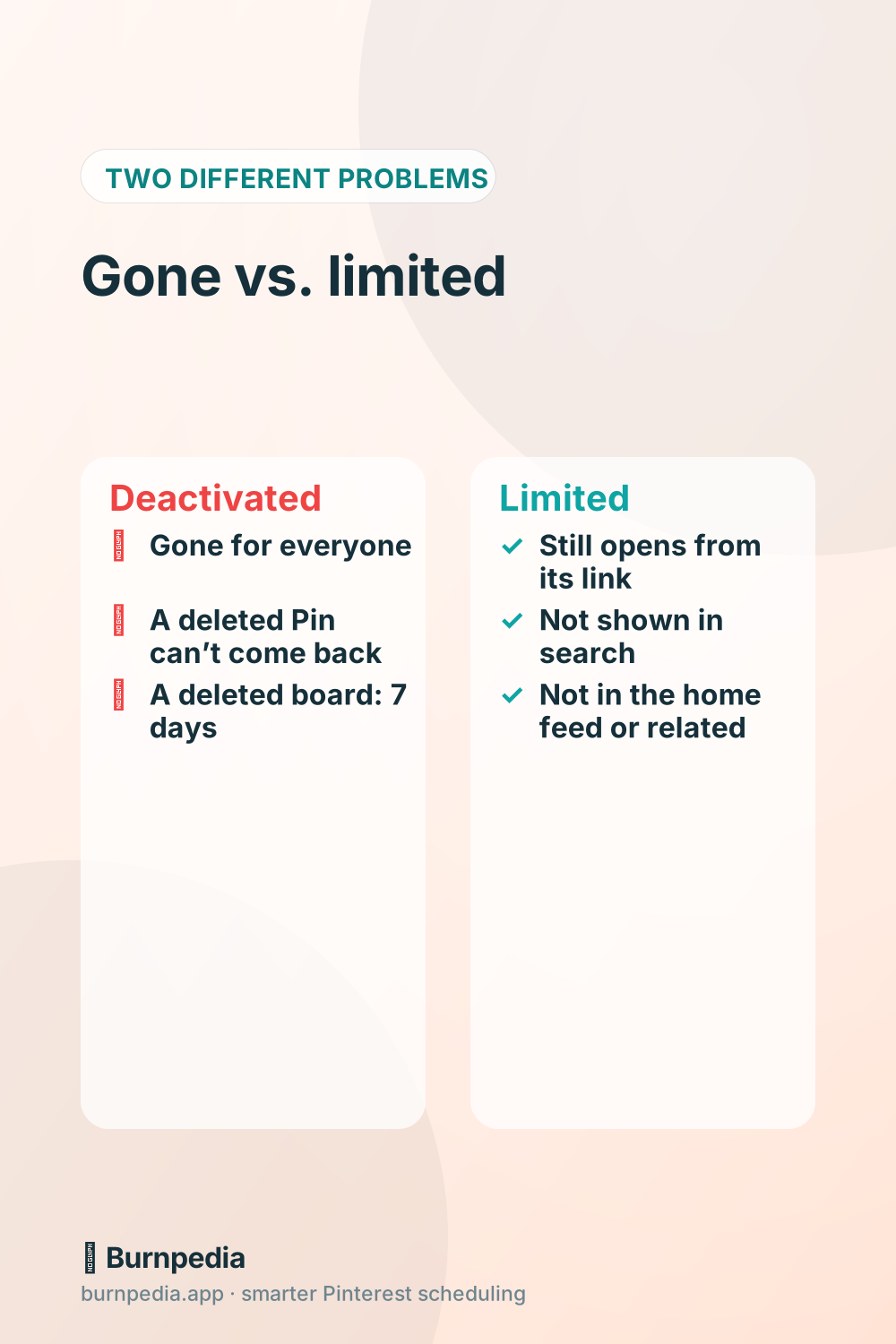
When Pinterest deactivates a Pin, board or account, it’s no longer available to anyone. When it limits distribution, the Pin stays reachable by the person who posted it and by anyone with a direct link, but it isn’t recommended or shown in search results, the home feed or related Pins. That’s the one that fits a Pin that opens fine in a private window and never turns up anywhere else. Pinterest also adds that content can be shown less often or less prominently without being judged a violation, and that limiting a board limits the Pins saved on it.
A deactivated Pin comes with an email. Pinterest’s page says to check your inbox for a message explaining why a Pin or board was removed under the Community Guidelines. If there’s no email, look at the other causes first.
Here are the things worth fixing, because each one is in your hands:
- Saving a lot of Pins from one website in a short time. Pinterest’s help lists it as a way to hit a temporary rate limit block, and says most limits lift on their own within 24 hours. If you’re blocked, wait and vary what you do.
- Duplicates. Pinterest asks you to avoid uploading the same Pin again and again, and says repeats may be flagged as spam and temporarily blocked. Make a fresh image for each new Pin instead.
- A link Pinterest can’t read. Its distribution help asks that your host isn’t blocking Pinterestbot, that your links aren’t broken and that your site loads quickly.
Don’t delete and remake a Pin to “reset” it. A deleted Pin can’t be recovered, and a deleted board is only restorable for seven days. If you want the longer story on what’s real and what’s myth, here’s the honest answer on Pinterest “shadowbans”. And if the whole account has been shut off, here’s what to do when Pinterest suspends an account for spam.
It’s live, but it isn’t in search yet
A Pin that’s live and public but doesn’t appear in search is usually just new. Pinterest sets no fixed engagement window for Pins, and says one can gain engagement hours, days, months or even years after it’s published. Its help pages don’t give a set time for a new Pin to reach search, so be wary of any page that does.
Here’s a better check than searching for your own title. Open the Pin from your Created tab and look at its stats. For a Pin you made, Pinterest shows real-time metrics that are estimates and may change, and may even go down. If impressions are above zero, Pinterest is already showing it to people.
A Pin that gets no impressions for days may simply have too little for search to match. Pins are found by the words on them, and a vague title with a blank description gives Pinterest very little to go on. Finding the words people really search is the fix for that, and what counts as a fresh Pin covers the rest.
A drop across all your Pins is a different problem from one missing Pin. For that, here are nine real reasons impressions fall.
When it’s Pinterest’s own glitch
Sometimes the problem is on Pinterest’s side. It has happened more than once, and Pinterest’s own staff have confirmed some of it:
- In August 2025, people found that scheduled Pins had stopped showing in the Pinterest app while they still showed on desktop. Pinterest staff said the team was looking into it, and on September 15, 2025 they reported it fixed.
- In January 2026, one agency found about 27 Pins missing from a client’s boards. They still showed in Analytics and in the board preview on the profile, but not inside the board or under Created. Pinterest support told them it was a glitch and that engineers were working on it.
- On April 24, 2026, several people got the message “there’s an issue on our end. We could not publish your Pin” when they tried to create Pins.
- In October 2026, one business account’s Created tab stopped showing its published Pins while the likes and saves kept arriving. Logging out and back in, and clearing the cache, fixed it for them.
In most of these the Pin was there and one view of it was wrong. So look at it a second way before you panic: on desktop and in the app, on another device, and in a private window. If it shows in one and not another, it’s the screen. Update the app, clear its cache, sign out and back in, and look again an hour later.
Still wrong? Send the Pin links and a screenshot to Pinterest’s support team. They can see what happened to the Pin on their side, and a link gets you an answer faster than a description.
A Tuesday count that catches a missing Pin the same week
A missing Pin is easy to notice weeks later, by accident. A short count turns that into a two-minute habit. It also fits the way a week of Pins already works.
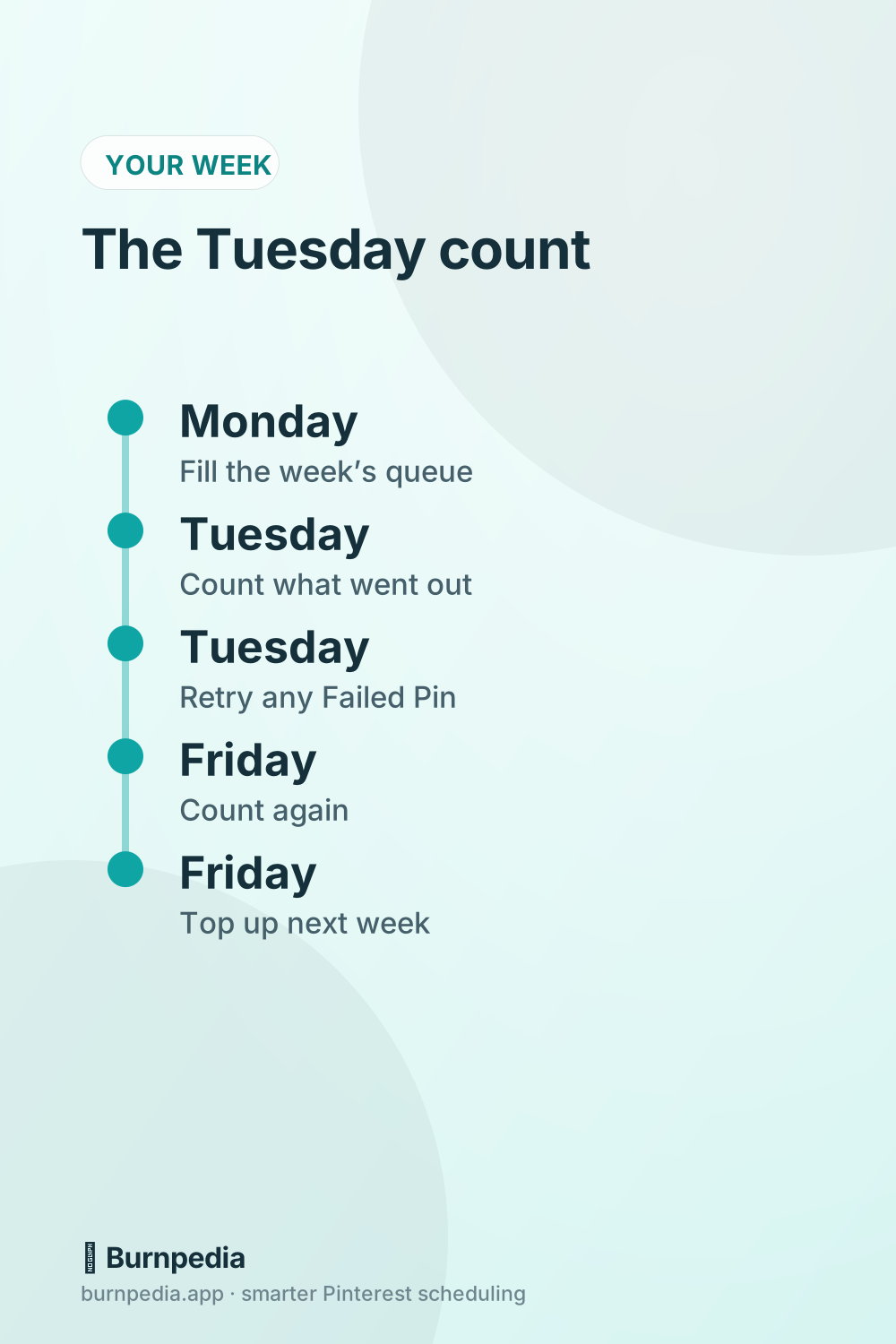
- On Monday, fill the week’s queue, and write down how many Pins are due each day.
- On Tuesday, count the Pins that went out against the number due. Open your Created tab and look at the newest ones.
- If a Pin is missing, work the checks above in order. If your tool shows it Failed, press Retry and check the connection.
- On Friday, count again, then top up the following week.
The count is quick because you’re comparing two small lists, not hunting through boards. If you want the list in one place, Burnpedia lets you export the whole plan to a CSV, which you can tick off against the Pins on your profile.
It also keeps you honest about the cause. A Pin missing on Tuesday morning is a Pin that failed or got filed wrongly, and you still have the week to fix it. A Pin you only notice in a month has had every chance to get buried. If you’re still working out a week that holds together, here’s how to schedule Pins the smart way.
Questions people ask about Pins not showing up
Why am I not seeing all my Pins on Pinterest?
Check where you’re looking before anything else. On a business account the Created tab shows only Pins you made, a board may open on More ideas instead of All saves, and an archived board hides at the end of the list. The Missing Pins or boards page walks through all of them.
Why are all my Pinterest Pins missing?
The usual causes are a second account you signed in to by mistake, a board that was archived or deleted, or Pins removed under the Community Guidelines, which comes with an email from Pinterest. A deleted Pin can’t be recovered, and a deleted board can be restored for seven days. If it’s one account that looks empty and another that doesn’t, it’s almost always the account.
Is Pinterest having a glitch right now?
There’s no way to tell from outside, but you can tell whether it’s the screen or the Pin. Look at the same Pin on desktop, in the app, on another device and in a private window. If the views disagree, it’s a display problem, and the dated cases above show those are real and get fixed. If every view agrees the Pin is missing, work back through the checks.
How do I get my Pinterest back to normal?
Go through the missing-Pins list in order. Confirm you’re in the right account, switch from Created to Saved, open All saves on the board and look for archived boards. If something was removed, read the email Pinterest sent. If nothing explains it, contact Pinterest with the links.
The short version
Start with the queue, because a scheduled Pin is only missing if its time has passed. Then check the tab and the board, then open the Pin in a private window. If it opens there and nowhere else, Pinterest may have limited it; if it opens everywhere, give search time and check its stats. And once a week, count the Pins that went out against the Pins you scheduled, so a missing one shows up on Tuesday and not next month.
Want a queue that tells you when a Pin fails, with a Retry button next to it? You can try Burnpedia’s free plan with no credit card.
Burnpedia is an independent scheduling tool. It is not affiliated with, endorsed by or sponsored by Pinterest, Inc. “Pinterest” is a trademark of Pinterest, Inc., named here only to say what the software works with.
Want Pinterest to run itself?
Every tip on this blog gets easier when your Pins publish on schedule. Burnpedia batches, times, and posts them for you — start free, no credit card.
Try Burnpedia free