WordPress + Pinterest: Pin Every New Blog Post (the Complete Setup)
You published the post — now its Pin should be one tick away. Here’s how to connect WordPress and Pinterest so every new article waits as a well-timed Pin draft you approve.

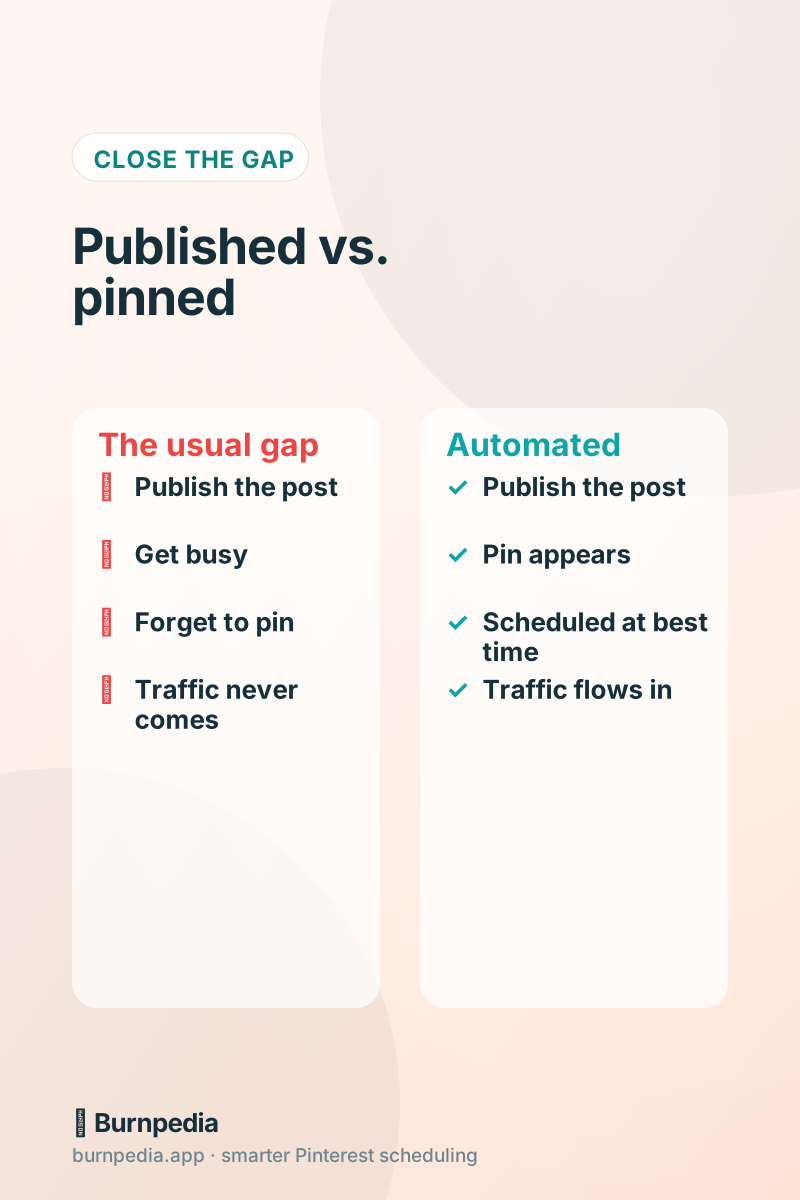
Let me describe a scene every blogger knows too well. You spend six hours crafting a beautiful post. You hit publish, feel a little rush of accomplishment, and then… life happens. You get pulled into email, or dinner, or the next post. And the Pin that was supposed to send Pinterest traffic to that gorgeous article? You forgot to make it. Three days later you remember, half-heartedly pin it, and wonder why Pinterest “isn’t working” for you. The problem was never Pinterest. The problem was the gap between publishing and pinning — and that gap is exactly what automation closes.
Pinterest is the number one traffic source for a huge number of bloggers — but only for the ones whose posts actually make it onto Pinterest, consistently, quickly. I’ve made the broader case in Pinterest for bloggers and driving Pinterest traffic to your blog. This post is the tactical piece: how to wire WordPress and Pinterest together so every new post becomes a Pin draft you approve.
Step one: make every post Pinterest-ready
Before any automation, your posts need to be worth pinning. That means every post has at least one tall, Pinterest-friendly image (a 2:3 vertical graphic with a clear, readable title). Automation that pins an ugly or missing image just spreads mediocrity faster. So bake a Pin-worthy image into your publishing routine — it’s the raw material everything downstream depends on.
While you’re at it, enable Rich Pins for your site. Rich Pins pull your post’s title and description onto the Pin automatically, making it look more credible and clickable. It’s a one-time setup on your domain, and it quietly upgrades every Pin you ever create from your blog. Do it once, benefit forever.
Step two: pick your automation route
There are three honest ways to connect WordPress and Pinterest, and the right one depends on how much control you want. Let’s go through them from easiest to most powerful, so you can pick where you land.
Route A: RSS or plugin auto-sharing (easiest)
The simplest option is an auto-sharing tool or plugin that watches your site’s RSS feed and pins new posts by itself. Set it up, and every publish triggers a Pin with minimal effort. It’s genuinely hands-off, which is the appeal. The downside is control: you often can’t choose the exact image, board, or timing per post, and RSS-based tools can produce slightly generic Pins. For a hobby blog, it’s perfectly fine. For a serious traffic play, you’ll probably want more say.
We make a free one that avoids that trade-off, because it reads the post rather than the feed: Burnpedia Pin Scheduler for Pinterest on WordPress.org. When a post goes live it builds a Pin from that post’s image, title and link, sends it to the board you picked (creating it if it doesn’t exist yet), tags the link so Pinterest traffic shows up in your analytics, and logs what it did — including what it skipped and why. There are two companion plugins as well, one that designs the Pin image inside wp-admin and one that puts a save button on your images; all three are described on our WordPress page.
Route B: fast manual scheduling (most control per Pin)
The middle path is to keep a human in the loop but make it fast: when you publish, you spend two minutes scheduling a few good Pins for the post in your scheduler, then let the tool publish them at the best times. You get full control over image, board, and copy, without being chained to Pinterest all day. For a lot of intentional bloggers, this is the sweet spot — the safe automation of a scheduler with the quality of a human touch.
Route C: the API (a draft for every post, fully controlled)
The most powerful route gives you both automation and control: connect WordPress to the Burnpedia API so that publishing a post drafts a well-crafted Pin — with the image, title, and link you want, at the time you want — that waits for your OK. WordPress fires an action when a post is published; a small bit of code catches it and sends an API request that drafts the Pin. Publish the post, tick the Pin in Burnpedia, and it goes out exactly to your spec.
I wrote the full, friendly walkthrough (with code) in the Burnpedia Pinterest API guide. On WordPress specifically, you can hook into the publish event with a snippet in your theme’s functions file or a tiny custom plugin, or route it through a no-code tool like Zapier that has a WordPress trigger. Either way, the gap between “published” and “pinned” drops to zero — permanently.
// Fired by your WordPress publish webhook:
await fetch("https://burnpedia.app/api/v1/pins", {
  method: "POST",
  headers: {
    Authorization: "Bearer bp_live_YOUR_API_KEY",
    "Content-Type": "application/json",
  },
  body: JSON.stringify({
    image_url: post.pinterestImage,   // your tall 2:3 graphic
    title: post.title,
    description: post.excerpt,
    link: post.permalink,
    board_name: "Blog Posts",
    scheduled_at: post.bestTime,      // not instant — at your audience's peak
  }),
});Step three: schedule for the best time, not instantly
Here’s a subtlety that separates good automation from great automation: don’t pin the instant you publish. Your audience has peak scrolling times, and hitting them matters. So instead of firing the Pin immediately, schedule it for the next best slot. Whether you use a scheduler’s best-time feature or set the time in your API call, aiming for peak hours can meaningfully lift how many people see and save your Pin.
This is the quiet advantage of the scheduler and API routes over raw RSS pinning: they let you decouple “when I publish” from “when it pins.” You publish whenever you finish writing; the Pin lands when your people are actually there. That timing gap, handled by your queue, is free extra reach.
Step four: one post, several Pins
The last upgrade is volume of variety. Pinterest rewards fresh images, so a single post shouldn’t become a single Pin — it should become several, each with a different image, angle, or headline, spaced out over the following weeks. One post can quietly feed your Pinterest for a month. Automation makes this practical: you can schedule three or four Pin variations at publish time, staggered into the future, and let them roll out.
This is where blogging and Pinterest compound beautifully. Every post you write becomes not one Pin but a small campaign, and every campaign runs on the schedule you approved. Do that consistently and your Pinterest presence grows in lockstep with your blog — no separate “Pinterest work,” just a byproduct of publishing.
Don’t just pin new posts — resurface old ones
Here’s a mistake almost every blogger makes: they only think about pinning new posts. But your archive is a goldmine. That post you wrote eight months ago is still just as useful to someone discovering it today, and Pinterest has a long memory — a Pin can drive traffic for months or even years. So your automation shouldn’t only fire on new posts; it should also periodically resurface your best older ones with fresh Pins. Evergreen content deserves evergreen promotion.
The simplest version is turning on evergreen rotation in your scheduler, which drafts fresh runs of your top performers on a healthy cadence for you to OK. The advanced version, if you’re using the API, is a small script that pulls your best posts and schedules fresh Pin variations for them on a rotation. Either way, the principle is the same: a good post is an asset, and assets should keep working. Most bloggers leave enormous traffic on the table simply because they forget their archive exists.
A word on not overdoing it, though. Resurfacing is powerful, but it has to stay fresh — re-pinning the identical image to the same board over and over is a spam signal, not a strategy. The healthy way is new images pointing at the old post, spaced out over time. New graphic, same great article, sensible cadence. Done that way, resurfacing is one of the highest-return habits in all of Pinterest, and automation is what makes it effortless instead of another thing to remember.
Your WordPress-to-Pinterest checklist
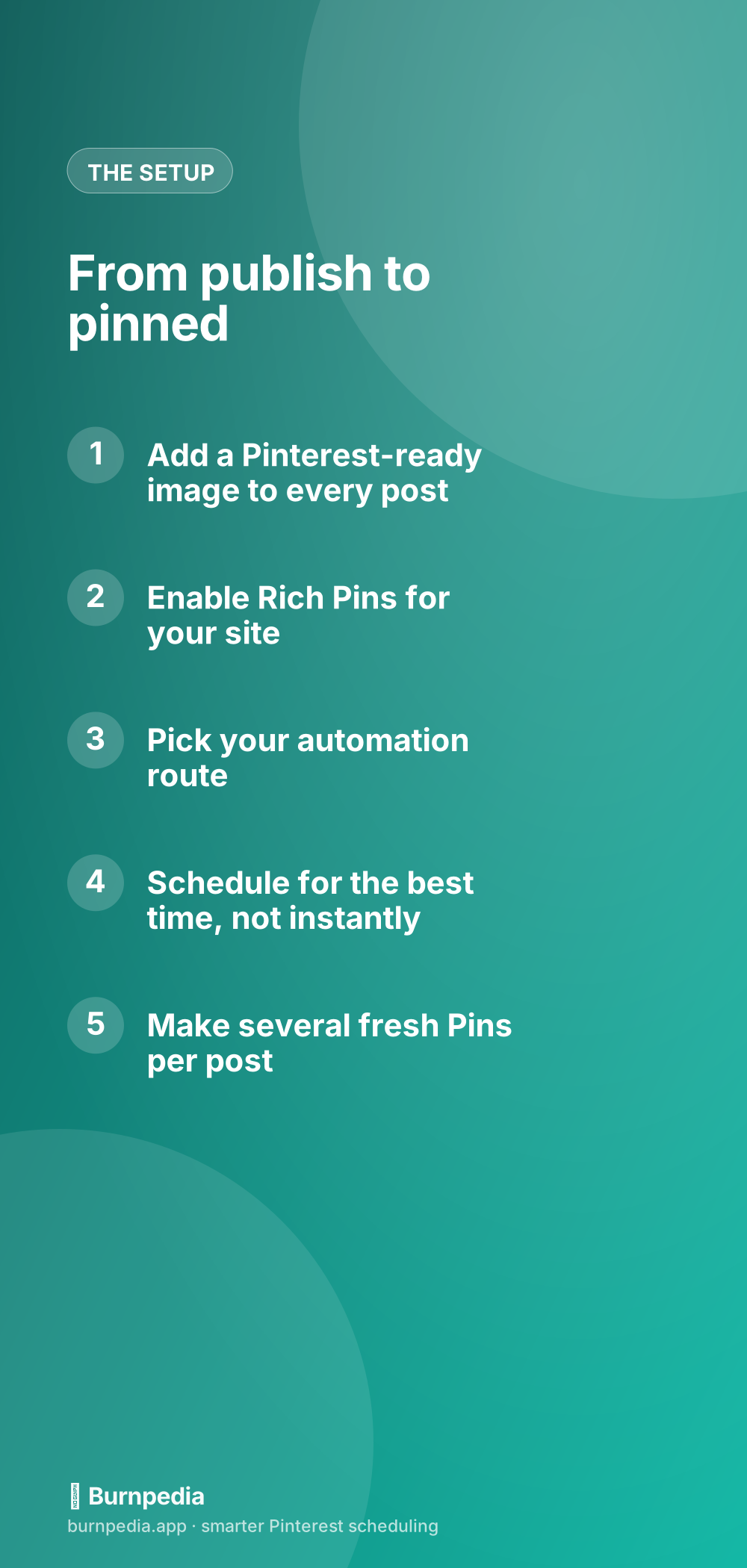
To recap the whole system: One, put a tall, readable Pin image in every post and enable Rich Pins. Two, pick your automation route — RSS plugin for hands-off simplicity, fast manual scheduling for control, or the API for drafts you approve, fully controlled. Three, schedule Pins for your audience’s best times, not the instant you publish. Four, make several fresh Pins per post, staggered over weeks. Five, check your analytics and lean into what drives clicks.
You work hard on every post. Don’t let that work quietly die in the gap between publishing and pinning. Connect WordPress and Pinterest once — however much automation feels right for you — and let every article you write go find its readers, one approved Pin at a time. That’s how Pinterest becomes your number one traffic source instead of the thing you keep meaning to get around to. — Sadie
Written by Sadie Brooks
Hey — I’m Sadie. I grew up in a small town outside Columbus, Ohio, moved to Austin for a job I quit within a year, and somewhere in between I started a scrappy little food blog to keep myself sane.
These days I help creators, bloggers, and small U.S. business owners grow on Pinterest without turning it into a second full-time job. I write the Burnpedia blog because I genuinely love this stuff, and because I wish someone had explained it to me in plain English years ago. Pour a coffee, pull up a chair.
Try Burnpedia freeWant Pinterest to run itself?
Every tip on this blog gets easier when your Pins publish on schedule. Burnpedia batches, times, and posts them for you — start free, no credit card.
Try Burnpedia free