The Burnpedia Pinterest API: Schedule the Pins You Pick From Your Own Code (With Real Code Examples)
Most people will never touch an API, and that’s fine. But if you run a store, a blog with a CMS, or you just love automating boring stuff — the Burnpedia API lets your own code do the pinning. Here’s the plain-English tour, with real snippets.

Okay, confession: this is the nerdiest post I’ve written, and I’m weirdly excited about it. If the words “REST API” make your eyes glaze over, no judgment — you can absolutely skip this one and keep using the app the normal, clicky way. But if you run an online store, a blog with a proper CMS, or you’re just the kind of person who automates the boring bits of life, pull up a chair. This is for you.
Here’s the one-sentence version: the Burnpedia API lets your own code do everything the dashboard does — schedule Pins, publish now, create boards, and pull your Pinterest analytics — without a human clicking anything. If you’ve ever wished a new blog post or a new product could turn itself into a Pin draft, that’s exactly what this unlocks.
Wait, what even is an API?
Quick plain-English detour, because I promised no gatekeeping. An API (“application programming interface”) is just a way for two pieces of software to talk to each other. Instead of you logging into Burnpedia and filling out a form, your program sends us a little message that says “hey, here’s an image, a title, and a board — please schedule this Pin,” and we do it. That’s the whole magic. It’s a form submission, except a robot fills it out.
Every request carries a secret key that proves it’s really you, and it travels over plain old HTTPS — the same secure connection your browser uses. If you can send an email, you can conceptually understand this. If you can write ten lines of code (or ask an AI to), you can actually do it.
Who this is actually for
Let me be honest about who should care, because the API isn’t for everyone (and that’s okay):
- Store owners: auto-create a Pin every time you add a product in Shopify, WooCommerce, or Etsy.
- Bloggers with a CMS: when you publish a post, your site sends Burnpedia a Pin draft, and it goes out once you OK it.
- Agencies & power users: manage dozens of accounts and thousands of Pins from your own dashboard or scripts.
- Tinkerers: you just like wiring things together with Zapier, Make, or a weekend Python script.
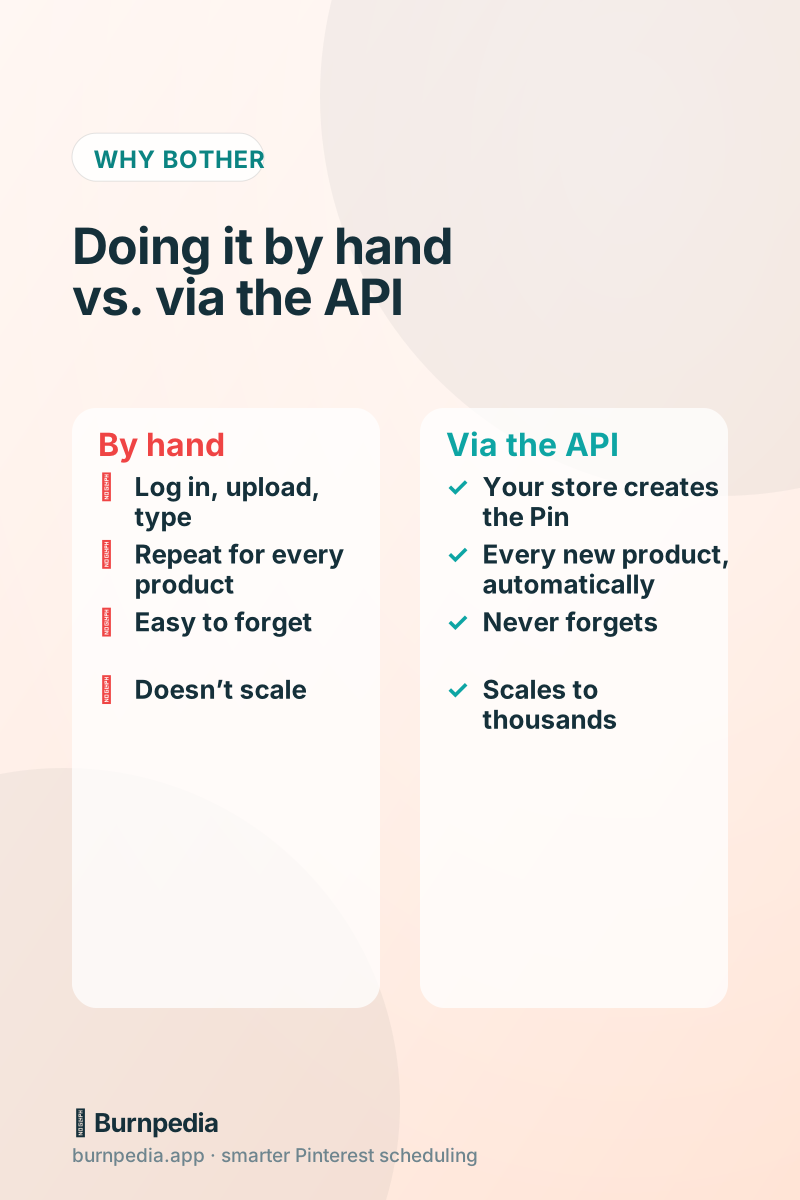
If you’re a solo creator who’s happy scheduling a week of Pins by hand on a Sunday, you honestly don’t need this — the normal smart-scheduling workflow is perfect. The API is for when “by hand” stops scaling.
What it costs: nothing
This used to be an Agency-plan feature. It isn’t any more — the API is on every plan, including the free one, and so is our free WordPress plugins, which run on it. What changes with your plan is throughput: how many Pins a day you may publish, and how many calls a minute your key may make. Free accounts get a quarter of the Pro rate limits, which is far more than a WordPress site or a weekend script will ever use.
Getting your API key (60 seconds)
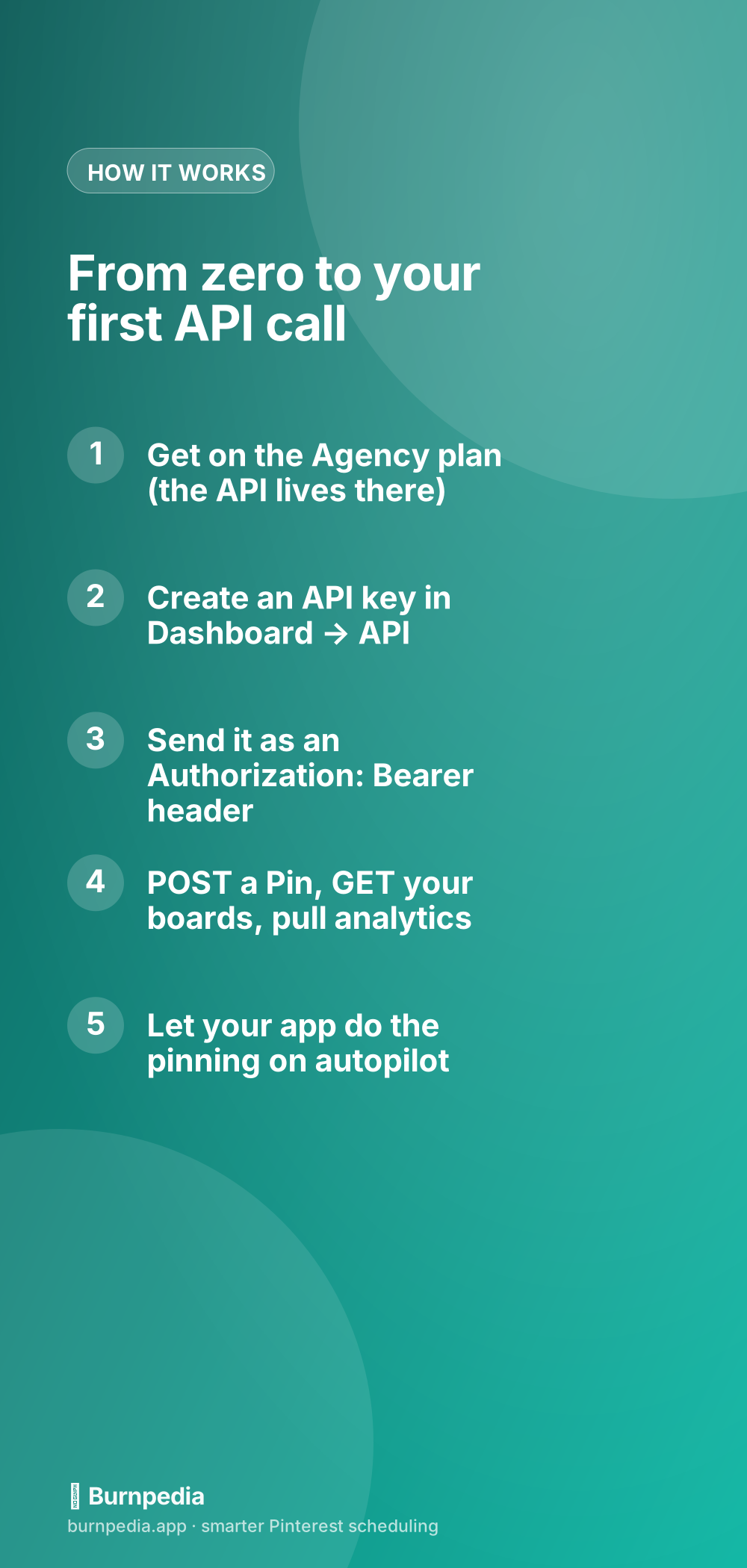
Open Dashboard → API and click “Create API key.” You’ll see the full key exactly once — copy it somewhere safe like a password manager or your server’s environment variables. We only ever store a hashed version, so if you lose it, you just make a new one and revoke the old one. Treat it like a password: anyone with your key can pin as you.
Your first call: list your boards
The friendliest first request is asking for your boards — it proves your key works without changing anything. Every call goes to the same base URL, and your key rides along in the Authorization header. Here it is in a few languages:
curl https://burnpedia.app/api/v1/boards \
-H "Authorization: Bearer bp_live_YOUR_API_KEY"const res = await fetch("https://burnpedia.app/api/v1/boards", {
headers: { Authorization: "Bearer bp_live_YOUR_API_KEY" },
});
const data = await res.json();
console.log(data.boards); // [{ id, name }, ...]import requests
res = requests.get(
"https://burnpedia.app/api/v1/boards",
headers={"Authorization": "Bearer bp_live_YOUR_API_KEY"},
)
print(res.json()["boards"])If that returns a list of your boards, congratulations — you just talked to the API. Genuinely, that’s the hardest part psychologically. Everything else is variations on the same theme.
The fun one: schedule a Pin
Here’s the request that does real work. You send an image URL, a title, a board (by id or just a name — we’ll create it if it doesn’t exist), and when you want it to go live. Leave off the time and add "publish_now": true to pin immediately.
curl -X POST https://burnpedia.app/api/v1/pins \
  -H "Authorization: Bearer bp_live_YOUR_API_KEY" \
  -H "Content-Type: application/json" \
  -d '{
    "image_url": "https://yoursite.com/images/recipe.jpg",
    "title": "30-Minute Weeknight Pasta",
    "description": "Fast, cozy, and freezer-friendly.",
    "link": "https://yoursite.com/weeknight-pasta",
    "board_name": "Easy Dinners",
    "scheduled_at": "2026-11-10T15:00:00Z"
}'<?php
$ch = curl_init("https://burnpedia.app/api/v1/pins");
curl_setopt($ch, CURLOPT_RETURNTRANSFER, true);
curl_setopt($ch, CURLOPT_POST, true);
curl_setopt($ch, CURLOPT_HTTPHEADER, [
"Authorization: Bearer bp_live_YOUR_API_KEY",
"Content-Type: application/json",
]);
curl_setopt($ch, CURLOPT_POSTFIELDS, json_encode([
"image_url" => "https://yoursite.com/images/recipe.jpg",
"title" => "30-Minute Weeknight Pasta",
"board_name" => "Easy Dinners",
"scheduled_at" => "2026-11-10T15:00:00Z",
]));
echo curl_exec($ch);Notice we let you pass a board by name. That little detail is the whole ballgame for automation — your store doesn’t need to know board IDs, it just says “Easy Dinners” and we sort it out, matching the right board or creating it. Wire this into your “new product published” hook and every product becomes a Pin, forever, with zero human effort.
Pulling your analytics into your own dashboard
The other thing agencies love: reporting. You can pull impressions, saves, pin clicks, outbound clicks, and your top-performing Pins straight into a client dashboard or a Google Sheet. No more copy-pasting screenshots.
require "net/http"
require "json"

uri = URI("https://burnpedia.app/api/v1/analytics")
req = Net::HTTP::Get.new(uri)
req["Authorization"] = "Bearer bp_live_YOUR_API_KEY"
res = Net::HTTP.start(uri.hostname, uri.port, use_ssl: true) { |h| h.request(req) }
puts JSON.parse(res.body)["totals"]
Those are the numbers that actually matter — the same ones I harp on in the metrics post — now flowing into whatever you build.
The guardrails (this part I’m proud of)
Here’s something that separates a good API from a dangerous one: rate limits. Pinterest has its own limits on how fast anyone can hit their API, and if you blow past them, accounts can get throttled. So we cap your calls per key — reads are generous, writes (which each become a Pinterest action) are deliberately conservative, and analytics sits in the middle.
| Category | Per minute | Per day | What it covers |
|---|---|---|---|
| Reads | 120 | 20,000 | boards, pins, me, accounts |
| Writes | 20 | 1,000 | creating/publishing Pins + boards |
| Analytics | 30 | 2,000 | account + top-pin analytics |
Every response tells you exactly where you stand with X-RateLimit-Remaining headers, and if you ever hit a limit you get a clean 429 with a Retry-After. Translation: you literally cannot use our API to get your own account in trouble with Pinterest. That’s the whole design goal — automation that’s also safe.
Do you actually need it? An honest gut-check
If you’re nodding along thinking “I have a store/CMS and I hate manual work,” yes — this will genuinely change your week. If you’re thinking “I just want my Pins scheduled without code,” then skip it and use the app; that’s what it’s there for, and the scheduler itself already does the heavy lifting. Both are valid. I’d rather you use the right tool than the fanciest one.
Where to go next
The full reference — every endpoint, request and response shapes, error codes, and snippets in cURL, JavaScript, Python, PHP, Ruby, and Go — lives on our developer docs page. It’s the source of truth and stays in sync with what actually ships.
And if you don’t have an account yet but this got you excited, you can create a free one and have your first API key in under a minute — no card, nothing to upgrade. Go automate something boring so you can spend your time on the fun parts. That’s the whole dream. — Sadie
Written by Sadie Brooks
Hey — I’m Sadie. I grew up in a small town outside Columbus, Ohio, moved to Austin for a job I quit within a year, and somewhere in between I started a scrappy little food blog to keep myself sane.
These days I help creators, bloggers, and small U.S. business owners grow on Pinterest without turning it into a second full-time job. I write the Burnpedia blog because I genuinely love this stuff, and because I wish someone had explained it to me in plain English years ago. Pour a coffee, pull up a chair.
Try Burnpedia freeWant Pinterest to run itself?
Every tip on this blog gets easier when your Pins publish on schedule. Burnpedia batches, times, and posts them for you — start free, no credit card.
Try Burnpedia free