How to See Scheduled Pins on Pinterest (and Edit, Move or Delete Them)
Your scheduled Pins are on your own profile, above the ones already published. Here is where to look, what you can still change, and how to run a week inside Pinterest’s 10-Pin limit.
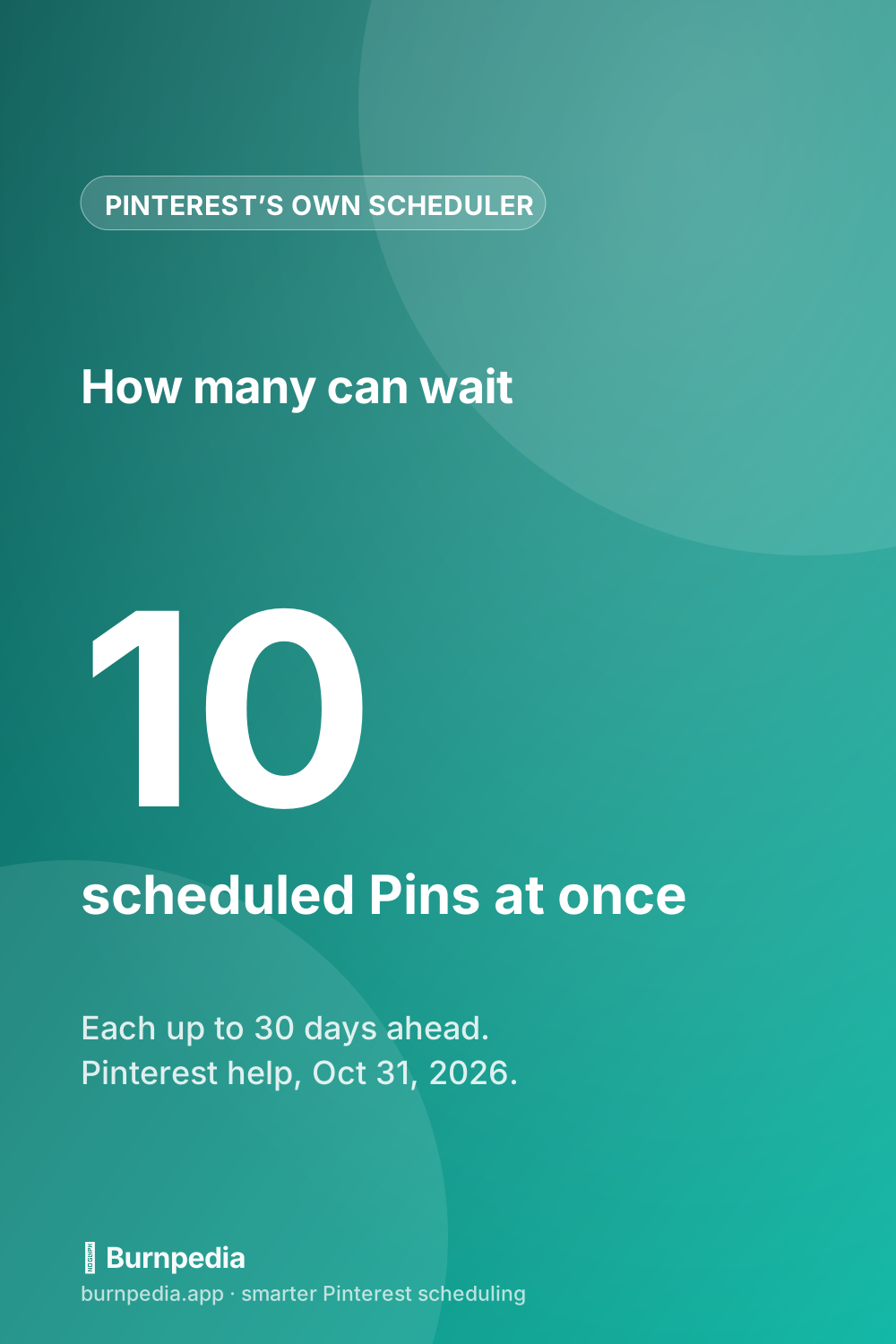
Your scheduled Pins are on your own Pinterest profile. Open your profile, stay on the Created tab, and you’ll find them sitting above the Pins you’ve already published. A Pin you scheduled a minute ago can take a few minutes to show up there, so give it a moment before you make it again.
That’s the short answer. The longer one matters if you plan your week in Pinterest’s own scheduler, because it comes with two limits that plenty of guides still get wrong. Only 10 Pins can wait in the queue at once. And you can set each of them at most 30 days ahead. Those two numbers decide how often you have to sit down and top it up.
I’ve kept everything about how the scheduler behaves to what Pinterest’s own Schedule Pins help page says, and I read it today, October 31, 2026. Below you’ll find where to look on a computer and on your phone, what to check when a Pin seems to be missing, what you can still change, and the Monday routine I’d use to keep a week of Pins going out on time inside the 10-Pin limit.
Where scheduled Pins live on Pinterest
There’s no separate page for scheduled Pins. They live on your profile, right next to everything else you’ve made.
Honestly, that’s the whole trick.
Pinterest’s help page says it in two lines: to see your scheduled Pins, visit your profile, and you’ll see them above all of your published Pins. In practice that means the Created tab, the one that holds the Pins you made yourself. The Saved tab is for what you’ve saved from other people, and your schedule won’t be in it.
Two more things before you go looking. Scheduling only exists on a business account, so if you also run a personal profile, make sure you’re signed in to the business one. And a brand-new scheduled Pin can take a few minutes to appear. Pinterest says so itself, and it’s easy to forget when you check right after pressing Schedule (it’s the first thing I’d rule out).
Finding them on a computer and in the app
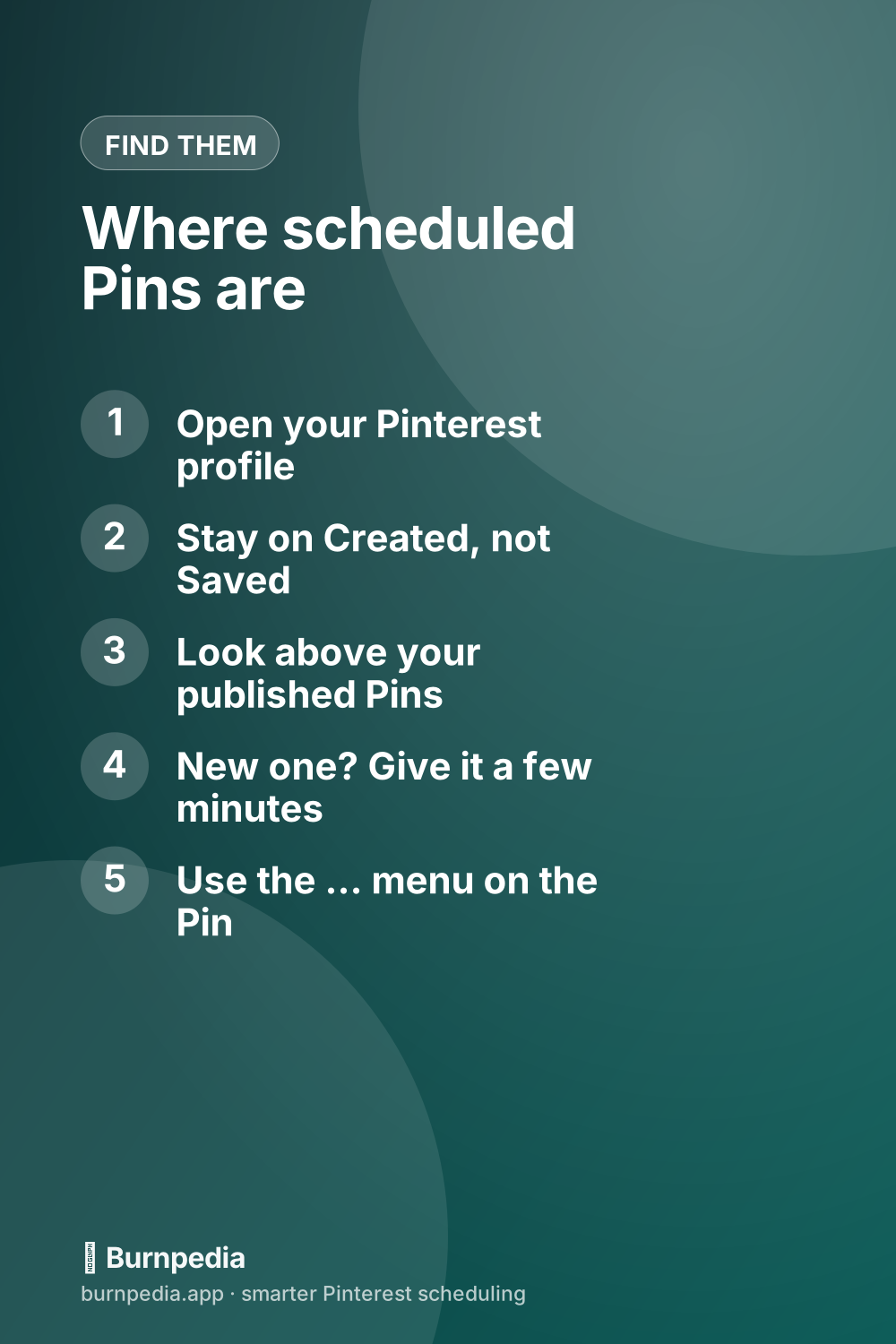
On a computer
- Sign in to your Pinterest business account.
- Click your profile picture at the top-right to open your profile.
- Stay on Created, not Saved.
- Look above your published Pins. That first group is your schedule, waiting to go out.
In the app
- Open the Pinterest app, signed in to your business account.
- Tap your profile picture at the bottom-right.
- Open Created.
- Your scheduled Pins sit above the published ones.
Pinterest’s help names the profile as the place to look, on the web and in the app alike. It doesn’t describe a calendar view anywhere in its scheduling steps. So if you like to see your whole week at once, keep a short list of what goes out when. My suggestion is a two-column note on your phone, the date on the left and the Pin on the right. It takes a minute to update.
Scheduled Pins not showing up? Check these five things
Before you make the Pin again, run through these in order. The quickest checks come first:
- Give it a few minutes. Pinterest says a new scheduled Pin may take a few minutes to show on your profile.
- Check the tab. Scheduled Pins are with your own Pins under Created. They’re never under Saved.
- Check the account. Only business accounts can schedule. If you switch between a personal and a business profile, the Pin is on the one you made it from.
- Check whether it went out already. If you pressed Publish instead of choosing “Publish at a later date,” the Pin went live on the spot. Look through your published Pins and on the board you picked.
- Check the date. When its time comes, a scheduled Pin publishes and joins your published Pins. So a Pin set for 9 a.m. won’t be in the scheduled group at 2 p.m.
Still nothing, and it isn’t on the board either? Then it most likely never saved as scheduled. Make it again. In the app, Pinterest shows you the date and time you picked one last time before you tap Schedule to confirm, so take that second to read it.
What you can still change on a scheduled Pin (and the one thing you can’t)
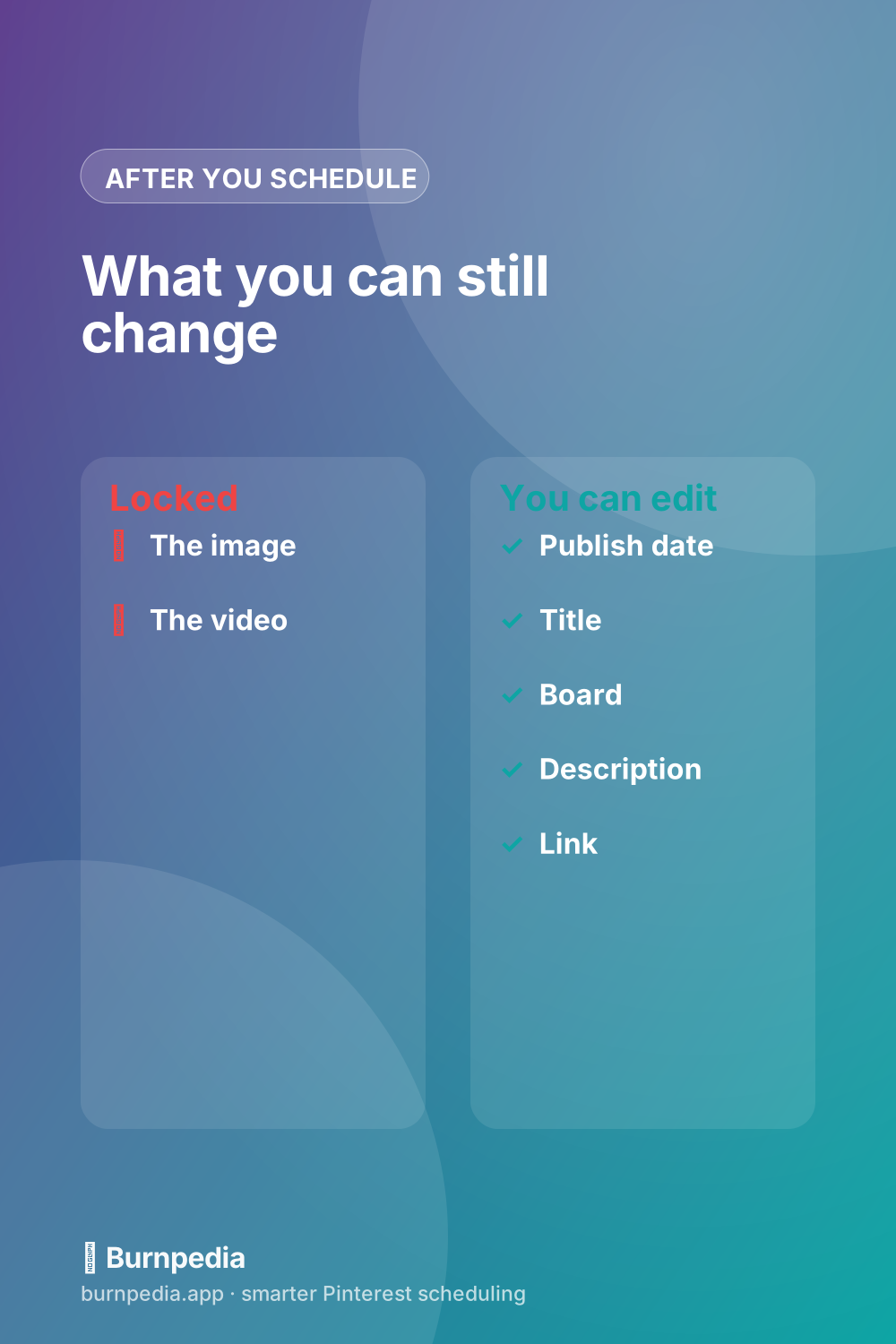
This is where a lot of advice online is out of date. You’ll still read that a scheduled Pin can’t be edited at all. Pinterest’s help page says otherwise. Once a Pin is scheduled, you can update the publish date, the title, the board, the description and the link.
What you can’t touch is the picture.
The image or video is locked once the Pin is scheduled. If there’s a typo baked into your graphic, or you uploaded last week’s version by mistake, the only fix is to delete the scheduled Pin and make it again. If you ask me, that’s the one rule worth building your whole routine around.
Here’s how I’d handle it. Proof every image before you press Schedule, not after. A wrong link you can fix on Wednesday. A misspelled headline on the graphic means deleting the Pin and running it through the whole form a second time, which is a bit of a pain when you’re topping up a week at once.
To change one, open it from your profile and look under the ellipsis (the three dots). That’s where Pinterest’s editing help puts Edit Pin for the Pins you’ve made, and it’s where the scheduling help puts Delete for a scheduled one.
How to move a scheduled Pin to another day, or delete it
Moving a Pin isn’t its own feature. It’s an edit. The publish date is one of the five fields Pinterest lets you change, so you open the Pin, pick the new day or time, and save. Just keep the limit in mind. A Pin can be scheduled up to 30 days ahead, so you can’t push one out to next quarter.
Deleting is just as quick. Pinterest’s steps are to go to your profile, find the scheduled Pin above your published ones, click or tap the ellipsis at the bottom of it, and choose Delete.
Two warnings before you do. Pinterest says a deleted Pin can’t be recovered, so if all you need is a different day, change the date instead. And if the reason is the image, have the new version ready before you delete the old one. That way the gap in your week lasts minutes instead of days.
How many Pins can you schedule on Pinterest? Ten, up to 30 days out
Here’s the number that shapes everything else. Pinterest’s help page says you can schedule a Pin up to 30 days in advance, and you can have up to 10 Pins scheduled for the future at any one time. It also says you can only schedule one Pin at a time. So each Pin goes through the form on its own, with its own title and board, its own link, its own date.
If you’ve read that the limit is 100 Pins, or 14 days, you’re not imagining it. Several well-known guides still say so, one of them updated as recently as December 2025. Pinterest’s own page, as I read it today, says 30 days and 10 Pins. I’d plan around that one.
People have asked for more room. In a Pinterest Business Community thread from August 2025, a creator asked for 60 or even 90 days, and a Pinterest community team member replied that the suggestion had been passed along. For now, 30 days and 10 Pins is the box you’re working in.
Ten sounds like plenty until you hold it up against your pace. I worked out what it means at four common paces:
| Your pace | A full queue lasts | Top-ups a week, at least |
|---|---|---|
| 1 Pin a day | 10 days | 1 |
| 2 Pins a day | 5 days | 2 |
| 3 Pins a day | Just over 3 days | 3 |
| 5 Pins a day | 2 days | 4 |
At 1 Pin a day, the built-in scheduler is honestly comfortable. One sitting covers 7 days, with 3 days of slack. At 3 a day, you’re back in the app every 3 days or so, which is pretty much the chore scheduling was supposed to take off your plate.
It also means the “batch a whole month in one sitting” advice doesn’t work here. You can still make a month of Pins in one sitting, and I think that’s a great habit (the workflow is in how to batch-create a month of Pins in one sitting). Pinterest will just hold 10 of them at a time. The rest wait in your folder until there’s room.
The Monday top-up: running a week inside the 10-Pin limit
If you’re staying with Pinterest’s own scheduler, and at 1 or 2 Pins a day I think there’s a good case for it, this is the routine I’d use. It’s one sitting on Monday, plus a short second one on Thursday if you post twice a day.
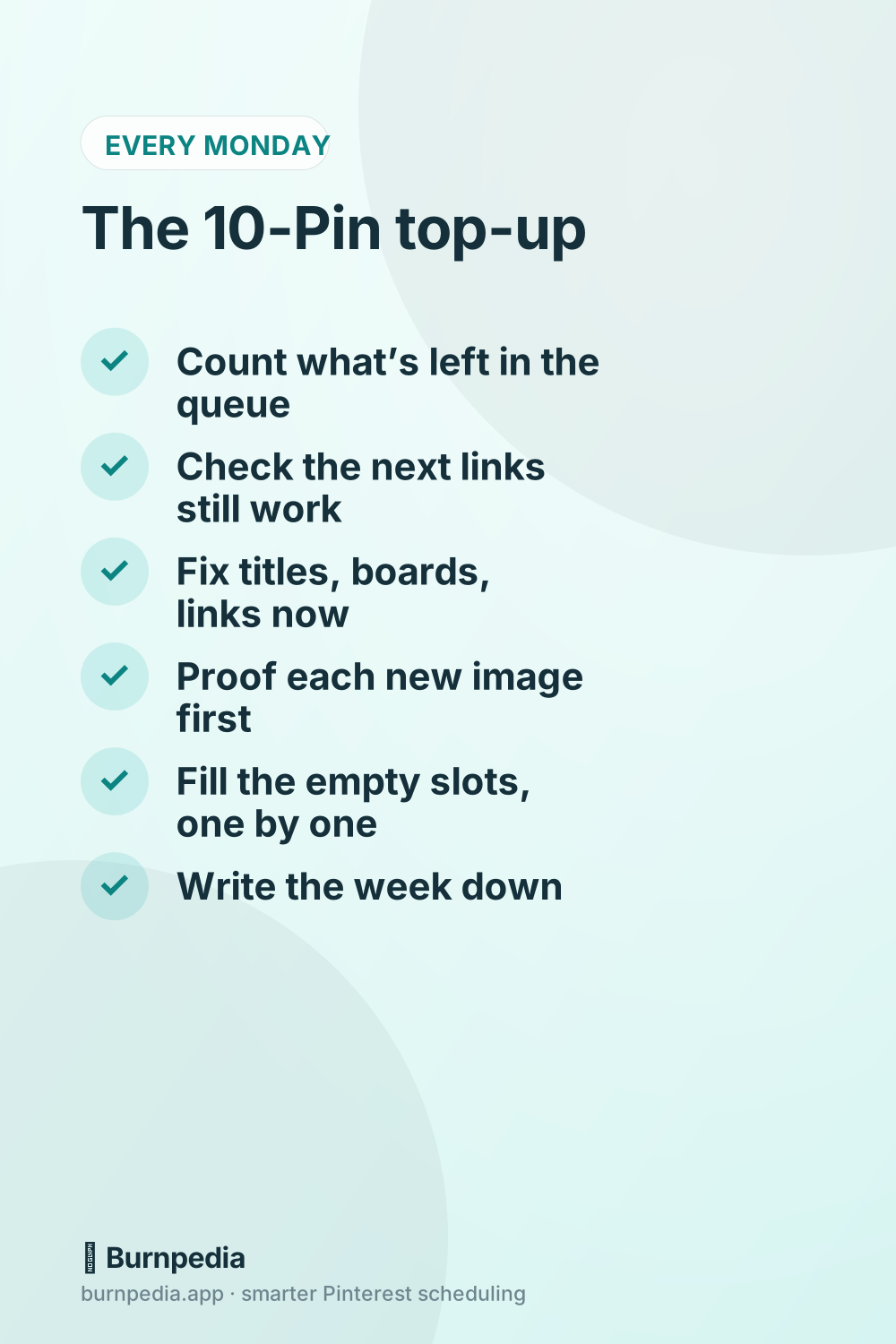
- Count what’s left. Open your profile, go to Created, and count the Pins in the scheduled group. Ten minus that number is what you can add today, so 3 left means 7 new.
- Check the next few before they go out. Is every link still live? A sale that ended or a page you moved should be fixed now, while the link can still be edited.
- Fix what you still can. The words, the board and the link are all editable, so tidy them now instead of after the Pin is public.
- Proof every new image first. The picture locks when you schedule, so read the words on each graphic before it goes in.
- Fill the empty slots, one Pin per pass. Give each its own day and time, so they go out one at a time instead of in a clump.
- Write the week down. A two-column list of dates and Pins is quicker to scan than your profile, and it’s where next Monday starts.
Done this way, a week of one-a-day Pins is a single sitting. It gets shorter as the weeks go by, too, because steps 2 and 3 turn into a quick glance once your links and boards are in good shape.
The bigger habit around it (picking times, spreading Pins across boards, keeping evergreen Pins in the mix) is in how to schedule Pins the smart way. Think of this routine as the native-scheduler version of that system.
When Pinterest’s own scheduler stops being enough
There are two clear signs. The first is pace. Once you publish 3 or more Pins a day, the 10-Pin queue has you topping up every few days. The second is the image lock. If you often tweak a graphic after you schedule it, deleting and redoing Pins gets old fast.
That’s what third-party schedulers are for.
Tailwind, Buffer, Later, Burnpedia (that’s us): each keeps its own queue and publishes to Pinterest for you. Here’s how Pinterest’s scheduler compares with ours on the points this post is about, going only by what each says on its own pages today:
| Pinterest’s own scheduler | Burnpedia | |
|---|---|---|
| How far ahead | 30 days | As far ahead as you like |
| How many Pins | Up to 10 waiting at once | Free plan: 3 a day. Basic: 15 a day |
| Change the image after scheduling | No: delete it and redo it | Yes, until the last few minutes before it publishes |
| Move a Pin to another day | Edit its date | Drag it on the calendar (its time of day stays) |
| See the whole plan | Your profile, under Created | A 1- or 2-month calendar, the queue, a CSV export |
| Cost | Free with a business account | Free plan, no credit card |
My honest advice? If you post one Pin a day and rarely change a graphic, you don’t need us yet. Pinterest’s scheduler is free and it does the job. But when the top-ups start eating into your week, Burnpedia’s calendar and queue take the 10-Pin box away. You upload a batch, give each Pin its board and time, and drag one to another day when plans change. The free plan publishes 3 Pins a day and doesn’t ask for a card.
Quick answers
These three came up in Google’s “People also ask” box when I searched today.
Does Pinterest have a scheduler?
Yes. It’s built in and free, but Pinterest’s help page limits it to business accounts and standard Pins. If you’re on a personal account, switching is free, and the steps are in our guide to the Pinterest business account.
Where do I view my scheduled posts?
On your profile, under Created, above your published Pins. Just scheduled it? Give it a few minutes to appear.
Does Pinterest have a limit on pins?
For scheduled Pins, yes. Up to 10 can wait at a time, each up to 30 days ahead, and you schedule them one at a time. Once a Pin publishes, it leaves the queue and frees its slot for the next one.
If you only do one thing after reading this, open your profile and count your scheduled Pins. That number tells you how many days of Pins you have left, and when your next top-up is due.
Burnpedia is an independent scheduling tool. It is not affiliated with, endorsed by or sponsored by Pinterest, Inc. “Pinterest” is a trademark of Pinterest, Inc., named here only to say what the software works with.
Want Pinterest to run itself?
Every tip on this blog gets easier when your Pins publish on schedule. Burnpedia batches, times, and posts them for you — start free, no credit card.
Try Burnpedia free