Pinterest Account Suspended for Spam? What Happens to Your Scheduled Pins
A spam suspension stops every Pin you scheduled, and Pinterest’s help doesn’t say what becomes of them. Here’s how to tell a suspension from a blocked link, appeal it, check your schedule against the spam rules, and restart without a burst.
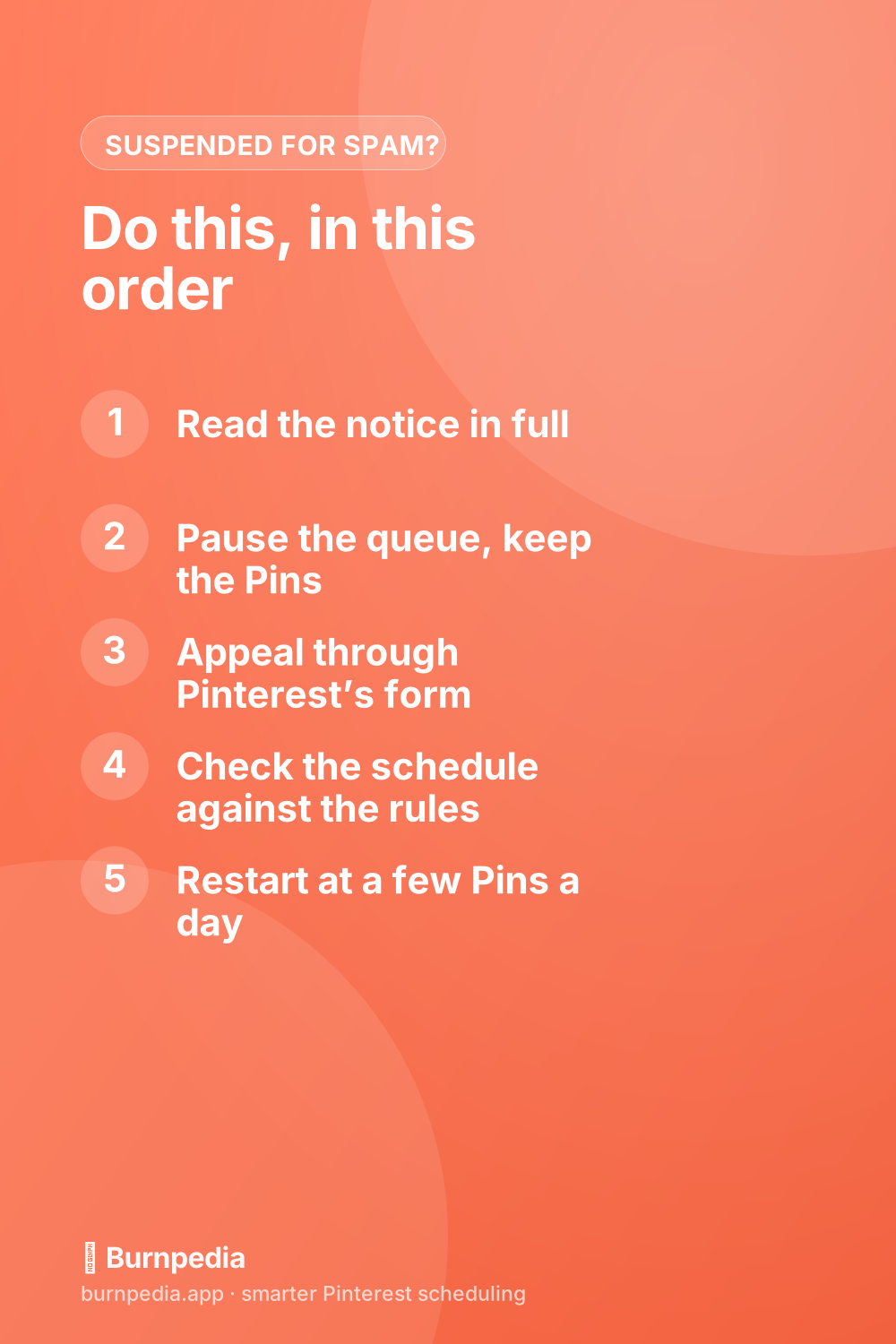
If your Pinterest account was suspended for spam, every Pin you scheduled stops with it. Pinterest’s help now calls this a deactivation, and the only way back is its appeal form. You can’t lift it yourself, and opening a new account while you wait can make things worse. So don’t delete your queue while you wait. Pause it, send one clear appeal, check your schedule against Pinterest’s spam rules, and restart slowly once you’re back in.
This post is the scheduler’s side of it. The pages that rank for this search cover the appeal and stop there. None of the ones I read covers the Pins already sitting in your queue, the spam rules a posting schedule can actually break, or how to restart a backlog without the kind of burst that looks like spam all over again.
I read Pinterest’s help pages, its Community Guidelines and its developer rules for this on November 6, 2026, along with the guides and community threads that rank for it. I didn’t get an account suspended to test any of it. Where Burnpedia comes up, I’m describing what our own scheduler does, from its code and its FAQ, and I’ll say so each time.
Deactivated account, blocked link or one removed Pin: which one is it?
“Spam” covers three different problems on Pinterest, and each one has its own fix. Work out which one you’re looking at before you change anything.
- The whole account is deactivated. Pinterest’s Account deactivation help says you’ll see a deactivation notice when you try to log in. Writing From Nowhere describes it as not being able to browse, see your account or make changes, and no tool you connected can publish either. Spam is one of the four areas it lists, next to Pinner safety, account security (which it says includes impersonation and third-party logins) and intellectual property.
- One website’s links are blocked. You can still log in, but Pins to one site get refused as possible spam. Pinterest’s Community Guidelines say links with excessive or deceptive redirection, and shorteners abused for spam, may be blocked. That’s a problem with the site, and it has its own form (more on it below).
- A single Pin was taken down. The account works and so do your links, but one Pin is gone or flagged. Fix that Pin or drop it, and carry on with the week.
If you can’t log in at all, read the notice and Pinterest’s email in full, and save both somewhere. The email’s wording is the best clue you’ll get. If you can still log in, you’re in the second or third case, and the account appeal below isn’t the form you need.
What happens to the Pins you already scheduled
This is the part no ranking page answers, so here’s what I could find, sorted by where your Pins are waiting.
Pins scheduled on Pinterest itself
Pinterest’s Schedule Pins help lets a business account schedule a Pin up to 30 days ahead and keep up to 10 waiting at once, and you see and delete them from your profile. It doesn’t say what happens to them when the account is deactivated. And with the account deactivated, you can’t log in to check.
So plan as if they’re gone. Gather what went into them from your own files: the images, the titles and descriptions you wrote, the boards and the links. If the Pins are still there when you get back (you’ll find them where scheduled Pins live on your profile), great. If not, you rebuild from notes instead of from memory.
Pins waiting in an outside scheduler
A scheduler publishes through Pinterest’s API, using a connection you approved on Pinterest’s own login screen. Pinterest’s Developer Guidelines list “Content marketing tools, like Pin schedulers” as an acceptable use, so having a scheduler isn’t the problem. But once Pinterest deactivates the account, that connection stops working, and nothing in the queue can publish until Pinterest restores it.
What matters is what the tool does next. One that keeps retrying a refused account fills your queue with failures and keeps knocking on a door Pinterest has shut. What you want is a pause that keeps every Pin, and a message that tells you what happened.
What Burnpedia does
Since this is our product, here’s exactly what it does, from its live code and FAQ:
- When Pinterest stops accepting an account, Burnpedia pauses that account’s publishing instead of retrying it. The overview shows a red banner that says “Nothing can publish or report for it until this is fixed. Scheduled Pins are kept and paused, not lost.”
- The banner’s first button is Reconnect, because a connection that was simply revoked on a healthy account is fixed that way. Under “Reconnecting didn’t work — my account was suspended” you get a link to Pinterest’s appeal page and a button that drafts an appeal letter for you to read and edit. The draft is free and doesn’t use your AI points.
- An ordinary failed Pin is handled differently. Burnpedia’s FAQ says it’s retried after about 5 minutes, then 15, then 60, up to 4 attempts, and then marked Failed with a Retry button.
Whatever tool you use, don’t clear the queue in a panic. It holds a week or a month of your work, and nothing in it can publish while the account is down anyway.
How to appeal a spam suspension, and how long it takes
You can’t unsuspend the account yourself. Pinterest’s help says that if you think it shouldn’t have deactivated your account, you get in touch, and it will “take a look at it and get back to you.” Its “get in touch” link goes to Pinterest’s contact form for account suspension appeals.
- Use the link in Pinterest’s email if you still have it, or the appeal form linked from the Account deactivation help.
- Say plainly what you use Pinterest for and how you publish: by hand, with Pinterest’s own scheduler, or with a named scheduling tool.
- If something in your schedule did break a rule (the same link every day, say), name it and say what you’ve changed. Meagan Williamson, who manages Pinterest accounts for clients, advises being polite, apologizing for anything that broke Pinterest’s best practices, and promising to review its guidelines.
- Don’t open a replacement account while you wait. Williamson warns it “can make things worse and may violate Pinterest’s policies further.”
Then comes the part the sources disagree on: what to do after you hit send.
| Source | What it says | Date |
|---|---|---|
| Get in touch, and Pinterest will “take a look at it and get back to you.” No time frame given. | Read November 6, 2026 | |
| Flags sometimes happen “by total accident” when Pinterest tightens its spam filters, and are “often resolved in a few days.” Contact Pinterest directly. | June 25, 2026 | |
| Most suspensions are resolved “within a few days to a couple of weeks.” Send one clear appeal, and follow up once if nothing comes back in 1 to 2 weeks. | April 2, 2026 | |
| A client account suspended for spam was back the day after the appeal. Another, wrongly suspended in 2020 around Halloween, came back in January, after a help ticket every few days. | July 2021, updated March 2026 | |
| A member’s repeated appeals got “automated emails denying my account.” A Pinterest staff reply said to keep working with that team. | November 2025 |
So Pinterest gives no timeline, and the people who’ve been through it report anything from a day to a few months. On how often to write, the advice splits. Writing From Nowhere sent a help ticket every few days until the account came back. Williamson warns that multiple tickets and repeated messages “can slow things down or flag your account further.”
Here’s how I’d run it from the scheduler’s chair. Send one clear appeal, then put a reminder on your calendar for a week or two out. If nothing has come back by then, follow up once, as a reply that quotes your first message rather than a fresh appeal. That keeps the case moving without a pile of near-identical messages, which is the very pattern you’re appealing.
The spam rules a posting schedule can break
Pinterest’s spam rules sit in one short section of its Community Guidelines (last updated May 2026). Some are about fake accounts, comments and messages. These five are the ones a posting schedule can break without anybody meaning to.
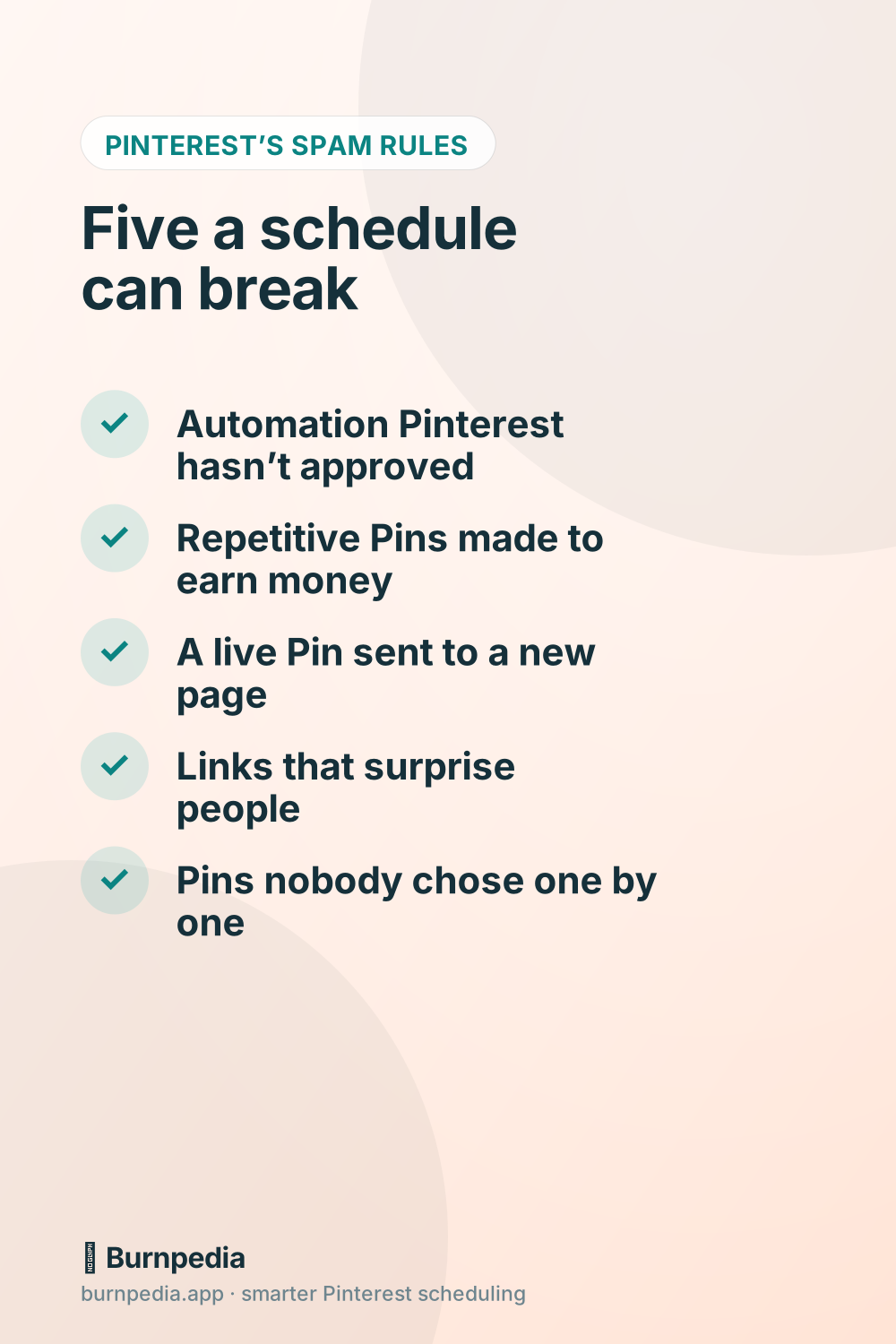
- Automation Pinterest hasn’t approved. The first rule is “Don’t use automation that hasn’t been explicitly approved by Pinterest,” including “unauthorized services that automatically perform actions on your behalf.” It points to its Partners website for approved tools. The deactivation help also lists “third-party logins” under account security, so never hand a tool your Pinterest password.
- Repetitive Pins made to earn money. The rule reads “Don’t create or save content that is repetitive, deceptive, or irrelevant in an attempt to make money.” For a scheduler, the risk is the repeat. Writing From Nowhere lists posting a Pin for the same URL every single day, and uploading the same image and URL more than once, among the most common accidental spam it sees.
- Sending a live Pin somewhere new. Pinterest names “redirecting existing Pins to new destinations” among the tactics that improperly influence distribution or clicks. Pointing a Pin that’s doing well at a different page, like a sales page, is exactly that.
- Links that surprise people. Pinterest asks for a “no surprises” principle: Pinners should be able to “reasonably anticipate where your link will take them.” Schedule the page’s own full address, with no shortener and no chain of redirects in front of it.
- Pins nobody chose. Pinterest’s Developer Guidelines say that if an app lets you schedule Pin publishing, “the end user must choose each Pin to be published.” A tool that turns every new blog post into a Pin and publishes it with nobody looking runs against that line.
Burnpedia follows that last rule. A Pin made for you automatically, from your WordPress site, a repeat or an app, waits under “Waiting for your OK” until you tick it. Pins you make yourself publish at their time.
Two more patterns aren’t written in the guidelines, but the people who deal with suspensions keep naming them. Williamson says some legitimate accounts were flagged in 2025 and 2026 for “sudden spikes in activity,” which she describes as going from no pinning to pinning a lot in a short time. And a 2022 thread in Pinterest’s Business Community came from a brand-new business account suspended for spam after it created several Pins in its first few days. The owner guessed that was why. The same day, another member replied that both of the owner’s profiles looked active.
Neither one proves a cause. Still, they point the same way, and Williamson sums it up as Pinterest scanning for patterns rather than reading every account. Your queue is what decides that pattern.
Restarting your schedule once you’re back
The day you’re reinstated is when a schedule can do the most damage. Every Pin whose slot passed while you were locked out is now overdue. A tool that publishes overdue Pins as soon as it can would send that whole backlog within hours. That’s a spike in activity, on an account Pinterest has just looked at closely.
So before you reconnect anything, do this:
- Delete anything in the queue that breaks a rule above: repeats of the same link a few days apart, Pins to a site Pinterest blocked, Pins you never looked at.
- Count the overdue Pins and spread them over the days ahead, a few a day. Burnpedia’s FAQ puts a healthy range at 3 to 10 fresh Pins a day for most people, so start at the low end.
- Leave the Pins that are still in the future where they are. Their slots are still good.
- Add new Pins only once the backlog has cleared, and at the pace you kept before the suspension, not a catch-up pace.
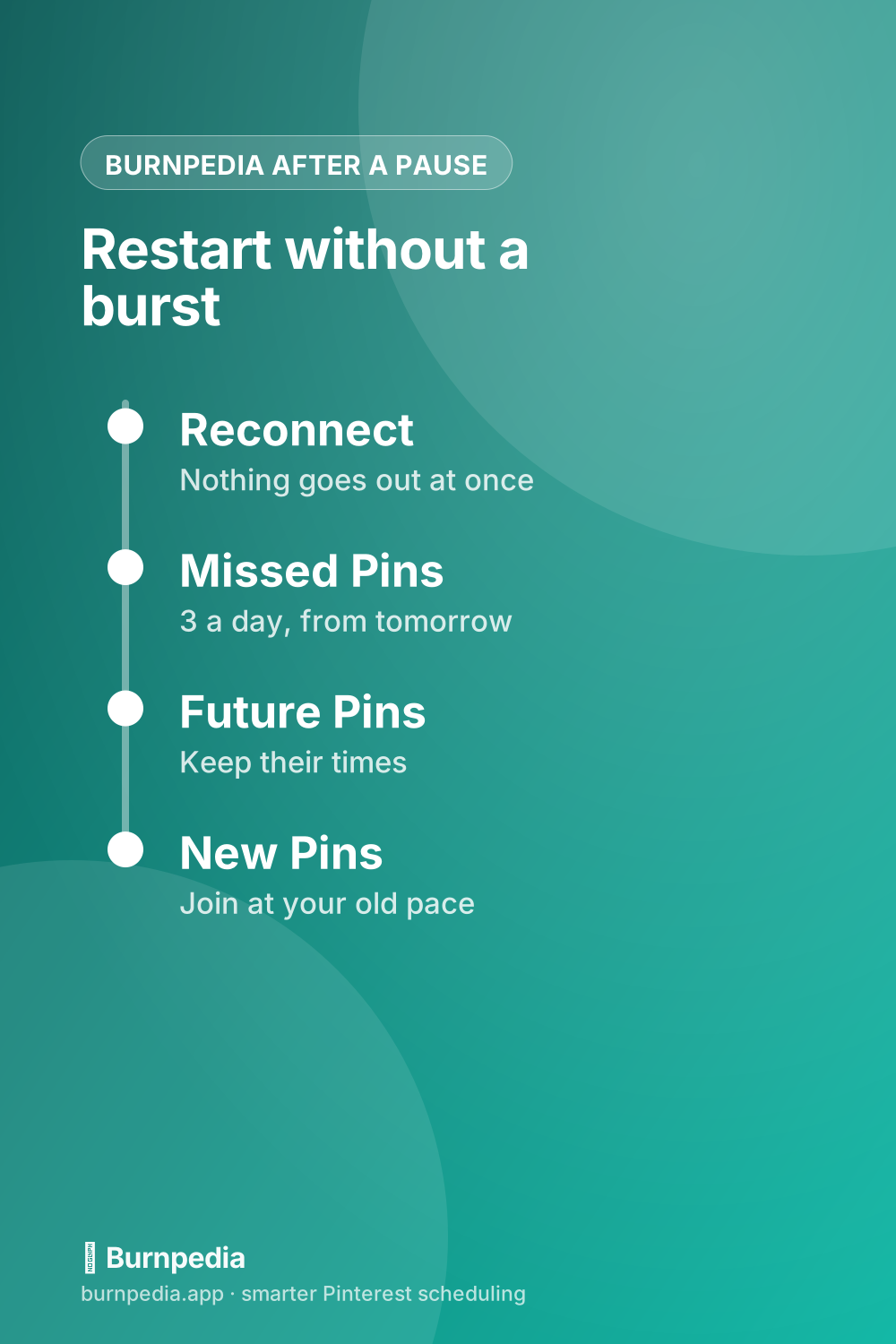
In Burnpedia, reconnecting lifts the pause on its own, and the catch-up is built in. Nothing goes out the moment you reconnect. Overdue Pins move to the following days, starting tomorrow, at most 3 a day. Pins still in the future keep their times, and they count toward each day’s 3, so no day doubles up. Pins that failed only because Pinterest refused the account go back in the queue. Pins that failed for their own reasons, like a missing image, stay failed so you can look at them.
Two limits apply whatever happened before. A Pinterest profile that’s new to Burnpedia publishes at most 5 Pins a day in its first week and 10 in its second. After that, the FAQ says each Pinterest account publishes at most 25 a day, on every plan.
If it was a blocked site rather than a suspended account, Burnpedia holds Pins to that site for 7 days, then tries exactly one. If it publishes, the waiting Pins are spread over the days ahead. If it’s blocked again, the hold doubles, up to 30 days, and Pins to your other sites keep publishing the whole time. To ask Pinterest to look at the site, use its contact form for a site blocked as spam.
A Monday check that keeps your queue out of Pinterest jail
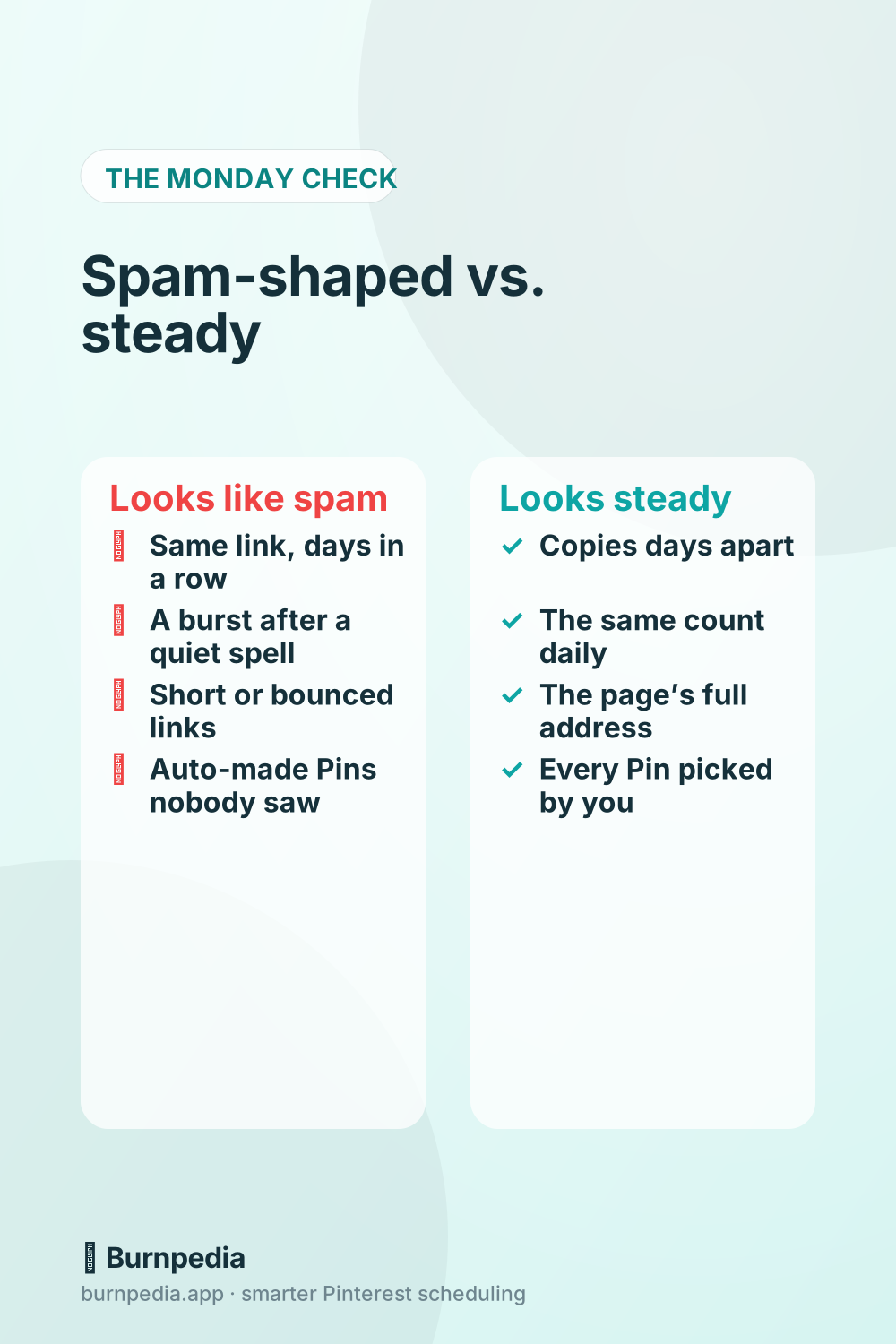
“Pinterest jail” is what people call a spam suspension, and avoiding it is one of the questions Google shows for this search. The rules above boil down to a check you can run when you load next week’s Pins. It takes about as long as reading your queue once.
- Look for the same link twice within a few days. Spread the copies out, or make a fresh Pin with a new image. Burnpedia asks before you schedule a link that’s already queued or was pinned in the last 30 days (“Pinning the same link repeatedly can look spammy to Pinterest. Schedule it anyway?”), and its Copy to boards spaces copies a couple of days apart.
- Open three links at random. Each should land on the page the Pin promises, at its own full address.
- Look at the count per day. Next week should look like last week. If you went quiet for a month, build back up over a couple of weeks.
- Check that you picked every Pin. Anything a feed or an app made for you gets a look before it’s approved.
- Leave live Pins’ links alone unless the page itself moved.
- Keep a copy of the week’s Pins outside Pinterest. Your scheduler’s queue or a plain spreadsheet both do the job.
None of this promises Pinterest’s filters will never flag you. Tailwind’s note says it can happen “by total accident.” What the check does is make sure that if it happens, your appeal can honestly say your schedule follows the rules, and your queue is still there for the day you’re back.
Questions people ask about spam suspensions
These four were in Google’s “People also ask” box when I searched this on November 6.
How do I unsuspend my Pinterest account?
You can’t do it yourself. Appeal through the link in Pinterest’s email, or the form linked from its Account deactivation help, and wait for Pinterest to restore it. Reconnecting a scheduling tool won’t work until it does.
What does it mean if my Pinterest account is suspended?
Pinterest decided the account broke its Community Guidelines in one of four areas: Pinner safety, account security, spam or intellectual property. You’ll see a notice when you try to log in, and nothing on the account can publish, by you or by a tool, until it’s restored.
How to avoid Pinterest jail?
Use approved tools only, don’t repeat the same Pin and link, don’t send live Pins to new pages, make links land where they promise, and choose every Pin yourself. Then keep an even daily pace instead of bursts.
How long can you get banned from Pinterest?
Pinterest doesn’t publish a length. The reports I read range from the next day to a few months, and Tailwind says flags from tighter filters are often resolved in a few days. A 2025 community thread shows a member stuck with automated denials, so don’t count on a fast answer.
If you’re choosing how to schedule after this
A suspension is a good moment to ask what your tool does when things go wrong, not just when they go right. I’d look for three things. It connects through Pinterest’s own login. It makes you pick every Pin. And it pauses and spaces a backlog instead of retrying into a refusal. Our Pinterest scheduler comparison covers how the main tools handle the rest, and automating Pinterest posting the safe way covers the habits that keep an account clear in the first place.
Burnpedia does all three, and you can try its free plan with no credit card.
If your account is fine today, the one thing worth doing now is the copy. Put next week’s Pins somewhere outside Pinterest before you ever need them.
Burnpedia is an independent scheduling tool. It is not affiliated with, endorsed by or sponsored by Pinterest, Inc. “Pinterest” is a trademark of Pinterest, Inc., named here only to say what the software works with.
Want Pinterest to run itself?
Every tip on this blog gets easier when your Pins publish on schedule. Burnpedia batches, times, and posts them for you — start free, no credit card.
Try Burnpedia free