Pinterest Secret Boards: Who Can See Them, and Can You Schedule Pins to One?
Only you and the people you invite can see a secret board, and Pinterest now calls it private. A scheduler can only post to one if it asked for that permission. Here’s what that means for the Pins in your queue.
A Pinterest secret board is a board only you and the people you invite can see. Pinterest’s help now calls it a private board, and you set it with one toggle, Make this board private, in the board’s settings. Your followers can’t see it, and its Pins can’t be promoted as ads. Can you schedule Pins to one? Only with a tool that asked Pinterest for permission to see and post to secret boards. Burnpedia doesn’t ask for that, so secret boards don’t show up in its board list.
That last part is where a secret board can trip up a schedule. Hide a board while Pins are still queued for it and those Pins have nowhere to go. Reveal one and everything on it becomes public in the same moment. So this guide covers the basics first, then how to fit a secret board into a weekly batch without either surprise.
What a secret board is, and why Pinterest now calls it private
A secret board is an ordinary board with its visibility switched off. You save Pins to it the usual way and invite people to it if you like. Nobody else sees it.
The name is the confusing part. Pinterest’s help page is titled “Private boards,” and the switch is labeled “Make this board private.” The old name is still in Pinterest’s API description, where a board’s privacy is PUBLIC, PROTECTED or SECRET. Same board, two names.
That middle value is a different thing you don’t make yourself. Per Pinterest’s Protected boards help, the Ads bulk editor makes a new protected board each time it’s used, named “Created by Ads Bulk Editor” plus a date and time. Product Pins you tag with Shop the Look land on one too. Pins on a protected board may still show up in search and home feeds, and other people can reach the board only with a direct link. A secret board keeps its Pins to you and the people you invite.
Who can see a secret Pinterest board, and who gets told
Pinterest’s answer is one line: only you, and anyone you invite, can see your private boards. Following you doesn’t get anyone in. Neither does landing on your profile.
The same help page adds a few details worth knowing before you use one for work:
- Save someone’s Pin to a secret board and they don’t get a notification. The Pin’s save count doesn’t go up either.
- Save a Pin from a secret board to another board, and Pinterest won’t show the name of the person you first saved it from on your new Pin.
- Your home feed may suggest Pins based on what’s on your secret boards. Only you see those suggestions, and you need at least one secret board for them to appear.
- Secret boards and their Pins can’t be promoted through Pinterest ads.
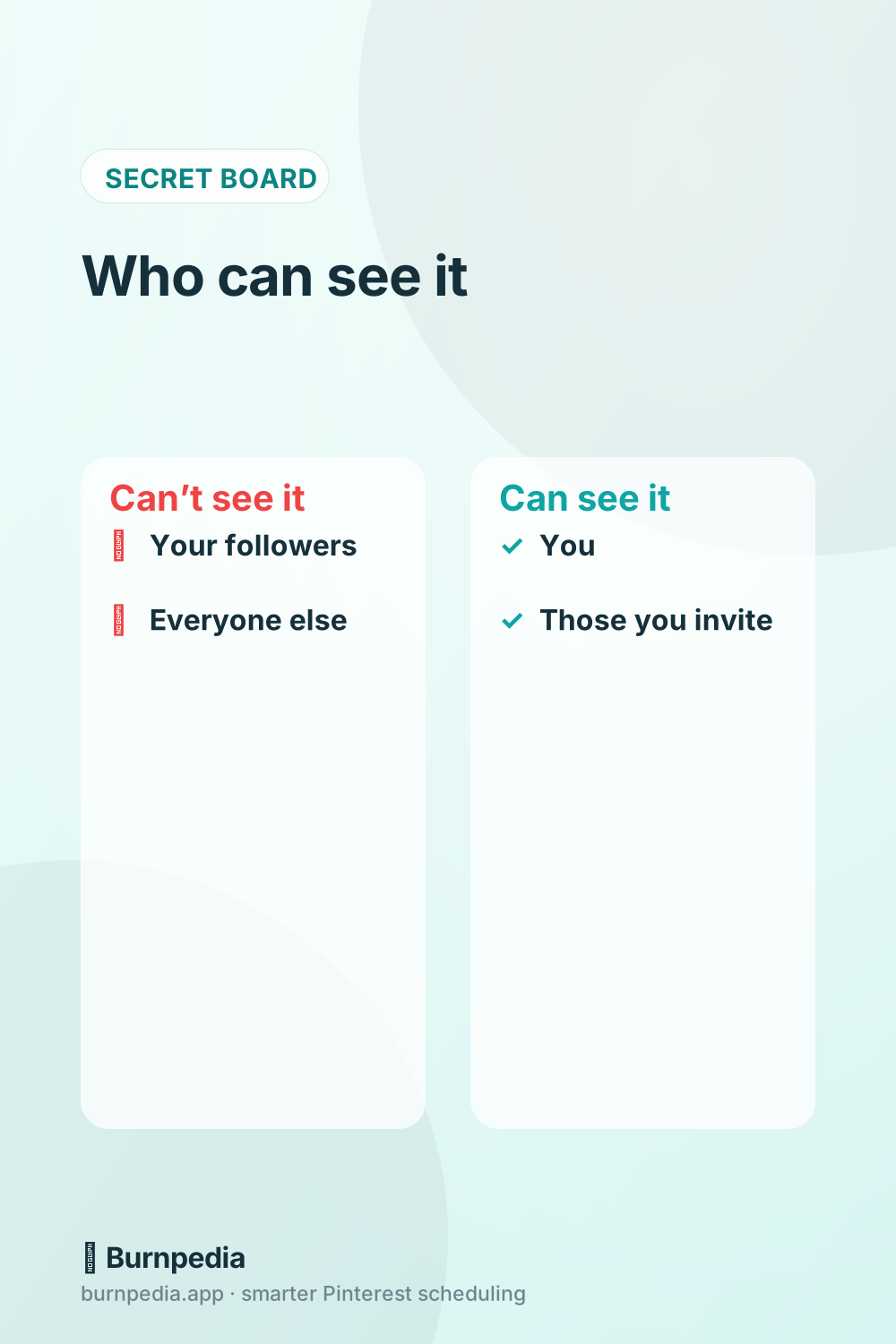
Anyone you invite sees the whole board, not just the Pins you had in mind for them. That’s what makes a secret board handy for a client or a teammate to look over a batch, and it’s also why you check what’s on a board before you invite anyone.
There are two ways to share a private board: invite people to collaborate on it, or make the board public.
How to make a Pinterest board secret, or public again
For a new board, switch on Keep this board private when you name it. For a board you already have, here are Pinterest’s steps on a computer:
- Click your profile picture at the top right to open your profile.
- Click the board you want to hide.
- Click the ellipsis icon at the right of the screen, then Edit info and settings.
- Scroll down, switch on Make this board private, and click Done.
In the app, tap your profile picture at the bottom right, open the board and tap the ellipsis icon at the top right. Pinterest’s help lists two versions of the app here: the menu item is either Edit board and header image or Edit info and settings. Switch on Make this board private and tap Done.
To make a secret board public again, open the same settings and switch Make this board private off.
If you schedule Pins to that board, don’t flip either switch yet. Both directions change what happens to the Pins in your queue, and the next three sections cover how.
Can you schedule Pins to a secret board?
It depends on what’s doing the scheduling.
In Pinterest’s own scheduler
Per Pinterest’s Schedule Pins help, a business account picks Publish at a later date, chooses a day and time up to 30 days out, and can keep up to 10 Pins waiting at once. The help doesn’t mention private boards either way. If you want a Pin to publish onto a secret board this way, schedule one first and look at the board after its time has passed, before you queue the rest.
In a scheduling tool
A scheduling tool works through Pinterest’s API, and the API keeps secret boards behind permissions of their own. Pinterest’s developer docs describe these permissions as the ones “your users give your app,” and they name “viewing secret boards” as an example. When you connect a tool, Pinterest shows you a page that asks you to approve what the tool requested. The API description words the four that matter here like this:
- boards:read: “See your public boards, including group boards you join”
- boards:read_secret: “See your secret boards”
- pins:write: “Create, update, or delete your public Pins”
- pins:write_secret: “Create, update, or delete your secret Pins”
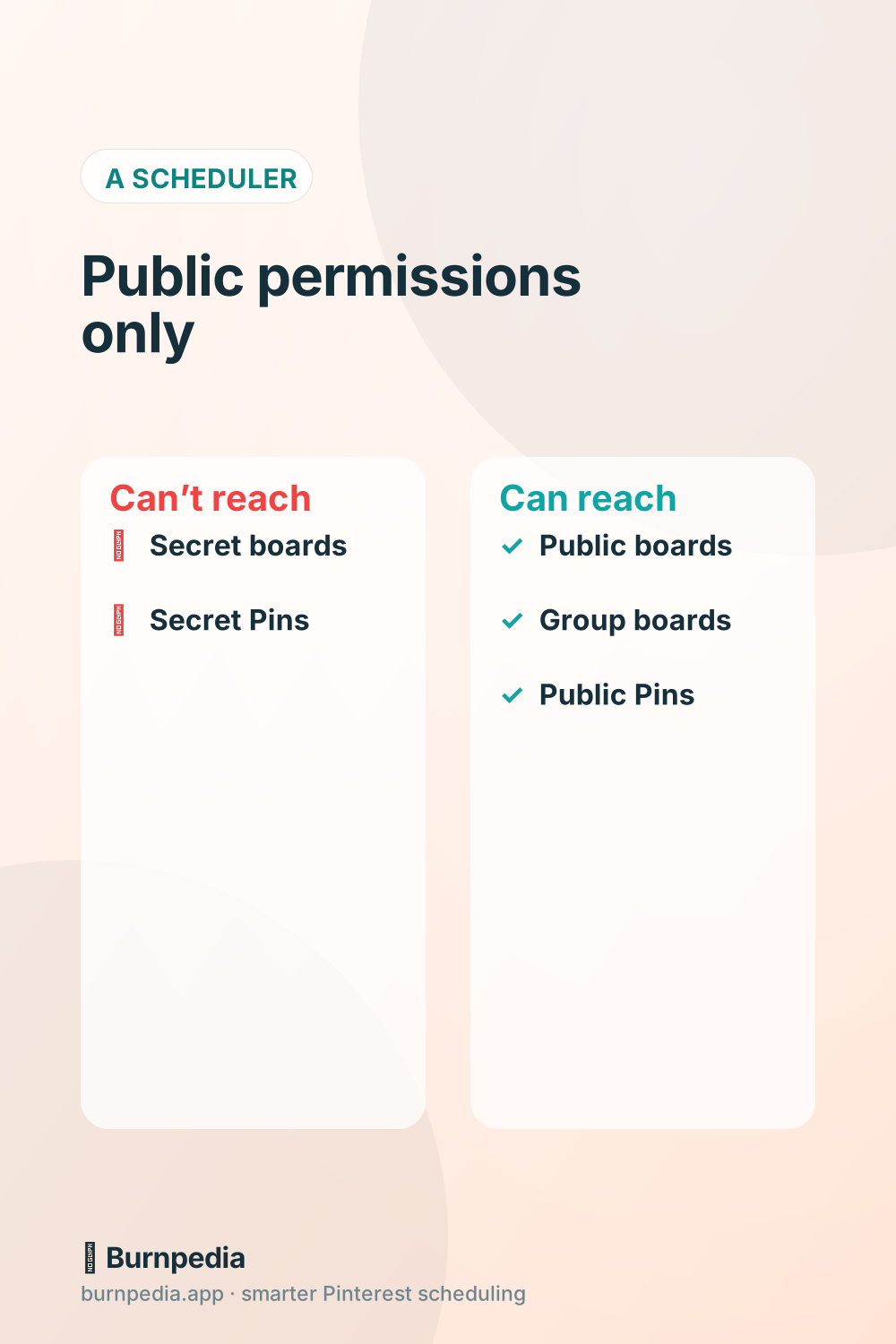
So a tool that asked only for the public ones can’t list your secret boards, and it isn’t allowed to create a Pin on one. Pinterest’s list of boards for a tool returns only what that tool’s permissions allow. A request past them gets an error: “Your token does not have sufficient permissions to perform this operation,” as a developer quoted it in Pinterest’s Business Community.
Any scheduling tool that asked for the secret permissions, and got your approval on that connect page, can post to a secret board. Many tools just don’t ask.
In Burnpedia
Burnpedia asks for the basic set only: your account, your public boards and your public Pins. It doesn’t ask to see secret boards or to create secret Pins, so your secret boards won’t appear in its board list and it can’t publish to one. That keeps its access to what scheduling needs. The Burnpedia FAQ puts it as “only what’s needed to schedule and publish on your behalf and read your analytics.”
So if a board is missing from your board list in a scheduler, check whether it’s secret before anything else. That isn’t a sync problem, and reconnecting won’t bring it back unless the tool starts asking for that permission.
Making a board secret while Pins are still queued for it
This one is easy to miss. You tidy your profile on a Sunday, hide an old board, and forget that five Pins are queued for it next week.
In a tool without the secret permissions, those five Pins are now aimed at a board it isn’t allowed to post to. Expect them to fail when their time comes.
In Burnpedia, a Pin that fails is retried about 5, 15 and 60 minutes later, up to 4 attempts. Then it’s marked Failed in your queue with a Retry button, as the FAQ explains. Retrying won’t help here, because the board is still secret. Open the Pin, change its board to a public one, then retry it.
Pinterest’s own scheduler is less clear. Its help says you can change a scheduled Pin’s board, but not what happens to one whose board turns private before it publishes. Don’t find out on a live batch.
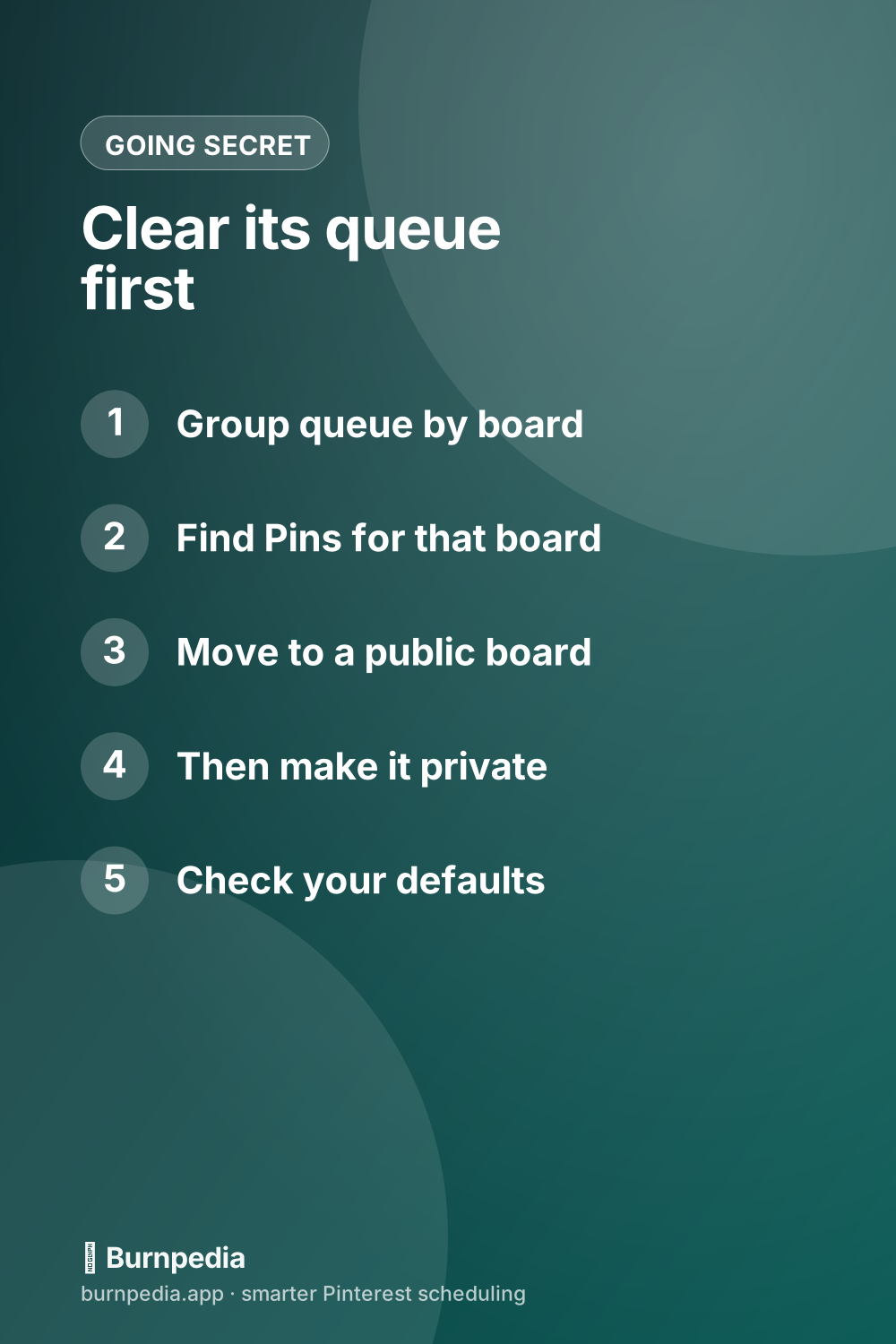
The fix is the same everywhere and takes a few minutes. Do it in this order, before you touch the board’s settings:
- Open your queue and group or filter it by board. Burnpedia’s queue can be grouped by board.
- Find every Pin queued for the board you’re about to hide.
- Move each one to a public board that fits it, or delete the ones that only made sense there.
- Now make the board secret.
- Check your defaults. If a WordPress plugin, an RSS feed or a bulk upload picks a board for you, make sure it isn’t still set to the one you just hid.
That last step is the one that bites later. A default board keeps catching new Pins long after you’ve forgotten it was ever set, and every one of them will hit the same wall.
Releasing a secret board: one flip, or a schedule
The usual advice is to fill a secret board quietly, then make it public when it’s ready. That works, as long as you know what the switch does. One toggle, and every Pin on the board is public at the same moment, whether that’s 6 Pins or 60.
Pinterest doesn’t say how it treats Pins that sat on a secret board before the switch, so don’t count on a boost from the reveal. What it does say, in its guide to growing on Pinterest from January 2026, is to keep “posting frequently and consistently.” A board of 40 Pins revealed in one afternoon gives you one big day and then nothing new from that board.
For your own finished Pins there’s a quieter route. Your scheduler’s queue already does the job people use a secret board for: nothing in it is public until its date. Unlike the board, it lets each Pin out on its own day.
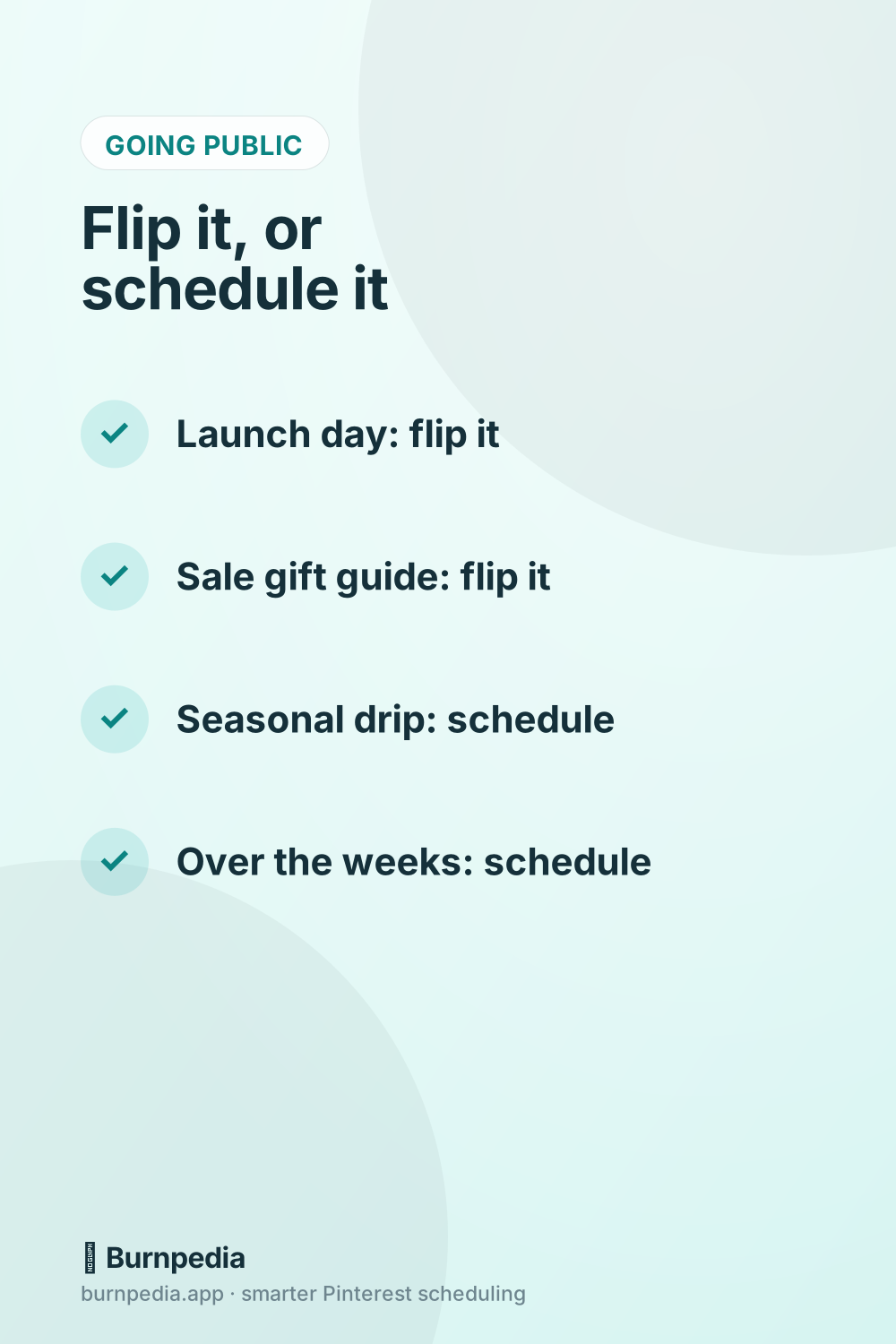
- Flip the board when it should appear complete on one day, like a product launch or a gift guide that goes live with the sale.
- Schedule the Pins when you want them spread out, like a seasonal batch that should drip through the weeks before the season.
Pinterest’s own scheduler holds 10 waiting Pins, 30 days out at most, so a bigger batch needs a scheduling tool or a few rounds of loading. Burnpedia’s pricing page says its Pins are “spaced out rather than fired in bursts,” and every plan has a daily ceiling: 3 Pins a day on the free plan.
There’s one more reason to schedule. The same Pinterest guide says to save Pins to “any relevant, existing board that has already gained engagement, too, so they appear where people are already looking.” A board that was secret until today has had no audience but you and anyone you invited. Scheduling the finished Pins to an older board that already gets saves follows that advice, and a board section can give the new topic its own shelf inside that older board.
Where a secret board fits in a weekly batch
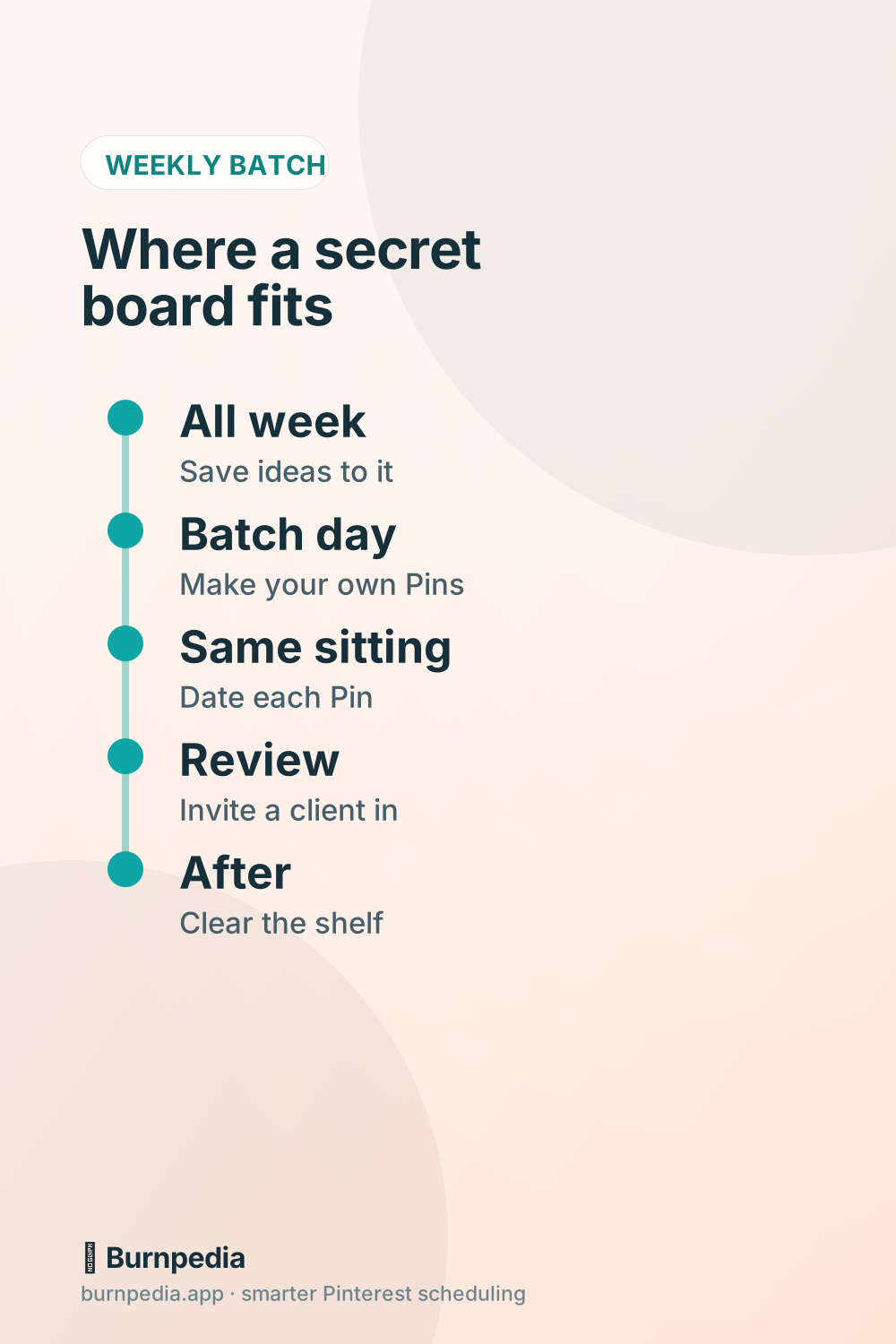
A secret board earns its keep before your Pins exist. Here’s a weekly rhythm that keeps the two jobs apart:
- All week: save ideas, Pins you want to study and photos for future posts to one secret board. Saving someone else’s Pin there doesn’t notify them.
- Batch day: open the board and turn the best ideas into your own Pins in your design tool.
- Same sitting: load the finished Pins into your scheduler, each with a date and a public board. They stay hidden in the queue until their time.
- If a client or teammate has to approve the batch: invite them to a separate secret review board, save the drafts there, and schedule only what they approve. Leave the review board secret.
- After the batch: clear out the ideas you used, so next week’s shelf holds only what’s still waiting.
That split matters for one reason. Ideas on a secret board can sit there as long as you like. Finished Pins can’t, because a Pin that waits months on a hidden board was never shown to anyone in the season it was made for.
Questions people ask about Pinterest secret boards
What does it mean if a board is secret on Pinterest?
It means only the board’s owner and the people they invited can see it. Pinterest’s help now calls it a private board. Its Pins can’t be promoted as ads, and saving someone’s Pin to it doesn’t notify them.
How to create a secret board in Pinterest?
Create a board as usual and switch on Keep this board private when you name it. To hide a board you already have, open Edit info and settings and switch on Make this board private.
Can people who follow me on Pinterest see my secret boards?
No. Following you doesn’t give anyone access. Only you and the people you invite to that board can see it.
Can you send a secret Pinterest board to someone?
Pinterest’s way to share one is to invite that person to collaborate, or to make the board public. If you invite them, they see everything on the board, so look through it first.
The short version for your next batch
Use a secret board for ideas, references and reviews, and let your queue hold the finished Pins until their dates. Before you hide a board, move the Pins queued for it. Before you reveal one, decide whether you want everything public at once or one Pin at a time. For the rest of the weekly routine, how to schedule Pins the smart way walks through it from start to finish.
If you’d like a queue you can group by board and fix in one place, you can try Burnpedia’s free plan with no credit card.
Burnpedia is an independent scheduling tool. It is not affiliated with, endorsed by or sponsored by Pinterest, Inc. “Pinterest” is a trademark of Pinterest, Inc., named here only to say what the software works with.
Want Pinterest to run itself?
Every tip on this blog gets easier when your Pins publish on schedule. Burnpedia batches, times, and posts them for you — start free, no credit card.
Try Burnpedia free