Pinterest Board Sections: How to Make Them and Where Scheduled Pins Land
A section is a folder inside a board, and it takes five clicks to make one. The tricky part is scheduling: Pinterest’s API allows a Pin straight into a section, but the guides that rank for this say otherwise. Here’s what lands where, and the weekly sort that fixes it.
Pinterest board sections are folders inside a board. To make one, open the board, click the plus icon at the bottom of the screen, select Section, name it and click Add. Then click Organize, pick the Pins you want in it and move them over.
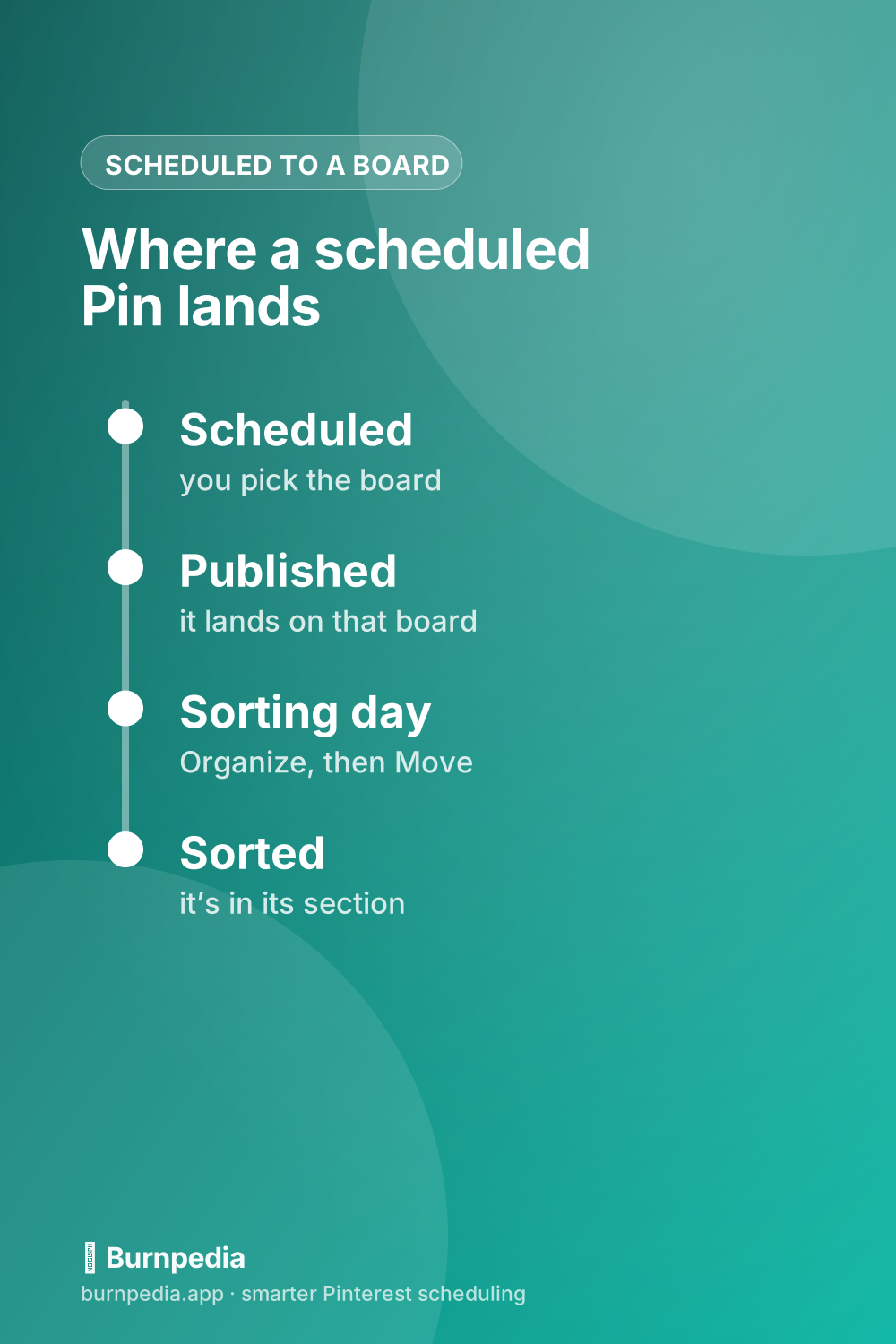
The harder question is the scheduler’s one. Can a Pin you schedule go straight into a section? Pinterest’s own developer documentation says an app can create a Pin “on a board or board section.” Whether your tool does is up to the tool. Burnpedia doesn’t yet, so Pins scheduled with us land on the board and get sorted in once a week.
I read Pinterest’s help pages, its creator site and its API description for this on November 4, 2026, along with the three guides that rank for it. I didn’t try any of it on a test account. Below you’ll find the clicks for a computer and the app, what the guides disagree on, the weekly sort, where a new topic should live, and fixes for sections that won’t show up. It’s one piece of the routine in how to schedule Pins the smart way.
How to make a section on a Pinterest board
Pinterest’s Create a board section help gives one short path. On a computer:
- Click your profile picture at the top right to open your profile.
- Click the board you want to split up.
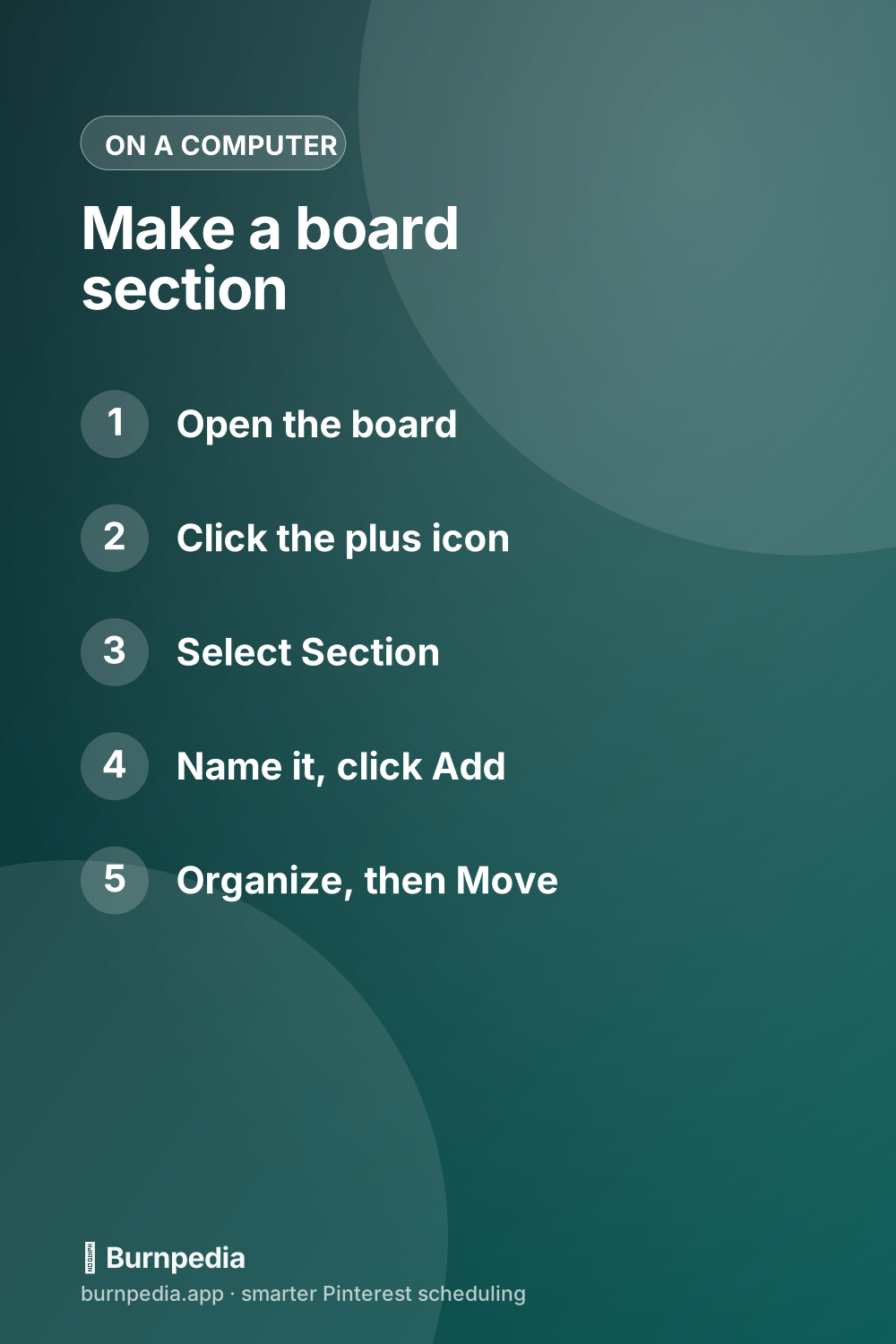
- Click the plus icon at the bottom of the screen, then select Section.
- Type a name for the section and click Add.
- Click Organize at the top of the board, select the Pins that belong in the section, click Move, then click Save next to the section.
In the app it’s the same idea. Tap your profile picture at the bottom right, open the board, tap the plus icon at the bottom of the screen and tap Section. Enter a name, tap Next, and select the Pins to move in. One of the two app versions Pinterest documents also offers a few suggested names and finishes with a Done button.
Two things are worth knowing before you start. A section gets a name but no description of its own, so the board’s description still does the explaining (Heather Farris makes this point in her guide). And older tutorials describe a “+Section” button or an “Add Section” menu. If your screen doesn’t match a tutorial, go by Pinterest’s current help. It puts the plus icon at the bottom.
Can you schedule Pins to a board section?
This is where the guides ranking for this search disagree, and it matters if you load a week of Pins at a time. Here’s who says what:
| Source | What it says about scheduling into a section | When |
|---|---|---|
| Avoid sections if you use a scheduler, “since schedulers cannot send Pins to sections” | 2024, updated 2025 | |
| You can’t schedule Pins directly to sections, “even with Pinterest’s built-in scheduler” | May 2025 | |
| Third-party tools can’t, but Pinterest’s own scheduler can | 2024, updated November 2025 | |
| An app can create “a Pin on a board or board section” | Read November 4, 2026 | |
| Doesn’t mention sections | Read November 4, 2026 |
So which is it? Start with what Pinterest itself publishes. Its API description is the rulebook every outside scheduler has to follow. It describes the Create Pin call as creating “a Pin on a board or board section,” and the Pin it creates has a field for the section’s ID. So sections aren’t off limits to apps. Whether a given scheduler offers them is a choice that tool makes. A guide that says “schedulers can’t” is describing the tools it looked at, not a rule Pinterest set.
Pinterest’s own scheduler is the murkier one. Its help says a business account can schedule a Pin up to 30 days ahead and have up to 10 waiting at once. After a Pin is scheduled, you can still change its publish date, title, board, description or link. Sections never come up. Tailwind’s guide notes that when you save a Pin, a board with sections shows an arrow next to its name in the board list, and that’s where you pick a section. So when you schedule there, open the board menu and look for that arrow. If it’s there, pick the section. If it isn’t, the Pin goes to the board.
And Burnpedia (that’s us)? Honestly, not yet. Burnpedia publishes each Pin to the board you choose and doesn’t send a section, so every Pin you schedule with us lands on the board itself. What you can do is change a queued Pin’s board right up to 30 seconds before it publishes, so a Pin that belongs on a different board never has to go out on the wrong one. The next part is how to handle the sections.
Where a scheduled Pin lands, and the weekly sort that fixes it
A Pin scheduled to a board with no section publishes onto that board, the same as a Pin you save there by hand. It’s live and on the right board. It just isn’t inside the section you’d have filed it in.
You could fix that one Pin at a time. Open it, pick the section from the menu next to Board or Section, and save. Pinterest’s Move Pins help shows that route. But if you schedule a week at a time, it’s quicker to sort the whole week in one pass, board by board, with Organize.
Here’s the routine. I’d run it on the day you load next week’s batch, so it’s one habit instead of two:
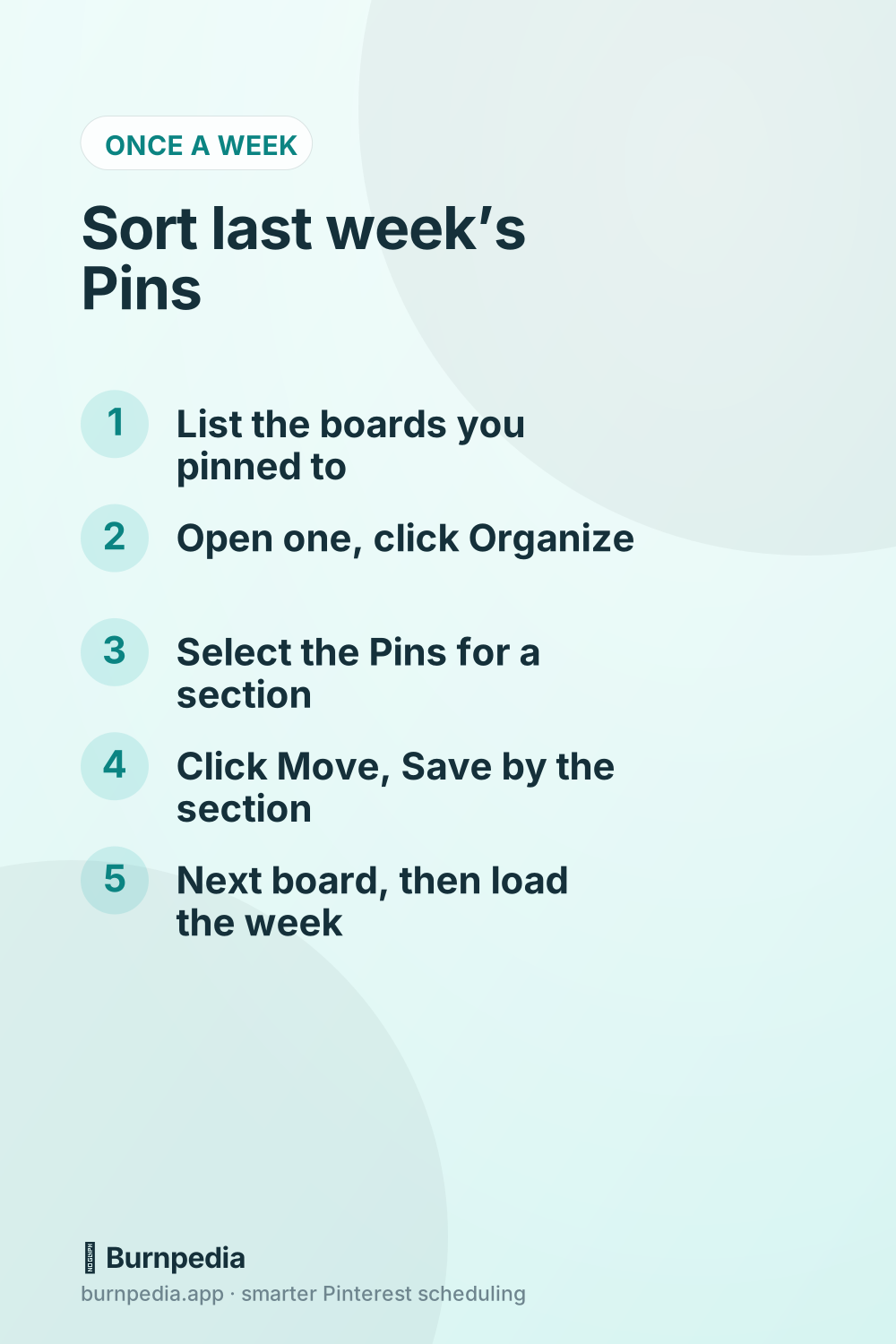
- Write down the boards last week’s Pins went to. Your queue or calendar already shows them.
- Open the first board and click Organize at the top.
- Select last week’s Pins that belong in a section.
- Click Move, then click Save next to the section. In the app, tap Organize, select the Pins and pick the section.
- Do the next board on the list, then load next week’s Pins.
Two habits keep this light. First, leave a Pin on the main board if it doesn’t clearly fit a section. Nothing breaks by leaving it there. Second, watch where most of each week’s Pins end up. If they keep going to the same section, that section probably wants to be its own board.
The same thinking applies when one Pin fits two places. Saving a Pin to more than one board covers how far apart to space the saves.
Board or section: where should next week’s Pins go?
Here’s the scheduler’s rule of thumb. If you’ll pin to a topic every week, give it a board. Every scheduler can pick a board, so a Pin scheduled there lands exactly where it belongs and needs no sorting later. A section suits a slice you add to now and then, where a short sort on your batch day is no burden.
Pinterest’s guidance on size points the same way. Its creator site says 20 to 100 Pins is ideal for a board without sections, and the same goes for each section. So a section that blows past 100 while you keep scheduling to it is doing a board’s job.
Search is the other half, and boards get a real share of it. Simple Pin Media, whose episode on boards was made in partnership with Pinterest, says Pinterest confirmed that 25% of all Pinterest SEO traffic goes to boards. Sections get no number like that.
Tailwind’s guide says sections help your Pins show up in search but no more than a board with a specific title does. Heather Farris says sections are searchable but tend to bring up the board that holds them. Neither gives a Pinterest number for it. Tailwind also quotes a presenter at a Pinterest webinar calling sections “a Pinner feature” made to help people organize their Pins. So I wouldn’t count on sections for reach. Make boards for the topics people search, and use sections to keep a big board easy to browse.
Put together, the call for each topic looks like this:
- You pin to it every week: make it a board.
- It’s a slice you add to a few times a season, like gift ideas inside a home decor board: make it a section.
- It’s a section past 100 Pins and you keep scheduling to it: promote it to a board.
- It’s a board under 20 Pins that hasn’t grown in months: fold it into a related board as a section.
If you’re still setting your boards up, how to set up Pinterest boards the right way covers board names and descriptions, plus how many boards to start with.
How many sections can a Pinterest board have?
Nobody publishes a number, Pinterest included. None of the Pinterest help pages I read today names a maximum. Its API lists a board’s sections page by page and states no cap either. One page ranking for this calls sections “unlimited,” but it doesn’t cite anything. So treat it as “no published limit,” which isn’t quite the same as “no limit.”
You’ll hit a practical limit long before any technical one. If each section is meant to hold 20 to 100 Pins, a board with a long row of tiny sections makes visitors tap more and find less. A handful you actually keep filled is plenty.
Boards do have a ceiling, and Pinterest’s help page on account limits explains how it works without giving the number. An account can only store so many boards. Archiving a board doesn’t lower your count, so you have to delete boards to make room. And after you delete one, it can take a few days before you can create a new board. A section isn’t a board, so it’s the easy option when you’re close to that wall.
Why can’t I see or add sections on Pinterest?
When the option isn’t there, or a section seems to have vanished, go down this list:
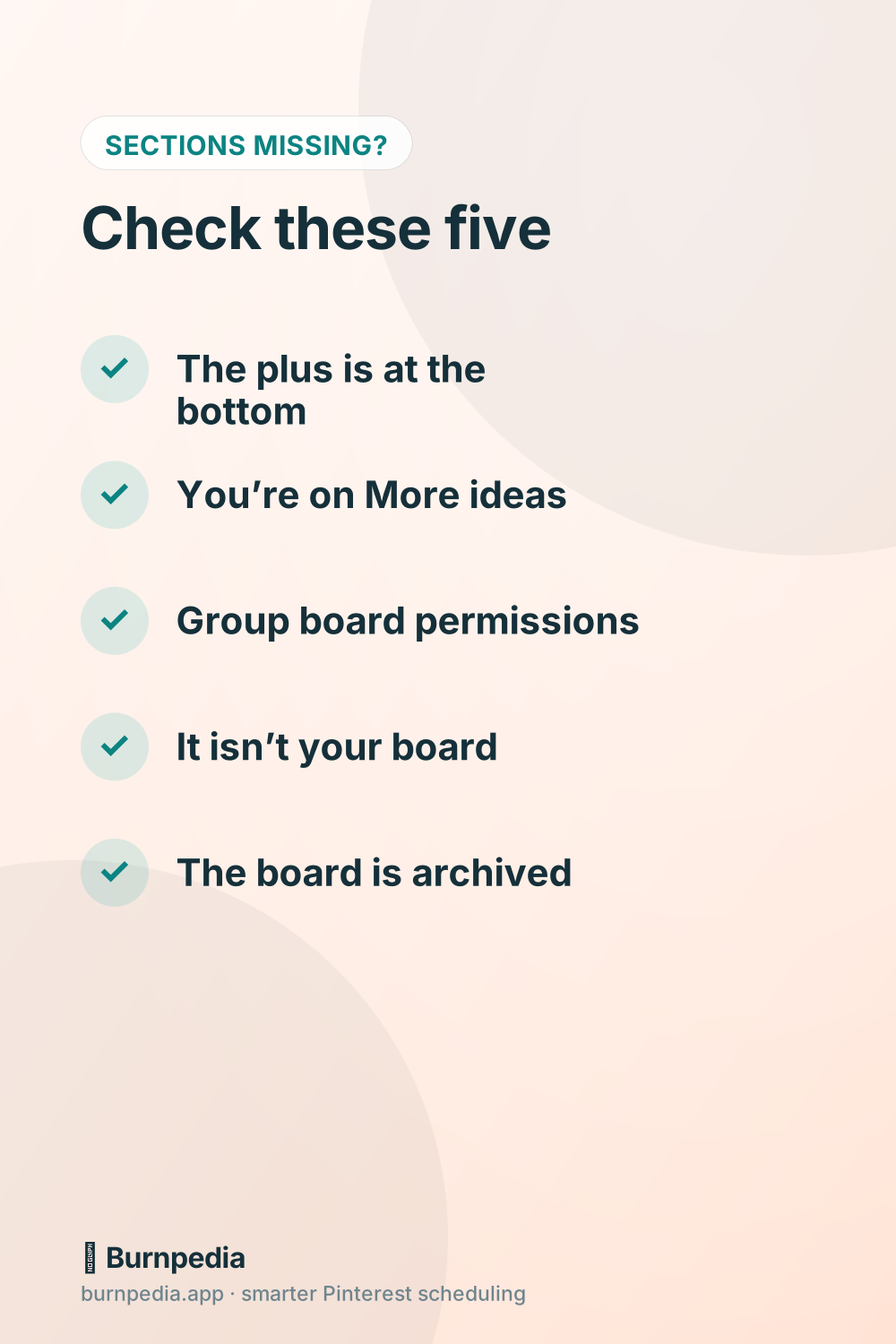
- You’re looking in the old spot. Pinterest’s help puts the plus icon at the bottom of the screen when a board is open.
- You’re on the wrong tab. In the app, a board opens on All saves, where Pinterest’s board help says you see and organize the Pins you’ve added. If you switched on Show recommendations first, the board opens on More ideas instead. The filter icon at the top right switches it back.
- It’s a group board you joined. Pinterest’s board guide says the owner decides whether collaborators can add, move or delete Pins and sections. The other option keeps them to saving and commenting (reacting and organizing Pins are in that smaller set too). If you can save but can’t add a section, ask the owner.
- It isn’t your board. Pinterest’s merge help says you can merge the boards and sections you own, and its API lets an account manage sections only on its own boards and on group boards shared with it. Someone else’s board won’t show those tools.
- The board is archived. Pinterest says an archived board drops off your public profile, sits at the bottom of your profile below your other boards, and won’t take new Pins until you unarchive it.
If none of those fit, try the other device. Pinterest documents the same steps for a computer and for both phone apps, so switching only takes a minute. Every help page I read today ends with a Contact us link, and that’s the next stop.
How to turn a section into its own board, merge two, or move one
There’s no single button that turns a section into a board. Tailwind and Heather Farris describe the same workaround, and it runs on Pinterest’s own Move tool:
- Create a new board and give it the section’s name (or a better one).
- Open the old board, then open the section.
- Click Organize, select all of the section’s Pins, click Move, and save them to the new board.
- Once the Pins are on the new board, delete the empty section.
Moving a section to another board works the same way. Move its Pins, then remove the section. Always do the move first. Tailwind warns that deleting a section deletes the Pins in it, and Pinterest says the same about whole boards in its Archive or delete a board help. A deleted board can be restored for 7 days from Recently deleted, on a computer or on Android only.
To merge two sections, Pinterest’s Merge help has you open the board, hover over a section and click the edit icon on its cover. Select Merge, pick the other section, and click Move Pins and delete section. You can also drag one section onto the middle of another. Merging is hard to undo, though. Pinterest says reversing it means making a new section and moving the Pins back one by one.
Reordering is the easy one. Pinterest’s Reorder help says you drag and drop sections (or Pins) on the board, and the change saves by itself. In the app you press and hold a section, tap the arrows icon, and drag it where you want it.
Questions people ask about board sections
These four were in Google’s “People also ask” box when I searched this on November 4.
Why can’t I see sections on Pinterest?
Usually it’s the tab or the board. In the app, check that you’re on All saves rather than More ideas. On a group board, the owner may not have given you permission to add sections. And on someone else’s board, the section tools aren’t yours to use.
Why can’t I organize my pins on Pinterest?
Open the board itself first. Organize sits at the top of the board on a computer, and the app has an Organize button on the board too. It works on your own boards and on group boards you’ve joined, so if it’s missing, check whose board you’re on.
How to make a section of a Pinterest board its own board?
Create a new board, open the section, use Organize to move all of its Pins to the new board, then delete the empty section. There’s no one-click convert.
How to organize Pinterest sections?
Drag and drop them on the board to change the order, and the change saves automatically. To combine two that overlap, use Merge from the edit icon on a section’s cover.
The setup that keeps a weekly schedule simple
If you schedule a week at a time, here’s the setup I’d aim for. Give a board to anything you pin to weekly, so scheduled Pins land in the right place with no follow-up. Keep a few sections for the slices that don’t need their own board. Then sort those in one Organize pass on the day you load the next batch.
Burnpedia schedules to boards, and you can try its free plan with no credit card to see whether that routine fits the way you work.
If you do one thing today, open your biggest board and look at its Pin count. If it’s well past 100 and you keep adding to it, that’s the board to split into sections, or into a second board.
Burnpedia is an independent scheduling tool. It is not affiliated with, endorsed by or sponsored by Pinterest, Inc. “Pinterest” is a trademark of Pinterest, Inc., named here only to say what the software works with.
Want Pinterest to run itself?
Every tip on this blog gets easier when your Pins publish on schedule. Burnpedia batches, times, and posts them for you — start free, no credit card.
Try Burnpedia free