How to Save a Pin to Multiple Boards (and How Far Apart to Space Them)
Pinterest saves a Pin to one board at a time, so a second board means a second save. Here’s how, which board goes first, and how to space the rest days apart instead of minutes.
Yes, you can save a Pin to multiple boards. Pinterest just does it one board at a time. Open the Pin, click the small arrow next to Save, pick a board and save it. Then open the same Pin again and pick the next board. There’s no box in Pinterest’s own steps where you tick five boards at once.
If it’s your own Pin, two rules decide whether those extra saves help you. Save it to the most relevant board first. Then add the other boards days apart, not minutes apart, and only the boards a person browsing them would actually want it on.
I read Pinterest’s own help pages, its policies and its API description for this on November 2, 2026. Every click below comes from them. You’ll get the steps on a computer and in the app, how saving differs from moving a Pin or merging two boards, what Pinterest has said about one Pin on several boards, and a schedule that spaces the copies for you. It sits inside the bigger weekly system in how to schedule Pins the smart way.
Can you save a Pin to multiple boards?
You can. What you can’t do inside Pinterest is pick several boards in one save. Pinterest’s Save Pins help walks you through choosing “a board,” singular, and its API works the same way. The developer call that saves a Pin takes one board ID, plus an optional section. So a Pin on three boards is three saves, whether a person makes them or a tool does.
That explains one of the searches Google suggests for this topic: “why can’t i save a pin to multiple boards.” Pinterest’s help doesn’t name a reason. Its steps and its API just agree on one board per save, so the menu you’re looking for isn’t there. Repeating the save is the way.
It also explains why page one is such a mess. One answer page I read names a “Copy” feature that none of Pinterest’s help pages mentions. A 2021 FAQ answers in two sentences. And the Reddit and Quora threads at the top wouldn’t even load for me.
How to save a Pin to another board on a computer
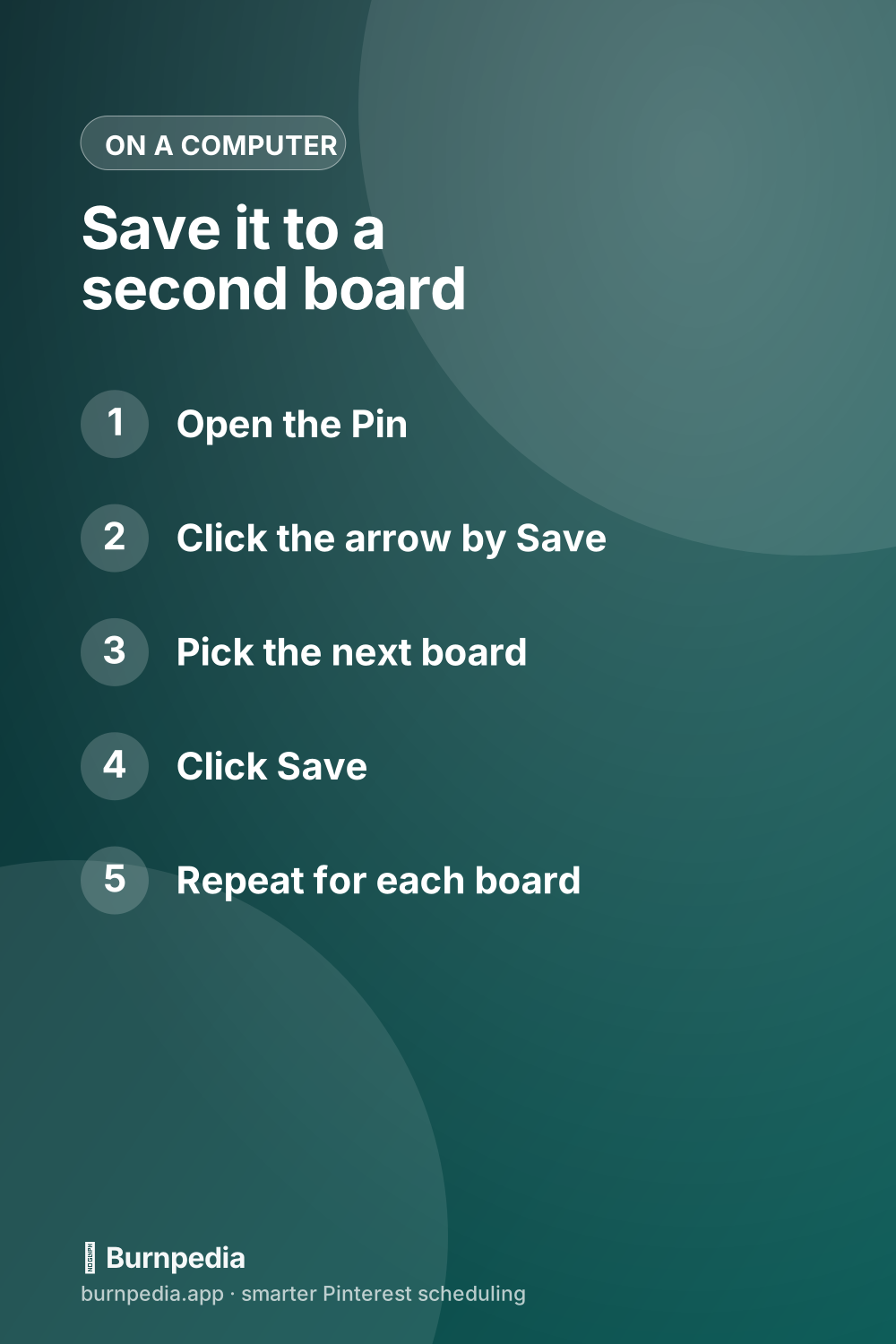
- Hover over the Pin, or click it to open it in the closeup view.
- Click the arrow-down icon at the top right, next to Save.
- Hover over the board you want and click Save. To start a new board, click the plus icon, name it, and click Create.
- For the next board, open the same Pin again and repeat steps 2 and 3, picking a different board.
Making a new board on the spot has two extras worth knowing. Pinterest may suggest a name based on your activity, and you can edit it before you create the board. There’s also a switch to keep the board secret, which is handy when you’re building a board you aren’t ready to show.
How to save a Pin to another board in the app
- Tap the Pin to open it in closeup.
- Tap Save at the bottom of the Pin.
- Choose a board, or tap Create board to save it to a new one.
- For another board, open the Pin again and repeat.
Pinterest’s own creator guide adds a shortcut for phones. Long-press the Pin image, tap the Pin icon, choose a board, and press Save. Same result.
Save, move or merge: which one do you actually need?
Some people who search this don’t really want the Pin on two boards. They want it on a better board, and Google’s “People also ask” box for this search leads with how to move Pins. Pinterest gives you three different tools, and they do three different things:
| You want to… | Use | What happens |
|---|---|---|
| Have the Pin on another board too | Save | It’s added to the new board and stays on the old one |
| Put a Pin on a better board | Move | It leaves the first board and lands on the one you pick |
| Fold one whole board into another | Merge | Every Pin moves over, and the old board is deleted |
To move one Pin, open the board, click the edit icon on the Pin, pick a new board or section from the menu next to Board or Section, and click Save. To move a lot at once, click Organize at the top of the board, select the Pins, then click Move. Pinterest’s Move Pins help has the app version too.
Merging has catches, so read them first. Pinterest’s Merge help says the followers of the board you merge away don’t transfer to the other board. If you merge a secret board into a public one, the public board’s privacy setting wins. And there’s no undo button. To reverse a merge, you make a new board and move the Pins back one by one.
Should your own Pin go on more than one board?
For a Pin you made, there’s a real case on both sides, so here’s each one with its source.
The case for it is mostly about your boards. Pinterest’s creator site says almost 25% of Pinterest’s SEO traffic goes to boards, and that boards updated within the last three months have been shown to help drive higher Pin engagement. So a relevant Pin saved to a board you haven’t touched in 3 months gives that board something new. It also puts the Pin in a second place where people already browse that topic.
The case against it is Pinterest’s spam rules. Its community guidelines tell you not to “create or save content that is repetitive, deceptive, or irrelevant in an attempt to make money.” One Pin on two boards that both fit isn’t that. The same image dropped on ten loosely related boards in an afternoon starts to look a lot like it. That’s why repeating one image over and over is on our list of scheduling mistakes that quietly kill your growth.
Pinterest’s clearest word on this is older. Its best-practice guide once said, as Simple Pin Media quoted it (the agency dates the advice to 2018): “It’s okay to save a Pin to multiple boards, but save to the most relevant one first—that Pin will get distribution priority. Saving to irrelevant boards won’t help and may hurt the distribution of your Pins.” The Pinterest page the agency links to returned a 404 when I checked today, so take it as Pinterest’s older advice, quoted by an agency.
The advice people hand each other is all over the place. In January 2022, a member of Pinterest’s Business Community wrote that they’d been told 10 boards (Tailwind’s advice, the member said), at most 5, at most 2 or 3 from a training, and only one board from a conference speaker. In a July 2025 thread, a community member with the Pinterest Pioneer badge said that pinning a fresh Pin “to multiple relevant boards is also safe,” as long as the boards make sense.
How many boards, and how many days apart
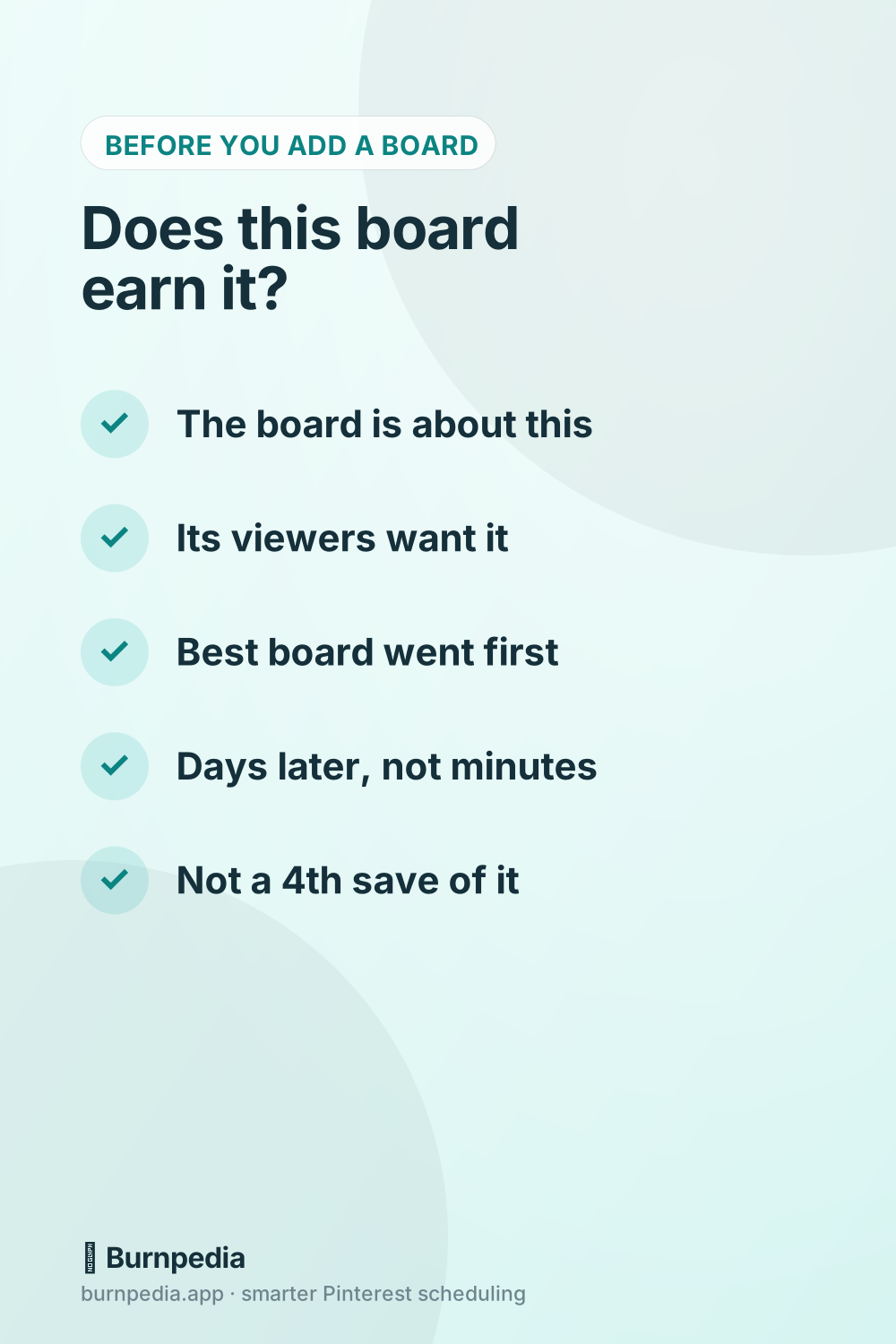
Pinterest hasn’t published a number of boards, and the numbers in that 2022 thread contradict each other. So I’d skip the number and use a test instead. For each extra board, ask whether someone scrolling that board would be glad to find this Pin there. For most Pins, honestly, that’s a short list: the board it was made for, and maybe one or two more.
Here’s the plan I’d use for one new Pin:
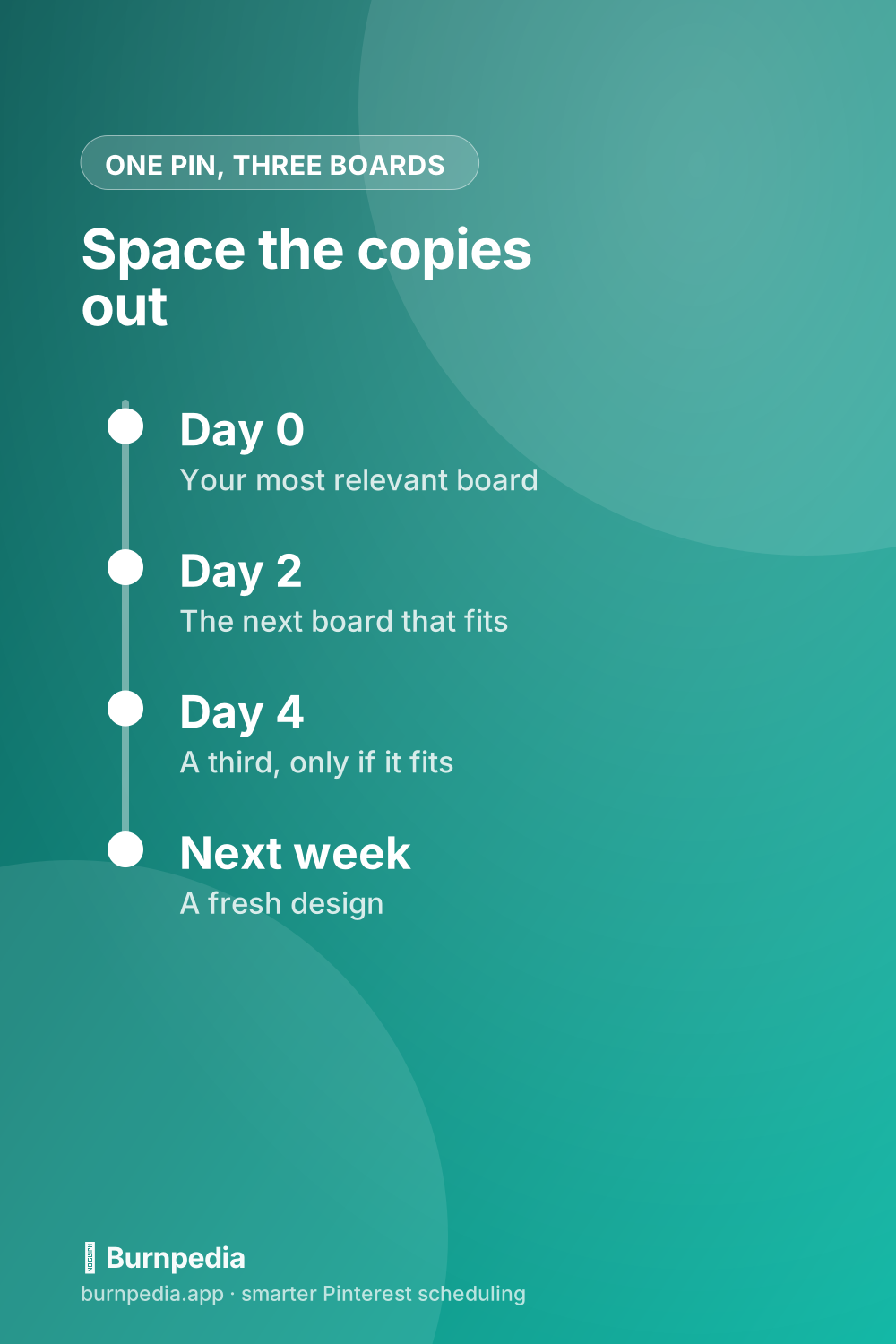
- Day 0: save it to its most relevant board. This is the board whose name a searcher would type, and it goes first because that’s the save Pinterest’s old guide said gets distribution priority.
- Day 2: save it to the next board that truly fits. That’s 2 days later, not 2 minutes.
- Day 4: a third board, only if it passes the same test. Most Pins won’t need it, and that’s fine.
- Next week: if you want the same blog post on more boards, make a fresh Pin design for it instead of saving the same image a fourth time.
Days, not minutes, and there’s a reason. A December 2018 copy of that same Pinterest page, saved by the Internet Archive, says “Consistent, daily activity is better than adding a ton of Pins at once.” Three saves of one image in 5 minutes is exactly a ton at once. The 2-day gap is the spacing our own scheduler uses for copies (more on that below), and it isn’t a Pinterest rule. Simple Pin Media lists intervals anywhere from 12 hours to 36 hours and says “There is no magic number.” Pick a gap and keep it steady.
Two board numbers from Pinterest help here. Its creator site calls 20 to 100 Pins ideal for a board without sections, and the same for each section. So a relevant board that’s still under 20 Pins is a natural home for your second save. If your boards blur into each other, fix that first with a board strategy that gives each one a clear topic.
Scheduling one Pin to several boards without doing it by hand
The plan above is easy to agree with and easy to forget, because the second and third saves happen on days when you aren’t thinking about that Pin. So this is a scheduling problem more than a Pinterest one.
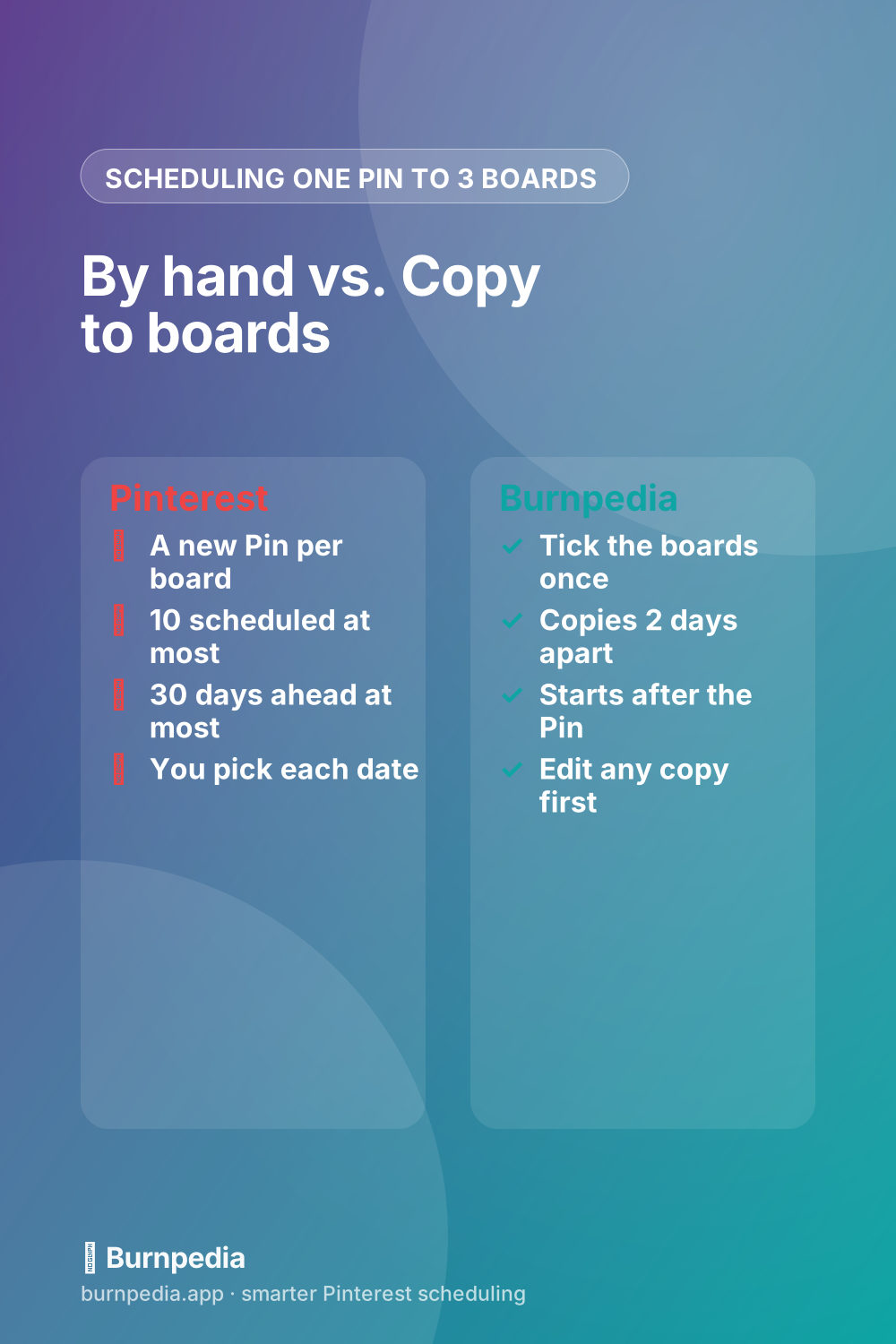
Pinterest’s own scheduler can do it, with limits. Its Schedule Pins help says you schedule one Pin at a time, up to 30 days ahead, with up to 10 scheduled at once. A scheduled Pin has one board, which you can change later, so a copy on a second board means scheduling a second Pin with the same image and its own date.
The 10 is where this pinches. Three new Pins, each on three boards, makes 9 scheduled Pins, and that nearly fills the 10. A fourth new Pin with its three boards won’t fit until some of the first ones publish. Batch a week of Pins on Monday and you’ll hit that wall at the fourth Pin, then end up back in the scheduler midweek as slots free up. Kind of a pain, honestly.
Burnpedia (that’s us) has a button for exactly this, so here’s how it works, straight from our own product:
- Next to each Pin in your queue there’s a Copy to boards button (⧉+). It turns up once Pinterest is connected and your account has more than one board.
- Tick the boards you want and click the Schedule button under the list. The Pin’s own board isn’t offered, because pinning it there twice would be pointless.
- The first copy goes out 2 days after the Pin’s own time (or 2 days from now, if that’s later), and each copy after that another 2 days on. Pick two boards and the copies land 2 days and 4 days after the original, which is the plan above.
- Each copy is its own Pin in your queue. It starts with the original’s image and link, and its title and description too. You can change any copy before it publishes, and you can undo the whole set.
- Each copy counts as a Pin toward your daily limit. The free plan adds 3 Pins a day, so on a busy day a big copy list can run into it.
You still choose every board yourself, and that’s on purpose. Pinterest’s developer guidelines say that when an app lets people schedule Pins, “the end user must choose each Pin to be published.” The same page asks apps not to build automations “that could lessen the authenticity of engagement on Pinterest,” and spraying one image across every board you own would do exactly that.
If you do this for a handful of Pins a month, Pinterest’s scheduler and a calendar reminder are plenty. I wouldn’t pay for a tool just for this. If you batch a week at a time and want each Pin on two or three boards, that’s when Burnpedia’s queue starts saving real time. You can try it on the free plan without a card.
Quick answers
These four came up in Google’s “People also ask” box when I searched this on November 2.
How do I move pins to different boards on Pinterest?
Open the board, click the edit icon on the Pin, pick the new board or section, and click Save. For several Pins, click Organize at the top of the board, select them, and click Move.
How to save pin to specific board?
Open the Pin, click the arrow-down icon next to Save, hover over the board you want, and click Save. In the app, tap Save at the bottom of the Pin and choose the board.
Is there a limit to how many pins you can save on a Pinterest board?
None of the Pinterest help pages I read today names a cap. What Pinterest does publish is a sweet spot: 20 to 100 Pins for a board without sections, and the same for each section.
How do I put multiple Pinterest boards together?
Merge them. Open the board, click the ellipsis next to its name, select Merge, pick the board to merge with, and click Move Pins and Delete Board. Its followers don’t carry over, so merge with care.
If you only do one thing after reading this, pick your best Pin from last month and ask which second board someone would be glad to find it on. If there is one, save it there today, and give it 2 days before you think about a third.
Burnpedia is an independent scheduling tool. It is not affiliated with, endorsed by or sponsored by Pinterest, Inc. “Pinterest” is a trademark of Pinterest, Inc., named here only to say what the software works with.
Want Pinterest to run itself?
Every tip on this blog gets easier when your Pins publish on schedule. Burnpedia batches, times, and posts them for you — start free, no credit card.
Try Burnpedia free