How to Set Up Pinterest for Business (Step by Step, 2026)
Most Pinterest struggles trace back to a shaky setup. This is the complete, do-it-once foundation — business account, claimed site, keyworded profile and boards — that makes everything after it work better.
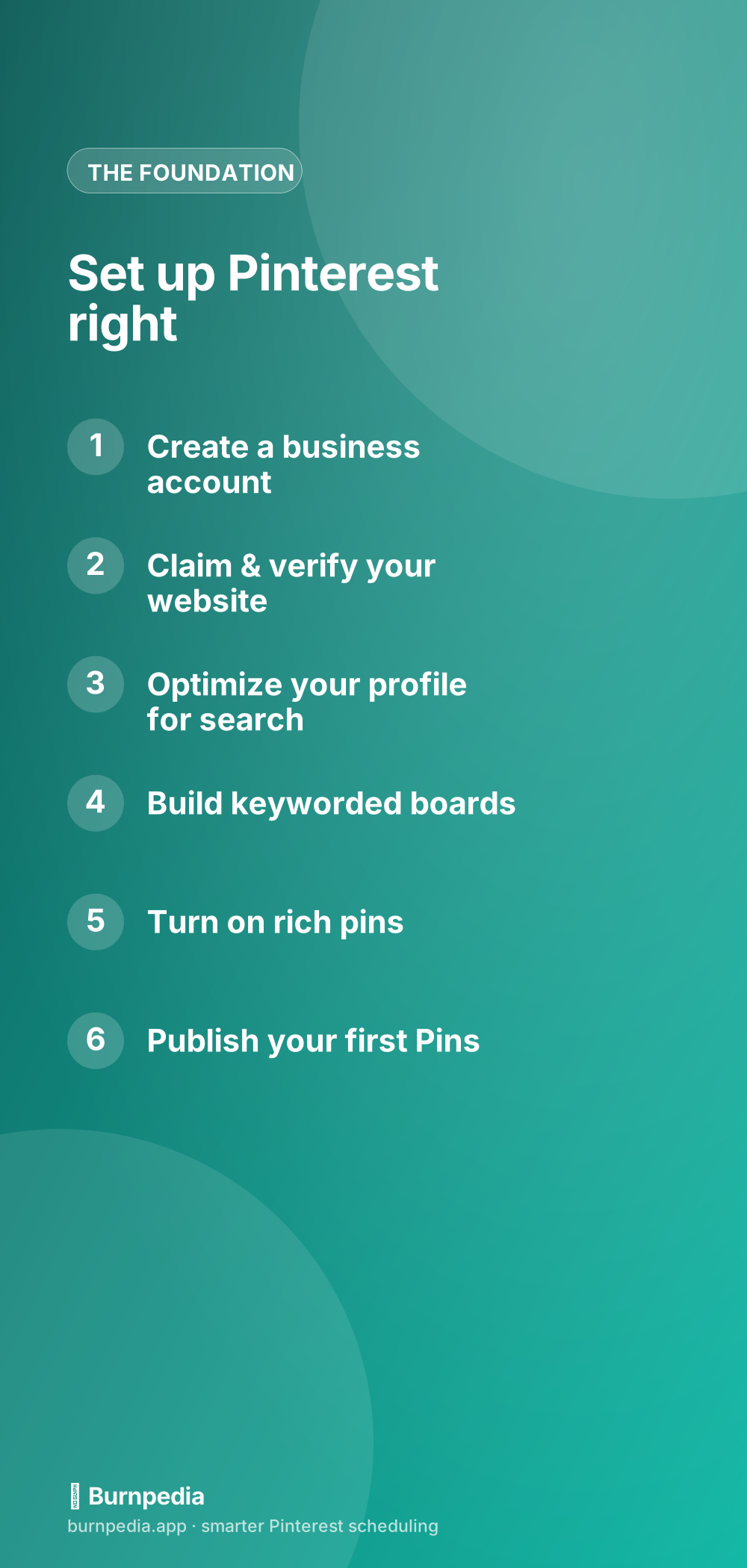
Almost every “why isn’t Pinterest working for me?” story I hear traces back to the same quiet culprit: a shaky setup. People jump straight to pinning without laying the foundation, and then wonder why the algorithm never quite trusts them. Here’s the good news — setting Pinterest up properly is a one-time job that takes an afternoon, and once it’s done, every single Pin you publish afterward works a little harder. So before you worry about strategy, viral Pins, or ads, let’s get your foundation right. This is the complete, do-it-once setup that puts you on solid ground.
Think of this as the master checklist; each step here has its own deeper guide if you want to go further, and I’ll link them as we go. If you’re truly brand new to the whole platform, you might also enjoy Pinterest for beginners as a gentler orientation. But if you just want to set things up correctly and move on, follow along — we’ll knock this out together.

Step 1: Get a business account
The very first thing is to make sure you’re on a Pinterest business account, not a personal one. It’s free, it takes two minutes, and it unlocks the things that actually matter: analytics, the ads manager, rich pins, and website claiming. You can either create a new business account or convert an existing personal one. I cover the exact why and how — including whether to convert or start fresh — in the Pinterest business account guide. Do this first, because several later steps depend on it.
Don’t overthink the business-versus-personal question: if you’re using Pinterest to grow anything — a blog, a shop, a service, a brand — you want the business account. The only reason to stay personal is if Pinterest is purely a hobby for you, in which case you probably aren’t reading a setup guide.
Step 2: Claim and verify your website
Next, claim your website. This tells Pinterest that your site is really yours, unlocks analytics for everything pinned from your domain, puts your profile picture on Pins that link to your site, and builds the trust that helps your content get distributed. It’s a small technical step with an outsized payoff, and skipping it is one of the most common setup mistakes. I walk through the whole process in how to claim your website on Pinterest — do it right after your business account is live.
Step 3: Optimize your profile for search
Your profile is not just decoration — it’s searchable real estate. Pinterest reads your display name and bio to understand what you’re about and who to show your content to. So your name should include your main keyword (not just your brand), and your bio should clearly say what you help people with, using the words they’d actually search. A profile that says “Jane’s Corner ✨” tells Pinterest nothing; “Jane | Easy Vegetarian Recipes & Meal Prep” tells it everything. The full method is in how to optimize your Pinterest profile and, for the bio specifically, Pinterest bio optimization.
Step 4: Build keyworded boards
Boards are how you organize your content and how Pinterest categorizes you. Create a handful of boards named for what people search — “Small Space Home Office Ideas,” not “Stuff I Like” — each with a keyword-rich description. Well-named boards give the algorithm a tidy map of your topics, which helps every Pin inside them get shown to the right people. I cover exactly how many boards to start with, how to name them, and how to structure them in how to set up Pinterest boards the right way. Aligning your boards with your core themes also sets you up for content pillars later.
Step 5: Turn on rich pins
Rich pins pull extra metadata from your website onto your Pins — things like article titles or live product prices — making them more informative and trustworthy. Enabling them is a one-time technical step that quietly upgrades every Pin from your site, so it’s well worth doing during setup. The exact process lives in rich pins setup. Once they’re on, you don’t have to think about them again.
With those five pieces in place — business account, claimed site, optimized profile, keyworded boards, and rich pins — your foundation is genuinely solid. You’ve told Pinterest who you are, proven your site is yours, made yourself findable, organized your topics, and upgraded your Pins. That’s more setup than most accounts ever bother with, and it shows.
Step 6: Publish — and then keep going
Now you actually pin. Start publishing helpful, keyword-aware Pins to your new boards, and — this is the part that separates accounts that grow from accounts that stall — do it consistently. A perfect setup followed by silence goes nowhere; a solid setup followed by steady pinning compounds. To turn “consistent” from a willpower problem into a solved one, plan your first month and let it publish on a schedule. What to do across those first weeks is laid out in your first 30 days on Pinterest.
Setup mistakes worth avoiding
A few missteps show up again and again on new accounts, and they’re all easy to sidestep once you know them. The first is staying on a personal account “for now” and never switching — you lock yourself out of analytics and every growth tool. The second is skipping the website claim because it “sounds technical,” leaving your Pins anonymous and your data empty. The third is naming boards cutely (“Yum!”, “Inspo”) instead of for search, which quietly makes your whole account harder to find. And the fourth is treating setup as the finish line rather than the starting line — doing all this beautifully and then never pinning consistently.
Notice that none of these is a dramatic blunder; they’re small omissions that compound. That’s exactly why a deliberate setup pays off — you’re not doing anything heroic, just refusing to leave easy value on the table. Spend the afternoon getting each piece right, and you skip past the invisible handicaps that hold back accounts that rushed. The people who “can’t make Pinterest work” are very often just the people who quietly skipped two or three of these foundations.
It’s also worth revisiting your foundation every few months as you learn. The keyword you led with in your name might evolve, a board might need splitting as your content grows, a new best-seller might deserve its own board. Setup isn’t quite “one and done” so much as “do it properly once, then tune it lightly as you go.” A quick quarterly glance to make sure your name, bio, and boards still reflect what you actually do keeps that hard-won foundation working for you rather than slowly drifting out of date.
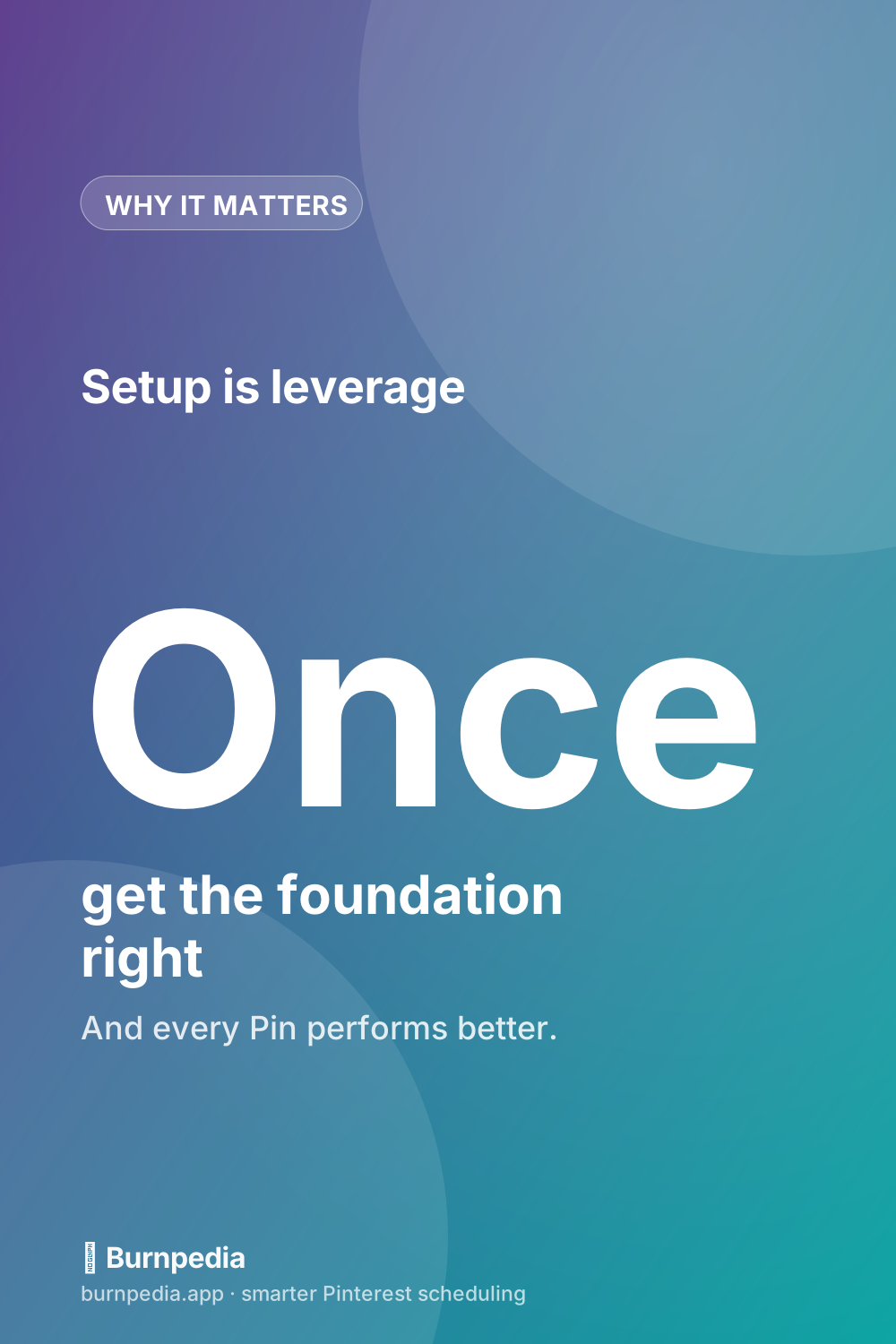
That’s the whole foundation: business account, claimed website, search-optimized profile, keyworded boards, rich pins, and consistent publishing. None of it is hard, and all of it is one-time work that makes everything you do afterward — every Pin, every strategy, every ad — perform better. Set it up properly once, and you’ll never be the person wondering why Pinterest “doesn’t work” for them. Lay the foundation, then go build on it. — Sadie
Written by Sadie Brooks
Hey — I’m Sadie. I grew up in a small town outside Columbus, Ohio, moved to Austin for a job I quit within a year, and somewhere in between I started a scrappy little food blog to keep myself sane.
These days I help creators, bloggers, and small U.S. business owners grow on Pinterest without turning it into a second full-time job. I write the Burnpedia blog because I genuinely love this stuff, and because I wish someone had explained it to me in plain English years ago. Pour a coffee, pull up a chair.
Try Burnpedia freeWant Pinterest to run itself?
Every tip on this blog gets easier when your Pins publish on schedule. Burnpedia batches, times, and posts them for you — start free, no credit card.
Try Burnpedia free