How to Claim Your Website on Pinterest (& Why It Matters)
Claiming your website is a five-minute technical step with an outsized payoff — full analytics, attribution, brand on every Pin, and the trust that helps your content spread. Here’s how.

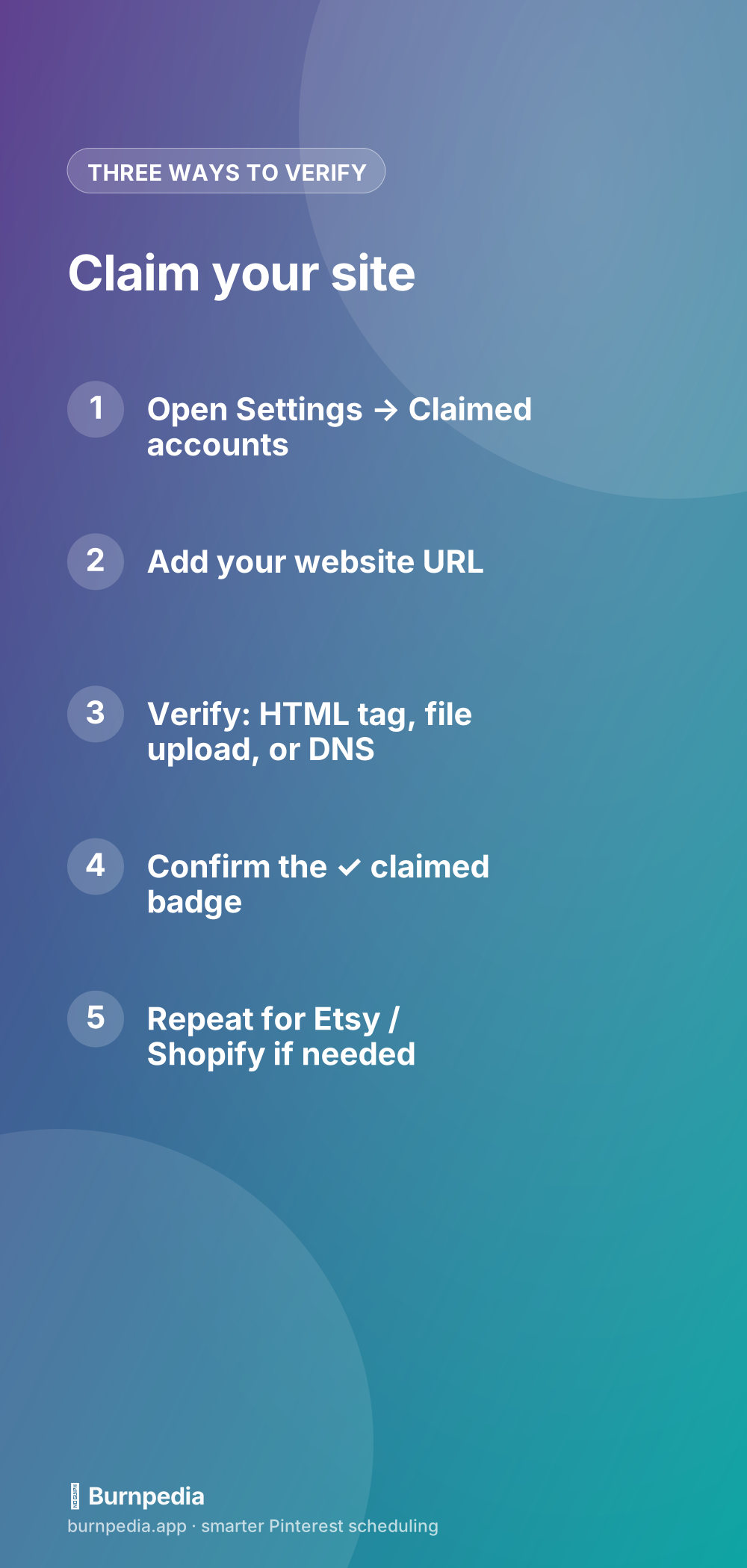
Claiming your website is one of those unglamorous setup steps that people skip because it sounds technical — and then wonder why their analytics are empty and their Pins feel anonymous. It shouldn’t be skipped. Claiming is Pinterest’s way of confirming that your website really belongs to you, and doing it unlocks a genuinely disproportionate set of benefits: full analytics on everything pinned from your site, proper attribution for the saves and clicks you earn, your brand on every Pin from your domain, and a quiet trust signal that helps your content get distributed. It takes about five minutes, once. Let me show you why it matters and exactly how to do it.
This is a core part of the Pinterest setup foundation, and it requires a business account first — so make sure that’s done. Once your business account is live, claiming your site is the natural next move, and it makes several later things (like meaningful analytics) actually work.

Why claiming matters more than it sounds
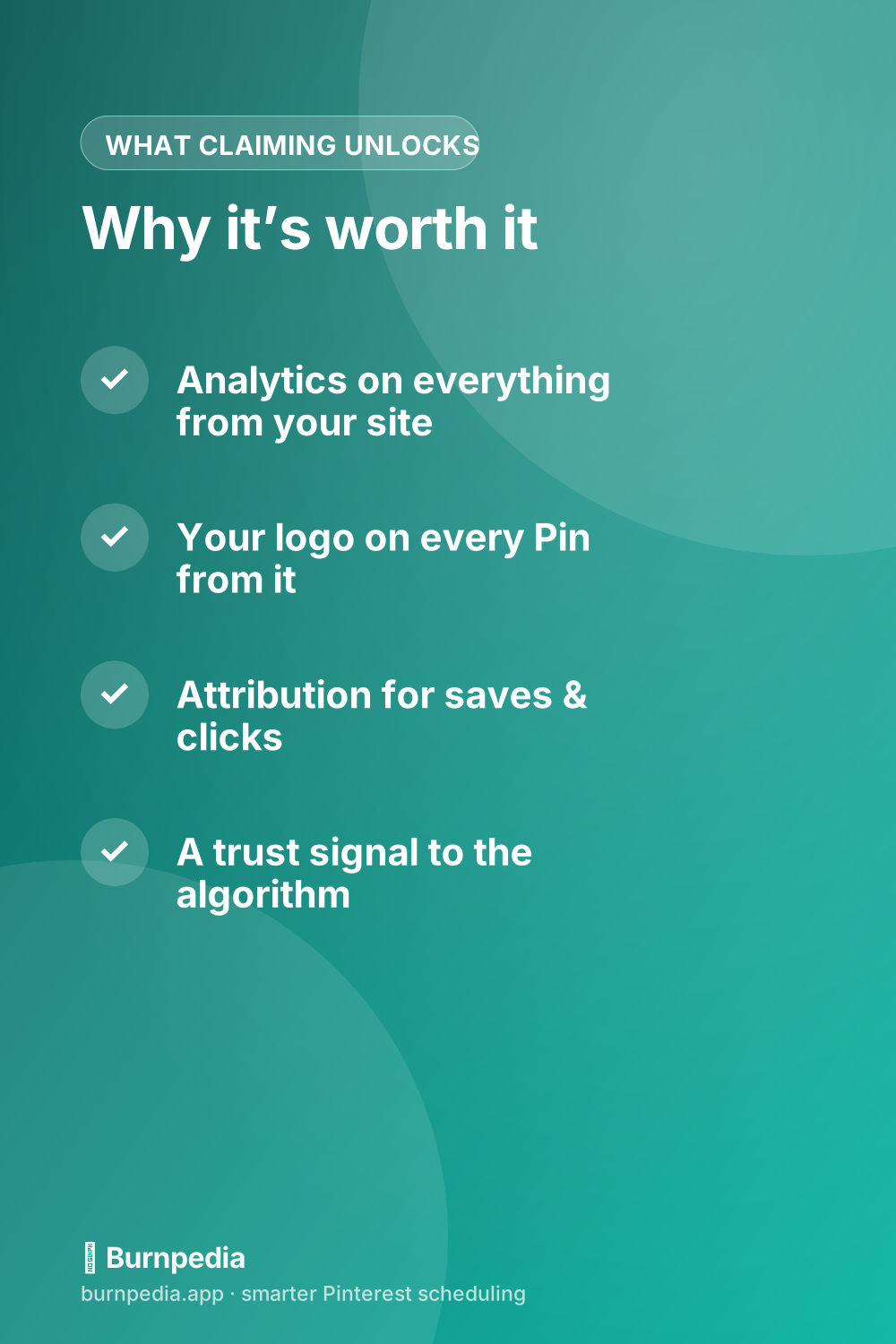
Here’s what actually changes when you claim. First, analytics: you get performance data for every Pin that links to your site, whether you created it or someone else pinned your content — that’s a huge, free window into what’s resonating. Second, attribution and branding: your profile picture and name appear on Pins that come from your domain, so your content stays recognizably yours as it spreads, and you get credit for the traffic it drives. Third, trust: a claimed, verified site is a signal to Pinterest that you’re a legitimate source, which supports how your content gets distributed.
That combination is why claiming punches so far above its five-minute weight. Without it, you’re essentially pinning blind and anonymously — no real data, no brand attribution, less trust. With it, every Pin from your site is tracked, branded, and trusted. And it pairs naturally with rich pins, which layer even more of your site’s data onto your Pins; I cover those in rich pins setup.
The three ways to verify
Pinterest gives you three verification methods, and you only need one. The first is adding a small HTML tag to your site’s header — usually the easiest if you use WordPress or a site builder with a header/SEO field. The second is uploading a small HTML file that Pinterest provides to your site’s root directory — good if you can access your file manager. The third is adding a TXT record to your domain’s DNS settings — reliable if you’re comfortable in your domain registrar. Pick whichever matches your comfort level; they all achieve the same verified result.
If you’re on a platform like WordPress, a Pinterest or SEO plugin often makes the HTML-tag method a matter of pasting one line. On managed platforms like Shopify or Squarespace, there’s frequently a built-in Pinterest integration that handles claiming for you. Don’t let “add an HTML tag” intimidate you — for most modern sites it’s a copy-paste into a designated box, not real coding. Once the site is claimed, our free WordPress plugins can start turning each new post into a Pin draft you approve — claiming is what makes those Pins count towards your profile.
Step by step
In your Pinterest business settings, find “Claimed accounts” (sometimes under Bulk create or Business settings). Enter your website URL, choose a verification method, and follow the instructions for that method — paste the tag, upload the file, or add the DNS record. Then hit verify. Verification can be near-instant or take a little while (DNS changes especially can lag), so if it doesn’t confirm immediately, give it time and try again. When it’s done, you’ll see a claimed badge next to your site. That’s it — you never have to do it again.
Claim your other platforms too
If you sell on Etsy, run a Shopify store, or have a YouTube or Instagram presence, Pinterest lets you claim those as well, extending the same analytics and attribution benefits to content from those platforms. For sellers especially, claiming your shop is worth doing so you get performance data on your product Pins. It’s the same idea: prove it’s yours, unlock the data. And speaking of data — once you’re claimed, your analytics finally become meaningful, which is the perfect time to read Pinterest analytics for beginners and learn what to actually look at.
A small but real bonus: claiming can also help protect your brand, because your attribution travels with your content. When your Pins get re-saved across Pinterest — which is the whole point — your name and logo ride along, keeping the credit (and often the click) pointed back at you rather than getting lost.
When the claim won’t verify
Occasionally a claim doesn’t verify on the first try, and it’s almost always one of a few simple things rather than anything serious. If you used the HTML-tag method, double-check the tag was pasted into the right place — inside your site’s head section, on the live site, not a draft — and that you didn’t accidentally alter it. If you uploaded the HTML file, make sure it’s in your site’s root directory and actually reachable in a browser. If you used DNS, remember those changes can take anywhere from minutes to a day to propagate, so patience is often the whole fix. Clearing a caching plugin or CDN cache after adding the tag resolves a surprising number of “it won’t verify” cases too.
If it still won’t confirm, try a different verification method — sometimes the DNS route works cleanly when a caching layer is interfering with the HTML tag, or vice versa. And make sure you’re claiming the exact domain you actually pin from, including whether your site uses “www” or not, since a mismatch there can quietly cause failures. None of this is common, but knowing the usual culprits means a hiccup costs you a few minutes rather than derailing your whole setup.
It’s also worth re-checking your claim every so often, because a major site change — moving platforms, switching themes, a big migration — can occasionally knock the verification loose. If you ever notice your analytics going quiet or your attribution disappearing from Pins, a lapsed claim is a likely suspect, and re-verifying takes just a moment. Treat the claimed badge as something to confirm is still there after any big change to your site, and you’ll never be caught out by silently losing the data and trust you set up in the first place.
If the technical language still makes you nervous, here’s the encouragement you need: thousands of complete non-technical people claim their sites every day, and modern platforms have made it genuinely painless. On most site builders it’s a single pasted line or a built-in toggle, and if you get stuck, your platform almost certainly has a step-by-step help article for exactly this. Don’t let a five-minute task you’ll only ever do once become the thing standing between you and full analytics, attribution, and trust. Push through the tiny bit of friction now, and you’ll be glad every time you open your analytics and actually see what your Pins are doing.
So don’t skip the claim. It’s a five-minute, do-it-once step that unlocks full analytics, real attribution, your brand on every Pin from your site, and a trust boost with the algorithm — an absurdly good return for the effort. Pick the verification method that matches your comfort level, follow the steps, confirm the badge, and claim your other platforms while you’re at it. Then go enjoy actually being able to see what’s working. Prove it’s yours, and Pinterest starts treating it — and you — accordingly. — Sadie
Written by Sadie Brooks
Hey — I’m Sadie. I grew up in a small town outside Columbus, Ohio, moved to Austin for a job I quit within a year, and somewhere in between I started a scrappy little food blog to keep myself sane.
These days I help creators, bloggers, and small U.S. business owners grow on Pinterest without turning it into a second full-time job. I write the Burnpedia blog because I genuinely love this stuff, and because I wish someone had explained it to me in plain English years ago. Pour a coffee, pull up a chair.
Try Burnpedia freeWant Pinterest to run itself?
Every tip on this blog gets easier when your Pins publish on schedule. Burnpedia batches, times, and posts them for you — start free, no credit card.
Try Burnpedia free