Pinterest Bulk Upload Not Working? Fix the CSV and Get Your Week of Pins Out
Check the CSV first: the header row from Pinterest’s sample, Media URLs that open the file itself, exact board names, dates like 2026-11-24 with times in UTC. Then upload five rows before the rest.
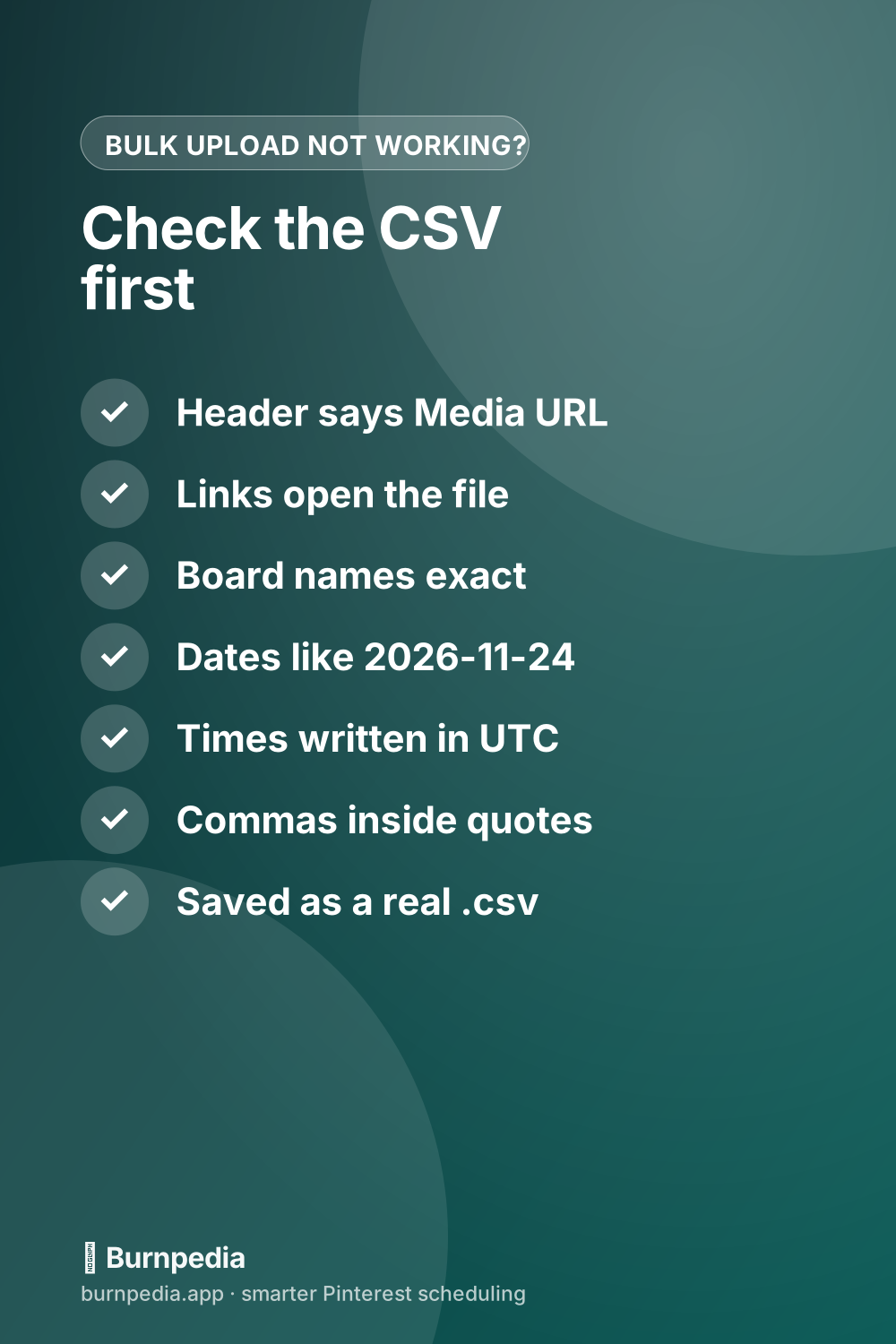
If your Pinterest bulk upload isn’t working, start with the CSV file. Copy the header row from Pinterest’s sample spreadsheet so the second column reads exactly Media URL. Make sure every Media URL opens the image or video file itself, not a Google Drive or Dropbox page. Spell each board name the way it’s spelled on your profile. Write dates like 2026-11-24, with any time in UTC. Then upload from a computer, on a business account, and send five rows before the other 195.
That’s the quick version. Below, you’ll find each column in plain words, what each error message points at, what to do when the upload says Successful and nothing shows up, and a Monday routine that gets a whole week of Pins out of one sheet.
Can you bulk upload to Pinterest? Yes, up to 200 Pins in one CSV
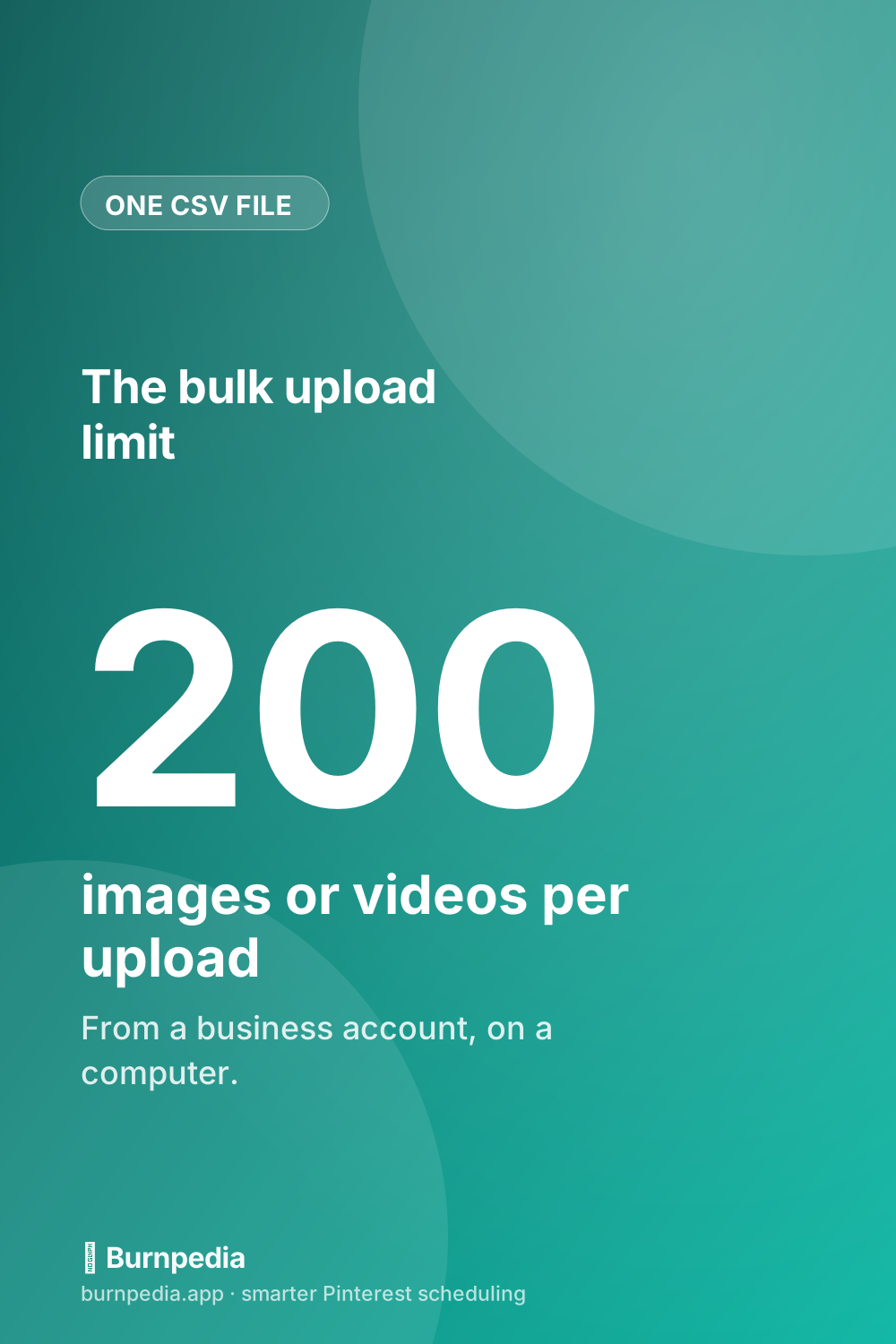
Yes. Pinterest’s bulk tool takes a spreadsheet saved as a .csv file and makes one Pin from each row, up to 200 images or videos per upload. You need three things: a business account, a computer, and images that already live online at a public address.
That last part catches a lot of people. You aren’t uploading 200 pictures. You’re uploading one small text file that tells Pinterest where to fetch 200 pictures. If Pinterest can’t open those addresses, the rows fail, however tidy the sheet looks.
Not on a business account yet? Switching is free, and here’s how to set one up. The bulk tool needs one.
Each row can also carry a publish date, and that’s what makes the file useful for scheduling. You can set a schedule-publish date on any row, so one sheet can hold the whole week: rows with a future date wait for it, and rows with no date go out right away.
How to bulk upload Pins to Pinterest, step by step
The upload only works on a computer, not in the app. Here’s the path:
- Log in to your Pinterest business account.
- Click the downward arrow at the top right to open your menu, then click Settings.
- Choose Import content from the menu on the left.
- Next to Upload .csv or .txt file, click Upload.
- Drag your .csv file into the box, or click the upload icon and pick it.
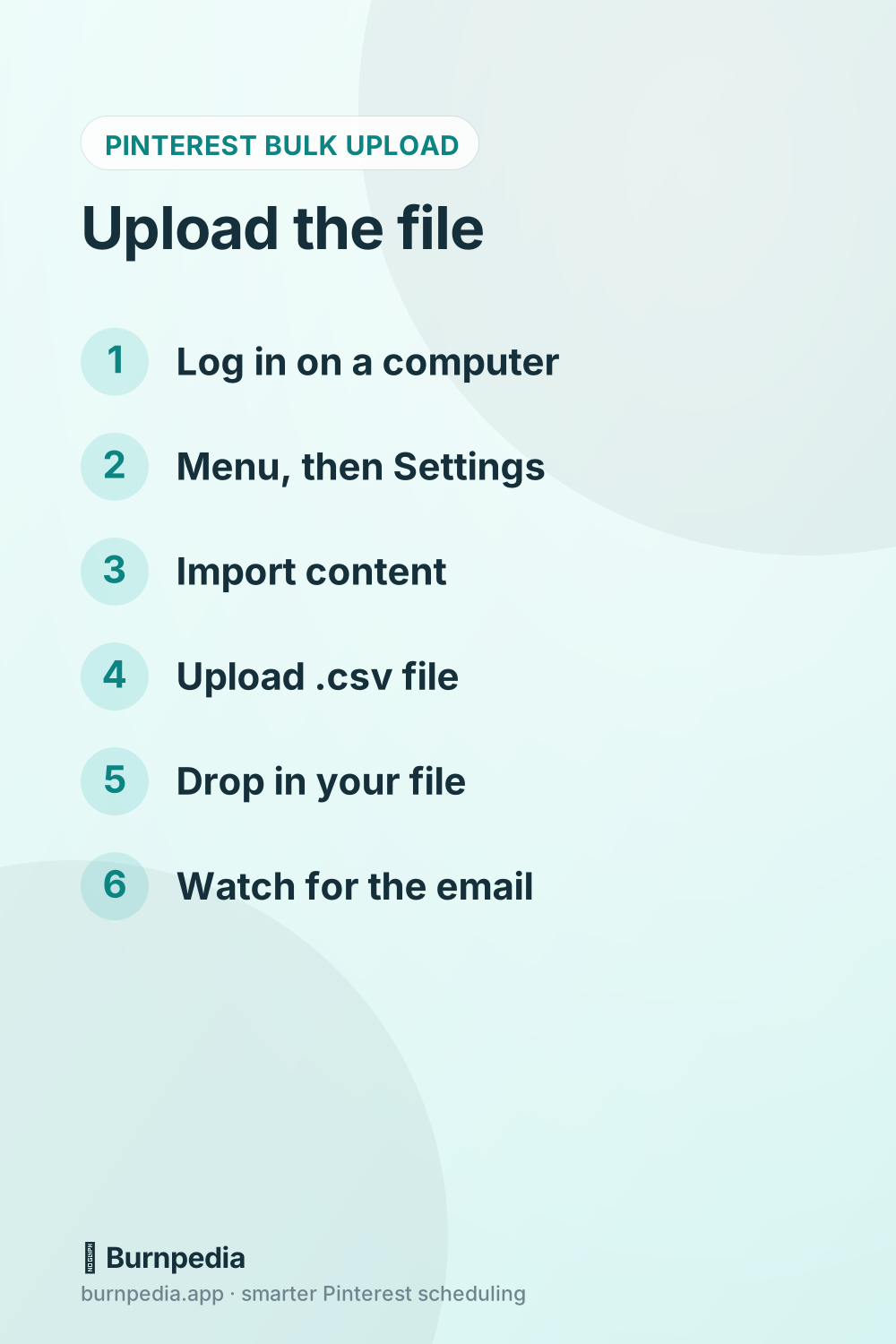
After the file goes in, Pinterest sends you a confirmation email. It may also get in touch if anything needs reformatting, so keep an eye on that inbox for a day or two.
The .txt option on the same screen is a separate thing: a list of video Pins, open only to U.S. business accounts. For images, and for most people, the .csv is the one you want.
The Pinterest bulk upload CSV template, column by column
Start from Pinterest’s sample file rather than a blank sheet. Its first row is the header Pinterest reads, in this order:
Title,Media URL,Pinterest board,Thumbnail,Description,Link,Publish date,KeywordsUnder the header, each row is one Pin. Here’s what goes in each column:
| Column | Required? | What goes in it |
|---|---|---|
| Title | Yes | Up to 100 characters |
| Media URL | Yes | A public link to the file itself, usually ending in .jpg, .png or .mp4 |
| Pinterest board | Yes | The board’s name; add a slash and a section name to save into a section |
| Thumbnail | Videos only | A time like 01:02, a number of seconds, or an image link; blank for images |
| Description | No | Up to 500 characters |
| Link | No | The page your Pin opens when someone clicks it |
| Publish date | No | Blank to publish now, or a future date like 2026-11-24 |
| Keywords | No | A list of search terms, separated by commas |
Two columns cause most of the trouble, so they’re worth a closer look.
Media URL: the file, not a page about the file
Paste each Media URL into a private browser window. If you see the image and nothing else, it’s good. If you see a file viewer, a Download button or a sign-in box, Pinterest can’t use it. That rules out the usual share links from Google Drive and Dropbox, since they open a page about the file.
Images that already sit on your own website are the easy choice. In WordPress, open the image in your Media Library and copy its File URL. That address ends in the file’s own name, which is just what this column wants.
Pinterest board: spelled exactly, every time
This column is forgiving in a way that bites. If a board name doesn’t match one you already have, Pinterest makes a brand-new board for it. One typo, like Fall Recipies, and a dozen Pins land on a board nobody follows. Copy board names straight from your profile instead of typing them.
Want a section? Write the board, a slash, then the section, like Fall Recipes/Soups. It works the same way: a section that doesn’t exist yet gets made. If you use sections a lot, here’s how sections work.
One more rule for the whole file: when a cell has a comma in it, wrap that cell in double quotes. Pinterest’s sample does it for its descriptions and keywords. Google Sheets and Excel add the quotes for you when they save a CSV, so this only matters if you type the file by hand.
Why your Pinterest bulk upload is not working: each error and its fix
Pinterest’s error messages here are short and vague, and each one points at a different part of the file. Fix that part before you upload again.
It looks like your file didn’t upload correctly
This one ends with a nudge to check the formatting, so start with the file itself. It has to be a real .csv, with the header row copied from the sample and quotes around any cell that holds a comma.
Saving a workbook and renaming it to .csv doesn’t make it a CSV. In Google Sheets, use File, then Download, then Comma Separated Values (.csv). In Excel, use Save As and pick CSV UTF-8. If the message keeps coming back even with a file that should pass, move on to the browser checks below.
Sorry, that didn’t work, or Sorry, something went wrong
Look at the header row first. A second column named Media file URL instead of Media URL is enough to sink the whole file, even when every row under it is fine. Copy the header from the sample and never retype it. If the header’s right, wait a few hours and try once more.
Make sure the media file name you upload matches the media file name in your CSV
Go through the Media URL column. Each link should end in the file’s own name, like soup-pin-1.jpg, and open that file and nothing else in a private window.
Missing video title
If your rows are images, check the Thumbnail column. It should be blank for images, so clear anything that crept in there. Then make sure no row is missing its Title.
No message at all, but something’s off
- Only the first Pin showed up: the rows all shared one Link.
- A board you never made: a board name didn’t match yours letter for letter.
- Pins went out at the wrong hour: a local time went in as if it were UTC.
The shared-link problem is sneakier. A file where every row points to the same page can stop after the first row, even when each row has its own image, board and date. Honestly, ten Pins to one page in one week isn’t a plan you want anyway. Give each page its Pins on different days, or in different weeks’ files.
And if nothing in the file looks wrong? It may not be the file at all. A bulk upload that failed in Chrome has gone through in a private window, and one that failed has worked a few hours later. Try a private window, then a different browser, then later in the day, before you rebuild anything.
Still stuck after all that? Pinterest’s support team can see what happened to the file on their side. Attach the .csv and a screenshot of the message, so they don’t have to ask for either.
It says Successful, but no Pins showed up
A Successful status means Pinterest got your file. It doesn’t mean every row became a Pin. Rows can still drop out after that, one at a time, for reasons the status never shows you.
So count. If the file had 40 rows, you’re looking for 40 Pins, on the right boards, at the right times. Here’s where to look for the missing ones:
- A scheduled row isn’t late, it’s waiting. Rows with a future date only show up on that date.
- A board name with a typo made a new board. Look on your profile for one you don’t recognize.
- A row whose date had already passed won’t be scheduled. Look for it among today’s Pins, and if it isn’t there, give it a future date and send it again.
- A Media URL that stopped working before Pinterest fetched it. Open each link again in a private window.
- Rows that shared one Link. Only the first of them may be there.
Then check your email. The confirmation lands after the upload, and if Pinterest wants something in the file changed, that’s where it asks.
Scheduling in the CSV: dates, UTC and the hour your Pins go out
The Publish date column is what turns a bulk upload into a scheduled week. Leave it blank and the row goes out right away. Put in a future date and the row waits. Two formats work: a date like 2026-11-24, or a date and time like 2026-11-24T14:00:00. Anything else gets an error, and that Pin won’t publish.
A date with no time goes out at the same time of day you uploaded the file. Upload at 11:40 on a Monday night, and every date-only row publishes at 11:40 at night on its day. That’s rarely the hour you’d pick, so add the time.
The time has to be in UTC, not your own time zone. Until March 14, 2027, U.S. Eastern time runs five hours behind UTC, Central six, Mountain seven and Pacific eight. So:
- 9:00 a.m. Eastern on Tuesday, November 24 is 2026-11-24T14:00:00.
- 9:00 a.m. Pacific on the same day is 2026-11-24T17:00:00.
- 8:00 p.m. Eastern on that Tuesday is 2026-11-25T01:00:00. The date moves to Wednesday.
That last one is the trap. An evening Pin in any U.S. time zone crosses midnight in UTC, so the date in the cell moves forward a day too. Forget it, and your Tuesday evening Pin goes out on Monday evening.
When the clocks change on March 14, 2027, every gap shrinks by an hour, and Eastern becomes four hours behind UTC. A file you build in March for April needs the new numbers.
If you’d rather not do the math every week, do it once. Pick your hours using the best times to post on Pinterest, write each one down in UTC, and reuse that little list for every file.
Test five rows before you send two hundred
The weekly file fits in one sitting on a Monday. Send five rows first, and the problems above cost you five Pins, not two hundred.
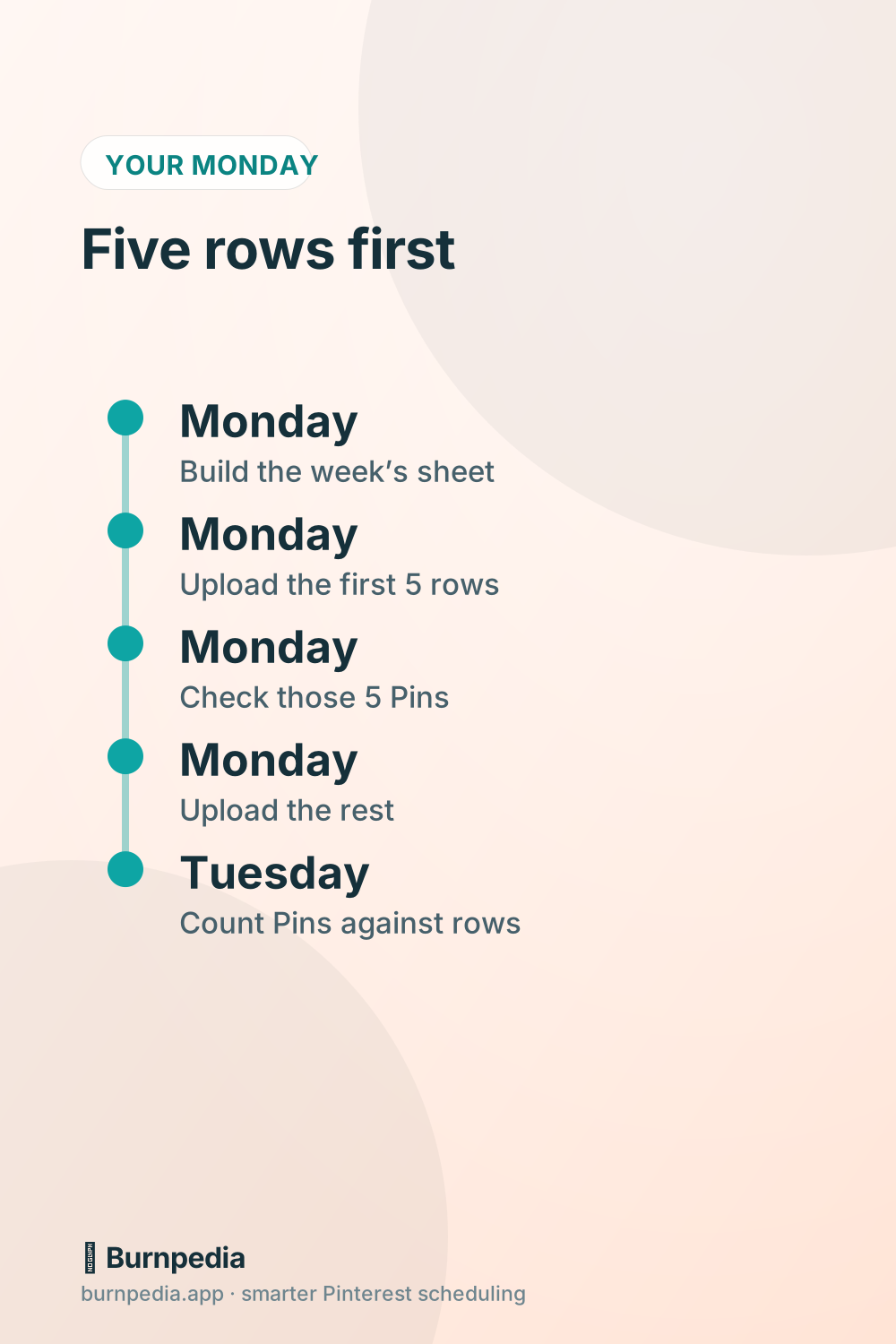
- Build the whole week in one sheet: a title, an image link, a board, a description, a link and a UTC date and time on every row.
- Copy the first five rows into a new file with the same header. Leave their dates blank so they go out now. They’re Pins you wanted anyway.
- Upload those five. Then open your profile and check each Pin: the right image, the right board, and a link that opens the right page.
- If all five look right, upload the rest of the week. If one is wrong, fix that column in the whole sheet before you send another row.
- On Tuesday, count. Compare the Pins that are out so far with the rows dated for those days.
Why five? It’s a small batch that still mixes your boards and your links, and a mistake in five rows takes a minute to fix. A mistake in 200 rows is an afternoon of deleting Pins in bulk.
Two more habits help. Keep each file to one week, 20 or 40 rows rather than the full 200. A small file is quicker to check, and if it fails, you’ve lost a week’s setup, not a month’s. And save each week’s sheet under its date, so you can see later which Pins went where.
When the CSV keeps failing: other ways to get a batch out
The CSV is one of five ways Pinterest gives you to get Pins out. If it keeps refusing your file, the others still get your week done:
- Pinterest’s own scheduler holds up to 10 Pins, each up to 30 days ahead. That’s fine for a light week and slow for a big one. Here’s where to find your scheduled Pins.
- An RSS feed turns each new blog post into a Pin within a day or two, up to 200 a day. It covers new posts, not older ones. Here’s how to set up a Pinterest RSS feed.
- Instagram auto-publish cross-posts your Instagram posts to a board you choose.
- Partner apps Pinterest has approved, such as Tailwind, Buffer, Canva and Picsart, let you plan and schedule Pins inside the app.
Burnpedia’s Bulk upload takes the images themselves, with no CSV and no links to paste. You drop them in and give each one a title, a description and a board right on the page. Choose a start time and how many Pins go out a day, and the week fills your best-time slots. Each Pin waits in your queue, so you can change or remove it before it goes out, and if one can’t publish, it shows as Failed with a Retry button.
For the bigger picture on which method fits how many Pins, here’s bulk scheduling by spreadsheet, bulk tool or API. And if you’re choosing an app, here’s how the main Pinterest schedulers compare.
Questions people ask about Pinterest bulk upload
Is there a way to bulk upload to Pinterest?
Yes. On a computer, with a business account, go to Settings, then Import content, and upload a .csv file with up to 200 rows. Each row is one Pin: its title, the link to its image or video, its board and, if you like, the date it should go out.
How many pins can you upload on Pinterest per day?
One CSV holds up to 200 images or videos. An RSS feed adds up to 200 Pins a day, and in the U.S. a .txt file of video Pins takes up to 200 videos a day. There’s no stated daily cap for Pins you make one at a time. Even so, a steady few a day is easier to keep up, and easier to check, than one big burst.
Why is Pinterest not letting me upload?
For a bulk upload, check three things first. You need a computer, since the upload isn’t in the app. You need a business account. And the file has to be a real .csv with Pinterest’s header row. If you can’t find Import content in Settings, look under Create Pins in bulk, where Pinterest also keeps the RSS feed. If all of that is right and it still fails, try a private window, then another browser, then again a few hours later.
The short version
Copy Pinterest’s sample header. Point every Media URL at the file itself. Spell board names exactly. Write dates as 2026-11-24 and times in UTC, and move evening Pins to the next day. Upload five rows first, then the week. And when the screen says Successful, count the Pins before you call it done.
Want a queue where you drop in images instead of writing links in a sheet? You can try Burnpedia’s free plan with no credit card.
Burnpedia is an independent scheduling tool. It is not affiliated with, endorsed by or sponsored by Pinterest, Inc. “Pinterest” is a trademark of Pinterest, Inc., named here only to say what the software works with.
Want Pinterest to run itself?
Every tip on this blog gets easier when your Pins publish on schedule. Burnpedia batches, times, and posts them for you — start free, no credit card.
Try Burnpedia free