Pinterest RSS Feed: How to Auto-Publish Pins From Your Blog (Without Losing Your Schedule)
On a computer, open Settings, choose Create Pins in bulk, click Connect RSS feed, paste your feed’s address and pick a board. New posts become Pins within a day, up to 200 a day.
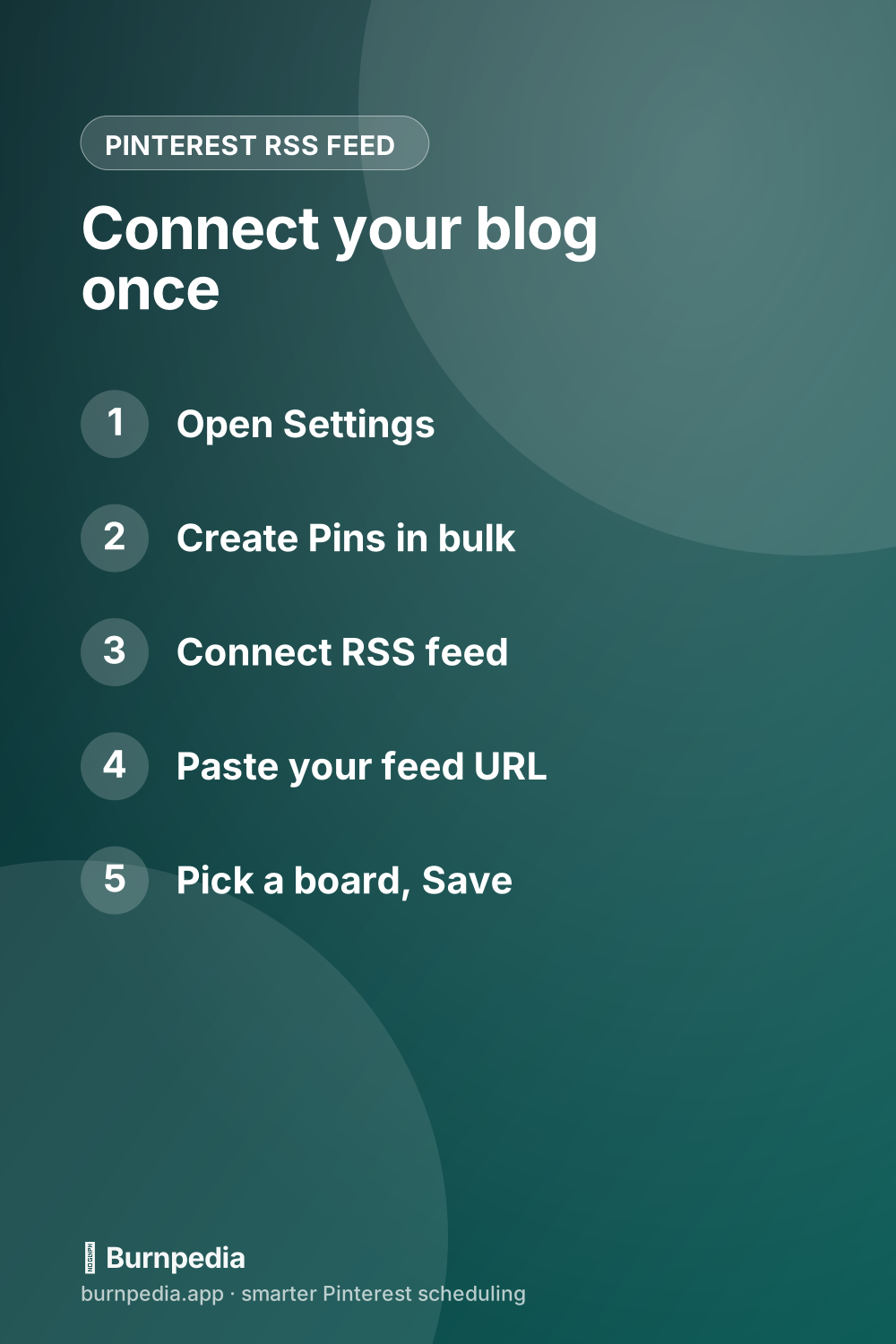
To set up a Pinterest RSS feed, open Pinterest on a computer, go to Settings, choose Create Pins in bulk, click Connect RSS feed, paste your blog’s feed address and pick the board the Pins should go to. From then on, new posts in the feed become Pins within 24 hours. You need a business account and a claimed website, the feed has to be RSS rather than Atom, and every item in it needs an image.
That’s the whole setup. What it leaves out is how a feed fits around the Pins you schedule yourself. It posts on Pinterest’s clock, not yours. It shares one daily cap across every feed you connect. And a stock WordPress feed is missing the image tags Pinterest looks for. Here’s how to get it working and keep your week running.
How to connect an RSS feed to Pinterest
Connecting a feed only works on a computer, so set aside five minutes at your desk:
- Log in to your Pinterest business account.
- Click the downward arrow at the top right to open your menu, then click Settings.
- Choose Create Pins in bulk from the menu on the left.
- Under Auto-publish, click Connect RSS feed.
- Paste your feed’s address into the box.
- Under Save Pins to, open the list and pick a board.
- Click Save.
Don’t see Connect RSS feed? It only shows up once your website is claimed. If you haven’t done that yet, follow how to claim your website on Pinterest first, then come back to this screen.
Choose the board with care. You can connect as many feeds as you like, as long as they’re on your claimed site, and each one can go to a different board. Pick a secret board and the Pins stay hidden from everyone else, which is a safe way to see what a new feed makes before anyone else does.
What Pinterest needs from your feed
Run down this list before you paste the address in. Each line is a reason a feed won’t connect, or connects and makes nothing:
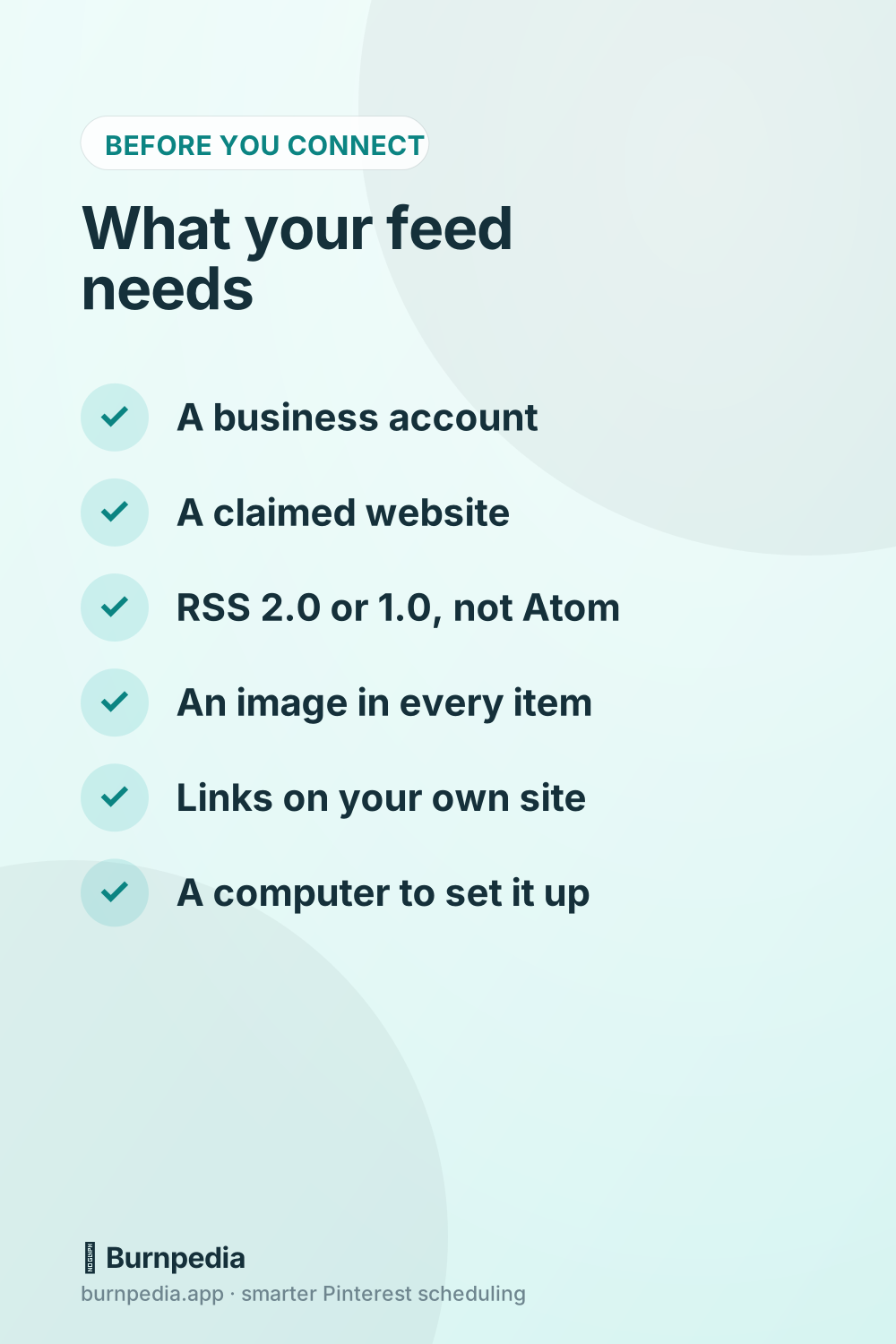
- RSS, not Atom. Pinterest reads RSS 2 and RSS 1 (RDF) feeds, and it doesn’t read Atom at all.
- Raw XML. The address has to open as the feed file itself, not as a web page about your feed.
- An image inside every item. Pinterest takes the picture from the image, enclosure or media:content tag under each item. A feed with no picture tags gives it nothing to pin.
- Links to your own site. Every item has to link to your claimed domain, or the feed won’t connect.
- Good words in the title and description. Each Pin’s title comes from the item’s title tag, and its description from the description tag. There’s no separate field for keywords, so the words you want found have to be in those two.
Here’s a quick way to tell RSS from Atom. Open the feed address in your browser, or view its page source, and look at the first lines. If you see rss version="2.0", Pinterest can read it. If the first tag is a feed tag that mentions Atom, it can’t.
One thing to know about WordPress. Out of the box, its feed has a site icon at the top and no image inside each post’s item. That’s exactly what triggers the email saying Pinterest can’t find images in your feed. A feed plugin that adds each post’s featured image as an enclosure or media:content tag fixes it. Open the feed again once it’s on, and you should see one image tag per post.
WordPress also puts your excerpt in the description tag, not the full post. So the excerpt becomes your Pin’s description. Write it like one: say what the post helps with, in the words people search for.
Where to find your RSS feed URL
Every blog platform keeps its feed at a set address. Here are the common ones, and the catch with each:
- WordPress: your site’s address plus /feed/, like yoursite.com/feed/. Each category has its own feed too, at /category/the-category-name/feed/.
- Blogger: add ?alt=rss to the end. Blogger’s plain feed at /feeds/posts/default is Atom, and the RSS version is /feeds/posts/default?alt=rss. Each label has its own, at /feeds/posts/default/-/YourLabel?alt=rss.
- Shopify: a store’s blog feed ends in .atom, so Pinterest can’t read it as it is. You’d need an app that turns it into RSS. Your products are a separate job. They reach Pinterest through the Pinterest app for Shopify, not through a feed.
- Other platforms: look for an RSS link in your site’s footer or your blog settings, then run the RSS-or-Atom check above.
Keep one kind of feed out of this screen: a shopping or product feed. Pinterest’s feed reader doesn’t handle the Google product tags those files use. Products belong in a Pinterest catalog instead.
One feed per board: send each category to its own board
This is where a feed starts to save you real time. A single site-wide feed sends every post to one board, so your recipes and your packing lists end up side by side. Category feeds fix that. Connect one feed per category and give each its own board:
- Pick the categories that match boards you already have. Three to five is plenty to start.
- Copy each category’s feed address. On WordPress that’s /category/the-name/feed/. On Blogger, it’s the label feed.
- Connect them one at a time in Create Pins in bulk, each with its own board under Save Pins to.
- Leave the site-wide feed off. Otherwise a post that sits in both feeds can turn up on two boards.
A post filed under two categories is in both of their feeds, so expect it on both boards. If that’s not what you want, give each post one main category.
One upkeep job comes with this. If you rename a category or delete a board, check this screen the same day. A feed pointed at a board that’s gone has nowhere to send its Pins. The full checklist is in how to delete a board on Pinterest.
When the Pins show up: 24 hours, oldest first, 200 a day
When your feed changes, the new content turns into Pins within 24 hours. There’s no setting for the hour. Your Pins land whenever Pinterest gets to them, not at the time your readers are online.
Pinterest also works through a feed oldest item first. Connect a feed that already lists your last ten posts, and expect Pins for all ten to start arriving, oldest first. Rather not have a pile of Pins for old posts on day one? In WordPress, lower the number of posts your feed shows, under Settings › Reading, before you connect it. Your feed readers will see fewer posts too, so pick a number you’re happy to keep.
The cap is 200 Pins a day, and it covers every feed on your account together. Five feeds still share the same 200. Anything over the line waits and goes out the next day.
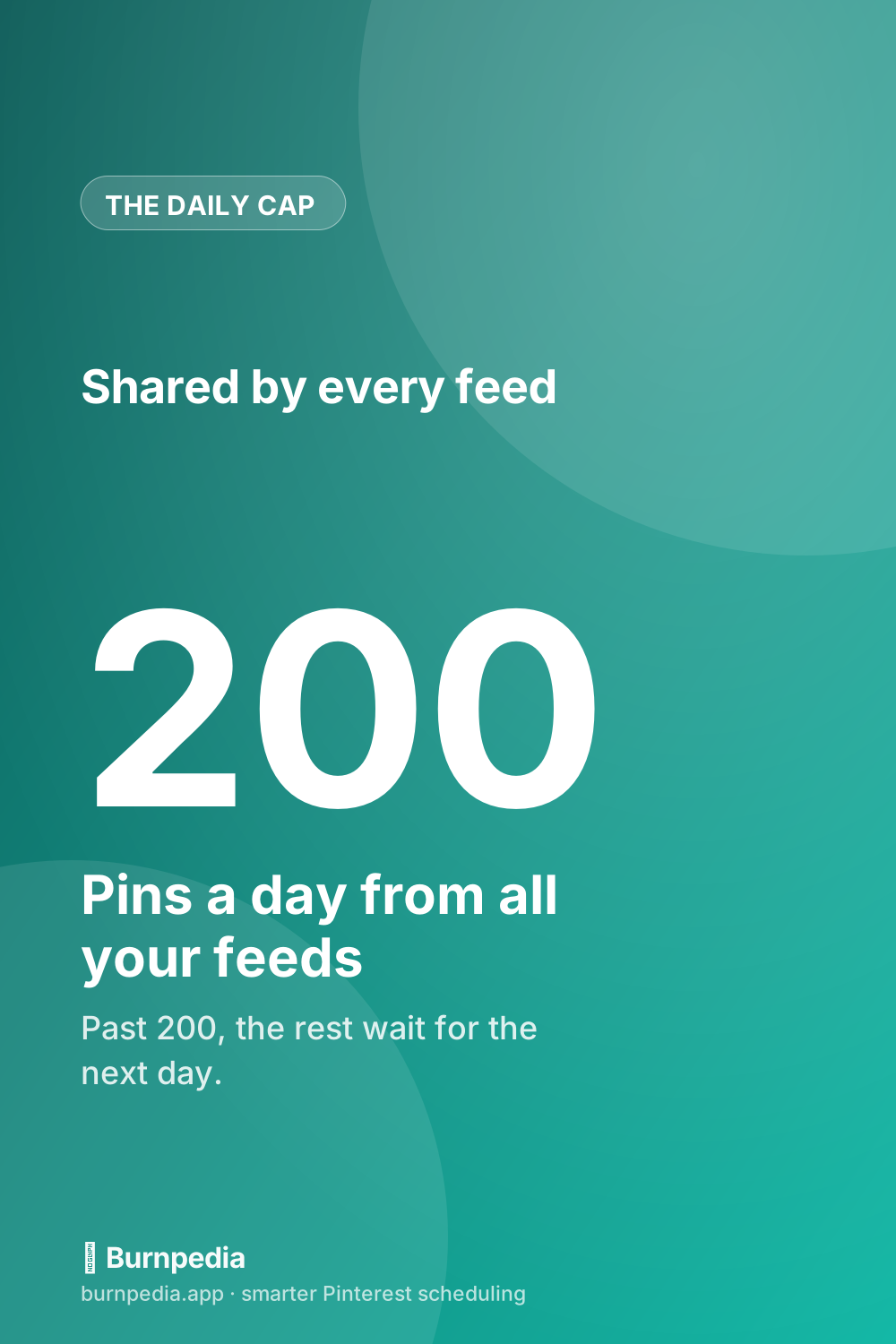
Most blogs never get near that number. The catch is that a Pin is made for each image in your feed, and an item with several images can turn into several Pins. A recipe post with six step photos in its feed item could become six Pins from one post, on the same day, all pointing at the same page.
That matters more than the cap. A burst of near-identical Pins to one link isn’t a pattern you want, least of all on a new account. So keep one image per item: the featured image, ideally a tall one in a 2:3 shape.
Why your RSS feed isn’t making Pins
If you see an error when you connect, or the board is still empty after a day, this table tells you where to look:
| What you see | What it means | What to do |
|---|---|---|
| RSS feed already exists | That address is connected already | Check your list of feeds, or add a different one |
| RSS feed cannot be fetched | Pinterest couldn’t open the address | Open it in a private window; fix a typo, a login page or a plugin that blocks it |
| RSS feed cannot be parsed | The file isn’t valid XML | Run it through a feed validator and fix the first error |
| RSS feed unknown format | It’s Atom, or not a feed at all | Use the RSS version (on Blogger, ?alt=rss) |
| Links in the RSS feed are not under the claimed domain | An item links off your claimed site | Fix the links, or claim the domain they use |
| An email that Pinterest can’t find images in your feed | No image tag inside the items | Add the featured image as an enclosure or media:content tag |
No error and still no Pins? Check three quieter things. Is the board you picked still there? Is it a secret board, so the Pins are there but hidden? And are you looking at the right account, if you run more than one?
If none of that helps, Pinterest’s support team can look at the feed from their side. Send them the feed address and the board name, so they don’t have to ask.
What the feed can’t do for your schedule
A feed is great at one job: making sure no new post gets missed. It isn’t a scheduler, and it helps to be clear about where it stops.
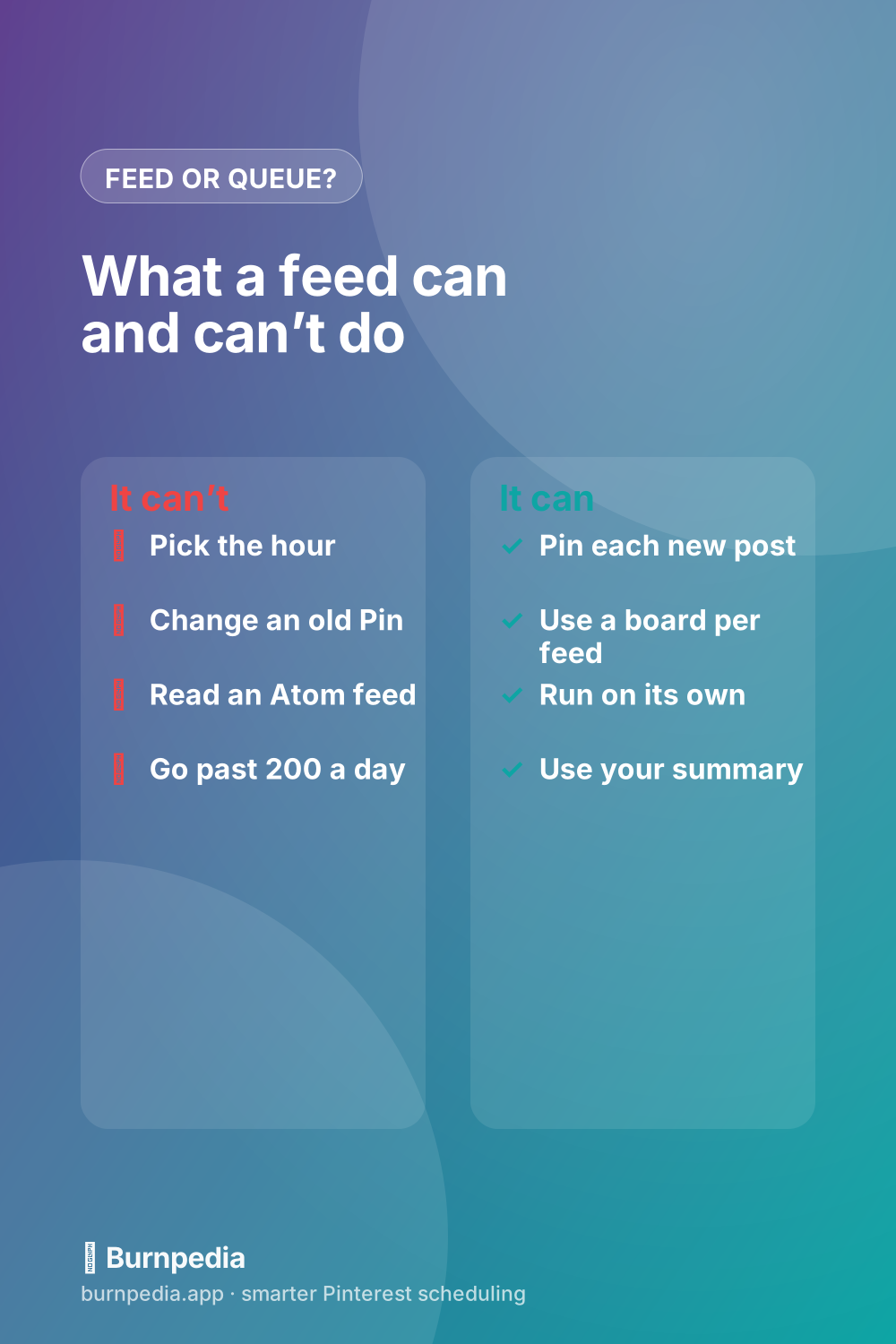
- It can’t pick the hour. Pins land within a day of your post, at whatever time that turns out to be.
- It can’t rewrite old Pins. A feed adds Pins and never overwrites them. Retitle a post next month, and its Pin keeps the old words until you edit the Pin yourself.
- It can’t make a second Pin. The fresh designs that keep an older post in front of people, a new image in March and another in June, are still yours to make and schedule.
- It can’t reach your archive. Only what’s in the feed gets pinned, and the feed only holds your latest posts.
- It can’t design. The Pin uses whatever image the feed carries, so a wide blog header becomes a wide Pin.
None of that makes it a bad tool. It makes it half of a system. The feed covers the day a post goes live, and your queue covers every day after. If you’re picking a tool for that second half, here’s how the main Pinterest schedulers compare.
A weekly routine: the feed for new posts, the queue for the rest
Here’s a week that uses both, built around one short sitting on Monday:
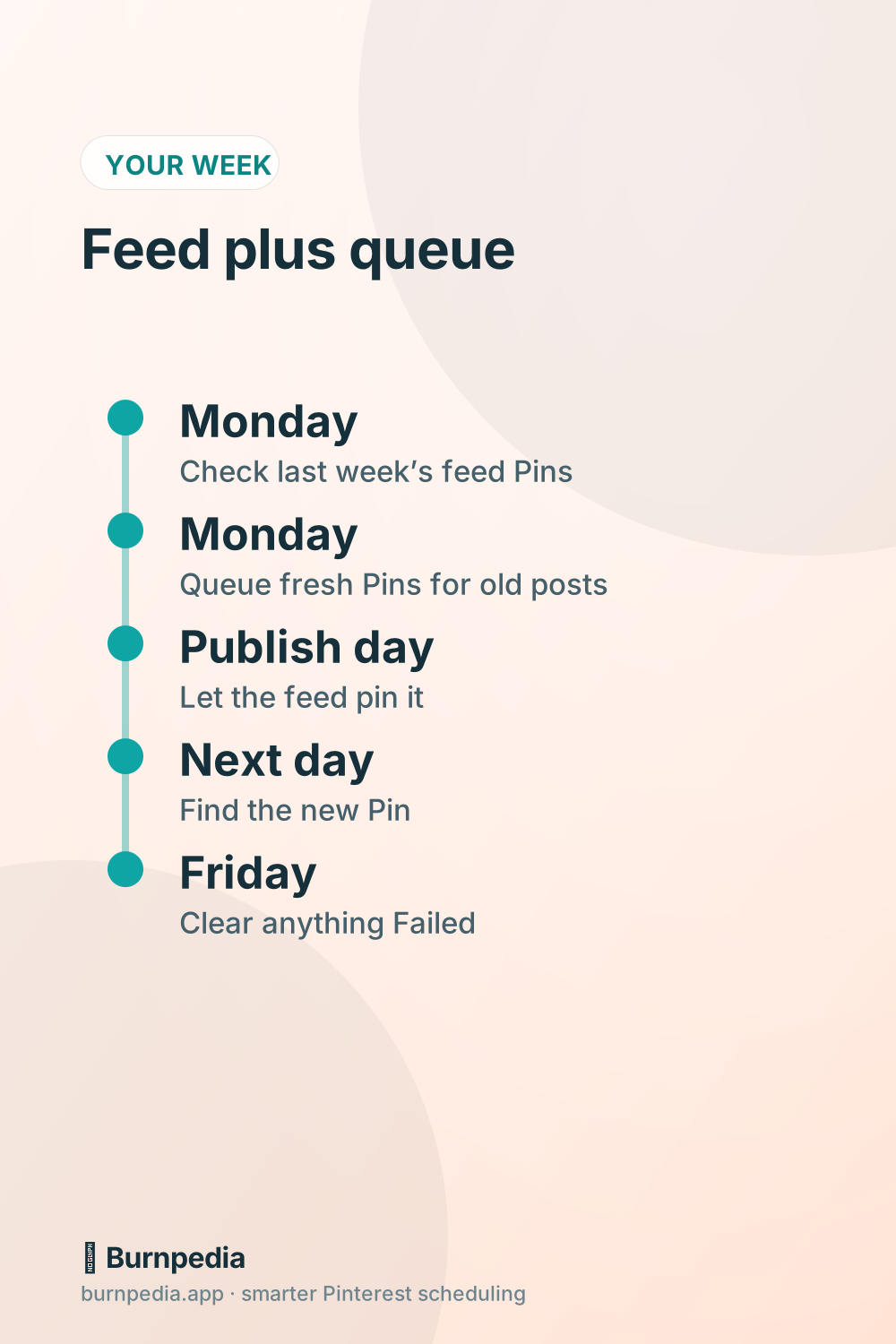
- Monday: look at the Pins your feeds made last week. Fix any title or description that came out clumsy, and check that each one landed on the right board.
- Monday: pick two or three older posts that still get read, and queue a fresh Pin for each. Spread them across the week at the hours your readers are online.
- Publish day: post as normal. The feed makes the first Pin for you, so there’s nothing to schedule.
- The next day: find the new Pin on its board. If the image or the words are off, edit it now, while it’s new.
- Friday: open your queue and clear anything marked Failed. It’s usually a board that was renamed or removed.
One rule keeps the two from tripping over each other: never let two tools pin the same new post. If a plugin or a scheduler already sends every new post to Pinterest, leave the feed off, or turn the plugin off. Two identical Pins to one link on the same day do nothing for you.
That split is the point. The feed takes the job you’d most likely forget, and your scheduled Pins do what a feed can’t: the right hour, a new design, an old post brought back. If your blog is on WordPress and you’d rather give every new post a designed Pin on a schedule than a feed’s copy, here’s the WordPress setup, route by route.
In Burnpedia, those Monday Pins go into one queue, where you pick the board and the hour for each. A Pin that can’t go out shows up as Failed with a Retry button next to it, so Friday’s check is one list.
The other Pinterest RSS feed: your boards, read anywhere
Some people searching for a Pinterest RSS feed want the opposite: a feed of their own Pins, to read in a feed reader or hand to another tool. Every public profile and every public board has one:
- Your profile: your profile address plus feed.rss, like pinterest.com/yourname/feed.rss.
- One board: the board’s address plus .rss, like pinterest.com/yourname/board-name.rss.
Both are plain RSS 2.0 and list your most recent Pins, about 25 at a time. Each item carries the Pin’s link, its words and a small copy of its image.
Don’t feed one of these back into Create Pins in bulk. Its links point at pinterest.com, not your claimed site, so it won’t connect. Pinning your own Pins again in a loop wouldn’t help you anyway.
Questions people ask about Pinterest RSS feeds
Does anyone use RSS feeds anymore?
Yes, mostly behind the scenes. Every podcast app runs on them, and so does Pinterest’s auto-publish. It’s still in Settings under Create Pins in bulk, and it still turns the new posts in your feed into Pins within a day.
Where do I find my RSS feed URL?
On WordPress, add /feed/ to your site’s address. On Blogger, use /feeds/posts/default?alt=rss for the RSS version. On other platforms, look for an RSS link in the footer or in your blog settings. Then open the address in a browser and make sure it says rss near the top, not Atom.
How do I get my Pinterest URL link?
Open your profile on a computer and copy the address from your browser. It’s pinterest.com/ followed by your username, which also shows under your name on your profile. Add feed.rss to the end of that address, and you have your profile’s RSS feed.
The short version
Claim your site. Check that your feed is RSS with one image per item. Connect it on a computer under Settings › Create Pins in bulk, and give each category its own board. Then let the feed do the one thing it’s good at, and schedule everything else yourself.
Want one queue for the Pins your feed can’t make? You can try Burnpedia’s free plan with no credit card.
Burnpedia is an independent scheduling tool. It is not affiliated with, endorsed by or sponsored by Pinterest, Inc. “Pinterest” is a trademark of Pinterest, Inc., named here only to say what the software works with.
Want Pinterest to run itself?
Every tip on this blog gets easier when your Pins publish on schedule. Burnpedia batches, times, and posts them for you — start free, no credit card.
Try Burnpedia free