How to Edit a Pin on Pinterest After It’s Posted (and What You Can’t Change)
A live Pin’s title, description, link and board can all be edited, but never its image or video. Here’s how on a computer and in the app, why the edit option sometimes isn’t there, and which mistakes need a new Pin.
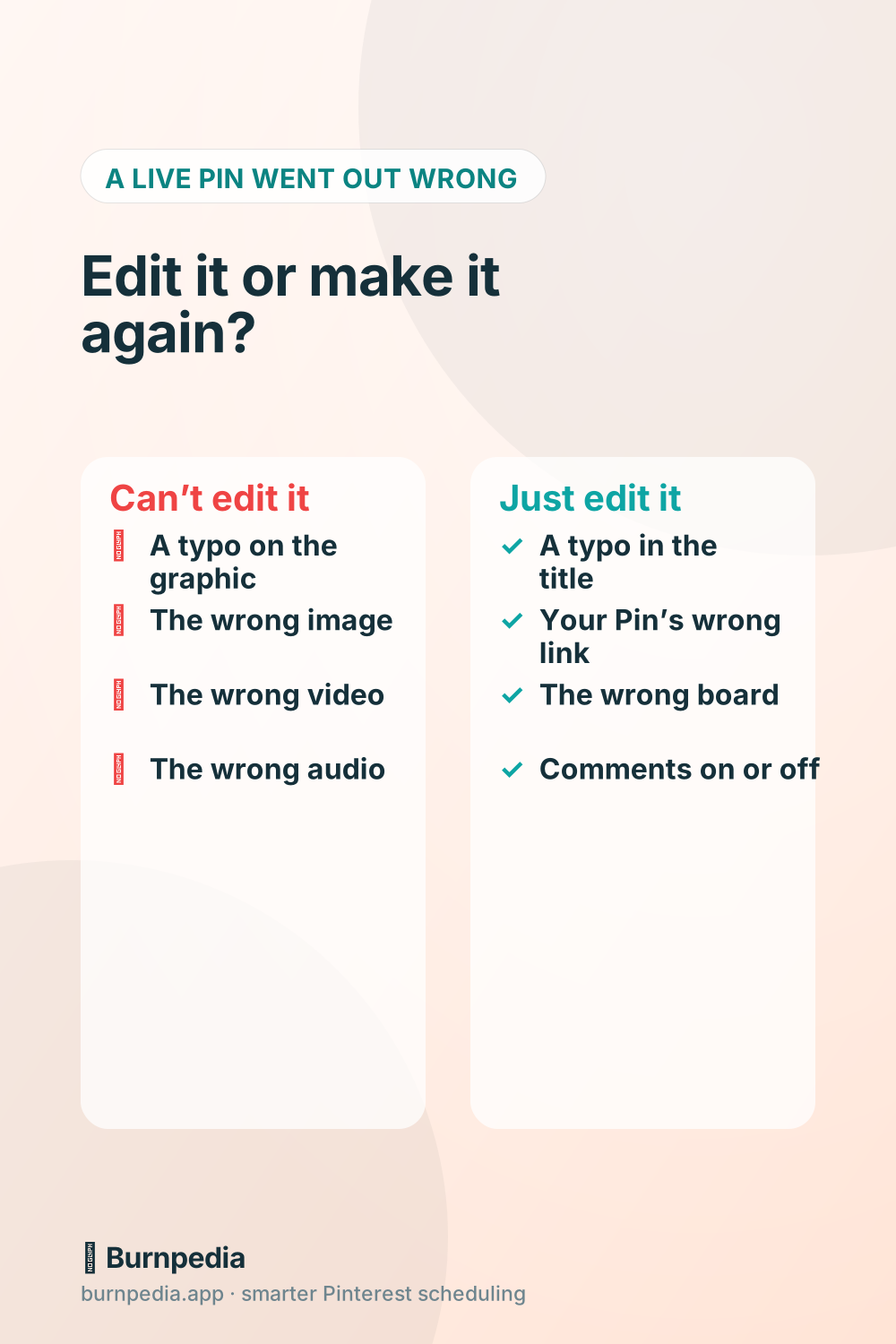
Yes, you can edit a Pin on Pinterest after it’s posted. Open the Pin, click the ellipsis (the three dots), choose Edit Pin, change what you need and click Save. Depending on the Pin, that lets you fix the title and description, the link, the board or section it sits in, and whether comments are on.
But what you can’t change is the picture. Pinterest locks the image (or the video and its audio) once a Pin is published, so a typo baked into the graphic means making a new Pin. And on a Pin you saved from someone else, the link isn’t yours to change.
I read Pinterest’s own help pages and its developer documentation for this on November 3, 2026. Every click below comes from them, though I didn’t try any of it on a test account. You’ll get the steps for a computer and for the app, what each kind of Pin lets you change, the usual reasons the edit option goes missing, and a check that catches these mistakes before a batch goes out. It all fits inside the weekly routine in how to schedule Pins the smart way.
Can you edit a Pinterest Pin after posting?
You can. Pinterest’s Edit or delete a Pin help says it in its first line: you can edit and delete the Pins you’ve created and saved. The catch is a few lines down, where it says the details you can edit “vary based on how the Pin was created.”
Here’s what that means in practice:
- A Pin you made: the title, the description, the link, the board and section, and the comment settings.
- A Pin you saved from someone else: you can still change its board or delete it, but Pinterest says you can’t update its link. That covers Pins saved on Pinterest and Pins saved with the browser button.
- Any Pin, once it’s live: not the image, the video or the audio. Pinterest’s advice is to create a new Pin.
If the Pin hasn’t gone out yet, you can also move its publish date. Pinterest’s Schedule Pins help says a business account can schedule a Pin up to 30 days in advance, with up to 10 waiting at once. Scheduled Pins sit in their own spot on your profile (a new Pin can take a few minutes to show up there), and how to see scheduled Pins on Pinterest walks through that screen. The rest of this post is about Pins that are already live.
How to edit a Pin on a computer
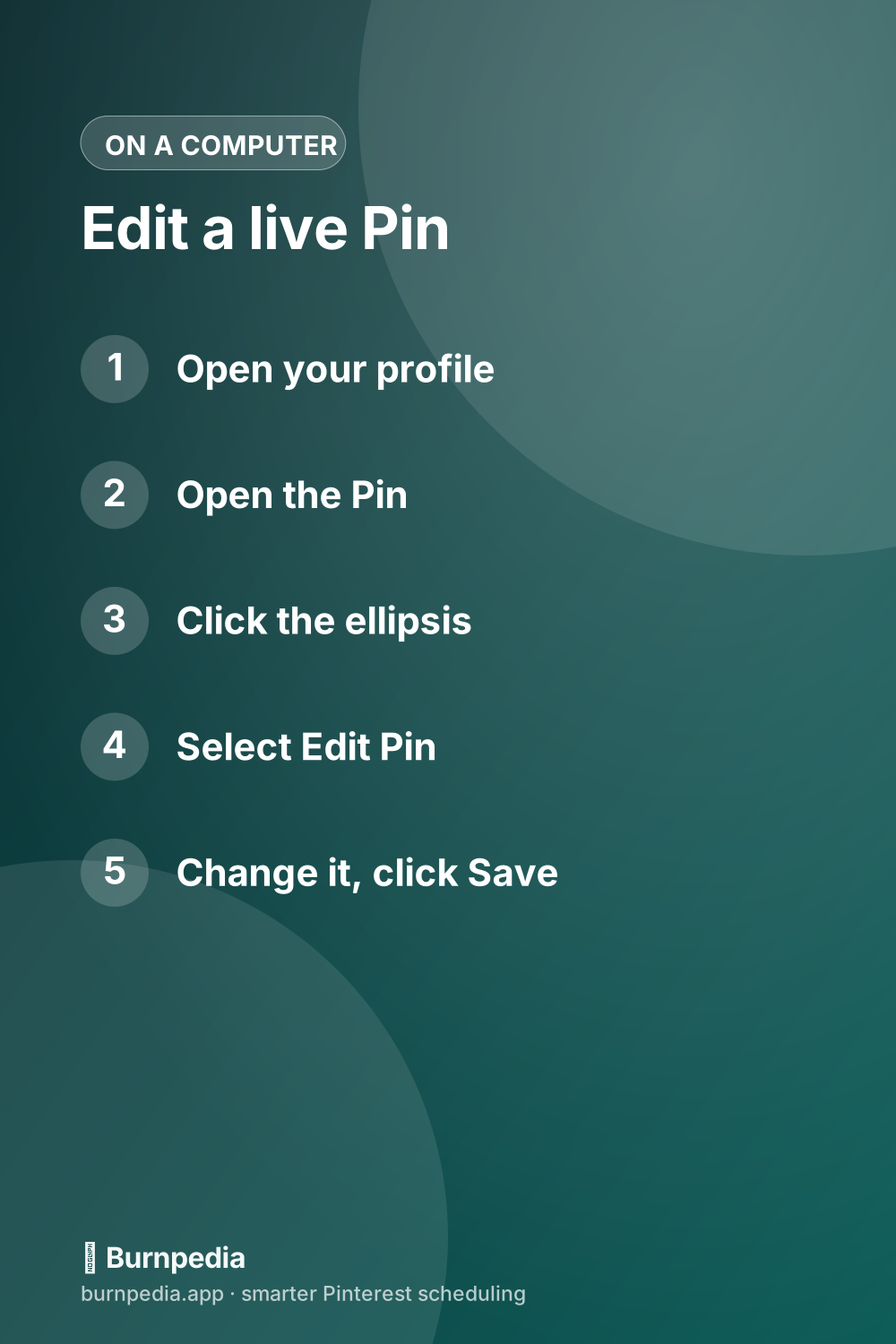
- Log in and click your profile picture at the top right of the screen.
- Scroll through your Pins until you find the one you want to fix, and click it to open it.
- Click the ellipsis icon, then select Edit Pin.
- Change the title, description, link, board or comment settings. You’ll only see the fields this Pin allows.
- Click Save.
And if the only thing wrong is the link, Pinterest’s Fix a broken link help gives a shorter route. Open the Pin, click the edit icon, change the address in the Website field, and click Save.
How to edit a Pin in the Pinterest app
- Open the app and tap your profile picture at the bottom right.
- Find the Pin and tap it to open it.
- Tap the ellipsis icon in the top-right corner of the Pin, then tap the edit option.
- Change the title, details, link, board or comment settings.
- Tap Done.
One small difference trips people up. Turns out the app calls the description “Details,” so don’t go hunting for a box named Description. Pinterest’s help gives the same steps for iPhone and Android, word for word.
What each kind of Pin lets you change
Most of the pages ranking for this search skip this part. But it’s the one that explains the frustrating cases. Pinterest treats a Pin you made differently from a Pin you saved, and it treats the picture differently from everything else.
| What you want to fix | Can you edit it? | What to do |
|---|---|---|
| A typo in the title or description | Yes | Edit Pin, fix the text, Save |
| The wrong link, on a Pin you made | Yes | Change the Website field |
| The link on a Pin you saved from someone else | No | Save the right page instead |
| The wrong board or section | Yes | Pick the board in Edit Pin, or use Organize for many |
| Comments on or off | Yes | Change the comment settings in Edit Pin |
| The image, video or audio | No | Make a new Pin, then delete the old one |
One more rule sits on the link itself. Pinterest says it sometimes blocks links that redirect to other pages, or that look misleading or spammy, and that it may swap a link leading to a blank page for a more useful one. Its advice is to link straight to the source, because some redirects and URL shorteners aren’t allowed.
So when you change a link, paste the page’s full, final address. A short link that bounces to the page is exactly what can get refused.
Why can’t I edit a Pin on Pinterest?
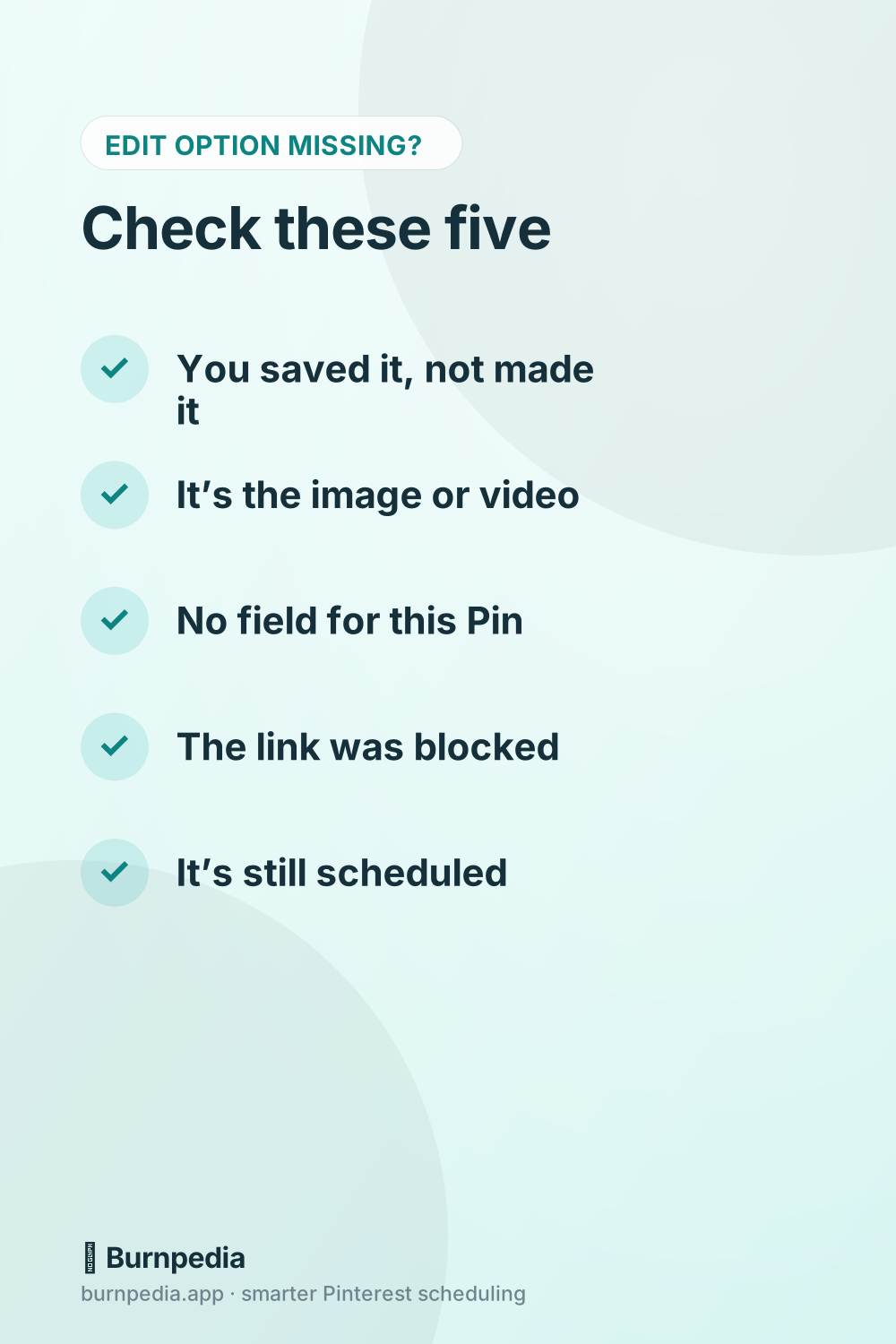
When the edit option is missing, or a field won’t change, it’s usually one of these five things. Work down the list in order.
- You saved it, you didn’t make it. Pinterest only lets you edit the link on Pins you created. A Pin saved on Pinterest or with the browser button keeps the link its maker gave it.
- You’re trying to change the picture. There’s no field for that on any published Pin. The fix is a new Pin.
- That field isn’t offered for this Pin. The thing is, Pinterest’s list of editable details starts with “depending on the Pin,” so a field you saw on one Pin may simply not be there on another.
- The new link was blocked. Redirects, URL shorteners and pages Pinterest reads as spammy can be refused. Paste the page’s full address and save again.
- It hasn’t been published yet. A scheduled Pin lives in a different place on your profile, so it won’t be on the board you’re searching until it goes out.
If none of those fit and the edit worked fine yesterday, try the other device. Pinterest documents a computer route and an app route for every edit, so switching costs you a minute. If both fail on a Pin you made, every Pinterest help article I read today ends with a Contact us link, and that’s the next stop.
Edit it, move it or make it again: match the fix to the mistake
This is where a scheduler’s habits help. The tempting move after a Pin goes out wrong is to delete it on reflex and post it again. Don’t. Pinterest says plainly that a deleted Pin can’t be recovered, so delete only what an edit can’t fix.
Here’s how I’d sort it:
- A typo in the title or description: edit it. That’s a one-minute fix.
- The wrong link on your own Pin: edit the Website field, and do it first. Every click goes to the wrong page until you do.
- Right Pin, wrong board: move it. Open Edit Pin and pick the new board or section from the menu.
- A typo on the graphic, the wrong design or the wrong video: make a new Pin with the right file, check it, then delete the old one. Pinterest won’t swap the image, so there’s no shortcut.
- The right text under the wrong picture: decide which half is wrong. If it’s the text, edit it. If it’s the picture, it’s a new Pin.
That last one isn’t made up. In August 2025 a member of Pinterest’s Business Community posted a description under a different picture by mistake and asked how to fix it. Two replies came back the next day, and both pointed to the same edit-or-delete steps this post is built on. Neither offered a way to swap the picture (there isn’t one).
If you’re fixing a whole batch, go in roughly that order. Links first, because they cost you clicks. Then titles and descriptions. Then boards. The re-made Pins go last, since each one is a whole new Pin. And for the title rewrites, Pin titles that get found and clicked has examples you can copy.
Can you edit many Pins at once?
Partly. Pinterest has a real bulk tool for moving Pins between boards (it’s called Organize). I didn’t find a bulk editor for titles, descriptions or links in any of the help pages I read.
To move many Pins on a computer, open the board, click Organize at the top, select the Pins, click Move, and click Save next to the board you want them on. In the app, open the board, tap Organize, select the Pins, tap the arrows icon at the bottom of the screen and pick the board or section. That’s straight from Pinterest’s Move Pins help.
But text and links are another story. The help pages take you through them one Pin at a time, so the same broken link on 20 Pins means opening 20 Pins. Honestly, it’s a bit of a pain. It’s also the best argument for the check further down.
You might expect a scheduler to do it for you. I wouldn’t assume that. In Pinterest’s own API description, the call an app uses to change a live Pin, Update Pin, works only on a Pin the account owns and is marked “currently in beta and not available to all apps.” It covers the title and description, the link, the board or section and the alt text. There’s no field in it for the image, not even inside a carousel slot. So whether an app can fix a live Pin pretty much depends on the access Pinterest gives that app.
Burnpedia (that’s us) draws its line at publishing. Here’s exactly what our queue does, from our own product:
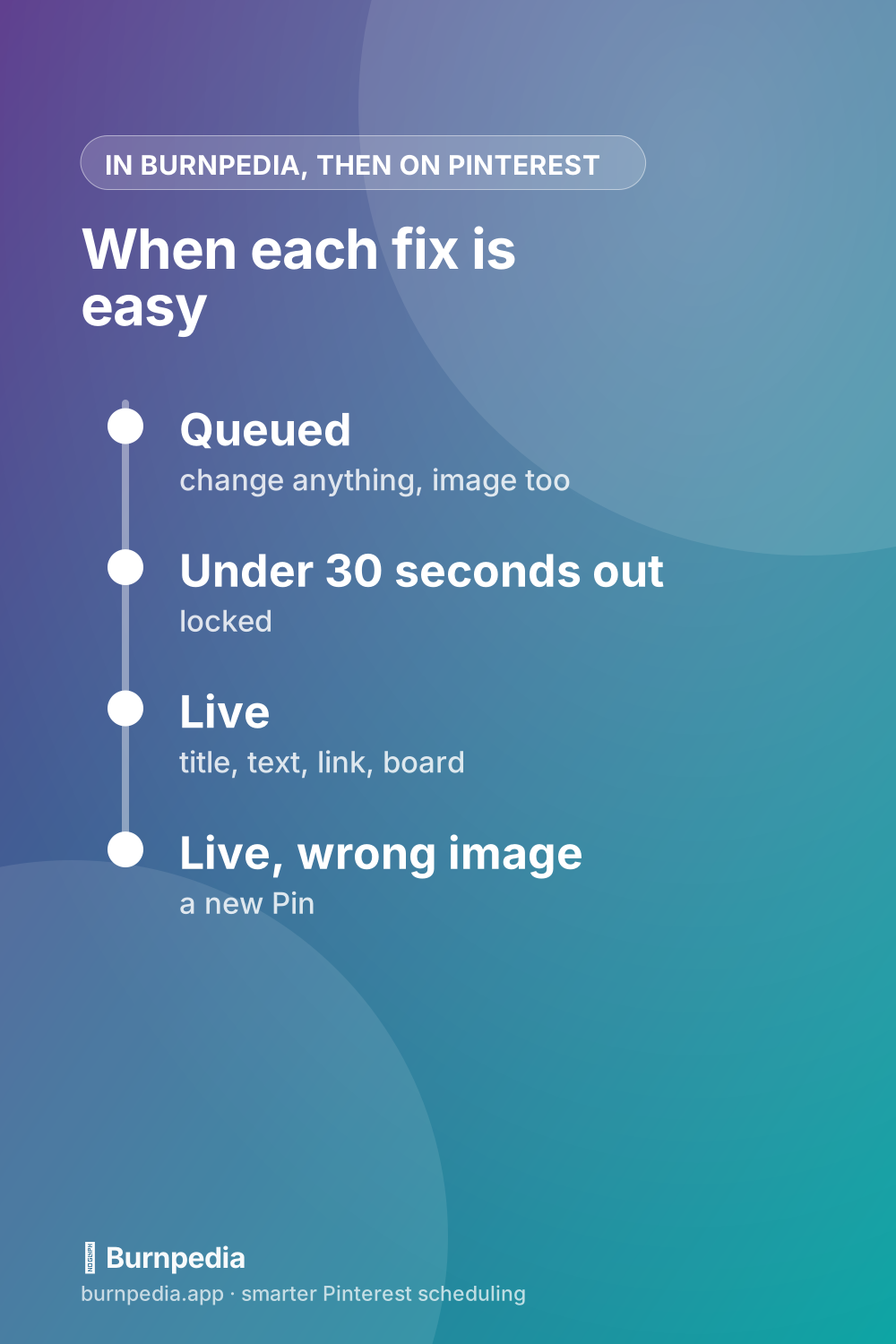
- Before a Pin goes out, you can change its title and description, its link and board, and even its image. Edits lock in the last 30 seconds before it publishes.
- Select several queued Pins and a bar appears with Delete, Move to date, Change board, Make evergreen, Spread evenly and Add tracking. A new board or a new date for 20 Pins is one action, not 20. Spread evenly lays the selected Pins across anything from 3 days to 60 days.
- Once a Pin is published, Burnpedia won’t edit it. Text and link changes happen on Pinterest, the way this post shows. If a live Pin has to go, it has a Delete from Pinterest button, and that asks you to confirm because it can’t be undone.
So the honest pitch is a narrow one. Burnpedia’s queue makes the bulk fixes easy before a batch goes out, which is the cheap time to catch them. After publishing, you’re on Pinterest’s edit screen like everybody else.
How to delete a Pin you’ve created
Deleting is the last resort, and Pinterest is blunt about why: deleted Pins can’t be recovered. On a computer:
- Click your profile picture at the top right and open the Pin.
- Click the ellipsis icon and select Edit Pin.
- Click Delete at the bottom-left corner.
- Click Delete again to confirm.
In the app it’s the same edit screen. Tap the ellipsis, tap the edit option, then tap Delete this Pin or the trash can icon at the bottom, and tap Delete to confirm.
Watch out for one shortcut people reach for. Deleting a whole board deletes every Pin on it, per Pinterest’s board help. You get 7 days to restore a deleted board from the Recently deleted section, but only on a computer or on Android. So if you just want a board out of sight, archive it. An archived board drops off your public profile, and you can unarchive it any time.
The check to run before your next batch goes out
Every fix above is cheaper before publishing — a lot cheaper. While a Pin is still in Burnpedia’s queue, even the image can change (Pinterest’s own scheduler locks the image once a Pin is scheduled). Once it’s live, the image is locked and everything else is one Pin at a time. So my real answer to “how do I edit a Pin” is to do most of the editing on the day you load the week.
Here’s the check I’d run that day, before anything is scheduled:
- Look at every graphic at full size and read the headline on it out loud. This is the one part you can’t fix later.
- Open every link. It should land on the page the Pin promises, at its full address, with no short link in front.
- Read each title and description once, slowly. Fixing them now takes seconds; later it’s a trip into each Pin’s edit screen.
- Check each Pin’s board. Pick the board someone searching that topic would actually browse.
- Then schedule the week and leave it alone.
If you pin a few times a week, Pinterest’s own edit screen is all you need. A tool just for this genuinely isn’t worth it. If you load a week at a time and keep finding the same mistake in ten Pins, that’s when a queue with bulk changes earns its place.
You can try Burnpedia’s free plan with no credit card and see whether the bulk bar fits the way you work.
Quick answers
These came up in Google’s “People also ask” boxes when I searched this, and the delete-many question next to it, on November 3.
Can you edit a Pinterest pin after posting?
Yes. Open the Pin, click the ellipsis, choose Edit Pin, and change the title, description, link, board or comment settings, depending on the Pin. The picture can’t be changed, whether it’s an image or a video.
How do I edit my pins?
From your profile. Open the Pin, then pick Edit Pin under the ellipsis on a computer, or the edit option under the ellipsis in the app. Click Save, or tap Done.
How do you delete a pin you’ve created?
Open the Pin, choose Edit Pin, click Delete at the bottom left, then confirm. A deleted Pin can’t be recovered.
Is there a way to select multiple pins on Pinterest?
Yes, on a board. Click Organize at the top, select the Pins, and click Move to send them to another board. The app has an Organize button too.
How do I delete a bunch of pins?
The help pages I read today show deleting one Pin at a time, plus one big hammer: deleting a board deletes all of its Pins. If you only want some of them gone, move the keepers to another board with Organize first, then delete the board. You’ll have 7 days to restore it on a computer or Android.
If you do one thing today, open your three newest Pins and click each link. A wrong link costs you clicks every day it stays, and it’s a one-minute edit.
Burnpedia is an independent scheduling tool. It is not affiliated with, endorsed by or sponsored by Pinterest, Inc. “Pinterest” is a trademark of Pinterest, Inc., named here only to say what the software works with.
Want Pinterest to run itself?
Every tip on this blog gets easier when your Pins publish on schedule. Burnpedia batches, times, and posts them for you — start free, no credit card.
Try Burnpedia free