How to Delete a Board on Pinterest (and Keep Your Pins and Your Queue)
Open the board, click the ellipsis, choose Edit board, then Delete and Delete forever. Every Pin on it goes too, so move the ones you want and clear your queue first.
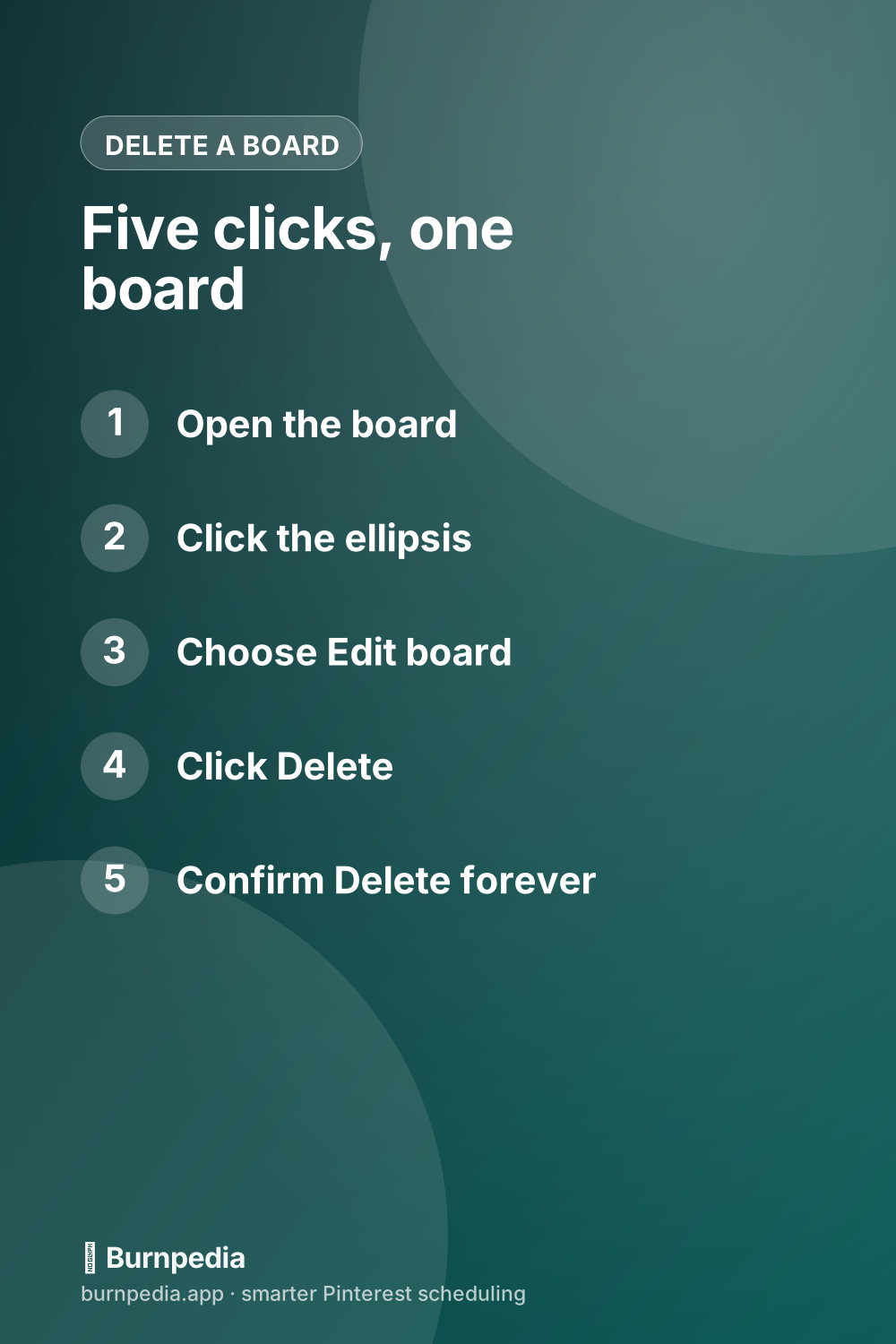
To delete a board on Pinterest, open the board, click the ellipsis (…) next to its name, choose Edit board, click Delete and then Delete forever. The app works the same way from the board’s ellipsis menu. Every Pin on that board is deleted with it, so move or merge the Pins you want to keep first. Changed your mind? You get seven days to restore it from a computer or an Android phone.
If you schedule Pins ahead, do one more thing before you delete. Find anything in your queue that’s headed for that board and give it a new one. Skip it, and those Pins have nowhere to land when their time comes. Here’s the whole job in the order that keeps your week running.
How to delete a board on Pinterest on a computer
On the website, Delete lives inside the board’s edit window:
- Open your profile from your picture at the top right of the screen.
- Click the board you want to delete.
- Click the ellipsis icon next to the board name and choose Edit board.
- Click Delete in the bottom-left corner of the edit window.
- Click Delete forever to confirm.
That’s it. The board disappears from your profile right away, and it moves to a Recently deleted section where it waits for seven days.
Can’t see the board at all? Archived boards sit at the bottom of your profile, below the others. Protected boards, the ones made for ads and product Pins, sit at the very bottom, in a part of your profile only you can see.
How to delete a board in the Pinterest app
The app tucks Delete at the bottom of the board’s edit screen, so you’ll need to scroll. On an iPhone or iPad:
- Tap your profile picture at the bottom right.
- Tap Boards (on a business account, tap Saved), then open the board.
- Tap the ellipsis at the top right and choose Edit board.
- Scroll down and tap Delete board, then tap Delete forever.
On Android the path is the same, with plainer labels. The button reads Delete, and you tap Delete again to confirm.
One thing an iPhone can’t do is bring a board back. If you delete from an iPhone and regret it, you’ll need a computer or an Android phone to restore it. More on that below.
What happens when you delete a board
Deleting a board takes more with it than the board’s name. Here’s what goes:
- Every Pin on the board, deleted along with it. That means the Pins you made there and the Pins you saved from other people, sections included.
- The Pins you created on that board. They leave your Created tab too, because they’re deleted, not just taken off the board.
- Its followers. They don’t move to another board, and they don’t transfer even when you merge the board into a new one.
- If it’s a group board you own, the whole board goes for everyone, along with the Pins your collaborators added.
It also frees up a spot if you’ve hit Pinterest’s board limit, just not right away. The new count can take a few days to show, so you may wait a little before Pinterest lets you make a new board.
After seven days the board is gone for good. If there’s any doubt at all, put a reminder in your calendar for day six.
How to delete a board on Pinterest without deleting the Pins
A Pin has to live somewhere, so the trick is to move the Pins you want before the board goes. Pinterest gives you two ways to do it.
The quick way is to merge. Open the board, click the ellipsis next to its name and choose Merge. Pick the board that should get the Pins, then click Move Pins and Delete Board. On a computer you can also drag one board onto the middle of another. In the app, Merge sits in the same ellipsis menu. Merging comes with three catches:
- The old board’s followers stay behind, as above.
- A secret board merged into a public one takes the public board’s setting, so those Pins become public.
- There’s no undo button. To split them again, you make a new board and move the Pins back one by one.
The picky way is to move, then delete. Open the board, click Organize, tick the Pins you want to keep, click Move and save them to their new board. It works in bulk on a computer and in the app. Then delete the board with whatever’s left on it.
Moving beats merging when only some of the Pins are worth keeping, or when they belong on different boards. Want your own Pins kept but out of public view? Move them to a secret board.
Before the board goes: check your queue and your feeds
A board you delete today can still be the target of Pins you set up last week. So before you click Delete forever, run through this:
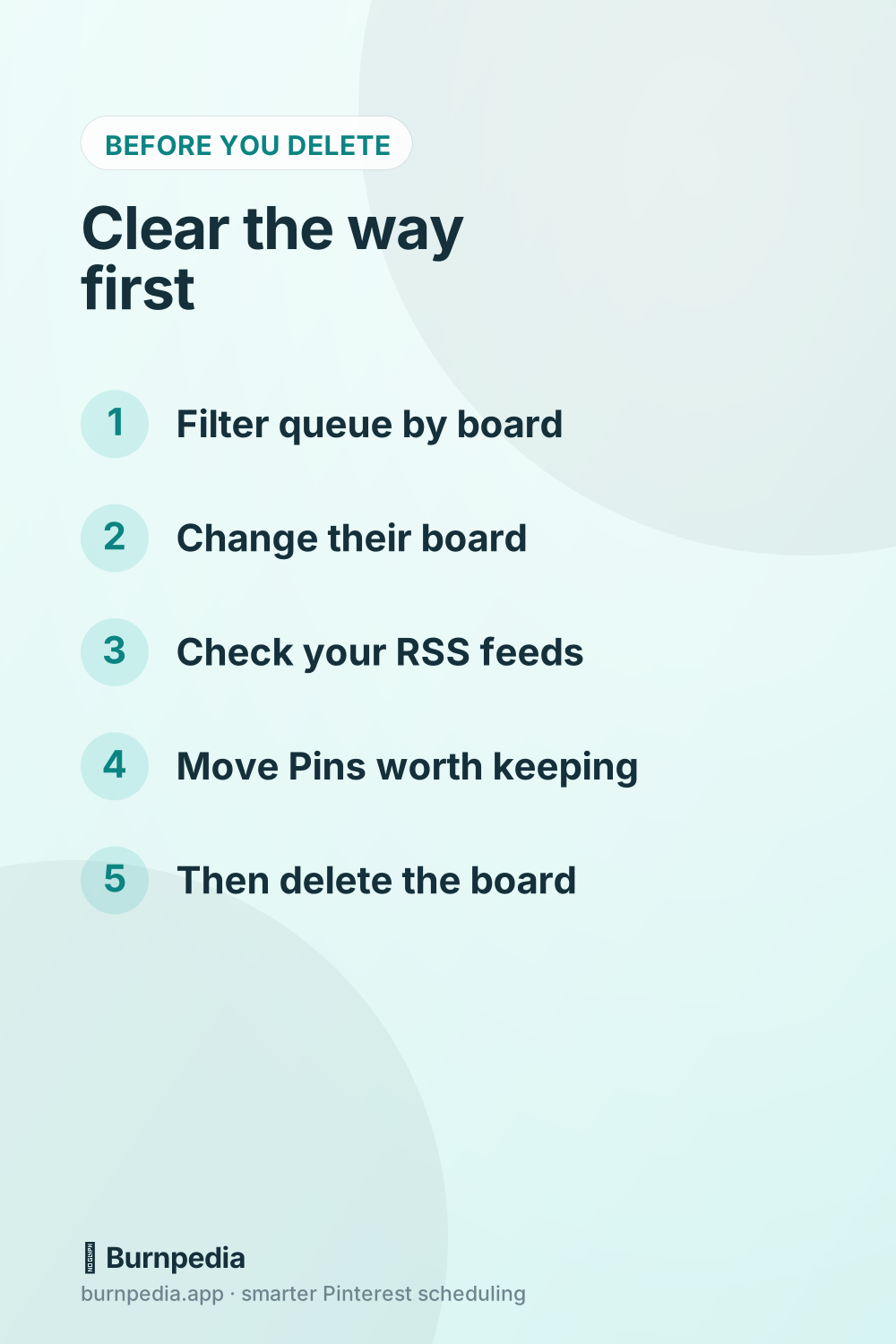
- Pinterest’s own scheduled Pins. They sit above your published Pins on your profile, and there can be up to 10 of them. Open any that are headed for the old board and change the board. You can still edit a scheduled Pin’s board, date, title, description and link.
- Your Burnpedia queue. Use the board filter at the top of the queue (it reads All boards until you pick one), choose the old board, tick the Pins and use Change board… to send them all to the new one in one go. The filter keeps a board’s name even after it’s gone from Pinterest, so you can still find the stragglers.
- Your RSS feeds. If your site’s feed creates Pins, each feed saves to a board you chose under Save Pins to, in Settings › Create Pins in bulk. Make sure none of them points at the board you’re about to delete.
- Any WordPress plugin or app that sends your new posts to Pinterest. If it has a default board, change that setting as well.
- Then merge the board, or move the Pins worth keeping, and only then delete.
If a Pin slips through anyway, it shows up as Failed in your Burnpedia queue, with a Retry button next to it. Give it a board that still exists, then press Retry. If you schedule in Burnpedia, fixing a whole board’s worth is one filter and one bulk change, not one Pin at a time.
How to get a deleted board back
Here’s the good news. A deleted board isn’t gone right away, and you can bring it back for a week:
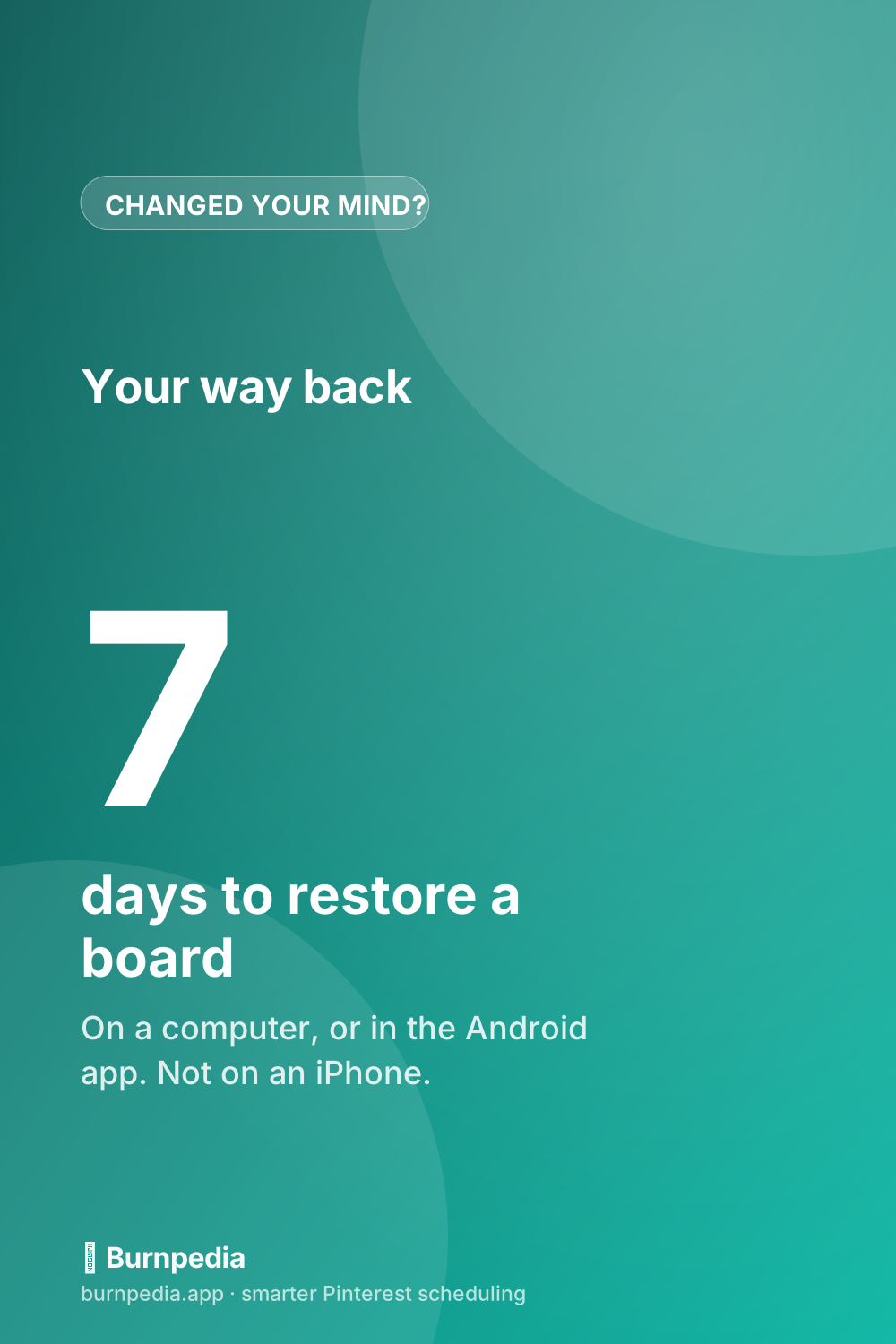
- On a computer, click your profile picture at the top right and open the Saved tab.
- Scroll down to Recently deleted boards and click Restore Boards.
- Pick the board and click Restore.
On an Android phone, tap your profile picture, tap Boards, scroll down to Recently deleted, tap Restore, then pick the board and tap Restore again.
Business accounts have one extra limit. Restoring only works on a computer, not on Android. It’s the same Saved tab, under Recently deleted, then Restore boards. iPhones and iPads can’t restore a board on any account.
A deleted Pin is a different story. It can’t be recovered at all, so a board restore only helps with Pins that were still on the board the day it went.
Delete, archive or merge: which one you actually need
Deleting is only one way to get a board out of your way, and often not the best one. Here’s how to choose:
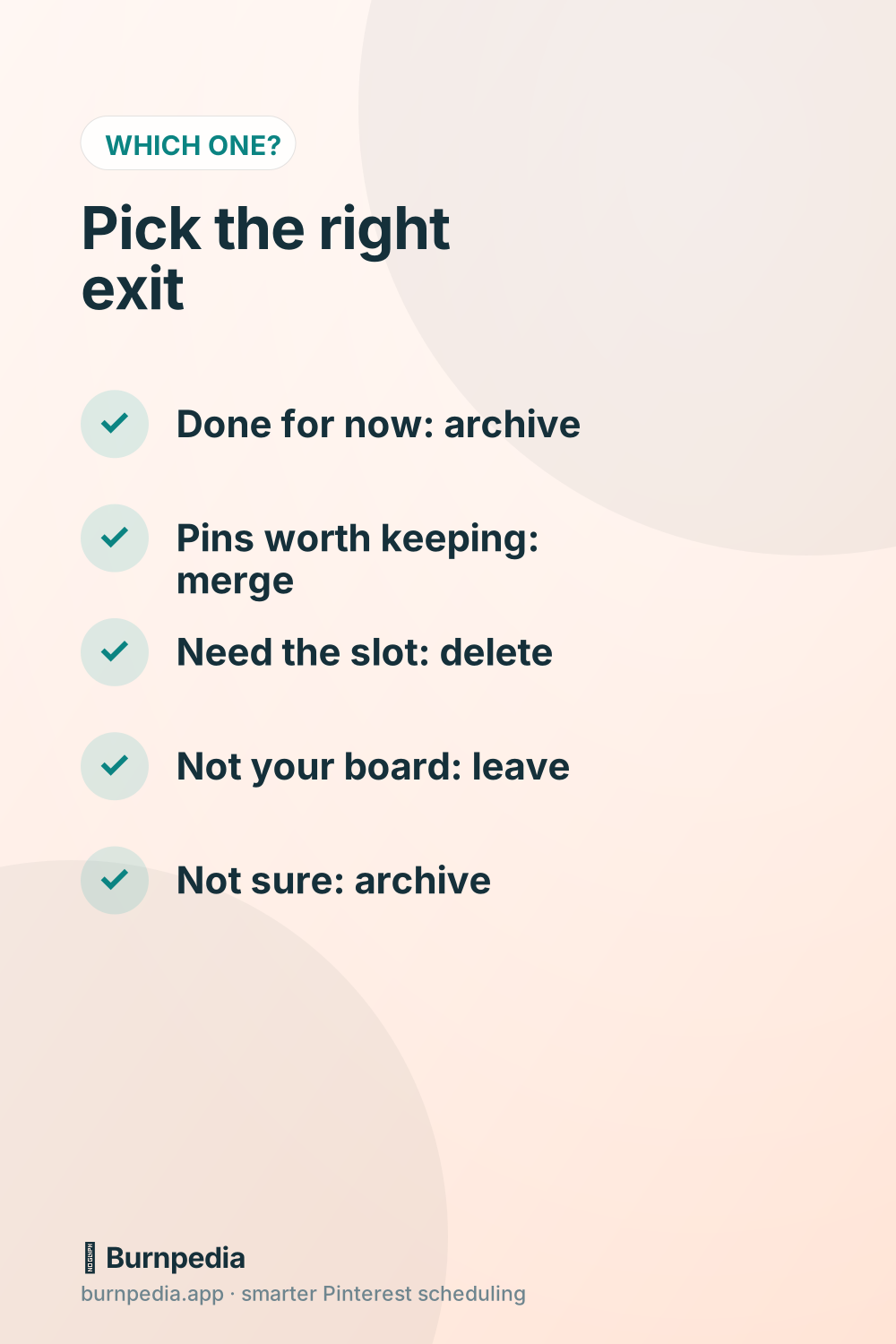
- Archive it when you’re done with a board for now. An archived board moves to the bottom of your profile and off your public profile, and you can’t save new Pins to it. Unarchive it whenever you like.
- Merge it when the Pins are good but the board isn’t. Two boards on one topic become one, and Pinterest deletes the old board for you.
- Delete it when you’re sure, or when you’ve hit the board limit. Archiving doesn’t lower your board count, so only a delete makes room.
- Leave it when it’s someone else’s group board. Collaborators leave and owners delete, so a board you joined doesn’t have a Delete button for you.
- Archive it when you’re not sure. It’s the only option you can fully undo later, at any time.
One scheduling catch: an archived board can’t take new Pins, so treat it like a deleted one in your queue. Move anything waiting for it before you archive.
Why can’t I delete a board on Pinterest?
If Delete won’t show up or won’t work, it’s usually one of these:
- It’s a group board you joined. Only the owner can delete it. You can leave it by opening the board, clicking the group of profile pictures under its name, and choosing Leave.
- You’re in the wrong menu. Delete lives under Edit board in the ellipsis menu, at the bottom of the window. In the app, scroll all the way down.
- You can’t find the board. Check the archived boards at the bottom of your profile, and the protected boards below those.
- The menu is stuck. Try another browser or device, or log out and back in.
If it’s a group board and you only want your own Pins gone, you don’t have to delete the board at all. The owner decides what collaborators can do, and the Do (almost) everything setting is the one that lets you delete Pins. If the trash can isn’t there for you, ask the owner.
A board retirement routine for your Monday batch
If you plan Pins in one weekly sitting, retire boards in the same sitting. It adds a few minutes, and nothing in your queue gets caught out:
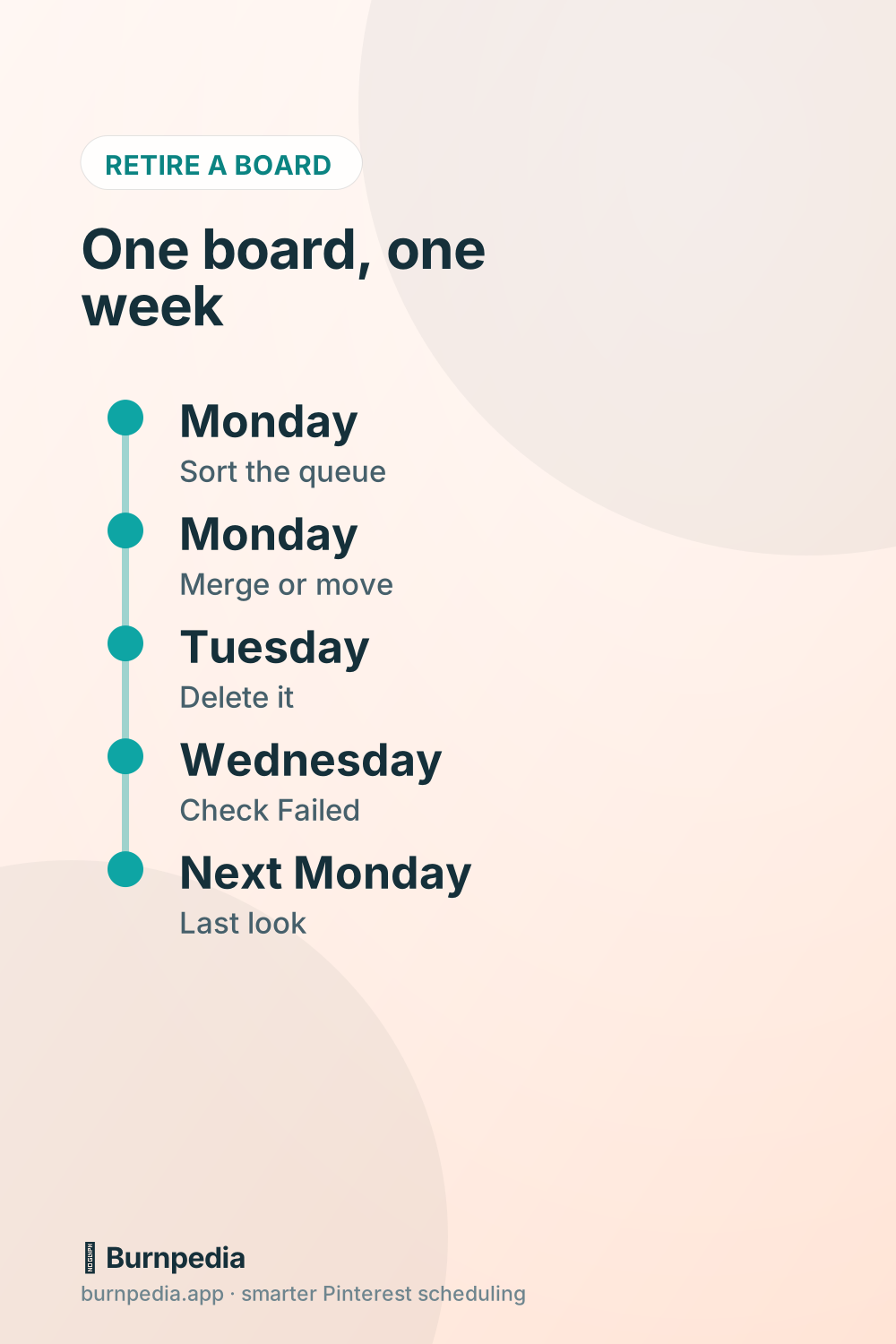
- Monday: filter your queue by the old board and change the board on everything waiting for it. Check your feeds and plugins while you’re there.
- Monday: merge the board, or move the Pins worth keeping with Organize.
- Tuesday: delete what’s left, once you’ve seen the day’s first Pins go out to their new board.
- Wednesday: glance at the queue for anything marked Failed, and fix its board.
- Next Monday: one last look. That’s day six, so you can still restore the board if you need to.
Retiring more than one board? Do one a week. You’ll keep your normal Pins going out, and you’ll never have two restore windows to keep track of. For the rest of that weekly sitting, how to schedule Pins the smart way covers it from start to finish.
Questions people ask about deleting Pinterest boards
How do I delete stuff on my Pinterest board?
Open the board and choose Organize. Pick the Pins you want gone, click the trash can and confirm. For a big clear-out, here’s how to delete multiple Pins on Pinterest without breaking your schedule.
Why can’t I delete a Pinterest pin?
Usually because it’s on a board you don’t own. On a group board, the owner sets what collaborators can do, and only the Do (almost) everything level lets you delete Pins. A Pin you saved from someone else can come off your board, but their original stays up.
How do I delete a board on Pinterest without deleting the pins?
Merge it into another board, which moves every Pin and deletes the old board in one step. Or open Organize, move the Pins you want, and then delete the board.
How do I delete a board?
Open it, click the ellipsis next to its name, choose Edit board, click Delete, then Delete forever. In the app, scroll to the bottom of Edit board to find Delete.
The short version before you delete
Clear the queue, move or merge what you want to keep, then delete. Do it from a computer if you can, so the seven-day restore is right there if you need it.
Want a queue you can filter by board and fix in one pass? You can try Burnpedia’s free plan with no credit card.
Burnpedia is an independent scheduling tool. It is not affiliated with, endorsed by or sponsored by Pinterest, Inc. “Pinterest” is a trademark of Pinterest, Inc., named here only to say what the software works with.
Want Pinterest to run itself?
Every tip on this blog gets easier when your Pins publish on schedule. Burnpedia batches, times, and posts them for you — start free, no credit card.
Try Burnpedia free