How to Delete Multiple Pins on Pinterest Without Wrecking Your Schedule
To delete many Pins at once, use Organize on a board and confirm. It’s one board at a time with no undo, so clear your schedule first and keep each sitting small.
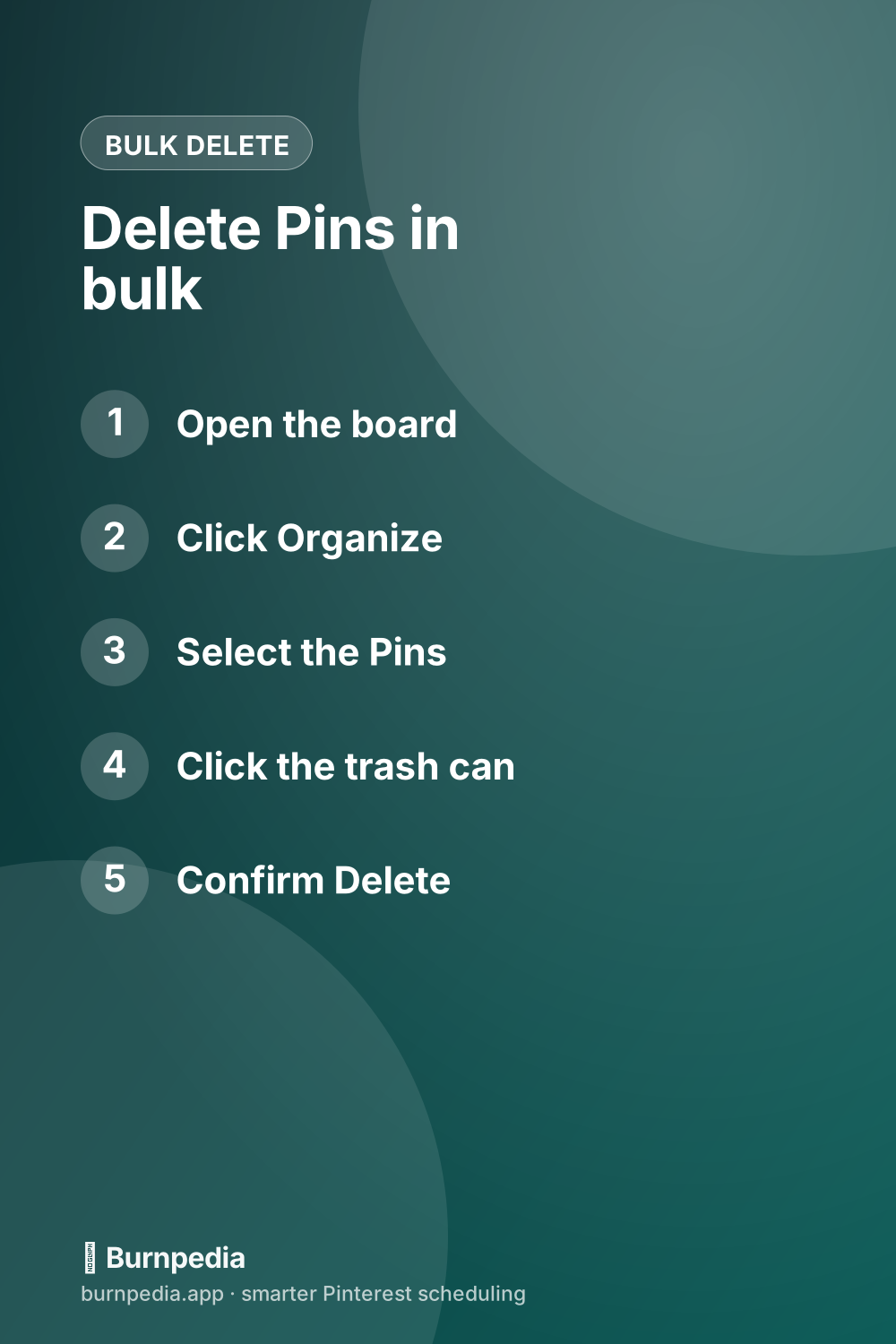
To delete multiple Pins on Pinterest, open a board, choose Organize, select the Pins you want gone, click the trash can and confirm. It works one board at a time, on a computer or in the app. There’s no undo on this one, because a deleted Pin can’t be recovered.
If those Pins came from a batch you scheduled, clear your queue before you touch a board. Otherwise the same batch keeps publishing while you clean up behind it. So this guide goes in working order: the queue, then the boards, then a pace that keeps your account out of trouble.
How to delete multiple Pins on a board
Organize is Pinterest’s bulk tool, and it sits at the top of your boards. On a computer:
- Click your profile picture at the top right, then open the board.
- Click Organize at the top of the board.
- Click each Pin you want gone, or use Select all to take the whole board.
- Click the trash can icon.
- Click Delete to confirm.
In the app, tap your profile picture, open the board and tap Organize. Tap the Pins you want to remove, tap the trash can at the bottom of the screen, and confirm.
The same screen has a Move button too. Moving Pins in bulk works the same way, and it’s the better choice when you’re tidying instead of clearing.
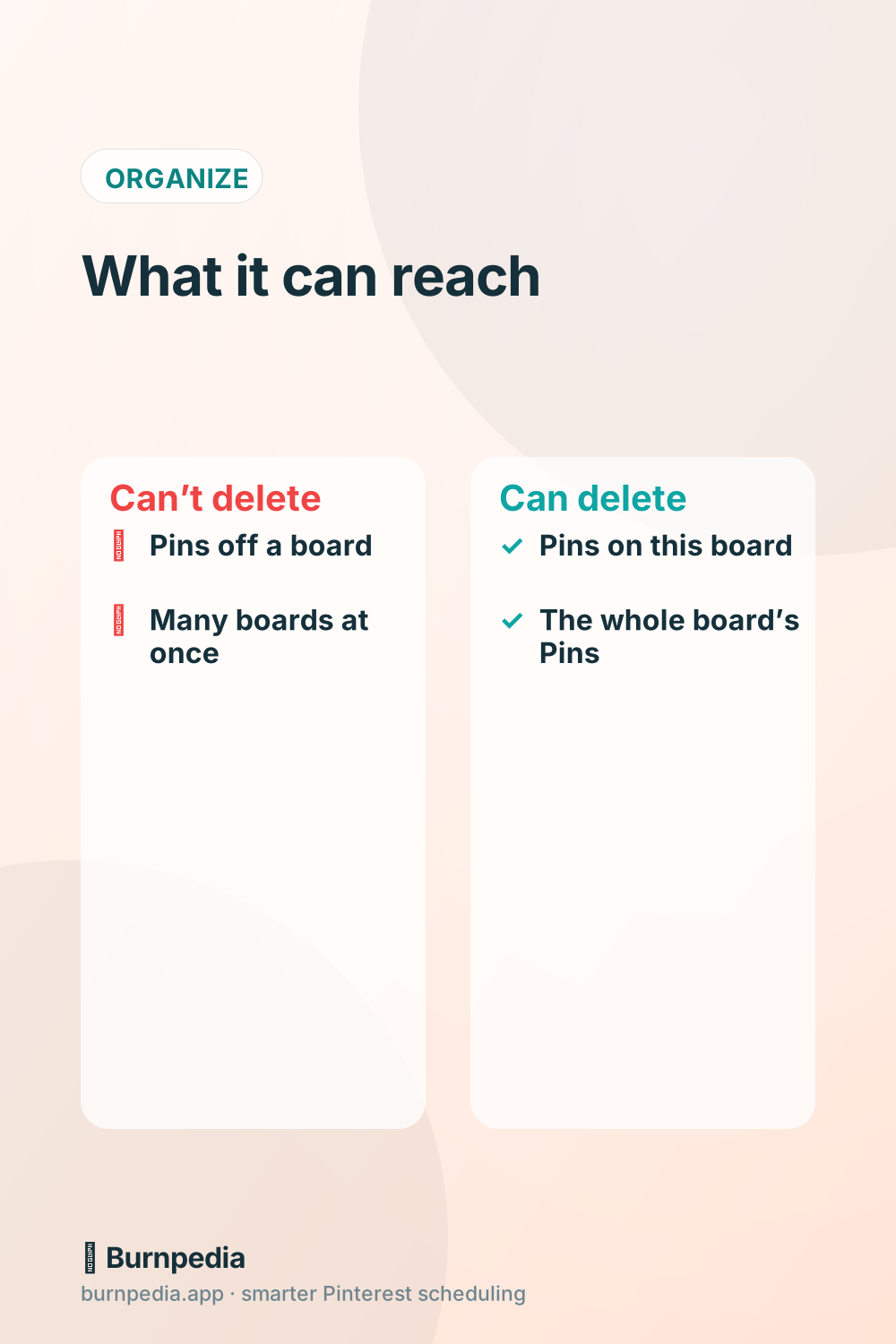
Organize has two limits. It only sees one board at a time, so ten boards means ten rounds. It also can’t delete Pins that were never put on a board. Those sit under Unorganized ideas, where Organize can only move them, so put them on a board first and delete them from there.
Stop your schedule before you delete a batch
Most bulk deletes start with a batch that went wrong. A sale ended, a link changed, or a whole week of graphics went out with last year’s price. If you schedule ahead, part of that batch is still waiting to publish.
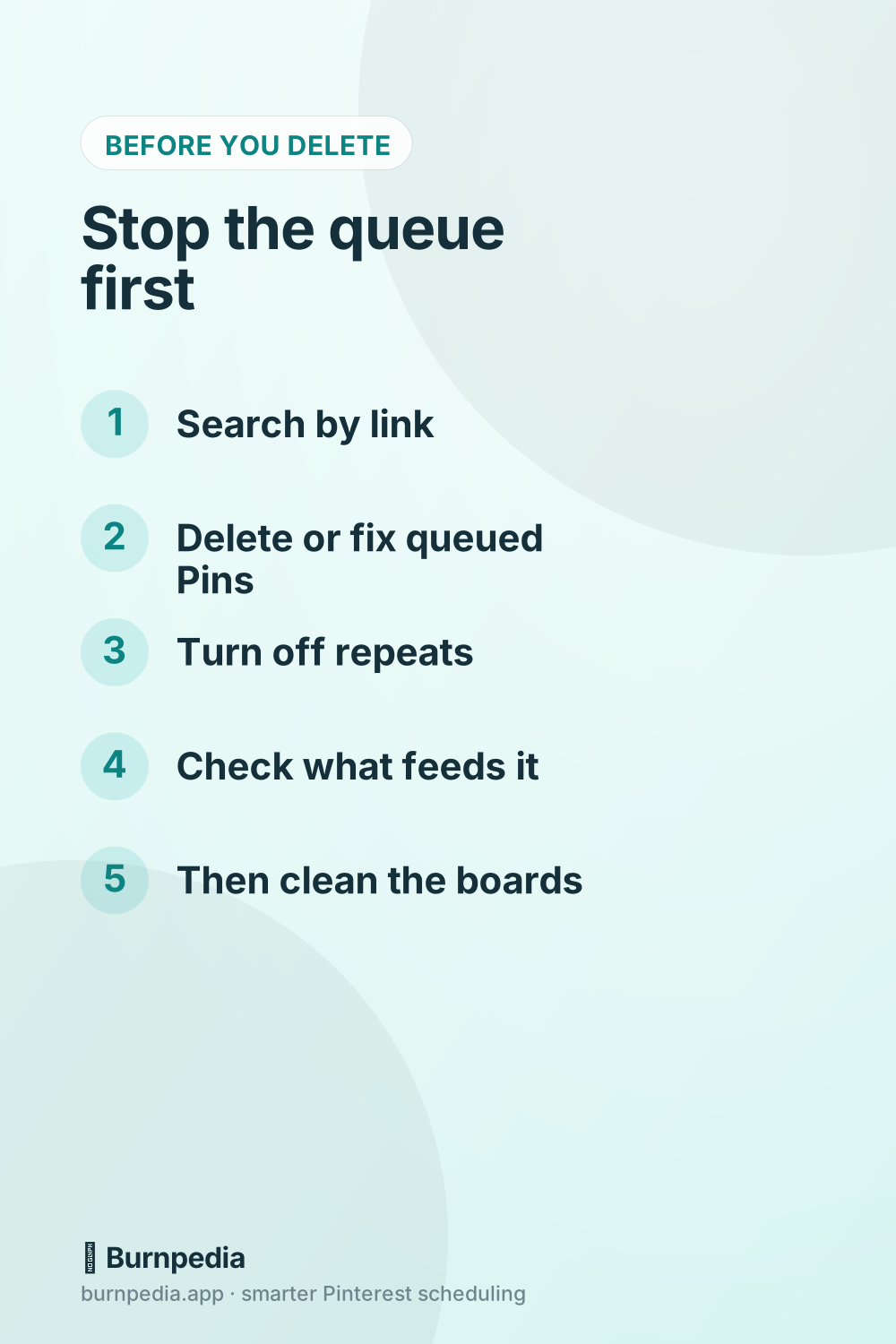
So start in the queue, and do these in order:
- Search your queue for the link, the product name or the board the batch used.
- Delete the queued Pins that shouldn’t go out, and fix the link on the ones worth saving.
- Look for repeats. A Pin that’s set to come back later needs that turned off before you take down the original.
- Check what feeds the queue. An RSS feed, a WordPress plugin or a bulk upload can bring the same link back tomorrow.
- If you plan to delete a whole board, move anything queued for it to another board.
Pinterest’s own scheduler makes this a short job, since it holds only 10 Pins at a time. They sit above your published Pins on your profile. Click the ellipsis on one, choose Delete, and repeat.
In Burnpedia, search the queue or group it by board, tick the Pins and press Delete in the bar that appears. You can undo a queue delete right after, which Pinterest’s trash can never offers.
Skip that last step and the Pins aimed at a deleted board will fail when their time comes. Burnpedia tries a failed Pin again about 5, 15 and 60 minutes later, then marks it Failed with a Retry button. Retrying won’t help until you give it a board that still exists.
Published Pins are a separate job. In Burnpedia, deleting a row from your list only clears Burnpedia’s record, and the Pin stays live. The Delete from Pinterest button on the Pin is the one that takes it down. It handles one Pin at a time and asks you to confirm, because that can’t be undone. If you use another scheduler, find out which of the two its delete button does.
The bulk delete that gives you a week to change your mind
The trash can is final. Deleting a board isn’t, at least not right away, because you get seven days to restore a deleted board. That makes a throwaway board the safer way to clear a big pile.
- Create a new board with a dull name, like Old Pins 2026. It’ll show on your profile for a little while.
- On each board, open Organize, select the Pins and choose Move to send them to the new board.
- Open the new board and look it over once, now that everything’s in one place.
- Click the ellipsis next to the board name, choose Edit board, click Delete, then Delete forever.
Now you’ve got seven days to spot a mistake. You’ll find the board in the Recently deleted section on a computer or on Android, and it can’t be restored from an iPhone. Try it once on a board with just a few Pins, so you know what restoring looks like before you need it.
Only do this with a board you made for the purpose. Every Pin on a deleted board goes with it, including the one you forgot was there.
How to delete all your Pins at once
Pinterest doesn’t have a single button for this. You go board by board, either with Select all in Organize or by deleting each board, since a deleted board takes all its Pins with it.
Product Pins from a shop catalog are tied to the feed, so the trash can is the wrong tool for a whole store. If you sell through Shopify, the clean way out is to remove the Shopify app’s access under settings and security, which clears that feed’s products within 7 days. Deleted Product Pins can take 48 hours to 7 days to clear, so give it the full week before you try again.
You’ll also run into desktop apps and browser extensions that offer to wipe a whole account in one run. Many of them have you sign in to Pinterest inside the app. Read Pinterest’s terms on automated access first, because it’s your account on the line if something goes wrong.
Should you delete old Pins at all?
Usually not. Old isn’t a problem by itself. A Pin that still gets clicks is still working, and one that looks dated costs you nothing by sitting there. The hour you’d spend clearing them usually does more good on new Pins.
Deleting has real costs, too. The Pin’s stats go with it, there’s no way back, and copies other people saved can stay up anyway. So delete for a reason. Here’s how to sort what you find:
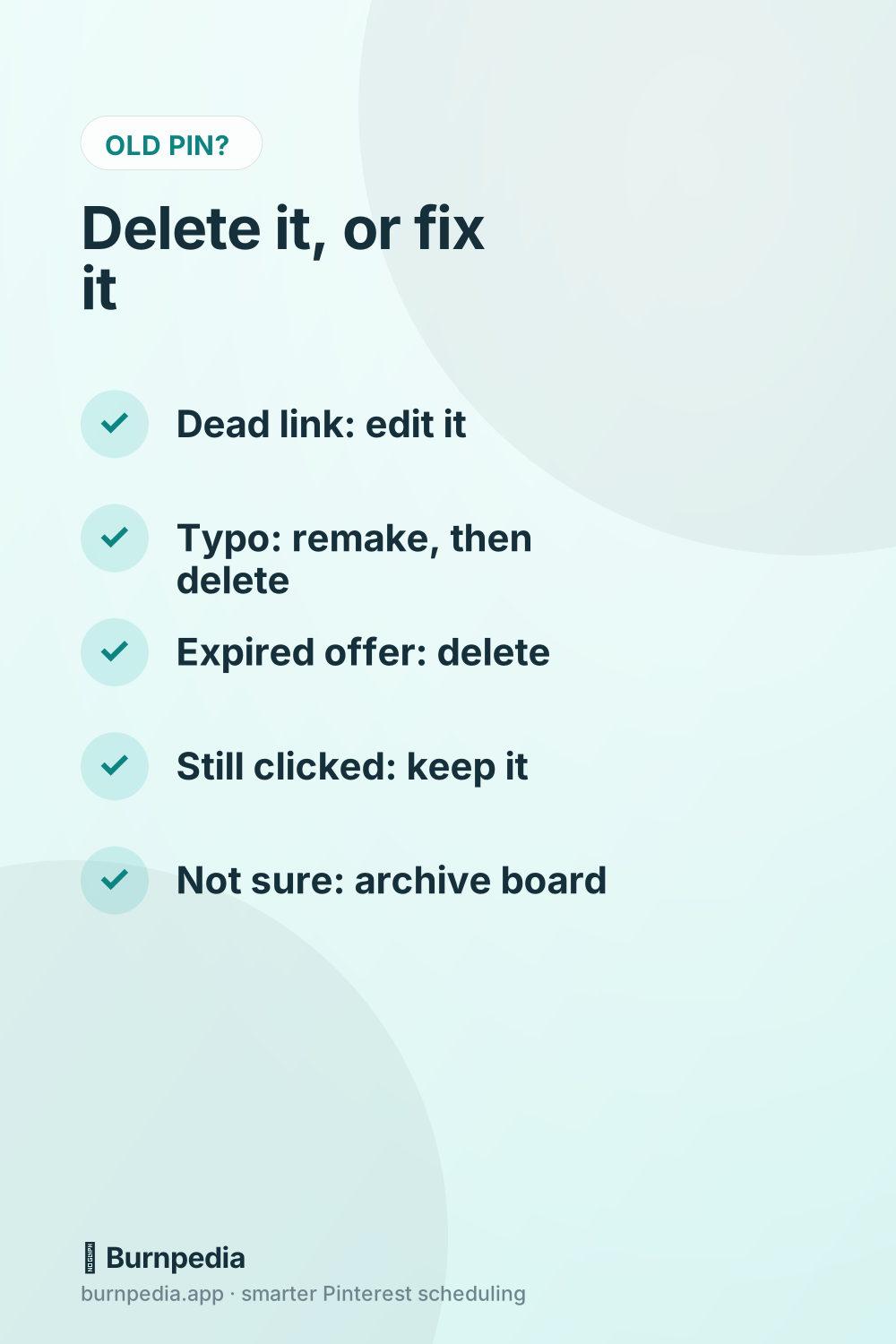
- A dead or wrong link on a Pin you made: edit the link and keep the Pin. You can’t change the link on a Pin you saved from someone else.
- A typo or the wrong image: make a new Pin, then delete the old one. Here’s what you can and can’t edit on a live Pin.
- An offer that’s over, with no current page to point it at: delete it.
- Anything that breaks Pinterest’s rules, or that you no longer have the right to use: delete it today.
- Off-brand but still getting clicks: check your analytics before you touch it, and make a fresher version if it bothers you.
- Not sure: move it to a holding board and archive that board. An archived board leaves your public profile, and you can unarchive it any time.
Archiving isn’t the same as removing, though. It hides the board from your profile, and that’s not a promise to take those Pins out of search. A Pin that truly has to disappear still needs deleting.
How to clear a lot of Pins without tripping a block
Pinterest puts a temporary block on accounts that repeat the same action too many times in a short period, like commenting fast or saving lots of Pins from one site. A big clean-up is the same kind of repeat action, and it can trip the same spam filter.
Pinterest doesn’t publish a safe number, so don’t go hunting for one. Keep each sitting small, even for a job of 40 Pins:
- Work one board per sitting, and stop there.
- Break it up with other work, so you aren’t repeating one action over and over.
- Spread a big clean-up over several days. A full rebrand can take a couple of weeks, and that’s fine.
- Keep your normal Pins publishing. A clean-up is no reason to leave a gap in your week.
- If you do get blocked, stop and wait a few minutes before trying again. Most limits lift by themselves within 24 hours.
Why can’t I delete some Pins?
If the Delete button isn’t there or won’t work, it’s usually one of these:
- The Pin is on someone else’s board. On a group board, the owner decides what collaborators can do, and the Do (almost) everything level is the one that lets them delete Pins. A scheduling tool hits the same wall, because Pinterest refuses a delete for a Pin on a board you don’t own.
- It’s a Product Pin. Those follow your catalog, so deal with the catalog or the connected app.
- It was never put on a board. Move it onto one if Organize won’t offer the trash can.
- It’s somebody else’s Pin that you saved. You can remove your copy, and the original stays up.
- The menu is missing or frozen. Try another browser or device, or log out and back in.
A clean-up week that keeps your schedule running
A big clear-out goes better as one small job a day, alongside your normal Pins. Here’s a simple week to copy:
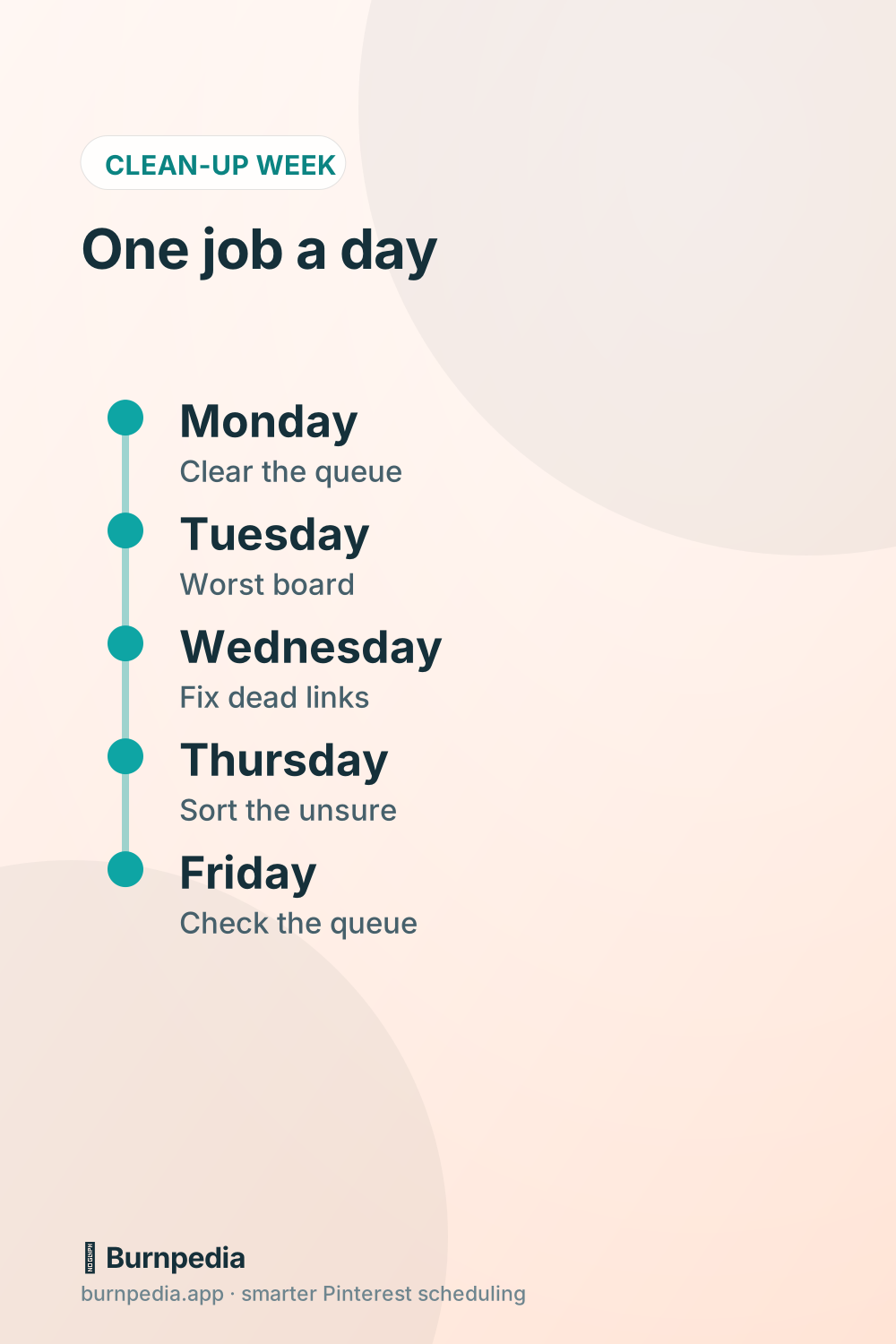
- Monday: clear the queue. Search by link and product, delete or fix what’s waiting, and check anything that feeds it.
- Tuesday: take the board doing the most harm, usually expired offers or wrong links.
- Wednesday: fix the links you can edit, a small group at a time.
- Thursday: sort the Pins you’re unsure about onto a holding board and archive it.
- Friday: look through the queue once more, and make sure nothing you cleared has crept back.
Got a big account? Run the same week again next month and take one more board. If you delete a board along the way, set a reminder for six days later, while you can still restore it.
Questions people ask about deleting Pins in bulk
Is there a way to select multiple pins on Pinterest?
Yes. Open a board and choose Organize, then click or tap each Pin you want. On a computer you can also use Select all to take the whole board.
How do I delete a bunch of pins?
On the board that holds them, choose Organize, select the Pins, click the trash can and confirm. For a big pile, move them to one throwaway board and delete that board, which gives you seven days to restore it.
How do I remove all pins from my Pinterest account?
Go board by board. Use Select all in Organize or delete each board, then move any Pins that aren’t on a board onto one and delete those too.
Is there a way to mass delete Pinterest boards?
Pinterest’s own menus delete one board at a time. Open it, click the ellipsis next to its name, choose Edit board, then click Delete and Delete forever. Each one can be restored for seven days.
What does deleting a pin do on Pinterest?
It removes the Pin from your profile and boards for good, and its stats go with it. Copies other people saved may stay up, and the page it linked to isn’t touched.
How do I clean out my Pinterest?
Start with your queue, then go board by board with Organize. Delete what’s doing harm, edit what only needs a new link, and archive anything you aren’t sure about.
The short version for your next clean-up
Clear the queue first, delete from one board at a time, and use a throwaway board when you want a way back. For the weekly routine that keeps a bad batch from getting this far, how to schedule Pins the smart way walks through it from start to finish.
If you’d like a queue you can search by link and clear in one pass, you can try Burnpedia’s free plan with no credit card.
Burnpedia is an independent scheduling tool. It is not affiliated with, endorsed by or sponsored by Pinterest, Inc. “Pinterest” is a trademark of Pinterest, Inc., named here only to say what the software works with.
Want Pinterest to run itself?
Every tip on this blog gets easier when your Pins publish on schedule. Burnpedia batches, times, and posts them for you — start free, no credit card.
Try Burnpedia free