Pinterest UTM Parameters: How to Tag a Week of Scheduled Pins Before They Go Out
Pinterest tags your ads for you but not your regular Pins. Add three UTM tags to each Pin’s link before it goes out, and tag the whole week in one pass.
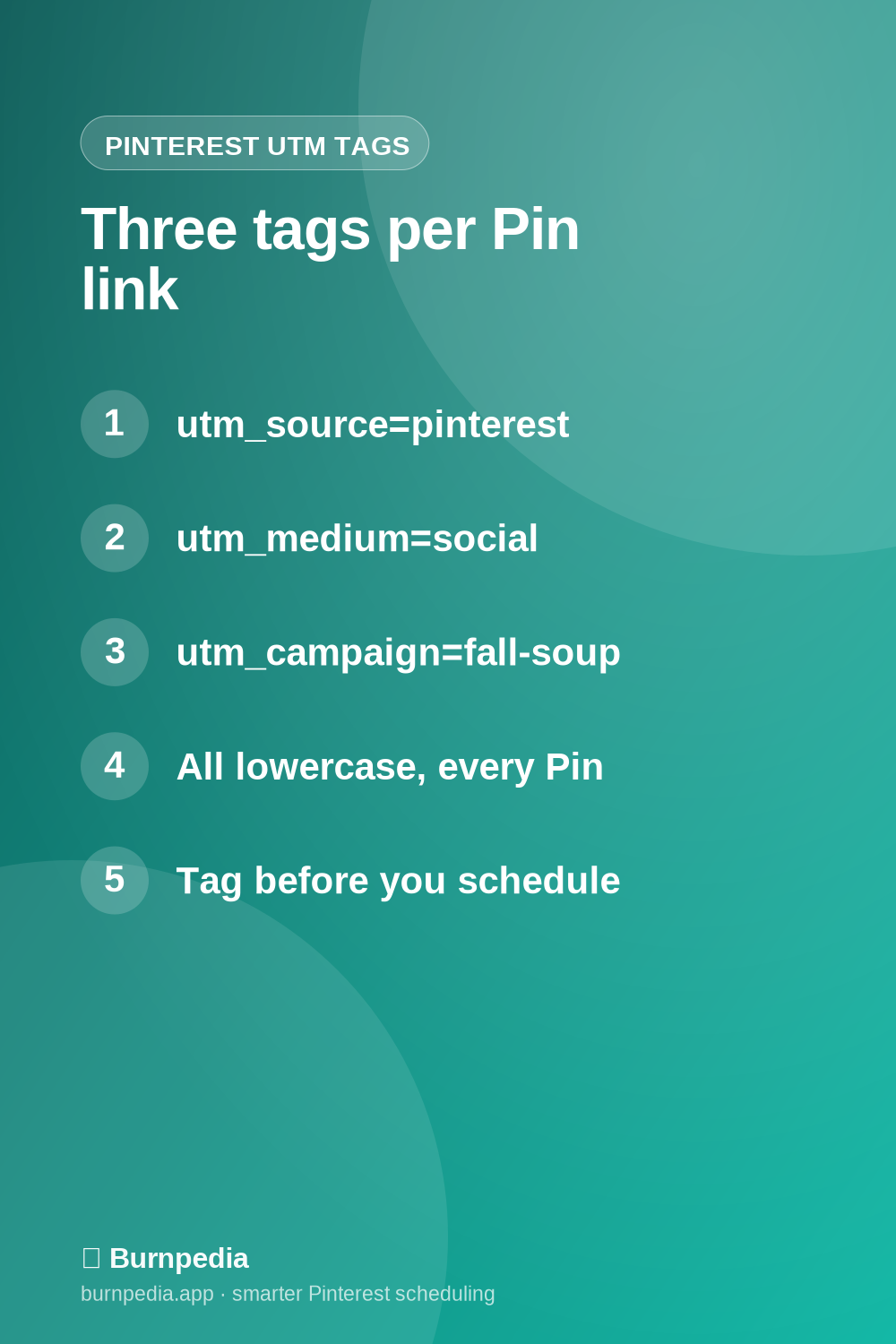
Pinterest UTM parameters are three short tags you add to the end of a Pin’s link: utm_source=pinterest, utm_medium=social and a utm_campaign name of your own. They tell your analytics that a visit came from a Pin, and from which batch of Pins. Pinterest adds tags to your ads for you, but not to a regular Pin, so tag those before they go out. The easy way is to tag the whole week in one pass.
Pinterest tags your ads, not your regular Pins
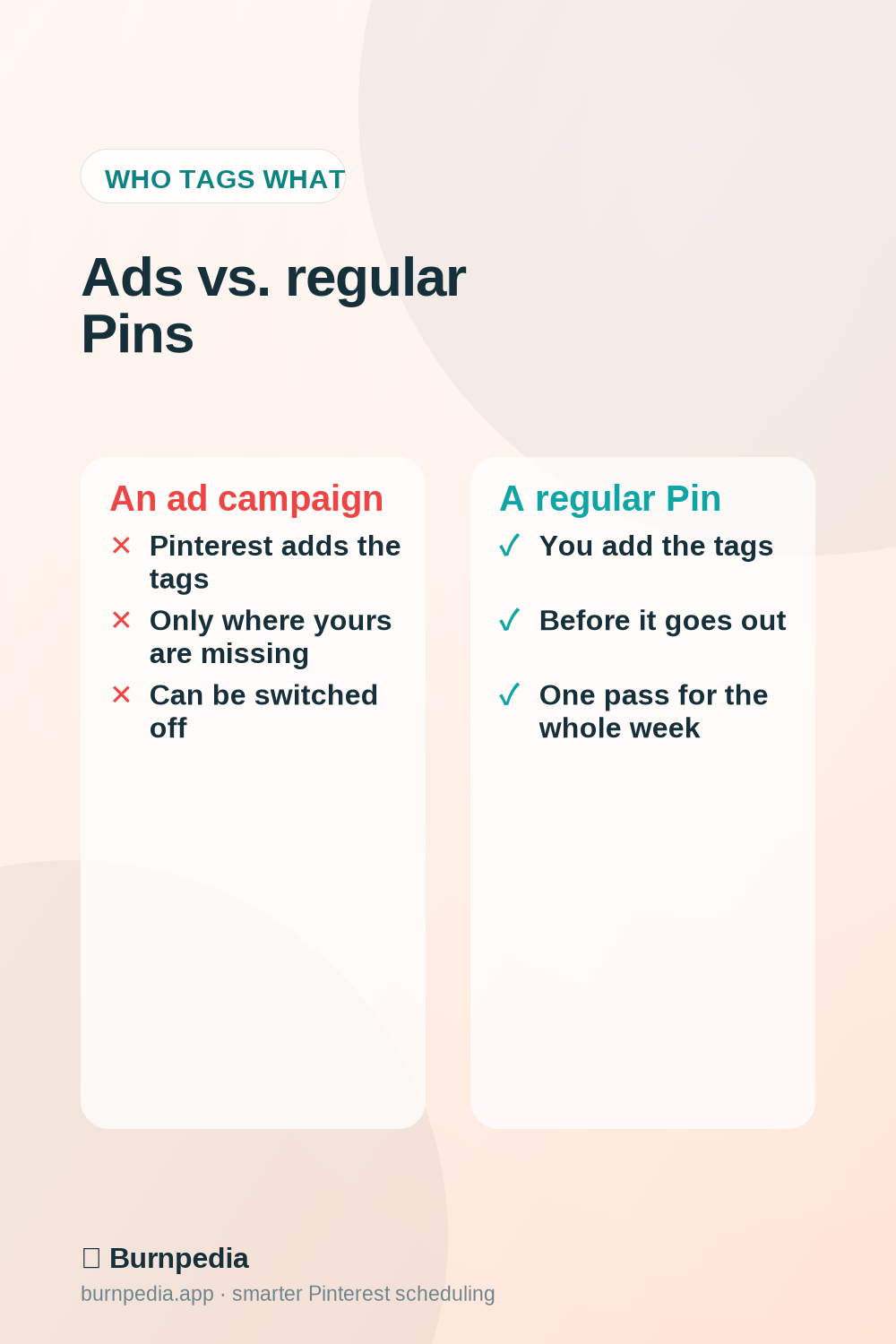
Pinterest does add UTM tags on its own, but only for ads. It applies utm_source, utm_medium, utm_campaign and utm_content to the destination URLs in an ad account’s campaigns, and only when yours are missing, so it never overwrites a tag you set. From September 15, 2026 Pinterest also adds them to eligible ad destination URLs on current and future campaigns, unless the advertiser opts out.
Those settings live in an ad account’s campaigns, so the link on a regular Pin goes out exactly as you wrote it. If you pin for free traffic, the tagging is yours to do.
The three tags every Pin link needs
A UTM tag is a label on the end of a link. Google Analytics’ own guide says to always use utm_source, utm_medium and utm_campaign when you add them. For a Pin, that comes to this:
| Tag | What goes in it | Example |
|---|---|---|
| utm_source | The platform the visit came from | |
| utm_medium | The kind of traffic | social |
| utm_campaign | The batch or theme the Pin belongs to | fall-soup |
Put together, a tagged link is the page’s address followed by the three tags, with no spaces. The first tag starts after a question mark and each one after it starts with an ampersand:
- https://example.com/fall-soup
- ?utm_source=pinterest
- &utm_medium=social
- &utm_campaign=fall-soup
Nothing about the page changes, and your reader sees the same post.
There’s one optional tag worth knowing. Analytics describes utm_content as the way to tell apart different creatives that point to the same place. That’s you, if you make several designs for one post. Give each design its own value, like design-a and design-b, and your analytics can show which picture actually sent visitors. If that’s a plan for later, skip it for now; the three tags above already work on their own. Several designs per post is the idea behind fresh Pins, so the habit pays off quickly once you’re tagging.
Keep every value lowercase. Analytics is case-sensitive, and its guide spells out that SpringSale and Spring_Sale are counted as two different campaigns. One Pin tagged Pinterest and the next tagged pinterest become two lines in your report. The cheapest fix is to type everything lowercase, with hyphens instead of spaces, from the first Pin.
Why utm_medium=social is the safe choice
The medium is the tag people overthink, and it matters because Google Analytics sorts visits into channels by it. In its default channel group, a visit lands in Organic Social when its medium is social, social-network, social-media, sm, social network or social media. A medium of social does it, and it’s the shortest.
That’s also why a medium you invent, like pin or pinterest, is the riskier pick. It may still sort correctly if the source is on Google’s list of social sites, but you’d be relying on that. Social takes the question away, and it keeps your Pinterest visits next to your other social traffic where you’d look for them.
Tag the week once, before you schedule it
Tagging a Pin one link at a time works for a handful. It stops working the week you have 20 of them. The moment to tag is the same moment you’d write the title and pick the board: while the batch is open and before the first Pin has gone out. A Pin that’s already live with an untagged link has sent its visits with no label, and you can’t add that label to them afterward. If you’re planning the whole week at once, bulk scheduling is where the tagging belongs.
So make it a step in the batch, not a cleanup. The order that works is: choose your campaign names, tag the links, check one, then schedule. The tagging takes a couple of minutes for a week of Pins. Untangling a report with no labels on it takes a lot longer.
What Burnpedia’s tracking button adds, and what it leaves alone
In Burnpedia, tagging a Pin is two clicks, and tagging the week is two more. Here’s what it does, so you know what you’re getting:
- On a single Pin, an “Add Pinterest tracking to this link” button appears under the link field whenever the link is a normal web address with no UTM tags yet. Click it and the tags go on. A small note then confirms the tags are added.
- In the queue, tick the Pins you want and click “Add tracking.” It tags every selected Pin that has a clean web link, and tells you how many it did. If none qualify, it says so, with the reason: already tagged, or no web address.
- The tags it adds are utm_source=pinterest, utm_medium=social and utm_campaign=burnpedia.
- Anything already on your link stays: other query parameters and any #section at the end are kept as they are.
- A link that already has any utm_ tag is left alone, so it never overwrites tags you wrote yourself.
- The change is on the Pin in your queue before it publishes, and you get an Undo, so a wrong click costs nothing.
The one thing to know is that campaign name. The button gives every Pin the same one, burnpedia, so your report will show one campaign for the whole batch. For one account, that’s often fine, because you can still tell Pinterest visits from everything else and see which page they landed on. If you want to compare themes, though, you need a different campaign name for each.
Campaign names that still make sense in a month
To compare themes, tag those links yourself and use the button for the rest. A link that already carries a utm_ tag is skipped by the bulk button, so the two don’t fight.
A good campaign name is short, lowercase and says something you’ll recognize when it shows up in a report a month from now. Two patterns hold up well:
- By theme: fall-soup, gift-guides, small-kitchens. You see which kind of content brings visitors, and the name stays valid for as long as you keep making that content.
- By month and theme: 2026-11-gift-guides. Better when the same theme comes around every year and you want the seasons apart.
Write the names down once, in a note next to your calendar, and reuse them. The report only stays readable if “fall-soup” is always spelled that way. If a few themes are enough for you, that’s also plenty; there’s no prize for 40 campaigns. The conversion tracking guide covers what to do with the numbers once they come in.
Already scheduled in Pinterest’s own scheduler? Edit the link
If your Pins are queued inside Pinterest, you haven’t missed the window. Pinterest’s help says that once a Pin is scheduled, you can update the publish date, title, board, description and link. You can’t change the image or video. So an untagged link on a scheduled Pin is a quick edit, not a rebuild.
The catch is the count. Pinterest lets you schedule one Pin at a time, with up to 10 scheduled, so the most you’ll ever have to fix this way is 10 links, one by one. It’s a few minutes of work, and a worthwhile few minutes. Once they’re done, tag every new Pin as you create it. If the 10-Pin ceiling is what keeps interrupting your week, there’s more on that in how to see, edit and move scheduled Pins.
A Monday routine for tagging the week
Here’s the version of this that takes a few minutes and doesn’t need a spreadsheet.
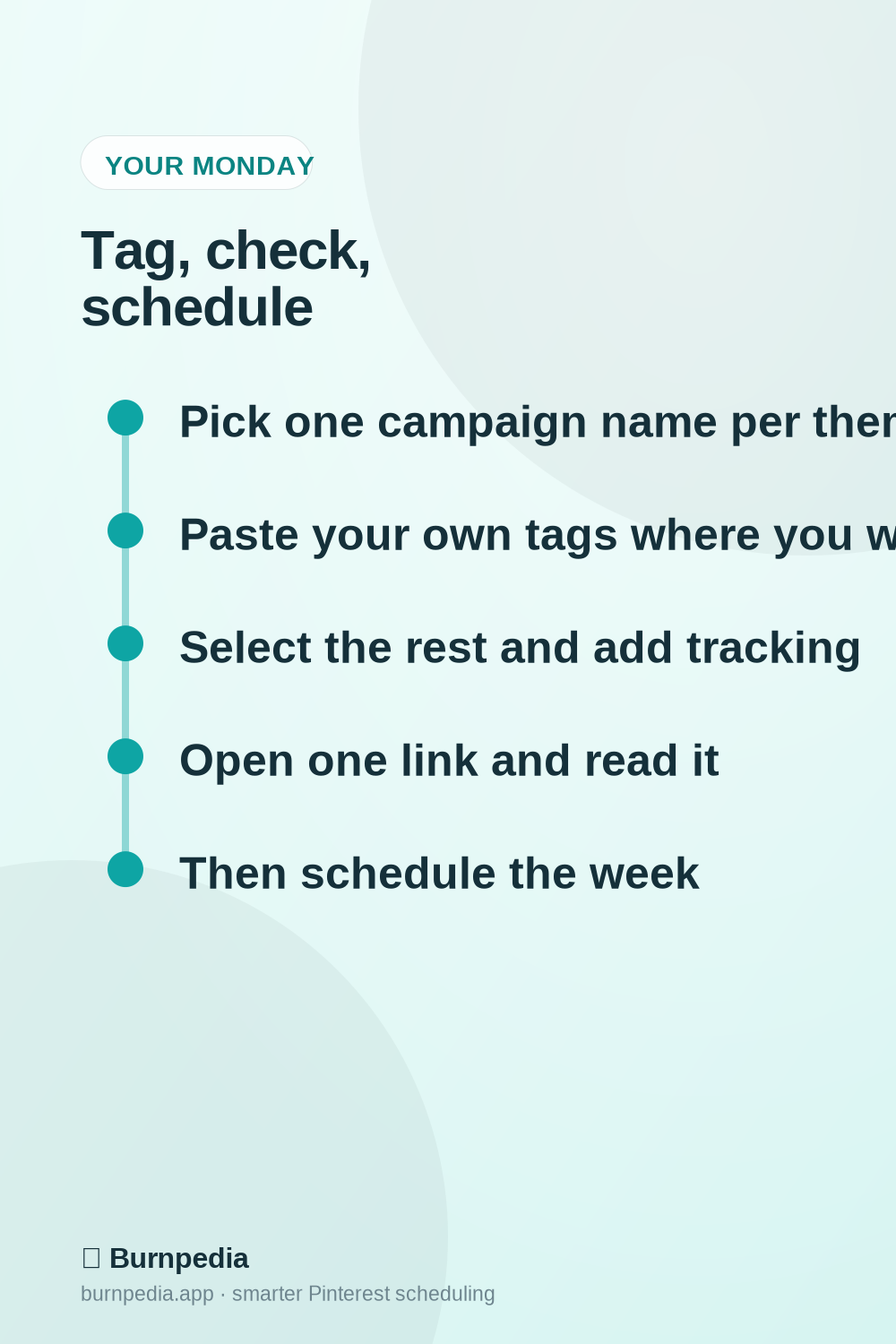
- List the themes in this week’s batch, and give each one a lowercase campaign name.
- For Pins whose theme you want to compare, paste in the link with your own tags already on it.
- In the queue, select the rest and click “Add tracking.”
- Open one tagged link and read it. It should say utm_source=pinterest, utm_medium=social and a campaign, with no spaces and no capital letters.
- Then schedule the week, knowing every Pin that goes out is labeled.
One typo copied across 20 Pins is 20 mislabeled Pins, and the quickest way to catch it is to read a single link before it multiplies. For the rest of the week’s routine, how to schedule Pins the smart way ties it together.
Where to look once the first tagged Pin is live
In Google Analytics, the tag values show up in the Traffic acquisition report. Give the first tagged Pins a few days to collect visits, then open it and look for a source of pinterest and your campaign names. If you used social as the medium, those visits are in the Organic Social channel.
Early on, don’t read much into the numbers. A single Pin sends a few visits, and a few visits can’t tell you which theme works. What you’re checking is simpler: that the tags arrive, spelled the way you wrote them. After a month, the campaign list starts to mean something, and that’s when it pays to compare themes.
Questions people ask about Pinterest UTM parameters
What are standard UTM parameters?
There are five you’ll hear about: utm_source, utm_medium, utm_campaign, utm_term and utm_content. Google Analytics’ guide lists source, medium, campaign, term and content among its campaign parameters and says to always use the first three. Content tells creatives apart, and term is meant for paid keywords, so a regular Pin rarely needs it.
Should utm_medium be organic for Pinterest?
Use social instead. In Google Analytics’ default channel group, a medium of exactly organic is how a visit lands in Organic Search, so Pins tagged organic would be counted with your search traffic. A medium of social keeps them in Organic Social.
Does Pinterest add UTM parameters to my Pins?
It adds them to ads, not regular Pins. The automatic tagging is an ad account setting that applies to campaigns, and it only fills in tags you haven’t set. For a Pin you schedule, you add them.
Can I add UTM parameters to a Pin that’s already scheduled?
Yes. In Pinterest’s scheduler, the link is one of the things you can still change on a scheduled Pin, though the image and video are not. In Burnpedia, open the Pin in your queue and click the tracking button, or select several and use “Add tracking.”
The short version
Pinterest tags your ads and leaves your regular Pins alone, so tag them yourself: utm_source=pinterest, utm_medium=social and a lowercase campaign name. Do it for the whole week before you schedule it, read one link to catch a typo, and keep the names consistent so the report stays readable in a month.
Want the tags on a week of Pins in a couple of clicks? You can try Burnpedia’s free plan with no credit card.
Burnpedia is an independent scheduling tool. It is not affiliated with, endorsed by or sponsored by Pinterest, Inc. “Pinterest” is a trademark of Pinterest, Inc., named here only to say what the software works with.
Want Pinterest to run itself?
Every tip on this blog gets easier when your Pins publish on schedule. Burnpedia batches, times, and posts them for you — start free, no credit card.
Try Burnpedia free