Pinterest Alt Text: How to Add It Before You Schedule a Pin (and Fix It After)
Pinterest’s alt text field sits under More options, takes 500 characters, and isn’t on the list of things you can change once a Pin is scheduled. Here’s where to add it, how to fix it after a Pin goes live, and a routine that fits a weekly batch.
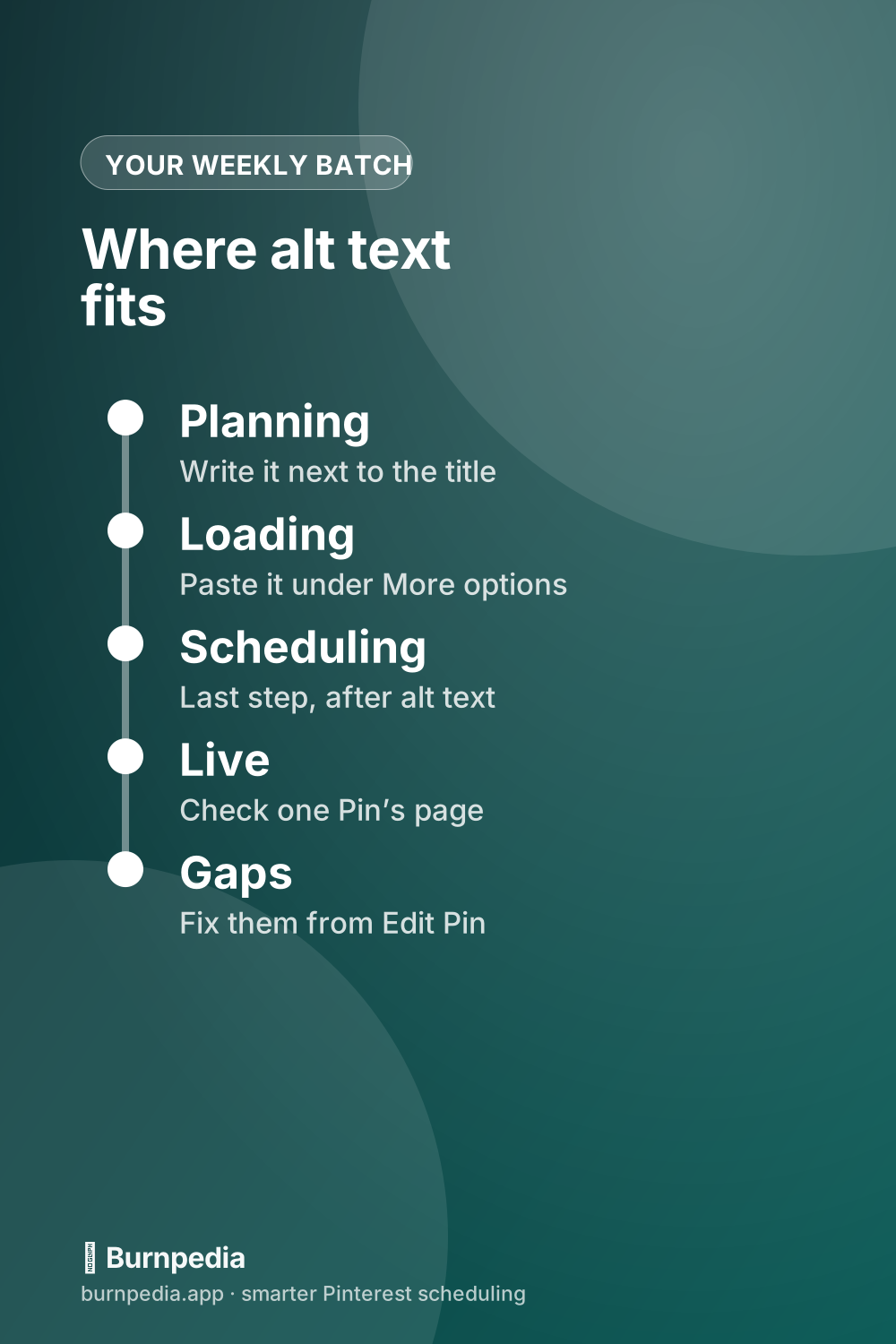
Pinterest alt text is a short description of what’s in your Pin’s image, read aloud to people who use a screen reader. To add it on a computer, click Create, then Pin, fill in your title and description, open More options and type it under Alt text. The limit is 500 characters. If you’re scheduling the Pin, add it before you press Schedule. Pinterest’s help lists what you can change on a scheduled Pin, and alt text isn’t on that list.
That last part is where a weekly batch slips. You load ten Pins on Monday, skip a field that’s tucked behind a drop-down, and now it has to wait until each one publishes. So this guide runs in the order you actually work: write it, schedule it, check it, fix what slipped.
What Pinterest alt text is, and what happens when you leave it blank
Alt text is a written stand-in for the picture. Pinterest’s alt text help says it’s for people “who rely on screen reader technology,” and that the descriptions “will only be read to people using a screen reader.” Nobody scrolling the feed sees it. It isn’t your title, and it isn’t your description. Those two are for people who can see the Pin.
The same page says you can add it to standard Pins and video Pins only. Other formats don’t get the field.
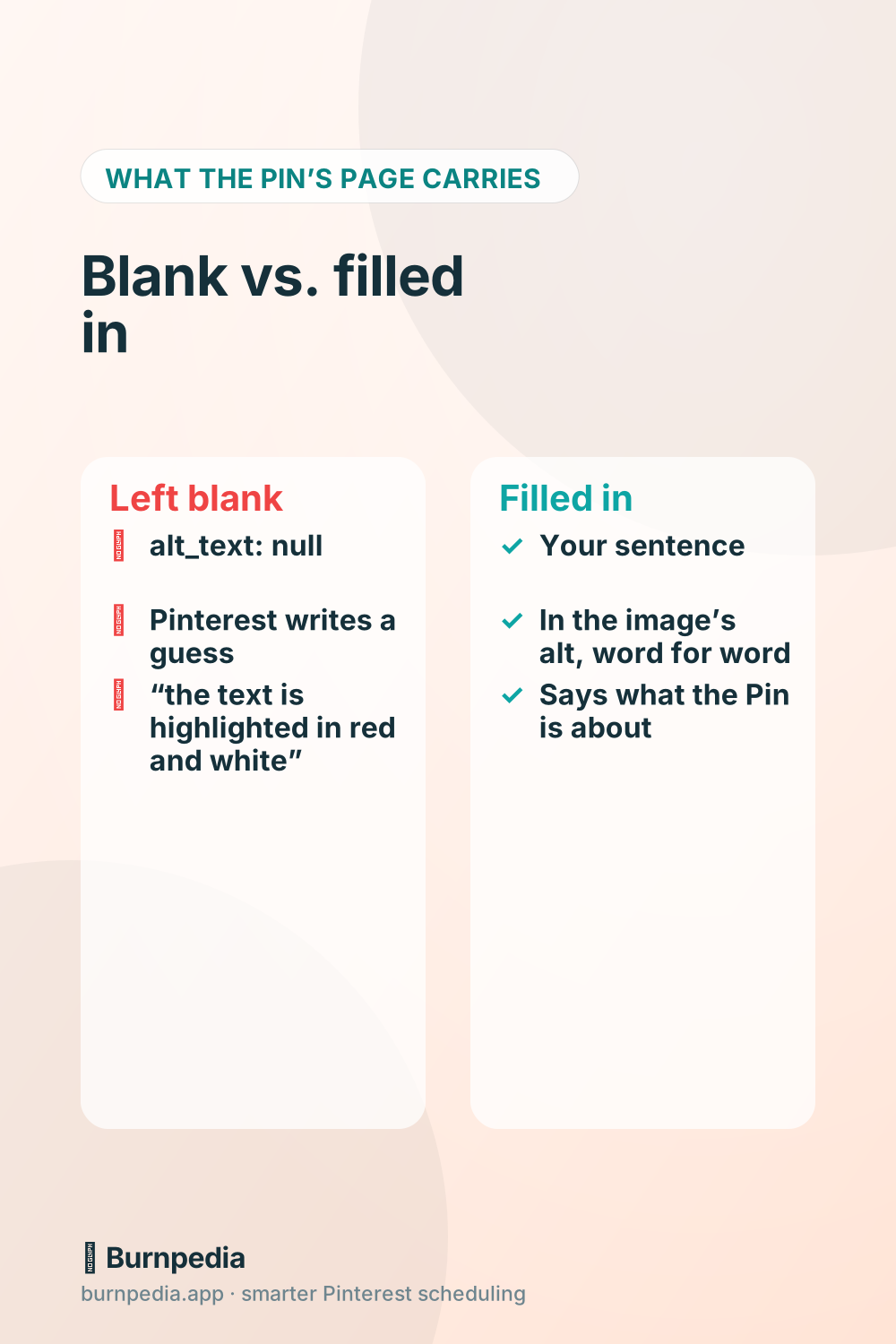
Plenty of guides say a blank field leaves a screen reader with nothing, or with a file name. On a Pin’s web page, that’s not quite what happens. Pinterest fills the gap with its own machine-written guess. Take the Pin titled “How to use alt text on your Pins”. In its page code the alt text field is empty (alt_text: null), and the image’s alt reads “the text is highlighted in red and white.” That’s Pinterest’s guess, stored as auto_alt_text, and it’s what a screen reader gets on that page.
So the real choice isn’t between a description and silence. It’s between your sentence and a guess about how the image looks. For a Pin that’s mostly words, like that one, the guess can describe the colors of the text and skip what the text says.
How to add alt text to a Pin on a computer
These are Pinterest’s steps on the desktop site:
- Log in, click Create, then Pin.
- Add your image or video with the upload arrow, or drag it into the uploader.
- Fill in the title, description, board and link.
- Scroll down and open the drop-down next to More options.
- Under Alt text, explain what people can see in the Pin, in 500 characters or fewer.
- Click Publish, or pick a later date first if you’re scheduling.
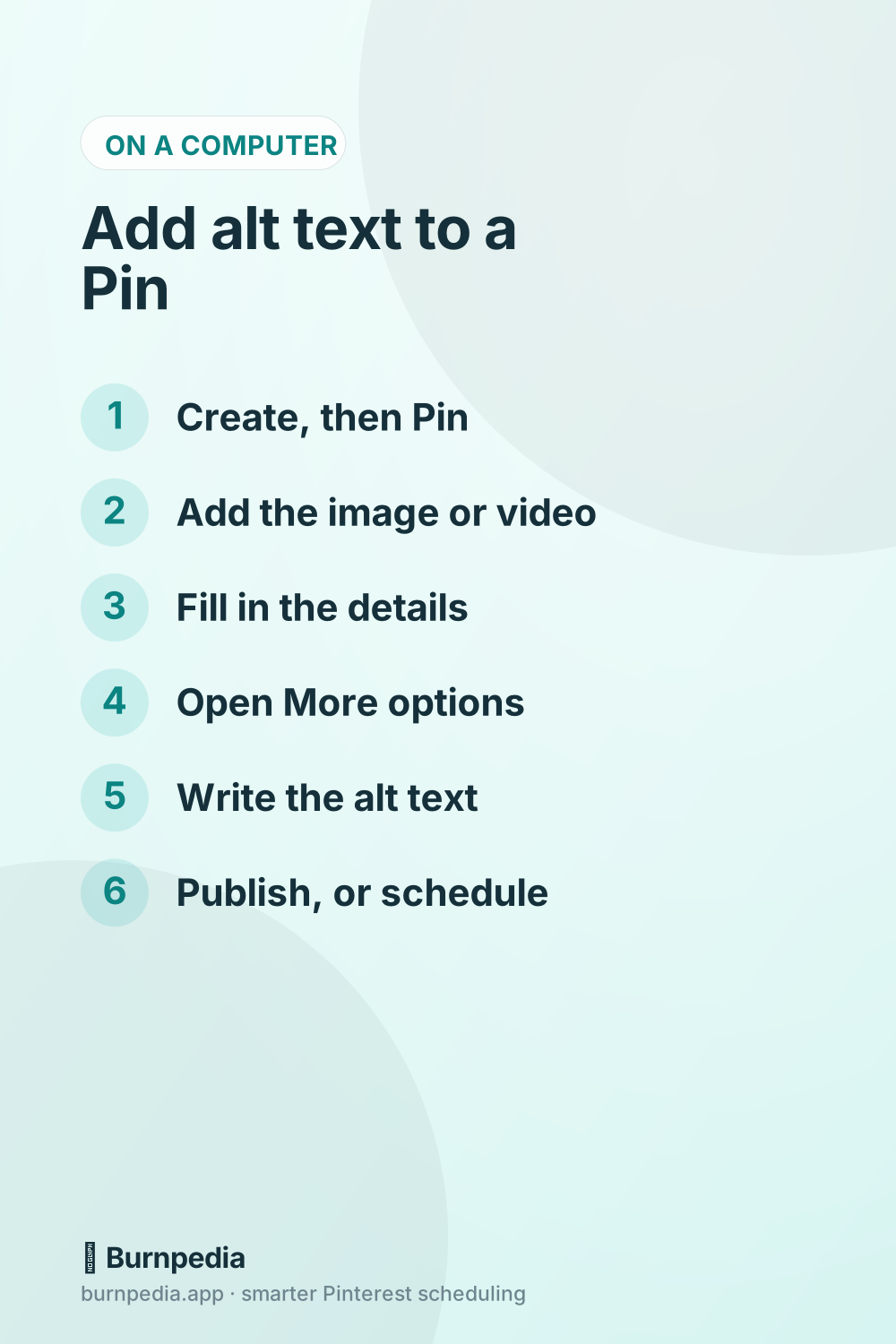
The field hides behind that More options drop-down, which is the main reason it gets skipped when you’re moving fast. One popular guide, Tailwind’s blog post on alt text, says to look below the title and description. Pinterest’s own steps put it one click further, inside More options.
Can you add alt text in the Pinterest app?
Maybe, and the sources don’t agree. Pinterest’s help gives app steps: tap the plus icon, tap Pin, pick your image, tap Next, fill in the details, then tap Advanced Settings and find Alt text. But Accessible Social, a site that tracks how each platform handles alt text, says the field is “only available on desktop.” A member answering a question in Pinterest’s Business Community in January 2026 said much the same, with an “if I’m not mistaken.”
For editing, Pinterest is clearer. Its help tells business accounts to use the web to edit alt text, and gives personal accounts separate steps in the app.
Apps change faster than help pages, so plan around it. If you make Pins on your phone, look for Advanced Settings before you post. If it isn’t there, publish anyway and add the alt text from a computer later. And if you run a business account, do your weekly batch on the desktop site. That’s where Pinterest sends business accounts to edit alt text, so it’s the one place you can count on the field.
One more myth worth clearing up. A 2025 how-to says alt text is only for business accounts. Pinterest’s alt text help doesn’t say that, and it gives personal accounts their own steps for editing it.
Scheduling a Pin? Write the alt text before you press Schedule
Pinterest’s own scheduler lives in the same Create form. Per its Schedule Pins help, a business account picks “Publish at a later date,” chooses a day and time up to 30 days out, and can keep up to 10 Pins waiting at once.
Here’s the catch. That help says that once a Pin is scheduled, “you can update the publish date, title, board, description and link.” Alt text isn’t on the list, and neither is the image. Pinterest doesn’t say you can’t change it. It just doesn’t say you can, so plan as if it’s fixed the moment you press Schedule.
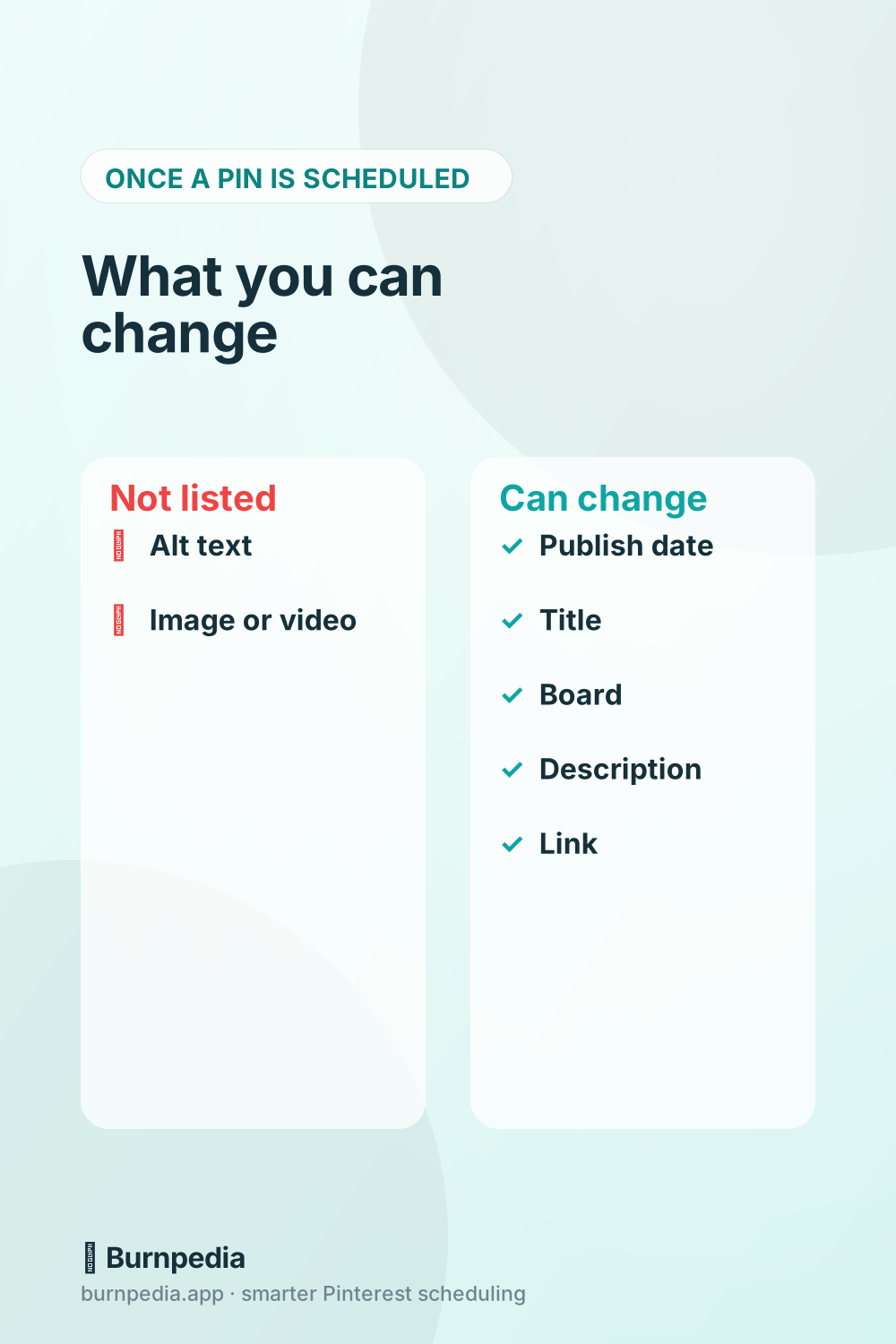
In a weekly routine that’s easy to handle. Write the alt text when you write the title and description, in the same sitting, with the image open. Pasting it in becomes one more field before Schedule instead of a job you have to come back for.
How to add or fix alt text after a Pin is live
Once a Pin is published, you can add or change its alt text. That’s straight from Pinterest’s help, and it’s worth saying because at least one guide claims you can’t edit alt text after you publish. On a computer:
- Open the Pin from one of your boards. Click Saved first if you don’t see your boards.
- Click the ellipsis icon above the Pin, then Edit Pin.
- Open More options if you don’t see the Alt text field.
- Write or fix the text, up to 500 characters, and click Save.
This works on your own Pins. Pinterest’s API, for one, only updates a Pin “owned by” the account making the change, and Accessible Social notes you can’t add a description to someone else’s Pin before you save it. Our guide to editing a Pin after it’s posted covers everything else Edit Pin can and can’t change.
Fixing a few is quick by hand. Fixing a few hundred is a different job. Pinterest’s API description gives its Update Pin call an alt_text field, up to 500 characters, so a tool or a developer can work through them one call per Pin.
How to see a Pin’s alt text
Pinterest has no setting that shows it, on the web or in the app, and Accessible Social says the same. You can still find it in the Pin’s page code, which makes a good spot check after a batch publishes.
- Open one of your live Pins on a computer.
- Right-click the Pin’s image and choose Inspect. Safari needs its developer features switched on first, under Settings › Advanced.
- Read the image’s alt. If you wrote alt text, it’s your sentence, word for word. If you didn’t, it’s Pinterest’s guess.
You can also choose View Page Source and search for alt_text. A Pin with no alt text of its own shows alt_text: null, with the guess in a field named auto_alt_text and again in one named seo_alt_text.
It’s worth doing on one Pin from each new batch. If your sentence is there, the field made it through whatever published the Pin. If the guess is there, your tool didn’t send it, and every Pin from that batch is missing it too.
How to write alt text for a week of Pins in one sitting
Pinterest’s instruction is a single line: explain what people can see in the Pin. That’s a sentence, not a paragraph. You get 500 characters, and you’ll rarely need a fifth of them.
- Start with the subject. A screen reader already announces that it’s an image, so skip “Image of.”
- Include the words on the Pin. If the image says “15-Minute Tomato Soup,” the alt text should say it too. Someone who can’t see the image can’t read the overlay either.
- Describe, don’t sell. Calls to action and hashtags belong in the description, if anywhere.
- Give each Pin its own sentence. Five Pins for one post usually means five different images. Copying one sentence across a batch is how a description ends up matching the wrong picture.
- Use your keyword only if it describes the image. “Sage green linen pillow cover” is both a description and a search phrase. A string of keywords is neither.
Here’s what that looks like for the kinds of Pins a blogger or small shop schedules every week:
- Recipe Pin with a title on it: “A bowl of tomato soup topped with basil on a wooden table, under the words 15-Minute Tomato Soup.”
- Product Pin: “A sage green linen pillow cover on a cream sofa beside a folded gray throw.”
- Checklist Pin: “A checklist titled Weekly Pin Plan: pick the posts, make the images, write the words, schedule the week.”
- Before-and-after Pin: “A small bathroom shown twice, first with a beige vanity, then painted navy with brass handles.”
- Video Pin: “Hands folding a fitted sheet into a neat square on a white bed.”
Now the routine that keeps it to one sitting. Add an alt text column to wherever you plan your Pins, a spreadsheet or your scheduler’s queue, right next to the title and description. Fill all three while each image is open, so you’re describing what’s in front of you and not what you remember. When you load the Pins, the alt text goes in with everything else, and Schedule is the last click.
If an AI tool drafts your alt text, read each sentence against its image before it goes out. Tailwind’s post gives the same warning: AI can miss details or describe things that aren’t in the picture. A wrong description misleads the exact person it was written for.
Does alt text help your Pins show up in search?
Pinterest doesn’t say it does. Its alt text help describes the field only as an accessibility feature, read to people using screen readers, and says nothing about search.
The numbers you’ll see quoted are Tailwind’s. Its post says that in an analysis of over 1 million Pins, Pins with alt text earned 25% more impressions, 123% more outbound clicks and 56% more profile visits than Pins without. That’s a comparison between Pins, not a test where only the alt text changed. As PinAutopilot’s guide puts it, brands that write thoughtful alt text tend to write thoughtful titles and descriptions too. The gap could come from the whole Pin, not that one field. PinAutopilot’s own answer is that alt text “is not a confirmed Pinterest ranking factor.”
Google is a separate question. A Pin’s public page puts your alt text, or Pinterest’s guess, in the image’s alt. Google’s image guidelines say it “uses alt text along with computer vision algorithms and the contents of the page to understand the subject matter of the image.” That isn’t a promise of a ranking either. It does mean a blank field leaves a guess about colors in the one spot Google reads for that.
So write it for the person using a screen reader, since that’s the job Pinterest documents. If it helps search as well, that’s a bonus you won’t be able to measure on your own Pins.
Which ways of publishing carry alt text, and which don’t
If you publish Pins more than one way, each route handles alt text on its own terms. Here’s what each one’s own documentation says.
- Pinterest’s Create form, published now or scheduled. Yes, under More options, up to 500 characters. On a scheduled Pin, add it before you press Schedule.
- Pinterest’s auto-publish from an RSS feed. Its RSS help says each Pin’s title and description come from the feed item’s title and description tags, at up to 200 Pins a day. It names no source for alt text. Plan to add it by hand, after publishing, to the Pins that matter most.
- Pinterest’s API. alt_text is a field when a Pin is created and when it’s updated, up to 500 characters. Any scheduler built on the API can send it, so check whether yours does before you load a month of Pins.
- Pins someone saves from your website. A guest post on Tailwind’s blog explains that Pinterest’s save script takes the Pin description from your image’s alt text when nothing else is set. That’s why some bloggers stuff keywords into their site’s alt text. Keep it a plain description instead, because readers with screen readers hear it on your site too.
Where alt text goes in Burnpedia
The Burnpedia API takes an alt_text field on each Pin and sends it to Pinterest with the Pin. Anything over 500 characters is cut to 500.
The WordPress plugin sends each post image’s alt text from your Media Library along with the Pin, so whatever sits in that field becomes the Pin’s alt text. Check that it’s a description and not a leftover note. The plugin’s free Pinterest check-up lists posts whose picture has no alt text, and it can write one with AI if you want it to. That uses AI credit, and the writer keeps to one plain sentence of at most 125 characters.
The scheduler screen in the Burnpedia web app has no alt text box, so Pins made there go out without one. For those, add it on Pinterest after they publish, or send the Pins through the API or the WordPress plugin instead.
Questions people ask about Pinterest alt text
How do I turn on alt text?
There’s no switch to turn on. Alt text is a field on each Pin. On a computer, open More options while you create or edit the Pin and type it under Alt text. Screen readers pick it up from there.
How do I insert alt text?
On a new Pin, in the Create form under More options. On a live Pin, from Edit Pin, in the same spot. On a Pin you’ve already scheduled, Pinterest doesn’t list it as something you can update, so add it before you press Schedule or after the Pin publishes.
How do I add text on a pin on Pinterest?
Words on the image are part of the picture. You add them in your design tool before you upload, or with the text tools in Pinterest’s app editor, which its scheduling help mentions. That’s different from alt text, which nobody sees. If your image has words on it, repeat them in the alt text.
How do I add alt text to a picture?
On Pinterest, it’s the Alt text field under More options. On your own WordPress site, select the image in the Media Library or the block editor and fill in its Alternative Text field. If you send Pins with Burnpedia’s WordPress plugin, that Media Library text is what goes to Pinterest as the Pin’s alt text.
The short version for your next batch
Write one sentence per Pin while the image is open. Paste it under More options before you press Schedule. After the batch publishes, check one Pin’s page and fix any gaps from Edit Pin. For the rest of the weekly routine, how to schedule Pins the smart way walks through it from start to finish.
If you’d like your WordPress images’ alt text to travel with every Pin, you can try Burnpedia’s free plan with no credit card.
Burnpedia is an independent scheduling tool. It is not affiliated with, endorsed by or sponsored by Pinterest, Inc. “Pinterest” is a trademark of Pinterest, Inc., named here only to say what the software works with.
Want Pinterest to run itself?
Every tip on this blog gets easier when your Pins publish on schedule. Burnpedia batches, times, and posts them for you — start free, no credit card.
Try Burnpedia free