Add a “Pin It” Button to Your WordPress Images (and Actually See What Gets Saved)
Readers who save your image are doing your Pinterest marketing for you — for free, from their own account, to their own audience. Here is how to make that one tap easy, and how to see which pictures people actually save.
Most Pinterest advice is about what you should publish. This post is about the other half, which nobody talks about and which costs you nothing: the Pins your readers make for you. Somebody is already on your page, already liked the picture, and is one tap from saving it to their own board — where it goes out to their followers, from their account, with none of your time in it. The only question is whether that tap is easy.
By default it is not. On a phone there is no hover, so there is no button. On a desktop the reader has to know about the browser extension, or right-click, or copy the URL into Pinterest by hand. Almost nobody does. A save button closes that gap, and there are three things worth getting right when you add one.

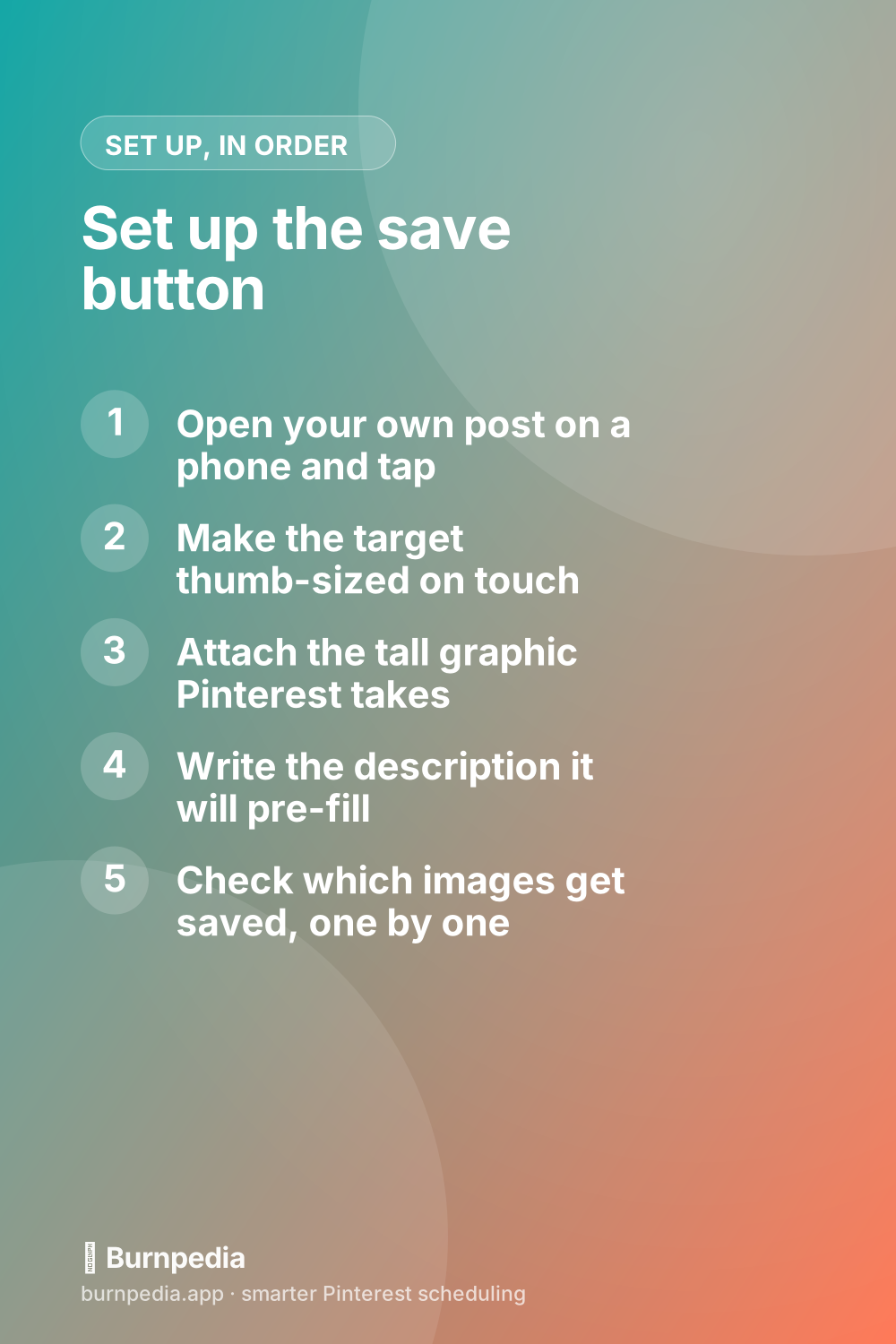
One: the button has to exist on a phone
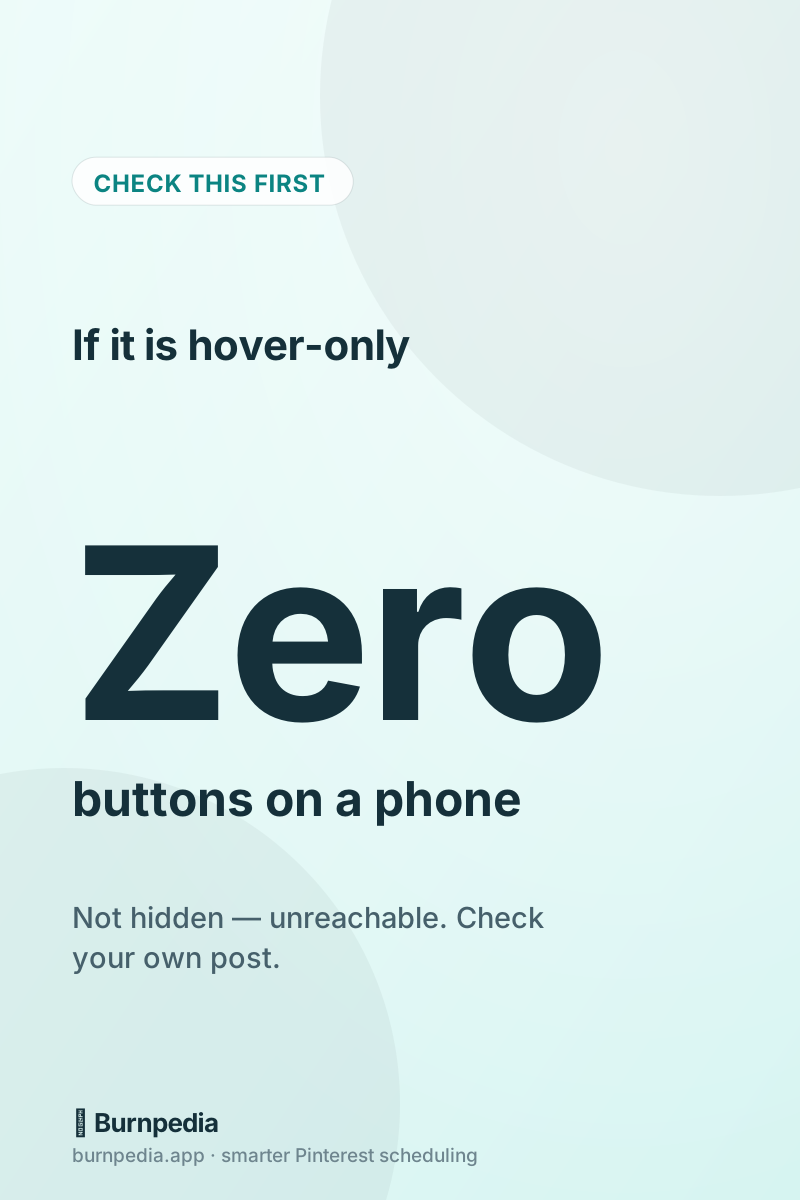
Hover is a desktop idea. A great many save buttons are implemented purely as a CSS hover state, which means that on the device most of your readers are holding, the button does not exist at all. It is not hidden — it is unreachable. If you are auditing a plugin before installing it, this is the first thing to check, and you can check it in ten seconds by opening your own post on your phone.
The fix is a tap target that appears on touch as well, sized so a thumb can hit it, and placed where it does not cover the part of the picture people are looking at. A corner overlay is the convention for good reason.
Two: decide what Pinterest is allowed to take
This is the part that makes the difference, and it is the part almost nobody sets up. When a reader presses save on your photograph, Pinterest takes that photograph — the wide, beautiful, headline-less one that looks right in an article and disappears in a feed. What you want it to take is the tall graphic with the words on it, the one built for exactly this. The image sizes and why the shape matters are in the image size guide.
Pinterest supports this directly through an attribute on the image, and a good plugin exposes it as a field rather than asking you to edit HTML: attach a hidden Pin image to the post, and whichever photo the reader presses, Pinterest receives the graphic you chose. The reader never sees it on the page. They press the pretty photo and a well-designed Pin lands on their board.
One consequence to hold in mind: once you have set a hidden image, the pressed photo’s alt text is describing a different picture, so it should not be offered as the Pin description any more. Write the description for the graphic. And if you do not have such a graphic yet, making one inside WordPress takes about a minute.
Three: write the description before anyone needs it
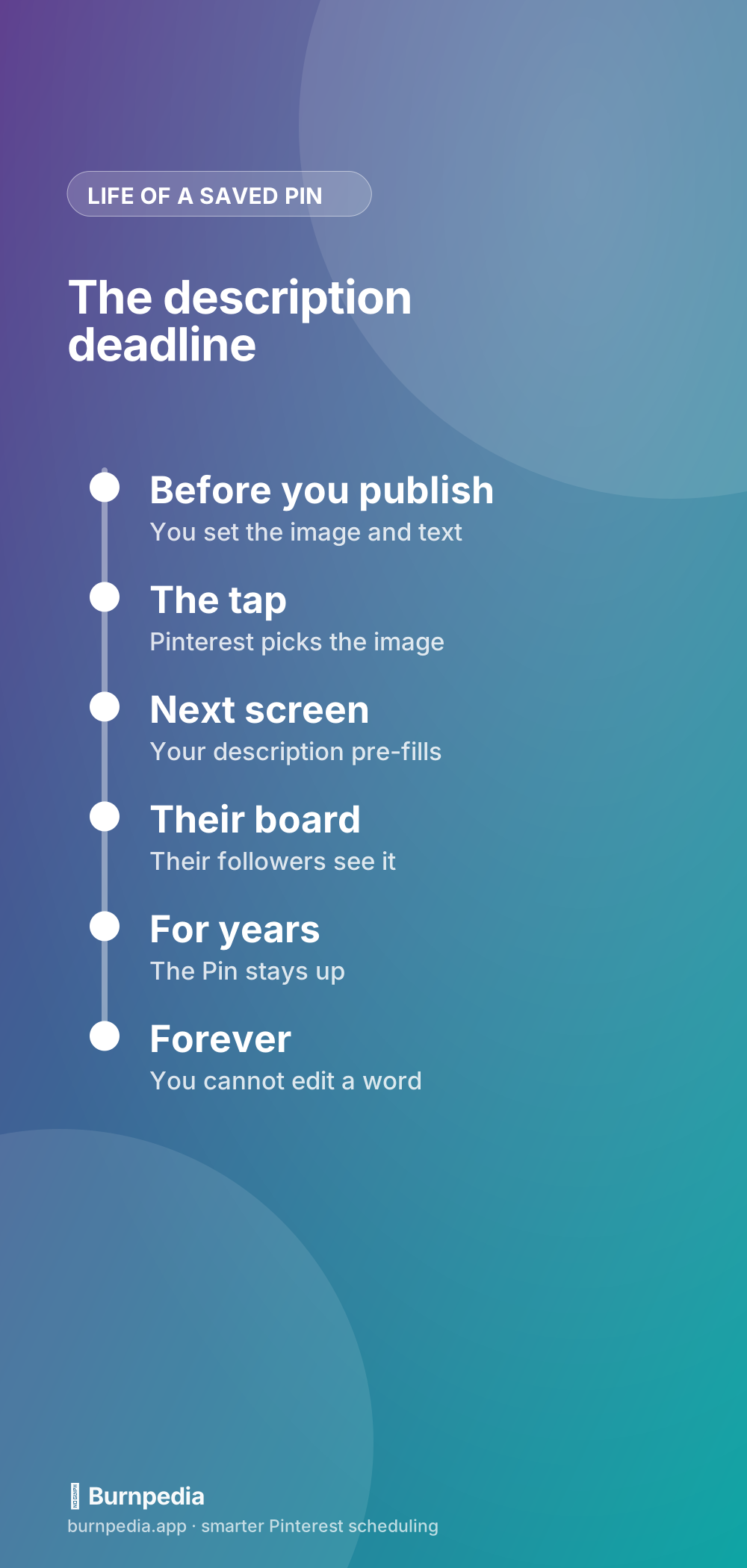
When someone saves your image, Pinterest pre-fills a description. If you have not set one, it fills it with whatever it can scrape, which is often the file name or a stray caption. That description is then attached to a Pin on somebody else’s board for years, and you cannot edit it.
So write it now, in plain language, saying what the reader gets — not a keyword list, which reads as spam to the humans and does nothing for the machine. And while you are in the area, claim the site and turn on Rich Pins so your name travels with every saved image: the Rich Pins setup guide is fifteen minutes and it applies to every Pin anybody ever makes from your site.
Four: find out which pictures people actually save
Here is the thing that surprised me most when I first had this data. The image you think is your best is frequently not the one people save. Readers save the chart, the before-and-after, the numbered list, the thing that is useful to them later — and quite often ignore the gorgeous hero shot you spent the afternoon on.
That is only actionable if it is measured per IMAGE, not per post. A post-level count tells you the article worked; an image-level count tells you what to make more of on Thursday. Our free Burnpedia Image Save Button Analytics plugin does both halves — the button, and a breakdown of which individual images were saved — and it will bring your settings over from jQuery Pin It Button for Images in one press if that is what you are currently running.
It needs no account for any of that. If you do connect one, it can also show what those Pins went on to do on Pinterest itself — the site-wide impressions, saves and outbound clicks are on the free plan, and the per-post breakdown is on the paid plans.
What this is not
A save button is not a Pinterest strategy. It harvests intent that already exists on your page; it does not create any. If nobody is reading the post, nobody is saving from it, and the button changes nothing. It belongs alongside actually publishing Pins, not instead of it.
What it is, is the highest-leverage fifteen minutes on this list, because it keeps paying without you. Every reader who saves is a Pin you did not make, on an account that is not yours, reaching people you do not have. Set it up once and leave it. If you want the publishing half running the same way, our free WordPress plugins turn each new post into a Pin draft you approve — the setup is in pin every new WordPress post, and the wider strategy is in getting Pinterest traffic to your blog.
Burnpedia is an independent product. It is not affiliated with, endorsed by or sponsored by the WordPress Foundation, by Automattic, or by Pinterest, Inc. “WordPress” is a registered trademark of the WordPress Foundation and “Pinterest” is a trademark of Pinterest, Inc.; both are named here only to say what the software works with. The plugins are distributed through WordPress.org under GPLv2 or later.
Written by Sadie Brooks
Hey — I’m Sadie. I grew up in a small town outside Columbus, Ohio, moved to Austin for a job I quit within a year, and somewhere in between I started a scrappy little food blog to keep myself sane.
These days I help creators, bloggers, and small U.S. business owners grow on Pinterest without turning it into a second full-time job. I write the Burnpedia blog because I genuinely love this stuff, and because I wish someone had explained it to me in plain English years ago. Pour a coffee, pull up a chair.
Try Burnpedia freeWant Pinterest to run itself?
Every tip on this blog gets easier when your Pins publish on schedule. Burnpedia batches, times, and posts them for you — start free, no credit card.
Try Burnpedia free