How to Make Pinterest Images Inside WordPress (No Canva, No Downloads)
The reason your posts do not get pinned is almost never the writing — it is that there is no tall, readable image to pin. Here is how to make one inside WordPress, in about a minute, without opening another tab.

Here is the thing nobody tells you when they say “just pin your blog posts.” Pinterest is a vertical, visual search engine, and your blog is a horizontal, text-shaped place. The featured image that looks lovely at the top of your article — wide, cinematic, 1200 by 630 — is exactly the wrong shape for Pinterest. So the honest reason most posts never get pinned is not laziness. It is that there is no image to pin, and making one means opening another tab, finding the right template, re-uploading the photo you already have, exporting, downloading, and uploading again. Five minutes per post, times every post, forever.
That friction is the whole problem, and it is a solvable one. This post is about doing the whole job inside WordPress — in the editor you are already in, using the photos already attached to the post.
Why a blog header is the wrong picture for Pinterest
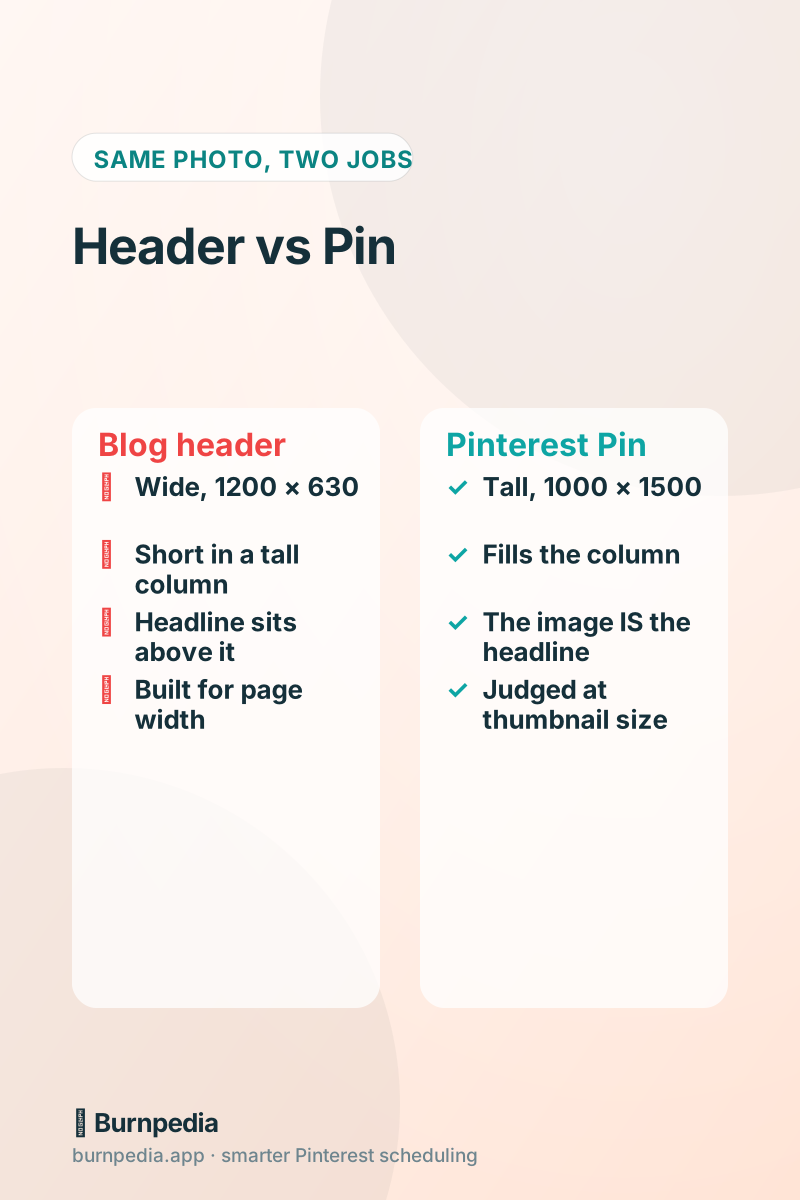
Pinterest shows tall images bigger. That is not a style preference, it is how the feed is built: a 2:3 image occupies more of a scrolling column than a 16:9 one, so it gets more of the eye and more of the tap. A wide header dropped into Pinterest either gets letterboxed into a small strip or cropped through the middle of whatever mattered. I go through the numbers properly in the Pinterest image size guide, but the short version is: 1000 by 1500, and do not fight it.
The second difference is text. On a blog the headline sits above the picture in HTML. On Pinterest there is no headline above the picture — the picture IS the headline, at about the size of a postage stamp, next to forty other postage stamps. If the words are not legible at that size, the Pin is decoration. That is why “take the photo from the post and upload it” so rarely works: it is a good photo and a bad Pin.
The design-in-another-tab tax
Let us be fair to the other-tab route, because it works and a great many people use it happily. You get enormous creative range, a library of templates, and fonts you will not get anywhere else. If you are making a handful of images a month and you enjoy the designing, it is genuinely fine.
The trouble starts at volume and at tiredness. The tax is not the designing — it is the round trip. Your photo is already in the Media Library; now it is also in a downloads folder, and in the other site’s uploads, under a name like `Untitled design (7).png`. Multiply by four Pins per post because Pinterest rewards fresh images, and the admin becomes the job. Most people quietly stop at post three.
Doing it in wp-admin instead
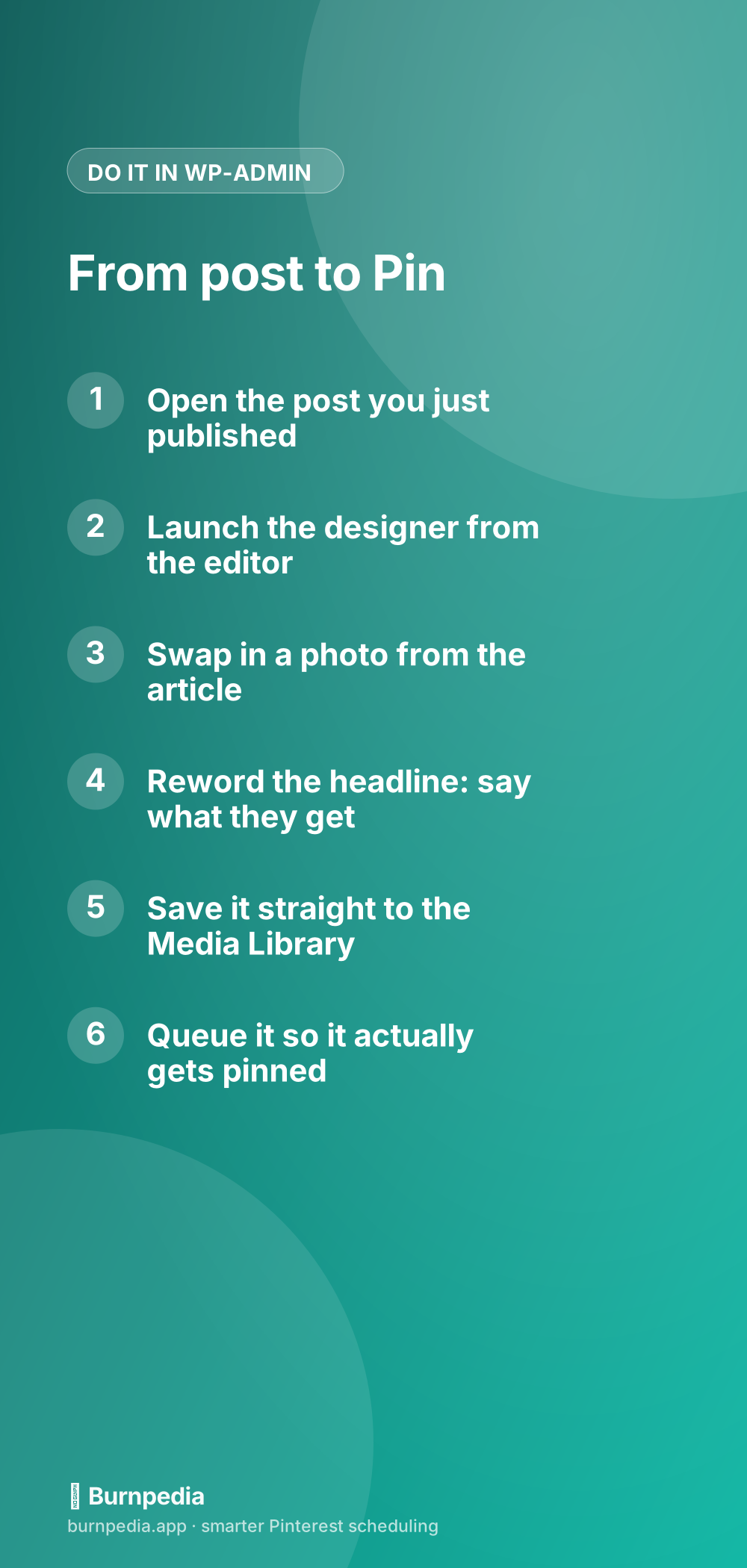
We make a free plugin for exactly this: Burnpedia Image Maker on WordPress.org. It puts a designer inside your own admin, pre-loaded with the post you are looking at — its headline, and the photographs already attached to it. You pick a template, the headline is already set in it, you swap the photo if you want a different one, and you save the result straight into the Media Library where the rest of your images live. There is no download step because nothing ever leaves your site.
Two details worth knowing before you install it. It needs no account to design, download or save — that part is free and always has been. And the designing happens in your own browser, on your own machine, so the plugin is not shipping your photographs anywhere to render them.
Making several Pins from one post, which is the actual win
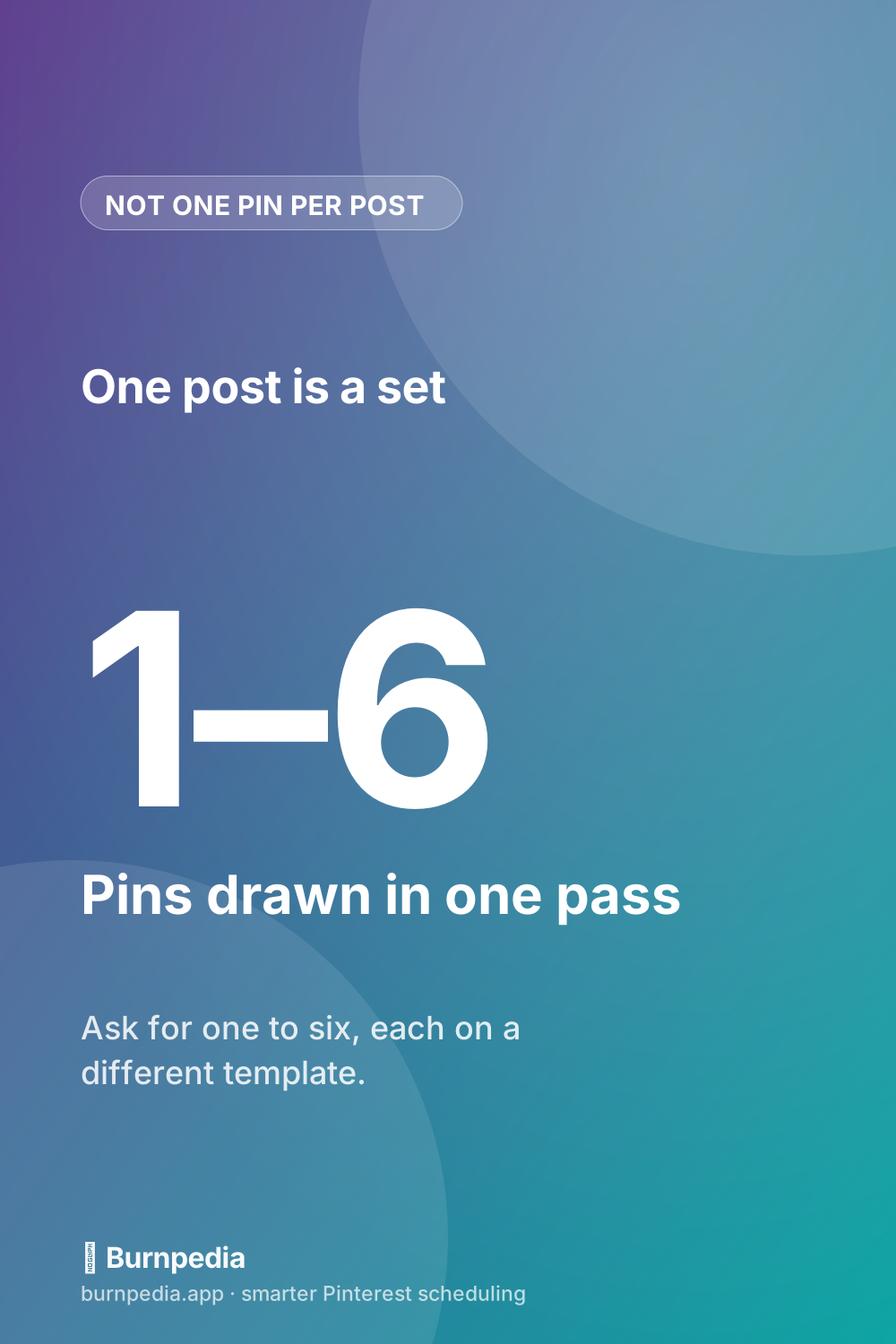
One post should not be one Pin. Pinterest treats a new image pointing at a known URL as fresh, so the same article can earn several bites at discovery: the finished-result shot, the ingredients or materials overhead, a step in progress, and a headline that leans on a different angle — “in 30 minutes”, “for small kitchens”, “without a mixer”. I unpack why this works in fresh Pins, explained.
The plugin will draw a whole set for one post in a single pass, each on a different template and using a different one of the post’s own photographs. That is the step that is miserable by hand and unremarkable when it is one button, and it is the reason to do this inside WordPress rather than beautifully somewhere else.
What to check before you publish a Pin
- Shrink it to thumbnail size on your screen. If you cannot read the headline, nobody on a phone can either.
- Keep the text away from the very bottom — Pinterest’s own interface overlays that strip.
- Say what the reader gets, not what the post is called. “Pot roast recipe” is a title; “Slow cooker pot roast, 10 minutes of prep” is a reason to tap.
- Use a photo from the article itself, so the Pin and the page look like the same place. A mismatch is the fastest way to lose someone in the two seconds after the tap.
- Do not put a price or a date in the image. The image outlives both, and you cannot edit a published Pin.
And then the part everybody forgets
Having a good Pin image is half the job. The other half is that it actually gets pinned, on a sensible schedule, to a board that makes sense — and that is the half that quietly stops happening about three weeks in. If you want it down to one tick, our free WordPress plugins cover both ends: one designs the image inside wp-admin, and one builds a Pin draft from each post you publish, waiting for your OK. The full setup is in pin every new WordPress post.
If you would rather see the designer before installing anything, it also runs on the web with nothing to sign up for — the same templates, the same export. Either way, the thing to avoid is the middle state, where you make beautiful images for a month and then stop. Pick the route you will still be using in October. If you want the reasoning behind that, the blogger’s playbook is the longer version.
Burnpedia is an independent product. It is not affiliated with, endorsed by or sponsored by the WordPress Foundation, by Automattic, or by Pinterest, Inc. “WordPress” is a registered trademark of the WordPress Foundation and “Pinterest” is a trademark of Pinterest, Inc.; both are named here only to say what the software works with. The plugins are distributed through WordPress.org under GPLv2 or later.
Written by Sadie Brooks
Hey — I’m Sadie. I grew up in a small town outside Columbus, Ohio, moved to Austin for a job I quit within a year, and somewhere in between I started a scrappy little food blog to keep myself sane.
These days I help creators, bloggers, and small U.S. business owners grow on Pinterest without turning it into a second full-time job. I write the Burnpedia blog because I genuinely love this stuff, and because I wish someone had explained it to me in plain English years ago. Pour a coffee, pull up a chair.
Try Burnpedia freeWant Pinterest to run itself?
Every tip on this blog gets easier when your Pins publish on schedule. Burnpedia batches, times, and posts them for you — start free, no credit card.
Try Burnpedia free