Connect Your Shopify Store to Pinterest (Every New Product, Pinned)
Your Shopify catalog is a goldmine of Pinterest content — if every new product reaches it. Here’s how to connect Shopify and Pinterest so every new product becomes a fresh, traffic-driving Pin draft you OK in one tick.

Here’s a thing I wish every Shopify owner understood: Pinterest isn’t social media, it’s a visual search engine that people use specifically to plan purchases. When someone searches “boho living room” or “minimalist desk setup,” they’re not killing time — they’re shopping with intent. Which means your product catalog isn’t just a store; it’s a library of answers to searches people are actively making. The trick is getting those products onto Pinterest consistently, without it eating your life. That’s what connecting Shopify to Pinterest is all about.
I’ve written a broader Pinterest-for-Shopify strategy guide before, so this post is the focused, tactical companion: specifically how to wire the two together so your store feeds Pinterest steadily. We’ll go from the easy built-in options all the way to full API control, so you can pick the level that fits you.
Step zero: get a real Pinterest business account
Before any automation, make sure you’re on a Pinterest business account (it’s free, and you can convert a personal one). Business accounts unlock analytics, Rich Pins, and the official integrations you’ll need. Then verify your website domain, because that’s what lets Pinterest pull accurate product info and gives your Pins that trusted look. Skip this and everything downstream is shakier — it’s five minutes that pays off everywhere.
The baseline: the official Pinterest Shopify app
The simplest connection is the official Pinterest app in the Shopify App Store. Install it, connect your accounts, and it does two big things: it enables Rich Pins (which auto-sync your live price and availability onto your Pins) and it uploads your whole catalog to Pinterest as shoppable product Pins. That’s a solid, zero-effort baseline, and honestly every Shopify store should have it running.
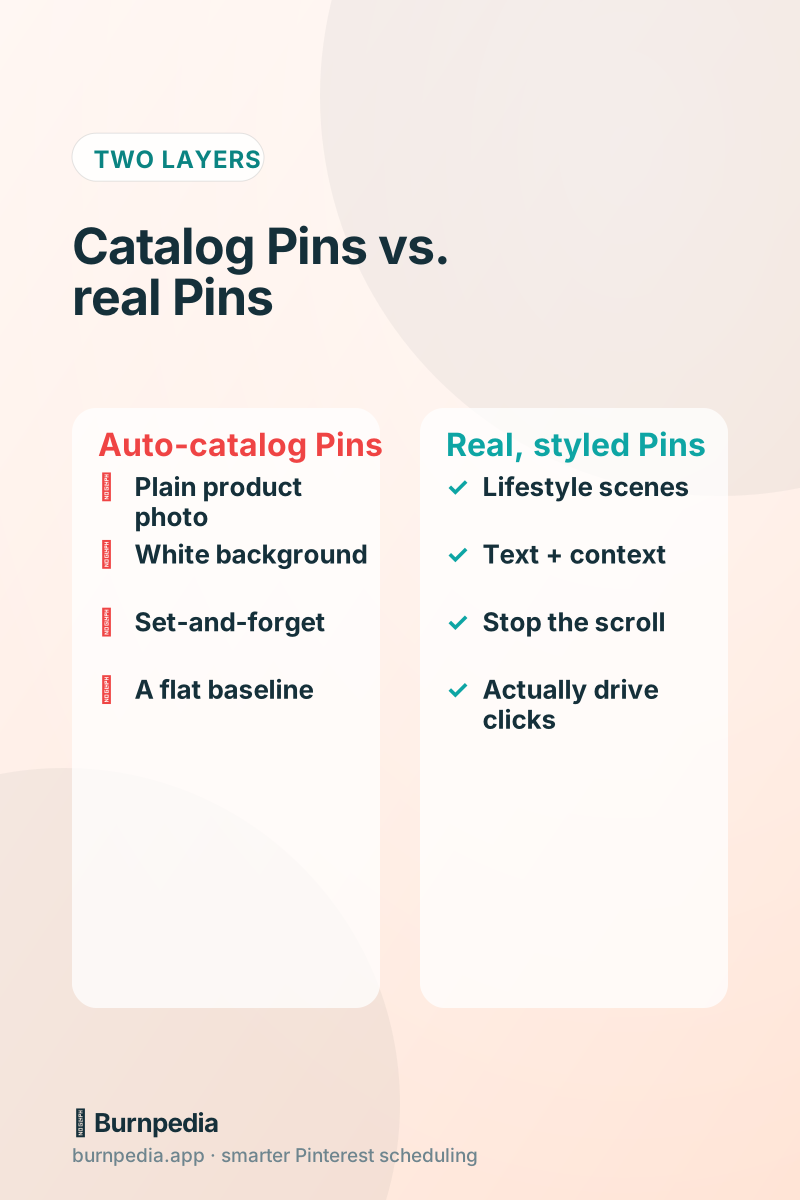
But — and you knew there’d be a but — those auto-generated catalog Pins are usually just your plain product photo on a white background. Useful for shopping surfaces, but they rarely stop the scroll in the main feed. They’re the floor, not the ceiling. If you stop here, you’ve technically “connected Shopify to Pinterest,” but you’re leaving most of the traffic on the table.
The layer that actually drives traffic: real Pins
The Pins that pull real clicks are the ones you make on purpose: lifestyle shots of your product in a real setting, styled scenes, before-and-afters, text overlays that spell out the benefit. A plain photo of a candle is fine; a cozy photo of that candle lit on a bathtub ledge with the words “the 20-minute reset your evenings need” is a scroll-stopper. Same product, wildly different result.
This is where automation and creativity meet. You want the boring part — publishing, timing, spacing — fully automated, so your energy goes into making a handful of genuinely good Pins per product. Make three to five different Pins for each product (different photo, different angle, different headline), because Pinterest rewards fresh images and each one is another lottery ticket for that product to get found.
The control upgrade: connect via the API
Here’s where it gets genuinely efficient. If you (or a developer friend) wire up the Burnpedia API, your store can draft a Pin every single time you add a product, ready for your OK. Shopify fires a webhook when a product is created; your little integration catches it and sends a request that schedules a fresh Pin with the product image, a keyword-rich title, and a link straight to the product page.
I wrote the complete, friendly walkthrough — with copy-paste code — in the Burnpedia Pinterest API guide. The short version: it’s about ten lines of code, and once it’s running you never think about pinning new products again. The moment a product exists in Shopify, it exists on Pinterest too.
The reason the API route beats a raw catalog sync is control. You decide the title, the board, the timing, whether it’s evergreen. You can even pass the board by name and let the tool sort out the rest. So instead of a flat wall of white-background catalog Pins, you get intentional, well-crafted Pin drafts you approve — the best of both worlds.
Organize boards and keywords so products get found
Automation puts Pins on Pinterest, but keywords are what make them findable. Pinterest is a search engine, remember, so your product Pins need the words people actually type. Think about how a shopper describes what you sell — not your clever brand name for it, but the plain-language search: “boho ceramic mug,” “minimalist desk organizer,” “cottagecore kitchen decor.” Put those phrases in your Pin titles, descriptions, and even your board names, and your automated Pins start showing up in the exact searches your buyers are making.
Board organization matters more than people think, too. Group your products into themed boards that match how shoppers browse — by room, by occasion, by style, by season — rather than one giant “Products” board. Themed boards give Pinterest clearer context about what each Pin is, which helps distribution, and they give shoppers a browsable, shoppable collection. When you automate via the API, you can pass the right board by name for each product, so this organization maintains itself as your catalog grows.
A small but powerful habit: keep a simple keyword sheet for your store. For each product category, jot the three or four search phrases you want to rank for. Then whether you’re making Pins by hand or feeding them through automation, you’re always working from an intentional keyword plan instead of guessing. It’s five minutes of prep that quietly compounds across every Pin your store ever publishes.
Don’t forget: link deep, not to your homepage
Whether you automate through the app or the API, make sure every product Pin links to that exact product page, not your store’s front door. When someone clicks a Pin of your ceramic mug, they should land on the ceramic mug — ready to add to cart. Every extra click you make them do is a chance to lose them. Deep links are one of those tiny details that quietly doubles conversions.
This is the same principle I hammer for Etsy sellers — link to the specific listing, always. Automation makes this effortless because the link is baked into the product data; you set the rule once and every Pin follows it.
Track what actually sells
Once your products are flowing to Pinterest, the last piece is closing the loop with analytics. Watch outbound clicks and saves per Pin, and pay attention to which products and which Pin styles drive the most traffic to your store. You’ll quickly notice patterns — maybe lifestyle shots crush plain photos, or a certain color palette outperforms. Then you make more of what works.
If you’re technical, you can even pull those analytics into your own dashboard via the API, so your Pinterest performance sits right alongside your Shopify sales numbers. That’s when the whole thing stops feeling like “social media” and starts feeling like a measurable, tunable sales channel — which is exactly what it is.
Your Shopify-to-Pinterest game plan
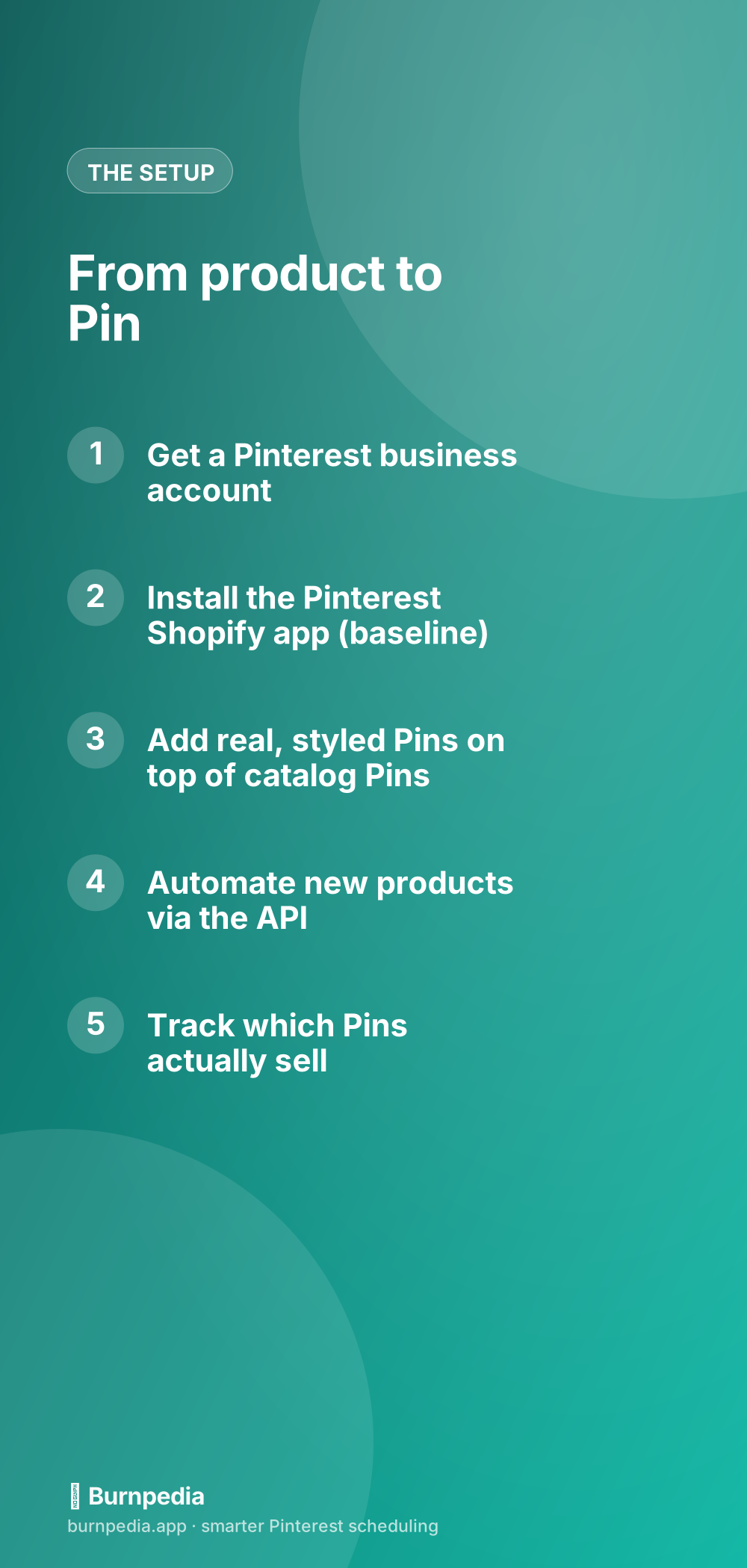
Let me boil it down. One: business account + verified domain. Two: install the official Shopify app for the Rich-Pin, live-price baseline. Three: layer real, styled Pins on top — several per product — and let a scheduler publish them at the best times. Four: when you’re ready, connect the API so each new product becomes a Pin draft you approve. Five: watch outbound clicks and double down on what sells.
Your catalog is already full of things people are searching for on Pinterest right now. Connecting the two isn’t a nice-to-have — it’s one of the highest-return moves a Shopify store can make, and once it’s automated, it costs you nothing to keep running. Set it up, make your Pins genuinely good, and let your products go find their buyers. — Sadie
Written by Sadie Brooks
Hey — I’m Sadie. I grew up in a small town outside Columbus, Ohio, moved to Austin for a job I quit within a year, and somewhere in between I started a scrappy little food blog to keep myself sane.
These days I help creators, bloggers, and small U.S. business owners grow on Pinterest without turning it into a second full-time job. I write the Burnpedia blog because I genuinely love this stuff, and because I wish someone had explained it to me in plain English years ago. Pour a coffee, pull up a chair.
Try Burnpedia freeWant Pinterest to run itself?
Every tip on this blog gets easier when your Pins publish on schedule. Burnpedia batches, times, and posts them for you — start free, no credit card.
Try Burnpedia free