How to Find Drafts on Pinterest (and Why They Disappear After 30 Days)
Your drafts aren’t on your profile. They’re inside Create Pin, under Pin drafts, and they expire after 30 days. Here’s where to look and how to batch without losing one.
Your Pinterest drafts aren’t on your profile. They’re inside the Pin builder. On a computer, click Create at the top-left, choose Create Pin, and look under Pin drafts. In the app, tap the plus icon at the bottom, tap Pin, then tap the folder icon at the bottom-right. Every Pin you saved but didn’t publish is waiting there.
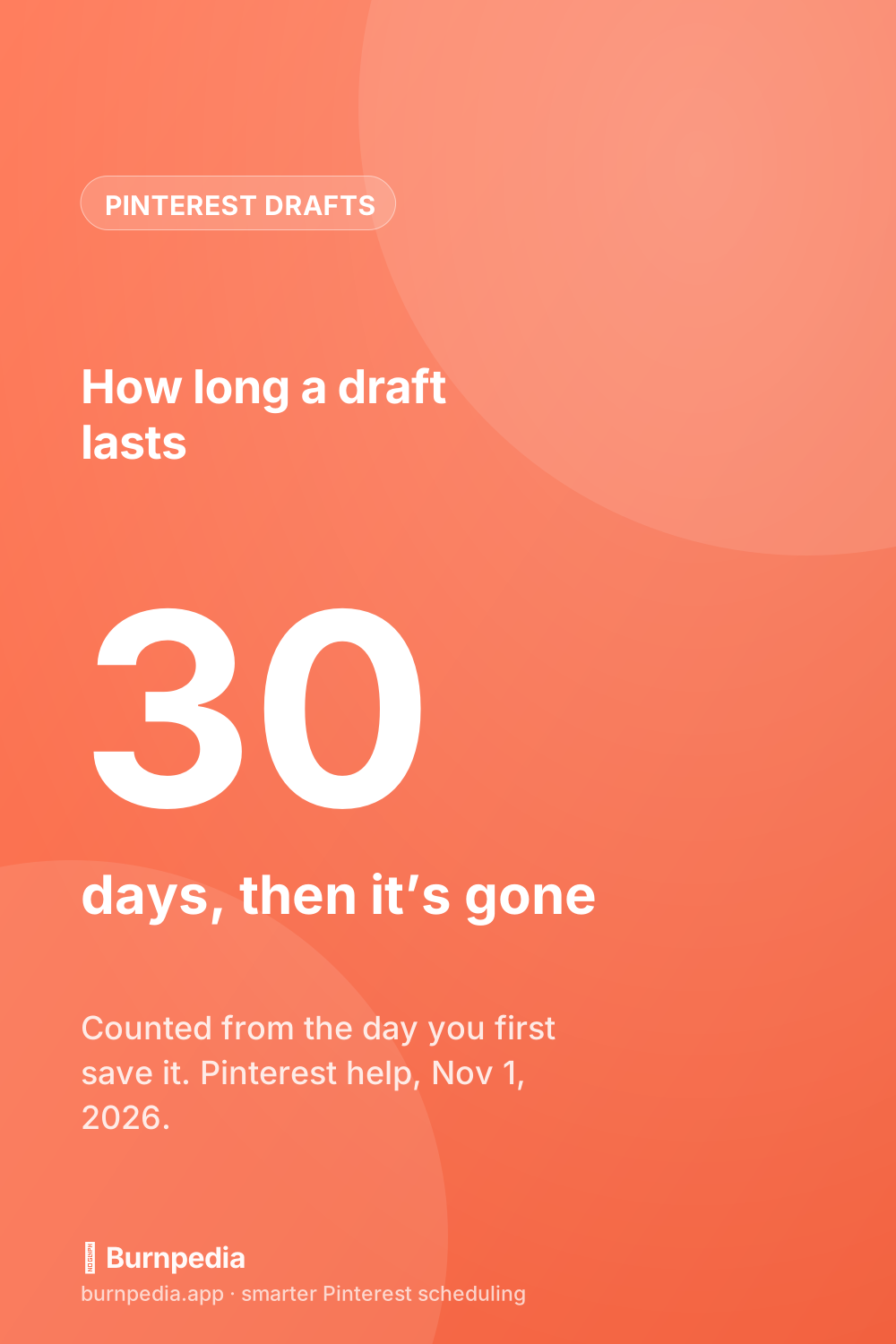
Before you go looking, know the two rules that explain most missing drafts. A draft expires 30 days after you first save it, and after that Pinterest says you can’t get it back. And a draft stays on the device you made it on, so one you started in the app on your phone won’t show up on your laptop.
Everything here about how drafts behave comes from Pinterest’s own Create a Pin help page, which I read on November 1, 2026. Below you’ll find the clicks on a computer and in the app, six reasons a draft goes missing, how drafts differ from scheduled Pins, and a weekly routine that uses drafts as a shelf for your batch without ever trusting them with your only copy.
Where Pinterest keeps your Pin drafts
There’s no Drafts tab on your profile. At least one guide on page one still tells you to look for one, which is a big part of why so many people end up searching for this. Pinterest’s help sends you to the place where you make Pins instead. Drafts live inside Create Pin, in a list called Pin drafts.
It makes sense once you think of a draft as a half-made Pin. Nothing was published, so nothing reached your profile. Your profile shows what’s live, plus the Pins you’ve scheduled, which sit above the published ones. That’s a different list with different rules, and I walked through it in how to see scheduled Pins on Pinterest.
Two other things on Pinterest are also called drafts, and they live somewhere else again. Collage drafts are in the collage composer. Ad campaign drafts are in Ads Manager. If the thing you’re missing was one of those, the Pin drafts list will never show it. There’s more on both in the checklist further down.
How to find drafts on a computer
- Log in to Pinterest. If you run a business account, make sure you’re signed in to that one.
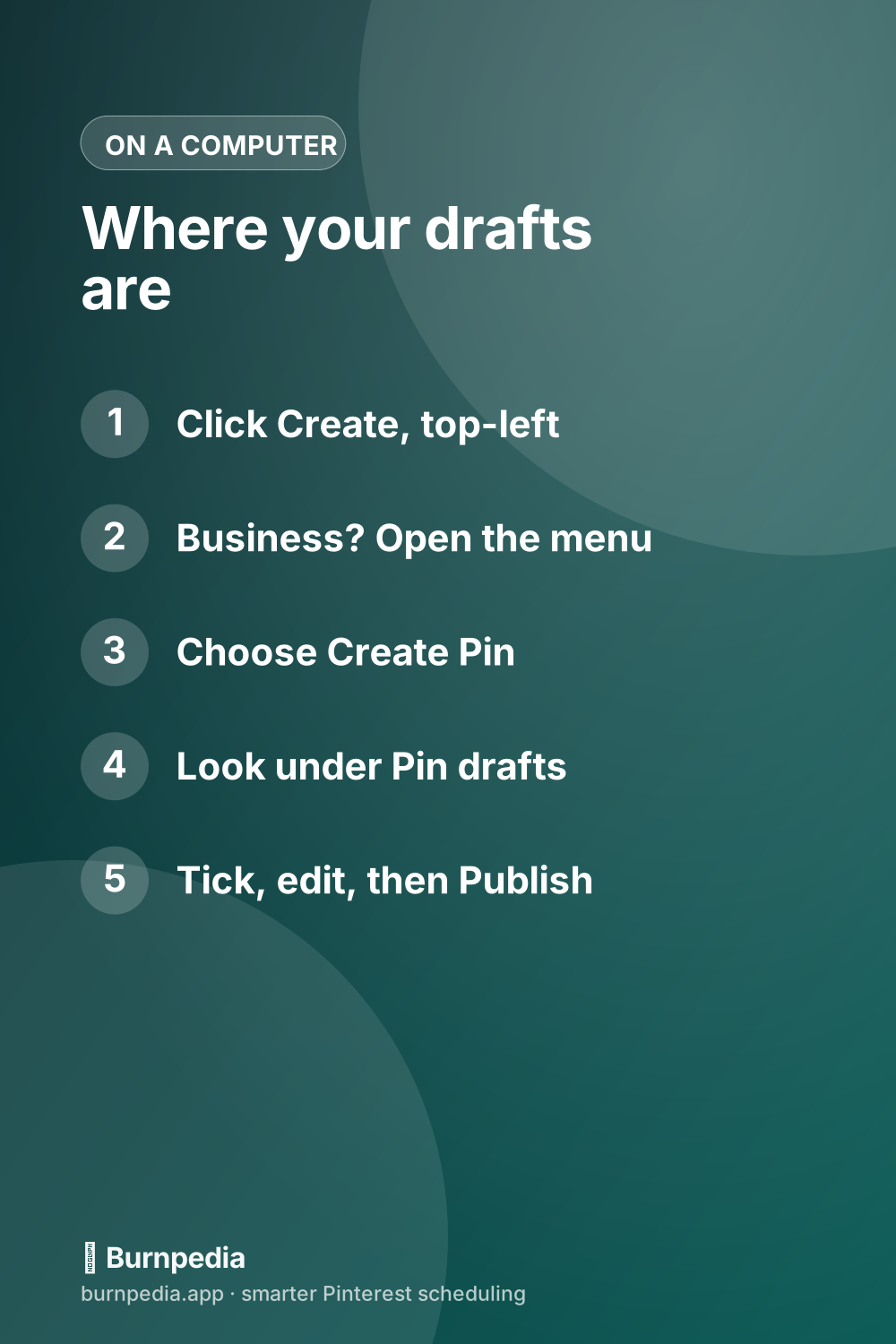
- Click Create at the top-left of your screen.
- On a business account, open the menu (the hamburger icon, three short lines) and choose Create Pin under Create.
- Look under Pin drafts. Your saved drafts are listed there.
- Tick the ones you want, or click Select all, then click the pencil icon to keep editing.
- When a draft is ready, click Publish.
Two more buttons are worth knowing. Move your cursor to the right side of a draft and the ellipsis (the three dots) lets you duplicate it. That’s handy when you want two versions of one Pin with different headlines. And the trashcan deletes whatever you’ve ticked.
The computer is also where batches happen. Pinterest’s help says you can keep up to 50 drafts on desktop and publish them all at once, and that publishing several drafts together is a desktop job. When you upload, you can pick up to 10 images in one go, and each one becomes its own Pin.
How to find drafts in the Pinterest app
- Open the Pinterest app and log in.
- Tap the plus icon at the bottom of the screen.
- Tap Pin.
- Tap the folder icon at the bottom-right. Your drafts are in there.
- Tap a draft to keep editing it, or tap the trashcan to delete one you don’t want.
- Tap Create when it’s ready to publish.
Opened a draft and you’re still not done? Tap the folder icon again and it stays a draft. There’s also a download icon that saves the image or video to your phone. Honestly, I’d use it every time. It’s the easiest backup you’ll ever make, and the next section shows why you might need one.
One app rule is easy to miss. Pinterest says you need at least 100 MB of free space on your phone to create a new draft. If your phone is nearly full, check that before you assume Pinterest lost something.
Why are my Pinterest drafts not showing up?
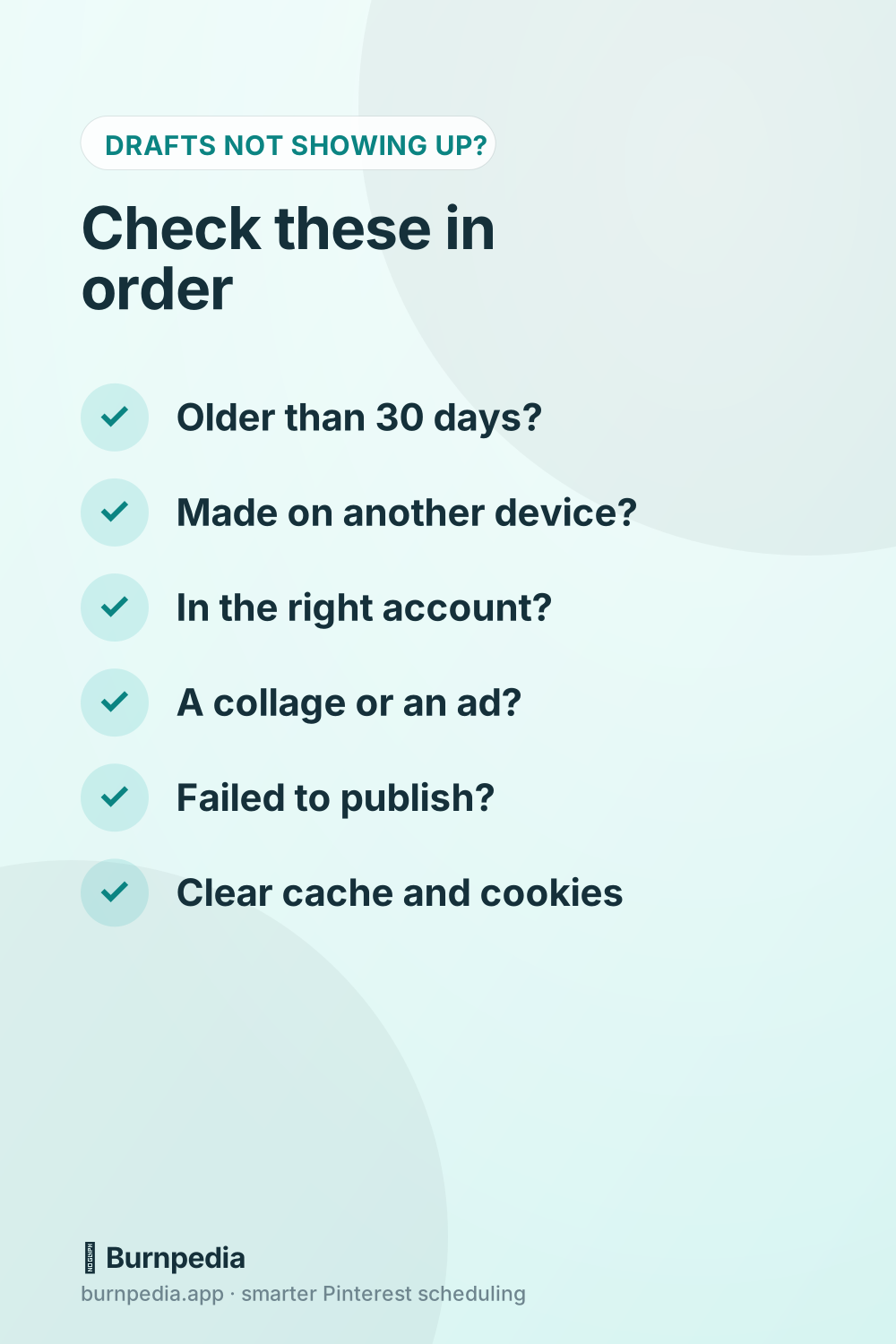
Run through these in order. The first two explain most missing drafts, and they’re rules, not bugs.
- It’s older than 30 days. Pinterest says drafts expire 30 days after you first store them, and after that you can’t retrieve them. The clock starts on the day you first saved it, not the last day you opened it. If you’ve seen a small note about expiring in 30 days while uploading, that’s the same rule. When a creator asked about that note in the Business Community in May 2025, a Pinterest moderator replied that it looked like the Pins were being saved as drafts.
- You made it on another device. Pinterest says drafts can’t be edited across devices. A draft started in the app on your phone has to be finished there, so it won’t be in the desktop list.
- You’re in the wrong account. If you switch between a personal and a business profile, check the one you were signed in to when you saved it.
- It’s a collage or an ad, not a Pin. Pinterest’s collage help puts collage drafts in the collage composer, under “Access your existing drafts.” Campaign drafts are in Ads Manager, behind the Draft Actions button.
- It tried to publish and failed. In a September 2026 Business Community thread, a creator described a Pin that stopped at an error and then sat under Pin drafts marked “Failed to publish,” with “Try again” not fixing it. If you see that label, the Pin never went live.
- Pinterest is having a bad day. Creators have reported glitches in this list more than once. In December 2025, one wrote that their drafts had vanished and the option to save a draft was gone. In late August and early September 2026, others said a draft could be clicked once but not again until they refreshed the page, and one said a whole batch of edits was gone after that refresh.
For that last one, Pinterest’s moderators gave the same advice in those threads: clear your browser’s cache and cookies, update the browser, try another browser or computer, turn off extensions and ad blockers, and if none of that helps, file a ticket with Pinterest support.
The lesson I’d take from the September reports is smaller and more practical. Before you refresh a page full of unsaved batch edits, publish or save what you can. A refresh is exactly the moment those creators lost their work.
Pinterest’s draft rules: 30 days, one device, 50 on desktop
Here are the rules in one place, as Pinterest’s help states them, with what each one means if you plan your Pins a week at a time:
| Rule | What Pinterest says | What it means for your week |
|---|---|---|
| How long a draft lasts | 30 days after you first store it, then it can’t be retrieved | A draft is a short-term shelf. Use it within the month or lose it. |
| Where you can open it | Only on the device you started it on | Make batch drafts on the computer you publish from. |
| How many | Up to 50 drafts on desktop | More than a month of one-a-day Pins, so the extras expire first. |
| Publishing several | On desktop, and you can publish them all at once | The phone is for a one-off draft, not a batch. |
| Phone storage | At least 100 MB free to create a draft | A full phone can stop a new draft. |
The 50 is the number that tempts people. Fifty drafts sounds like a whole content calendar. But a draft never goes out on its own. It waits until you open it and publish it.
I worked out what that means at a steady pace. Save 50 drafts on one Monday and publish one a day by hand, and you’ll get through 30 of them before the 30-day limit hits. The last 20 expire before their turn comes. At two a day you’d clear all 50 in 25 days, with five days to spare. So 50 drafts is a holding shelf for a few weeks, not a schedule.
Drafts vs. scheduled Pins: which one should hold your week?
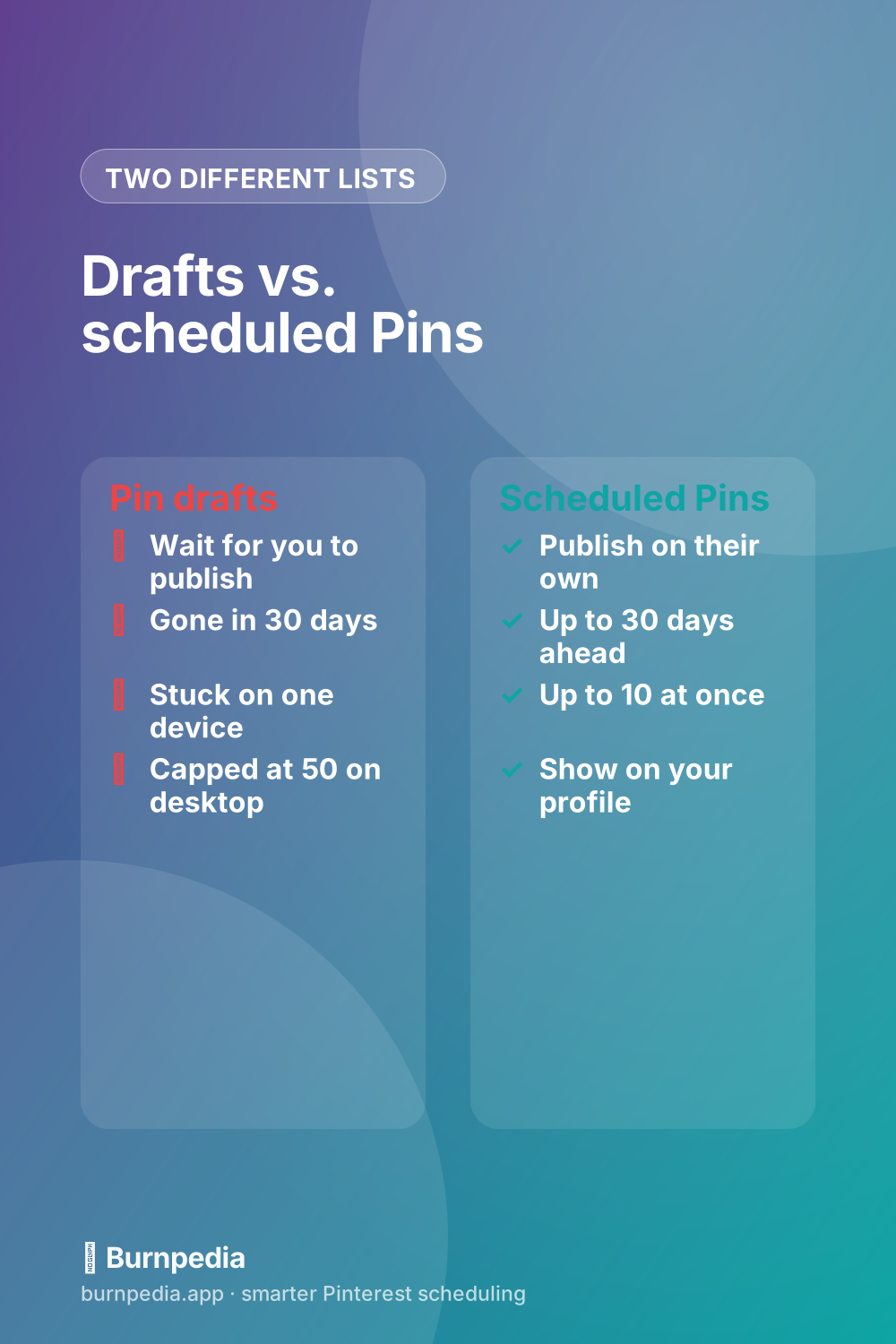
Drafts and scheduled Pins look alike in the builder, but they do opposite jobs. A draft waits for you. A scheduled Pin goes out without you.
Scheduled Pins come with their own limits. Pinterest’s Schedule Pins help says you can have up to 10 scheduled at a time, each up to 30 days ahead, and you schedule them one at a time. Once a Pin is scheduled, its image or video can’t be changed. Drafts are the opposite on that last point, because everything in a draft is still open, the picture included.
| Pin drafts | Scheduled Pins | |
|---|---|---|
| How many | Up to 50 on desktop | Up to 10 at once |
| How long they wait | 30 days, then they expire | Up to 30 days ahead, then they publish |
| Publish by themselves | No | Yes, at the time you picked |
| Change the image | Yes, it’s still a draft | No: delete it and make it again |
| Where to find them | Create Pin, under Pin drafts | Your profile, above published Pins |
So the two work best as a pair. Drafts hold the batch while you finish it. The schedule holds the next 10 that are ready. A Pin moves from one list to the other when its image is final, because scheduling is the moment it stops being editable.
One thing I couldn’t confirm from Pinterest’s pages is whether you can schedule a draft straight from the drafts list. Its draft steps end with Publish. If your draft does offer “Publish at a later date” (Pinterest shows that option to business accounts when you create a Pin), it still counts toward the same limit of 10 scheduled Pins.
A weekly batch that never loses a draft
Here’s the routine I’d use with Pinterest’s own tools. It’s one sitting on Monday at the computer you always publish from, plus a short top-up later in the week if you post more than once a day.
- Keep the originals outside Pinterest. Save every finished image to a folder on your computer before you upload anything. A draft can expire, glitch or sit on the wrong device. The folder can’t.
- Upload the week in one go. Pick up to 10 images at a time. Each becomes its own Pin, and whatever you don’t finish waits under Pin drafts.
- Finish the image first. Proof the words on each graphic while it’s still a draft, because the image locks the moment you schedule it.
- Move the finished ones into the schedule, up to Pinterest’s 10. Give each its own day and time so they go out one at a time.
- Write the expiry date down. Next to each draft you leave for later, note the day it reaches 30 days. A two-column note on your phone is enough.
- Clear the shelf before it clears itself. If a draft won’t be used before its 30 days are up, publish it, schedule it, or delete it on purpose.
At one Pin a day, that’s a single Monday sitting, and the 10-Pin schedule covers the week with three to spare. At two a day you’re back by Friday, because 10 Pins last five days. Steps 3 and 5 are the ones people skip, and they’re the two that stop a draft from dying quietly.
The bigger system around this (batching, spreading Pins across boards, keeping your evergreen Pins in rotation) is in how to schedule Pins the smart way. Think of this routine as the draft-safe way to feed that system into Pinterest’s own builder.
When Pinterest’s drafts stop being enough
Pinterest itself lists more ways to get Pins out. Its January 2026 article on scheduling tools names five: the Pin scheduler (10 Pins, each up to 30 days ahead), bulk upload of up to 200 image or video Pins with a CSV file, RSS auto-publish from your blog, Instagram auto-publish, and approved partner platforms such as Tailwind, Buffer, Canva and Picsart.
A third-party scheduler mostly solves the problem drafts create, which is work that waits on you and can quietly expire. Burnpedia (that’s us) is one of them, so here’s how its queue compares on the points above, going only by what our own FAQ and pricing say:
| Pinterest drafts | Burnpedia’s queue | |
|---|---|---|
| Publishes by itself | No: you open and publish each one | Yes, at the time you picked |
| How long it can wait | 30 days, then it expires | Schedule as far ahead as you like |
| Change the image later | Yes, until you schedule it | Yes, until the last few minutes before it publishes |
| Many at once | Up to 10 images per upload | Bulk upload, each Pin with its own title, description and board |
| A copy of your plan | The app’s download icon, one draft at a time | Export the whole plan to CSV |
| Cost | Free | Free plan: 3 Pins a day, no credit card |
My honest advice? If you make a handful of Pins a week and publish them as you go, Pinterest’s drafts are fine. Just mind the 30 days. If you batch a month at a time, the expiry and the 10-Pin schedule start working against you, and that’s when a queue that publishes for you earns its place. Burnpedia’s queue and calendar hold the whole batch, and the free plan publishes 3 Pins a day without asking for a card.
Quick answers
These three came up in Google’s “People also ask” box when I searched on November 1.
How do I find my drafts on Pinterest?
On a computer, click Create, then Create Pin, and look under Pin drafts. In the app, tap the plus icon, then Pin, then the folder icon at the bottom-right.
Where do I find my saved drafts?
In that same Pin drafts list, on the device you made them on. A draft you started in the app stays in the app, and Pinterest keeps each one for 30 days from the day you first saved it.
Why are my drafts not showing up?
Most often it’s more than 30 days old, or it was made on another device. After that, check which account you’re in, whether it was really a collage or an ad draft, and whether it’s sitting in the list marked “Failed to publish.”
If you only do one thing after reading this, open your Pin drafts today and find the oldest one. If it’s close to 30 days, publish it, schedule it, or save its image to your computer before the weekend.
Burnpedia is an independent scheduling tool. It is not affiliated with, endorsed by or sponsored by Pinterest, Inc. “Pinterest” is a trademark of Pinterest, Inc., named here only to say what the software works with.
Want Pinterest to run itself?
Every tip on this blog gets easier when your Pins publish on schedule. Burnpedia batches, times, and posts them for you — start free, no credit card.
Try Burnpedia free